

onCourse documentation copyright ish group. Licensed under CC BY 4.0. You are free to, share and adapt this documentation for any purpose, as long as you give appropriate credit.
I: Basic concepts
onCourse is the ERP system for providers of education and events. Integrate with everything and automate your manual processes. Create beautiful websites. Accounting. Document management. Learning management. Tutor wrangling. Student untangling. Government compliance reporting. ecommerce and so much more.
To search for anything in this manual, please use your browser search function. CMD+F on Apple based machines or CTRL+F on Windows machines.
1. onCourse set up
If you install onCourse yourself, rather than using the managed service from ish, you’ll need to configure the environment into which you install onCourse. You will need:
-
A unix, linux, OSX or Windows operating system
-
A database. No database specific features are used, but onCourse is regularly tested with MariaDB, MySQL, and Amazon Aurora RDS. Others like postgresql or SQL Server might also work, but aren’t regularly tested.
-
An outbound mail server (smtp)
-
Java 11 or higher
1.1. Installing dependencies
On MacOS, use homebrew to install many of the requirements.
-
Install MariaDB 10.4.
brew install mariadb@10.4 -
Install Java. ` brew tap homebrew/cask-versions; brew install temurin11`
Now set up your database.
-
brew services start mariadbto start the server -
mysql_secure_installationand configure the root account. -
mysql -uroot -pto log in to the SQL console and execute some commands to create a user. Use a proper secure password instead of 'password123'.CREATE USER 'onCourse' IDENTIFIED BY 'password123'; GRANT ALL PRIVILEGES ON * . * TO 'onCourse'; FLUSH PRIVILEGES;
CREATE DATABASE onCourse;
exit;
2. Installing onCourse on your server
Download onCourse Server. There is one application bundle which will work on OSX, Windows, Linux and Unix platforms. Unzip it to any suitable folder.
onCourse is happy in a virtualised environment such as VMWare, Xen, or AWS EC2. Ensure that you have sufficient RAM and CPU allocated. onCourse Server only writes to disk for log files, so memory and CPU are more important than disk performance. Allocate at least 400Mb of RAM, but at least 1Gb is better. onCourse will take all the memory you give it to cache data and run faster, up to a point.
2.1. onCourse.yml
The bundled onCourse.yml looks like this:
http:
    port: 443
    ip: 127.0.0.1
    path: /

db:
    uri: 'jdbc:mariadb://127.0.0.1/onCourse?user=onCourse&password=password123'

license:
    max_concurrent_users: 99
    custom_scripts: True
    access_control: True

smtp:
    email_batch: 100000
    host: smtp.gmail.com
    port: 465
    mode: tls
    username: your_email@gmail.com
    password: your_email_password

monitoring:
  user: monitoring
  password: password123
At a minimum, you’ll want to set the ip address to a reachable address on your server. Perhaps you’ll have onCourse behind a firewall or load balancer or exposed directly to the internet on a public IP address. That’s up to you. In order to run onCourse on a port lower than 1024 you will typically need to run it as root. Remember that onCourse includes functionality to write scripts which can then access the entire system as the user the server is running as, so where possible run onCourse as a non-privileged user or run it in a jail.
The database connection should be configured appropriately. The mariadb JDBC driver should work fine with mysql or AWS Aurora, but if you want to use Microsoft SQL server you’ll need to add the jtds library to your classpath.
The license section allows you to limit concurrent users and disable some functionality of the product. The smtp mode can be one of:
-
tls
-
starttls
-
unsafe
Use 'unsafe' only if you are sure you want to send unencrypted mail across your network or the internet. That’s usually a bad thing. If you want to use gmail to send outbound mail, you’ll need to provide a valid username and password here, and also relax security settings here. Otherwise you can use your ISP’s mail server, your office server or an MTA like exim you install locally.
By setting a monitoring username and password you can monitor the server at the URL path /monitoring. A json response will be returned with the following fields:
{
    "time": {
        "current": 1649163079287,
        "timezone": "Australia/Sydney",
        "iso8601": "2022-04-05T12:51:19.287716Z",
        "uptime": 89189
    },
    "network": {
        "path": "/",
        "port": 8182,
        "ip": "127.0.0.1"
    },
    "environment": {
        "java.version": "11.0.14",
        "os.arch": "x86_64",
        "java.vm.specification.name": "Java Virtual Machine Specification",
        "java.vm.vendor": "Amazon.com Inc.",
        "os.version": "12.1",
        "java.vm.specification.vendor": "Oracle Corporation",
        "java.vm.info": "mixed mode",
        "java.vendor": "Amazon.com Inc.",
        "java.vm.version": "11.0.14+9-LTS",
        "os.name": "Mac OS X",
        "java.vm.specification.version": "11",
        "java.vm.name": "OpenJDK 64-Bit Server VM"
    },
    "license": {
        "access_control": true,
        "users.max": 99,
        "college_key": "1234",
        "users.current": 0,
        "custom_scripts": true
    },
    "systemRuntime": {
        "heap.used": 218615712,
        "cpu.usage": 0,
        "availableProcessors": 6,
        "heap.total": 447741952,
        "threads": 43
    },
    "onCourse": {
        "version": "120.1234"
    }
}
2.2. Invite new users
To create the first user or to reset passwords if you have lost them, create a file called createAdminUsers.txt and put it in the same folder as onCourse.yml. That file should contain one line per user in the format:
firstName lastName email
Put spaces between the fields. When you restart onCourse this file will be deleted and those users will be sent an invite link by email.
2.3. SSL Certificate
When onCourse first starts, it will create a self-signed SSL certificate in a file onCourseSSL.pem. This will ensure all traffic to onCourse is encrypted but if you want to remove browser warnings that you’ll get with a self-signed certificate you should replace onCourseSSL.pem with a certificate signed by a trusted authority.
2.4. Launching server
Run onCourse using either the bin/server.bat Windows script file or bin/server for all other platforms.
Once it is running, you should be able to connect with your browser. Make sure you use https, any special port you’ve chosen and your browser will need to support HTTP/2.
2.5. Memory allocation
Edit the value of DEFAULT_JVM_OPTS in the bin/server or bin/server.bat. The parameter -Xmx specifies the largest amount of heap memory allocated to the application. Java will allocate a bit more than this for compiling code and running the JVM itself. It is very important that you don’t allocate more memory than the machine actually has available or else everything will run incredibly slowly as the operating system swaps to disk.
More memory generally helps onCourse run faster.
2.6. Log files
onCourse will create a logSetup.xml file in the same directory as onCourse.yml when it starts up. This is a standard log4j2 configuration file and you have full access to all the configuration of how logs are output, rolled over and the logging levels.
By default logs are output to a folder called 'logs' in the same directory as the application.
2.7. Upgrading onCourse
Shut down the server and replace all the application files. It is important to completely delete the old lib folder and remove old files; don’t just keeping adding the new ones. Really the only file you need to keep between releases is onCourse.yml.
3. Getting Started
3.1. Welcome to ish onCourse
Welcome to ish onCourse.
To help you use onCourse comfortably, this section will demonstrate the various windows, lists, records and other icons you’ll see. onCourse is designed to be flexible and easy to use, and you can have it set up to help you complete your tasks.
onCourse is customisable, so you can tweak the windows and layout for your own use. onCourse will open using the last layout used as your preference the next time you open it.
3.2. The onCourse Dashboard
The dashboard is the opening window of onCourse; it is the first thing you will see on your screen after you successfully login. The dashboard is made up of a three-column view window with a collapsible, global navigation quick access column containing favourites, categories & latest activity. Enrolments, revenue and automation status live in the middle, and onCourse news on the right. There is also a logout button, a button to change your visual themes and, in some cases, an Upgrade to onCourse Pro button for anyone using the free version of the software.
Columns can be resized by hovering your mouse over one of the cut-off lines, then clicking and dragging either left or right to decrease or increase the size of the column. You can also resize the browser window by hovering your mouse over the bottom-right corner, or the left or bottom edges of the window, then clicking and dragging to resize it.
The global navigation column can be collapsed by clicking the x in the top-left.

Global Navigation
This is the left most column that appears on the dashboard. This column can also be accessed in numerous other windows in onCourse, allowing you to quickly access any part of the application in just a few clicks. Click the burger icon in the top left to display the column if it’s hidden. Click the x to collapse it.

Favorites
Favourites is the best way to gain one-click access to almost all the different areas of the application.
Initially, Favorites will only show Checkout. Click into a category and select the heart icon that appears when hovering your mouse over a selection to add that window to your favourites.
Your favourites will always appear at the top of the global navigation, and it will always contain Checkout.

Categories
Each window in onCourse is grouped by category to better give users an idea of what can be achieved in onCourse. Some windows may appear in multiple categories.
Click on a category to expand it. You’ll see a full description for each category, as well as descriptions for each section in onCourse.
The categories are:
-
Scheduling
-
Automation
-
Accounting
-
Sales
-
Configuration
-
Accreditation & RTO
-
Help
-
Marketing
-
Education
-
Payroll
-
Document Management
-
CRM (Customer Relationship Management)
Latest Activity
This section appears below the categories. It will save and then display a history of the most recent records you’ve interacted with, including during previous logins, acting as a quick way to revisit screens you were just using. You can click any of the displayed windows or records to go directly to it.

Automation Status
This section shows you whether your most recent automation tasks were successful in executing or not. It will only show to users with a user role that allows the viewing of audit logging.
Hover your mouse over a tick or cross icon to learn the time of execution (or failure), or click the ellipsis (…) to see the audit logs for that script.

On Demand Automations/Scripts (Admin only)
On Demands Automations appear only for admin users, and can be triggered manually from the Automation category on the Dashboard. They will appear here when three conditions are met:
-
The script is set as on demand
-
The script has no related entity
-
The script is enabled
You can learn more about automation scripts in general by going to our Automations chapter.

Find anything
At the top of the Dashboard, you’ll find a powerful search box called Find Anything. Here you can find all manner of data in onCourse and have it accessible at your finger tips with only a few keystrokes. Simply type in what you’re looking for, be it a contact’s last name, a course code or even an invoice number and the search results should populate as you type, filling out with any matching result. You can also search contacts using email address or phone number.
The results should in order of newest to oldest record. It will only show a small handful of results at first. Click 'View more' to see the full list.
Feel free to experiment with what you can search for, it covers a lot of data!

Enrolments & Revenue
This column will give you a simple, graphical representation of your recent enrolments and revenue from the past four weeks in an easy-to-read graph. As well as the visual graph, you’ll also see the raw numbers of enrolments and revenue, as well as a breakdown of the number of courses you have set up in the system.
The course breakdown will show you the last courses enrolled in, the courses with the highest number of people on a waiting list, the number of courses open for enrolment, and a detailed look at the number of courses currently classed as in development, cancelled, commenced and completed.
|
This can be hidden from other onCourse users by turning off their Invoice view permissions in User Roles |

onCourse News
This section shows the latest posts in the onCourse blog, and will also be updated with news about everything onCourse.

Themes & Log Out

In the top-right of the Dashboard there are two new icons, Themes and Log Out. Log Out is self-explanatory, click this to log yourself out of the system and return to the main login page.
Themes will allow you to select a visual theme for the application from those that are currently available, Light, Dark & Monochrome. This setting is saved for each user, so if multiple users use onCourse on the same computer, it will remember their preferred setting.
The current available themes are:
- Light
-
the standard orange & tan theme you see throughout most of the screenshots in this manual.
- Dark
-
A dark background with light fonts
- Monochrome
-
A light theme that’s mostly while backgrounds with dark text
- High Contrast
-
Similar to Monochrome except makes more use of darker titles and some backgrounds.


3.3. Contact Insights
One of onCourse’s CRM features is the contact insight panel that displays when searching for a contact, student or tutor from the global navigation.
When you type something that returns a contact search result in the find anything search, clicking a result will open up that contact in the contact insights panel, showing an overview and a timeline of their recorded actions within your onCourse system.

|
If you want to continue on to the contact record, click the shortcut icon to the right of the contacts name when the insight panel opens. |
The Overview shows the dollar amount they’ve spent with you, any amounts owing, the number of enrolments, applications and leads they have recorded against their contact, and their activity timeline.
Click any item in the timeline except Notes to review the activity. Hovering your mouse will show the shortcut icon next to the item. You can click the activity or the shortcut to be taken to its applicable record.
Add a note to the timeline (and the contact record) by using the note field at the top of the activity timeline.
You can also reach the contact insight panel or a contact whenever you see the waving person icon, as shown below.

3.4. List View
onCourse’s list views appear when you open a window. For example, if you click on Classes on the home screen a list view will be opened showing a list of the current classes in onCourse.
By default, this list is filtered to hide classes that are completed or cancelled. You can change this using the core filters on the left.
List views will display columns relevant to the window you’ve opened. Select a record by clicking on it, or select multiple records by holding shift (or cmd on Mac) and clicking on each.
Add new records by clicking the + button.
Column size can be adjusted by clicking and dragging the edges of a column from side to side. You can also customise the columns that appear by clicking the 'eye' icon and selecting your preferred columns.
Filters can be applied in the left-side column. Learn more about creating filters using tags in our Tagging chapter.
You can sort columns by clicking their header. You can sort by multiple columns by holding down the shift key and clicking each column. The sort will prioritise based on the order of the columns you click. List views offer a two-column and three-column view.
You can also sort the tag groups in the left column by clicking and dragging the group heading and moving it up or down the column, then dropping it in the position you want.
The three-column view will give you a detailed look at a specific record, while the two-column view will give you a better overview of more data.
Advanced Search will let you find records using a combination of conditions. You can learn more about Advanced Query Language (AQL).


Within the two-column view you can customise the columns visible to you by clicking the eye icon that appears, and then selecting the columns you want to be visible.

Help icon
This circular question mark icon can be found all throughout onCourse, and when clicked, will give you the choice of opening up the user manual to the relevant location, or to view the audit logs.

Searching in List Views
Advanced and simple searches are also available from the list view, and all record printing or exporting happens from the list view. You can learn more about Searching here.
Adding and removing records in List View
The list view is also where you can add and delete records. On most list views, you will see a plus + to create records. Click on the plus symbol to create a new record and fill out the fields and options fulfill the criteria needed for that particular record.
To delete a record, highlight the record you want to remove, click on the cogwheel, and select 'Delete record'.
Some records in onCourse cannot be deleted because they have formed relationships with other onCourse records, and it doesn’t make sense to be allowed to delete half of a record relationship. E.G. if you try to delete a class with one or more enrolments in it (even if those enrolments have been cancelled), you will get a message like the one below. In this instance, you would need to cancel the class instead of deleting it.

However, if you tried to delete a class without any enrolments, you will see a message like the one below. Once you select 'delete' the record will be permanently removed from the database.

3.5. Printing and Exporting - Share
You can print a report or export (CSV/XML/json/text or any other format) from any list view by selecting the records you’d like to include, then hitting the Share button. You can then select the type of output you want. If you choose PDF you can also select a background.
Learn more about Reporting and Export Templates.

3.6. Cogwheel special functions
The cogwheel is a powerful and very useful tool in onCourse, as it can execute a range of complex tasks on groups of records that would otherwise take a while to achieve manually.
The cogwheel appears on most screens in onCourse, and the options that appear under it will largely be contextual to the screen you’re viewing. You can manually execute scripts, duplicate classes and courses, send messages to contacts, add or remove classes from your website and a lot more.
To use the cogwheel, highlight a record on the window you’re viewing, then click the cogwheel icon to see your options.
3.7. Record detail view
The onCourse record view appears once you open (double-click) on a record in a list view. It is how you edit things like contacts, courses, classes etc. and contains tab groups. Depending on the records you’re viewing, the information displayed and how its shown can vary a lot.
To see a record view, go to a window like classes and double-click on a record in the list view. The screenshot below shows you what to expect in a typical class record view, remembering this varies depending on what kind of window you are in. All windows are laid out similarly in onCourse, with sections to group related data and navigate inside the record.

But the class record view alone is not enough to get an idea of how these sections work, throughout this documentation, there are detailed explanations of what each record view section means, for example see the classes chapter to learn about class record view sections in detail, or see the tutors chapter to learn about tutor record view sections.
When you make changes to a record, you can click the Save button to save your changes. If you click Close or try to navigate away from the page while you have unsaved changes, you’ll be prompted whether you want to save or discard your changes. Click Discard Changes to close the window and delete the unsaved changes, or click Save to save your changes.

Editing Text Fields
Numerous text fields in onCourse, like the description fields you find in Classes or Courses for example, power what displays on your ish website. These rich text fields are versatile in that they will let you select one of three markup varieties to work with; rich text (based on Markdown), legacy (textile-based rich text markup used by onCourse in the past) and advanced (html), for when you just want onCourse to get out of your way and let you type things out in HTML.
The Rich Text mode has a built-in visual editor that makes it very easy for all users to enter content. You can use the Write view to enter pure markup, or use Preview to see the correct formatting while you type.
You can learn more about the different types of markup modes, particularly rich text and legacy modes, in our Markup chapter.

3.8. Open related records
The open related records icon will appear in various windows throughout onCourse and it does a couple of things, depending on where you find it.
When next to a field, clicking it will take you to the related record. Like in the example below, the icon next to the Invoice to field shows that it will take you to Brandon Benitez’s contact record.


When you see this icon next to a section heading, it will take you directly to that window in onCourse, but without filters applied.
3.9. Mandatory fields
If you try to save a record that contains an empty field that has been set as mandatory, the Save button will appear with an exclamation mark in it, and when clicked, will scroll you to the field in question so you can enter the data before moving on.
You will not be able to save and continue before adding valid data to the field.

3.10. Offcourse Error
If you try to navigate to a page in onCourse that doesn’t exist, you’ll see the below error window. Click the Dashboard link to go back to the dashboard.

3.11. Audit Logging
Audit logs are created when a record is created, edited, or deleted. When a script fails or an email key collision occurs, an audit log record is also created. You can find the Audit Logs window by typing 'Audit Logs' into the search on the Dashboard, or by clicking the question mark icon on a window in onCourse, then clicking 'View audit trail'.
The Audit Log list view window displays all entities edited or created by each onCourse user and the date and time of that action.
The advanced search function in Audit logs allows you to search for a particular type of log e.g. script failure or log from a particular user.
Double clicking on the audit log for a script failure or email key collision will provide additional information in 'message' field in the edit view. Edit, create or delete logs do not show any additional information in the edit view.
You can also access the audit logs for a particular record by using the 'find related' feature from any list view. For example, you can select a class and find the related audit logs for that one particular class, or from the user account record, all audit logs for one particular user.
Audit logs will, by default, stay in your system for 12 months.

4. Users and Authentication
4.1. Security Settings
You can access the Security window on the dashboard. Along with some standard security-related preferences, here you will find a full list of users with login access to your onCourse application and data, along with the different user roles you have defined within onCourse.
If you know the name of the record you’re looking for, type it into the Filter Items search at the top of the left-hand column. Otherwise just scroll the list until you find what you’re after.

The first section is called 'Settings', containing onCourse’s main security related preferences, including rules around enforcing two-factor authentication. You have the following preferences to switch on or off:
- Automatically disable inactive user accounts
-
This will disable accounts that haven’t logged in after a set number of days. This could be useful for disabling the accounts of past employees if you don’t have the time to manage it yourself.
- Require better passwords
-
When enabled, this feature demands the use of a more secure password. When enabled, it will typically reject any common passwords and enforce a higher standard of password to be used by all users.
- Require password change every <x> days
-
When enabled, this feature will demand users change their password every set number of days. You can change the number of days manually by clicking the number in the field.
- Require two-factor authentication every <x> hours
-
When enabled, this will require all users to get a new authorisation via a third-party authorisation app after the set number of hours. You can change the number of hours manually by editing the number in the field. This only applies when the same user is using the computer. If another user signs in to their account on your computer, you will be required to enter your 2FA authorisation regardless of this setting.
- Disable account after <x> login attempts
-
When enabled, any user account that fails to login with the correct password this number of times will have their account disabled. An admin user of your system will need to go in to their user record and re-enable them manually. The default setting is 5 attempts.
4.2. Users
In user records you can add to or edit existing users details such as their name, email address, access level or send a password reset request. Only users with admin rights will be able to see, edit, and add users. Everyone else can only edit their own user settings. There are no limits to the number of users you can create in onCourse. Users should be deactivated if they leave your organisation.
Every person in the organisation who uses onCourse should have their own user account. We do not recommend users 'share' a login as various user layout preferences are saved against each user account. Important records created in onCourse like invoices, payments and enrolments are linked to the user who created them. If you need to follow up any discrepancies, this is made much easier when your staff each have their own user.
-
Name - A name for the user record. This isn’t used to login with, this is just an identifier.
-
First Name - The user’s first name
-
Last Name - The user’s last name
-
Email - the users primary email address, also used for login (this email address will be used for the CMS login process).
-
Bank cash/cheques to site - This should be the physical site where your staff are working. Select the site from the drop down menu. This is important if you take physical cash, cheque or EFTPOS payments at these venues and you need the site banking process to correctly tally the location balances.
-
Active - selecting this allows the user to login to onCourse. If active is not selected, the user will receive an "authentication failed" message at the onCourse login screen.
-
Admin - Checking this will allow the user to be an admin, they will have full access rights and can assign roles and rights to other users.
-
Last logged in - not editable, just tells you when that user last logged into onCourse.
-
Can edit CMS - this is a special permission that allows this user to login to your website via the CMS URL and make changes to the website pages directly. You do not need this permission to edit website content like courses, classes and products via onCourse.
-
2FA status - displays whether this user has two-factor authentication enabled or not.

Creating new users
In the left-hand column in the Security window, click the + button next to the Users heading to create a new user.
When creating a new user, the 'Save' button will read as 'Invite' and, when clicked, will send out an email to the new user asking them to click the link to accept the invitation to become an onCourse user. The user record will appear in the user list with a 'Invited' pill icon next to their name.
The new user will not be able to login until they have accepted the invitation. If there are issues with the invitation not being received, the 'Save' button will appear as a 'Resend Invite' allowing you to resend the invitation as many times as required.

Resetting passwords
if a user requires their password to be reset, an admin user can 'reset' a user’s password by clicking the 'Reset Password' button inside the user record. The user will be sent an invite to change their password. This invite is only active for 24 hours and will need to be resent if it expires.
If a user has this sent to them, then their current password will be immediately reset and they will not be able to log in until they have set a new password.

The Save button changes to Resend Invite and the user gets a small invite icon appearing next to their name in the user list.
|
If your College has more than one Administration Centre, it is possible to switch between these centres whilst a user is logged in via the Users section on the Security window. Simply select the user from the list on the left, and select a choice from under the 'bank cash/cheques to site' heading. |

Require password change every <x> days
An administrator can request a user change their password at their next login by hitting the 'require password change' button under 'Users'.

Require better passwords
If you have this setting enabled, the application will demand a better quality of password from your users, rejecting simple passwords e.g. a sequence of numbers or anything containing the word 'password'. If a user logs in and their password is deemed insecure, they will see a pop up prompting them to create a new one.

Preventing users from logging in twice concurrently
If you try to log into onCourse with the same login credentials as a user that is already logged in, then a window will pop up asking you what you want to do. You will then have the option to quit your login attempt, or log in and kick the other user using the same log in details out. So to prevent this from happening it’s best to always have your own user account.

4.3. User Roles
Access rights restrict what parts of onCourse users can modify, print, view or delete. This is an advanced feature, available for onCourse "Professional and Enterprise" customers.
Four pre-defined user roles are available within the system, Enrolment Officer, Administration Manager, Course Manager and Financial Manager. You can modify these and create new access rights groups as needed. Each user within your organisation can be given Admin access rights (full access) or be added to any of your access groups. Select the access rights when creating or editing user profiles, as above.

Creating and Editing User Roles
To access User Roles, in onCourse go to File > Preferences > Security, then look under the User Roles heading in the left-hand panel.
Here you can create roles for users, such as "Administration Manager." Some default access roles have been created in onCourse however you should edit these and create roles applicable to your own organisation.
Each onCourse user should be assigned to a user role that defines their access levels, by default all new users created will have full admin access to all aspects of onCourse.
You can edit an existing user role by clicking on its heading in the left-hand panel, or create new access roles using the + button next to the User Roles heading in the left-hand panel.
Icon Definitions
-
Orange circle - This is the level of access enabled for this entity.
-
Orange circle with a padlock - This access level cannot be edited. This may be due to choices you’ve made in other areas around types of access, or more likely, we’ve recognised it as a level of access that should remain locked for technical purposes. i.e. you cannot ever delete enrolments, you can only cancel them, hence this access remains locked at all times.
-
Two dots connected by light orange lines - These are default access selections
-
Two dots connected by bold orange line - These were set by a user
User Role levels of access
-
Hide: Some processes only have one level of access - allow. If this option is not ticked, it means the ability to run the process is denied and the element is hidden from use.
-
View: A view permission only allows the contact to see data already created, but does not allow existing records to be edited or new records to be created.
-
Print: Allows printing of reports associated with this record type
-
Edit:Allows both edit and view rights.
-
Create: Allows the creation of new records, edit and view rights.
-
Delete:Allows record deletion where permitted by onCourse validation. Linked and locked records can not be deleted just because a user has delete rights.
What can you edit in User Roles?
- Name
-
here you define the name of the role, e.g; "Administration Manager".
- People and companies
-
-
Contact: this refers to all onCourse students, tutors and companies. Full create rights are recommended for any user who needs to process enrolments as new contacts are often created at this time.
-
- Course Management
-
-
Course: Permission to work with courses
-
VET course details: This only relates to adding or removing unit of competency details from a course
-
Class: Permission to work with classes
-
Enrolment outcomes: Only edit rights are editable. This allows the user to set outcome results or change the outcomes linked to a student’s record
-
Budget: Viewing the class budget can be disabled
-
Session: This permission relates to sessions as they belong to classes
-
Waiting list: Permission to work with all wait list records
-
- VET Management
-
-
Qualification reference data: The only permission available here is edit, allowing you to add your choice of nominal hours.
-
Certificate: This relates to VET Statements of Attainment and Qualifications only. All contacts with class print permissions can create non-vocational certificates of attendance.
-
Print certificate without verified USI: This allows VET certificates to be printed when the student has a USI on record that has not yet been verified. A warning to the user will still be shown. This only applies to certificates created after 1/1/2015
-
Print certificate without USI: This allows VET certificates to be printed when the student has no USI on record. A warning to the user will still be shown. This only applies to certificates created after 1/1/2015
-
- Resources
-
-
Site: View cannot be disabled, allows user to create new and edit current Sites.
-
Room: View cannot be disabled, allows user to create new and edit current Rooms.
-
- Financial
-
-
Enrolment: Create permission needed for an onCourse user to use Checkout
-
Custom enrolment discount: Allow permission gives the ability for any manual discount to be added to any enrolment processed through Checkout.
-
Applications: Lets the user access course applications from prospective students.
-
Discount: This permission relates to the creation of discount strategies. Discounts will auto apply to any applicable enrolment regardless of permission here. Also the ability to link discounts to classes, corporate passes, concession types, and membership types.
-
Tutor roles: These roles determine pay rates for teaching staff.
-
Tutor pay: This permission relates to the creation and editing of payslips.
-
Override tutor session payable time: Allows user to unlock and modify a tutor’s payable time manually
-
Bulk confirm tutor wages: Allows users to click the 'confirm now' button in the Generate tutor payroll sheet that confirms all the unconfirmed pay lines
-
Invoice: This permission relates to the creation of manual invoices (invoices not created as part of the Checkout process).
-
Credit note: Allows the creation of manual credit notes. This permission is not needed for the creation of automatic credit notes during enrolment or class cancellation.
-
Payment In: Permission relates only to manual payment in records, not those created during Checkout.
-
Payment Out: This permission is about creating refunds, usually processed in real time back to payer’s credit cards.
-
Payment Method: This allows the user to change the payment method when accepting payments.
-
Account: Account settings for onCourse chart of accounts
-
Transaction: General ledger transaction records created during all financial transactions. These can only be viewed, never edited or manually created.
-
Financial preferences: The onCourse preferences that set the default accounts for various transaction types
-
Banking: Allow permission to run the bank process
-
Reconciliation: Allow permission to reconcile payments
-
Corporate pass: Permissions relating to the creation or editing or CorporatePass. This permission is not required to process a website enrolment that uses a CorporatePass for payment.
-
Payment plan: Permissions relating to the creation or editing Payment plans.
-
Summary extracts: Permission that allows a user to export/print MYOB Export and Trial Balance from the Financial menu.
-
- Special actions
-
-
Class duplication/rollover: Allow duplication of one or more classes from existing class(es)
-
Class cancellation: Cancellation process that prevents further enrolments and creates credit notes for existing enrolments
-
Exporting to XML: Export of class information for brochure production
-
Creating certificate from class: Bulk certificate creation process for VET and non-VET enrolments
-
Contact merging: Merge duplicate student records
-
Enrolment cancellation and transferring: Cancel or transfer individual enrolments and create a credit note
-
Export AVETMISS: Export training data for government reporting
-
Data import: Import data into onCourse
-
Override tutor pay rate: Allow a local override at the class level to any manually set pay rate
-
Edit/Delete Notes: Gives permission to edit and delete record note items
-
- Messaging
-
-
Email up to 50 contacts: This permission is useful for admin staff who may need to notify a class of students about changes at a time.
-
Email over 50 contacts: This permission is most appropriate to marketing staff who need to bulk email a large amounts of students at the same time.
-
SMS up to 50 contacts: This permission is for admin staff who may need to notify a class of students about changes.
-
SMS over 50 contacts: This permission is most appropriate to marketing staff who need to bulk SMS a large amount of students at the same time.
-
- Web and content management
-
-
Documents: Permissions relating to documents used on the public website, inside onCourse and available via the portal
-
Private Documents: Permissions relating to documents set as Private within onCourse. Can only view, edit and create. Cannot delete or print.
-
Tag: Permission relating to all tag groups, including those that drive the website navigation. This permission is not required to add tags to records, only to edit tag groups.
-
- Products
-
-
Product: This permission relates to the creation and editing of Products
-
Memberships: This permission relates to the creation and editing of Memberships
-
Vouchers: This permission relates to the creation and editing of Vouchers
-
Sales: This permission relates to the creation and editing of Sales
-
- Other
-
-
Report: Permissions to view, modify and print reports.
-
Email Template: Permission to modify Email Templates.
-
Export Template: Permission to modify Export Templates.
-
Scripts: Permission to modify Scripts.
-
Audit logging: Allows user to access Audit Logs
-
Contact relation types: Permissions to view/modify contact types.
-
General preferences: Relates to onCourse application preferences that affects all users
-
Change administration centre: Allows user to change administration centre details
-
Concession type: Permission to modify available concessions. This permission is not needed to add concession types to contact records.
-
Require two factor authentication: If this is allowed then a user who logs in without two factor authentication enabled is immediately shown the "Enable two factor authentication" dialog
-
4.4. onCourse Login with Two Factor Authentication
Two factor authentication (2FA) is an added layer of security for users accessing onCourse cloud instances, in particular, but also useful for locally hosted onCourse servers with VPN access enabled.
At every login attempt you will be encouraged to enable 2FA, and only once it has been enabled will this warning stop. This can be ignored by clicking 'Maybe Later'.

2FA means that there are two 'secrets' a user needs to know to successfully log in to your onCourse application. One secret is the password set for the user account. The second 'secret' is a code that requires a device such as a smart phone with a TOTP (time-based one time password) application such as Google Authenticator installed, with an account linked to the onCourse user account. This service generates a unique code every 30 seconds. To login successfully you will need both the user password and a current token.
When 2FA is enabled, after initial login there is a third field that asks for the 6 digit code provided by your TOTP application. If you try to log in with the wrong Token or Password, then you will get an error message saying 'Authentication failed' and you should get an admin user to disable 2FA in order to regain access to your account. You can re-enable 2FA once you’ve regained access.
Enabling two factor authentication
To enable 2FA, simply click 'Enable' when prompted at the login window.

Have your mobile phone handy while you do this as you will need to install the TOTP software as the first part of the process. Search for 'Google Authenticator' in your phone’s app store and install it.
When you first run the Authenticator app and click 'Begin setup' you may also be asked to install a QR code reader if you don’t already have one. You do not have to do this, as you can choose to manually add an account by selecting 'Enter provided key', however there is less chance of data entry error if you scan the code.
The account name you create in Google Authenticator can be anything you like, such as "My onCourse login". It does not have to match the name of your onCourse user.

You will be shown a six-digit code hat will change every 30 seconds. Enter this code into the authentication code field in onCourse and click Login.
Disabling or resetting two-factor authentication
If a user has two-factor authentication enabled and they wish to disable it, in the Security preferences click on the User’s account name, then click 'Disable 2FA'.
A window will appear confirming you definitely want to disable this feature and explaining how to re-enable it. To confirm, click on the 'Disable' button.
You should follow this process if you have bought a new smart phone and need to set up Google Authenticator again.

An admin user has the power to disable a users two-factor authentication if they have forgotten their mobile phone. You can do this by going to the Security window, double-clicking on the user you want to change, then clicking on the 'Disable 2FA'.
|
Only the user can enable their own two-factor authentication. |
An admin user can see a list of all users that have this feature enabled in the Security window by looking at the User accounts listed under 'Users'. Any user with 2FA enabled will have a small icon appear next to their name.
4.5. Emergency access
If you’re running your own onCourse server and run into issues where you no longer have access, you can create a .txt file to put into the server folder.
The file should be called createAdminUsers.txt and use the following format:
John,Doe,johndoe@mail.com
Jane,Doe,<janedoe@mail.com>
John Smith johnsmith@mail.com
Jane Smith <janesmith@mail.com>
If the user is a new user, then that user will be created and an email will be sent to them requesting that they set their password.
If you add to this file a user that already exists, when the file is read, that user’s password is automatically reset and they will be sent a reset password email allowing them to set a new one.
4.6. Controlling User Access (authorisation)
Setting up Active Directory (AD) authentication and authorisation.
The below example has been completed with Windows Server 2003 R2 SP2 and onCourse 1.7.13. onCourse has the ability to use an external LDAP/AD server for authentication and authorisation, what we mean by this is that you do not need to use the onCourse user and group database but you can use your already setup AD database. Firstly on your Windows Server 2003 Machine go to "My Computer" right click and select "Properties" and you will find the following screen.

Please take careful note of the "Full Computer Name" and the "Domain" as with this information you now have the building blocks for our configuration.
Now the next thing we need to get the LDAP/AD authentication working is either the Administrator password or, a user account which is a member of the Administrators group. This is because when a query happens on the AD server it is required to login first before it can do any searches on users. If your administrators want to lock it down further they are welcome to do so, we only need read access to all user and group objects in the AD as well as the passwords for all of those users. So now we enter "Active Directory Users and Computers" and create our user: and add it to the administrators group and remember your password!
Once you have substituted all of the settings as necessary press the "Test Connection" button to ensure that onCourse can bind to the LDAP server. Once that works, you can then go to the "Users" section of this configuration page and place "sAMAccountName" and (objectClass=user) for the search filter. Now test a user in your domain and see if it authenticates. If it works, congratulations you are now authenticating against your AD server!
AD Authorisation
Authorisation is the process of giving your users the correct rights when they are logged in, this has a direct relationship with the different roles you can setup or create within onCourse. If you wish to use your AD server to allocate roles to your users, complete the following:
At the top of your "Active Directory Users and Computers" create an "Organizational Unit" (OU) and call it "onCourse".
In that OU create security groups which reflect the names of the roles in onCourse. Say for example the roles which are build into onCourse (you can find this in the Security window in onCourse, under 'User Roles'):
-
Administration Manager
-
Course Manager
-
Enrolment Officer
-
Financial Manager
You can add or delete roles here as you wish, but a corresponding group must exist in AD for the authorisation/access rights to be allocated.
When you have created those groups in AD add the necessary users who belong to each group.
We can then turn it on the onCourse preferences under LDAP/Authorisation and Roles and set it up the same as the following picture:

5. Search
5.1. Introduction
onCourse has powerful tools for searching across every piece of data you have collected. You can search in lists, perform basic and advanced searches on any attribute of the data and use these searches to write scripts and reports. In this chapter we’ll start from the simplest tools and then show you the more advanced possibilities that onCourse allows.
5.2. Dashboard search
The main Dashboard has a search bar where you can type in almost any type of data from a record, including a name, course code, class code, even an invoice number, and it will be shown in the search results.
If you click on a search result, that record will open in a new window unleass you are searching for a contact. Clicking a contact record search result will open that contact in the contact insights panel. You can learn more about that in our contact insights section of our manual
|
This is not the same as the Search function in list views. |
5.3. List Views
Every list view has a search panel across the bottom where you can type out simple search terms, like a name or course code, or queries to search on certain parameters.
Typing into the search bar will retrieve all records that match your input across certain fields. For example, in the Contact list, the text you enter will be found in first name, last name and email address fields. Simple search terms will automatically wrap in quotes. You can also type more complex queries into this field using the Advanced Query Language.
5.4. Find related records
Find related records is one of the most powerful tools inside onCourse, let you quickly jump from window to window, finding records related to groups of other records. The function icon is located next to the advanced search in each list view in onCourse.
For example, to locate all the employers of all the students aged 18 to 25 in the last three months of VET programs to send the Employer Satisfaction Survey to you can start by searching for all classes with a particular tag or use the advanced search on VET course flag. Once you have those classes, you can highlight those delivered in the last three months, and select from the find related icon 'Enrolled students'.

Once the student list has opened, you can search that list of results for students aged 18 to 25. The list view that has opened is in a special mode called 'custom selection' which you can see in the window header bar. This means other searches or filters you run on this window are only inside the special set of results you have created as a list.
With the reduced list of students, you can use the find related icon to select contacts related as an employer. From this new window, you can use the cog wheel to send a message to the student’s employers.
|
Find related can only be run on a max of 1000 records at any one time |
5.5. Advanced Query Language (AQL)
You can construct more powerful search queries using the onCourse query language. When clicked on, you’ll notice the search bar expands and shows numerous options for you to select from a drop down box. These selections are used to construct queries, which can be used to find either simple or complex sets of data. It might seem intimidating at first, but understanding the logic of this feature will help hone in on finding exactly the right data you need, and using the drop down boxes takes a lot of the guesswork out of this.

The small bookmark icon shows you whether or not your search query is valid. When the search is empty it appears grey, when you’re using an accepted query it’ll display in green, and when using an invalid query it’ll display in red. When the query is good and the bookmark is green, you can click the bookmark icon to save your search. On saving it, the filter will appear in the left-hand column under 'Custom Filters'. Just choose if you want it visible for only you or everyone who uses your system, give it a name then hit the save icon that appears next to it.
You can also use AQL in some sub-lists, like when adding a set of classes to discounts, or when adding a Corporate Pass to a voucher type.
A simple query consists of a field, followed by an operator, followed by a value:
title starts with "Apply"
In the above example, the field is 'title', the operator is 'starts with', and the value is 'Apply'. Searches are context sensitive to the screen you are viewing e.g. in the Unit of Competency list, this query will show you records beginning with 'Apply'.
Two or more queries can be linked together with conditional operators.
title starts with 'Apply' and nationalCode starts with "B"
In this example, 'and' is the conditional operator that combines the two separate queries. In this case, using 'and' means only records that satisfy both queries are returned.

Fields
When you click into the search box, a drop-down list of available fields will appear. The fields that are available to use in queries will change depending on which record type you are searching on. You can also search for custom fields by typing the custom field key associated with the custom field you want to call.
Operators
In your query, you will want to compare the field with some value. The type of comparison is defined with an operator. Each operator can be written as a word in full or as the short symbol.
- EQUALS or =
-
Finds records where the field matches the value exactly. This operator is not case-sensitive.
createdOn = today
nationalCode EQUALS "ABC"
- NOT EQUAL or !=
-
NOT EQUAL finds records that do not match the input value.
deliveryMode != ONLINE
- LESS THAN or <
-
LESS THAN returns records where the value is less than the input value.
LESS THAN can also be used with EQUALS to return records where the value is less than or equal to the input value.
enrolmentCount < 10
enrolmentCount <= 9
- GREATER THAN or >
-
GREATER THAN returns records where the value is greater than the input value.
GREATER THAN can be used with EQUALS to return records where the value is greater than or equal to the input value.
age > 17
age >= 18
- BETWEEN or ..
-
BETWEEN ( .. ) is used to specify a date range. BETWEEN ( .. ) will return records where the specified attribute occurred or was created between the set dates.
createdOn in 01/01/2018 .. 01/02/2018
BETWEEN can be used with a star closure ( * ), placed either directly before or after the date. See below for the correct syntax; placing the star and BETWEEN before the date will find all relevant data from before that date, while placing them after will find all relevant data after that date.
createdOn not * .. 01/01/2018
Both the above and below queries will show you the same data, all records created after 01/01/2018. The top query asks all records created before this date to be excluded thanks to the 'Not' operator, while the bottom query asks for all records created after this date to be shown thanks to the 'In' operator.
createdOn in 01/01/2018 .. *
- IN
-
IN will display any data that fits into the input data set.
A set is denoted as a list of items, where each element of the set is separated by a comma. In the below example, this query will return and display any data that has a confirmationStatus as either NOT_SENT or DO_NOT_SEND.
confirmationStatus in (NOT_SENT, DO_NOT_SEND)

enrolment.student.id in (10,11,12)
- [ ]
-
Square brackets are a shorthand to search for the record id (the primary key in the database) in a list, denoted by [ ].
enrolment.student[10,11,12]
This query is equivalent to:
enrolment.student.id in (10,11,12)
- { }
-
Curly brackets allow you to reference a record attribute multiple times without needing to retype the full path to that attribute.
The following query can be simplified using curly brackets:
outcome.enrolment.status == REFUNDED and outcome.enrolment.student.contact.lastName == 'Smith'
Here’s the simplified version:
outcome.enrolment{status == REFUNDED and student.contact.lastName == 'Smith'}Notice how the path from 'outcome' to the 'enrolment' attribute is only typed out once. The query inside the curly braces is in the scope of the 'enrolment' attribute.
- BEFORE
-
BEFORE can be used in conjunction with dates (or date-specific keywords, like 'today' or 'tomorrow') to return any requested data created or set before the input date.
createdOn before today
- AFTER
-
AFTER can be used in conjunction with dates (or date-specific keywords, like 'today' or 'tomorrow') to return any requested data created or set after the input date.
createdOn after today
- CONTAINS
-
CONTAINS returns any data where the specified field contains/matches the input.
name contains "Gardening"
- STARTS WITH
-
STARTS WITH returns any data where the specified field contains data that starts with the input.
name starts with "Cooking"
- ENDS WITH
-
ENDS WITH returns any data where the specified field contains data that ends with the input. Note: this cannot be used in richtext fields
name ends with "Expert"
- NOT
-
NOT reverses the returned value of all of the previous operators.
For example, 'code not contains "Gardening"' with return all courses that have a code that does not contain the term 'Gardening'
name not like John
name not contains "Gardening"
name not starts with "Cooking"
name not ends with "Beginners"
- HASHTAG or #
-
The HASHTAG ( # ) operator will return records that are tagged with the specified tag in onCourse E.G. if you have a tag named Health and Care, and another named Training, and you wanted to find records that use either tag, you’d use:
#Health_and_Care or #Training
- FILTER TAG or @
-
The FILTER TAG ( @ ) operator is used to as shorthand to call a custom query or other filter that has been saved.
For example, imagine the following query is saved with the name kids:
Age <= 12
@kids can then be called in the construction of other queries
@kids and isMale is true
is equivalent to Age < = 12 and isMale is true
- LIKE or ~
-
The LIKE (~) operator is used to search a field for a specific pattern.
There are two special wild card characters used with the LIKE operator:
-
%: the percent sign is used to represent any amount of characters (including zero)
-
_: the underscore is used to represent exactly one character
Examples of the LIKE operator with wild card characters:
name ~ "a%" name like "a%"
finds any record that has a name starting with "a"
name ~ "%a"
finds any record that has a name ending with "a"
name ~ "%ab%"
finds any record that has a name containing "ab"
name ~ "_a%"
finds any record that has a name with "a" as the second letter
name ~ "_%_%_%"
finds any record that has a name with at least a length of 3 characters
name ~ "a%b"
finds any record that has a name starting with "a" and ending with "b".
-
Combining queries
- OR
name contains "Gardening" or code starts with "GAR"
- AND
startDateTime = tomorrow and successAndQueuedEnrolments >= minimumPlaces
- ( )
-
Use brackets to specify the order in which query fragments are executed.
name contains "Gardening" or (code starts with "GAR" and startDateTime = tomorrow)
Keywords
In onCourse, a keyword is a reserved word that has a predefined meaning.
- DATES
-
- today
-
the current day from 00:00 to 23:59
- yesterday
-
yesterday from 00:00 to 23:59
- tomorrow
-
tomorrow from 00:00 to 23:59
- last year
-
from January 1 00:00 to December 31 23:59 of the previous year
- last month
-
from the 1st of the previous month 00:00, to the last day of the previous month 23:59
- last week
-
from Monday 00:00 to Sunday 23:59 of the previous week. If 'today' is Thursday 13 September 2018, then 'last week' will be from Monday 3 September 2018 to 9 September 2018.
- next year
-
from January 1 00:00 to December 31 23:59 of the next year
- next month
-
from the 1st of the next month 00:00 , to the last day of the next month 23:59
- next week
-
from Monday 00:00 to Sunday 23:59 of the next week. If 'today' is Thursday 13 September 2018, then 'next week' will be from Monday 17 September 2018 to 24 September 2018.
createdOn today createdOn yesterday .. tomorrow startDateTime last week endDateTime next year
Dates can be combined with basic arithmetic and a specified time unit to query over a period of time.
createdOn today + 1 day createdOn yesterday..tomorrow + 2 week createdOn * .. today + 6 month createdOn 9:00 .. 19:00 today - 1 year
- ME
-
ME allows for search to be constructed using the currently logged in user as a query value.
Invoice.createdByUser = me
- RELATIVE TIME
-
Time references allow you to query for records within specific time periods
- now
-
acts as a timestamp for the moment the query is run
- <x> hour
-
set a number of hours to/from the search query period
- <x> minute
-
set a number of minutes to/from the search query period
endDateTime in now + 1 hour .. now + 2 hours 30 minutes
- EMPTY
-
The Empty keyword allows you to search for null fields. A null field is a field that contains no data. For example if you were in the classes window and wanted to find all the classes with no tutor, you could type/select the below in the search query field:
tutorRoles is empty
Arithmetic
Basic arithmetic can be performed directly within the query language. Addition, subtraction, division, multiplication and modulus operations are all supported.
feeHelpAmount is 100 + 50 feeHelpAmount is 100 - 50 feeHelpAmount is 100 / 2 feeHelpAmount is 100 * 5 feeHelpAmount is 100 % 3
Special attributes
Some record types have special attributes which aren’t stored in the database, but calculated on the fly. Some examples are:
- enrolmentCount
-
Search Class records on the current count of active enrolments.
enrolmentCount = 3
- isMinEnrolments
-
Search Class records to find those that have reached their minimum or above.
isMinEnrolments = true
- isMaxEnrolments
-
Search Class records to find those that have reached their maximum capacity.
isMaxEnrolments = false
Saving custom searches
Any search query that you create in the advanced search bar can be saved for just yourself to use, or for everyone who uses your onCourse system.
The small bookmark icon shows you whether or not your search query is valid. When the search is empty it appears grey, when you’re using an accepted query it’ll display in green, and when using an invalid query it’ll display in red. When the query is good and the bookmark is green, you can click the bookmark to save your search so it appears in the left-hand column. Just choose if you want it visible for only you or everyone who uses your system, give it a name then hit the save icon that appears next to it.

5.6. Searching in custom scripts
Scripts often need retrieve records from your database to perform some function. For example, if you wanted to contact all students who are enrolled in a class starting tomorrow, you would need to retrieve all classes that start tomorrow from the database.
Add a query panel to your script like this.

The results of this query are then available to you in your script in the variable 'records'. You can use this to perform additional actions in the script.
Read more information on custom scripts here in our scripts chapter.
6. Kiosk Mode for Sites and Rooms
6.1. Kiosk Mode for Sites
The onCourse kiosk mode is designed to show on a monitor or tablet the classes that are running at a particular site or room today. A large screen in a foyer or tablet outside each room is an inexpensive way to always show up to date information to tutors and students.
Clicking on the TV icon in the top right-hand corner of the 'Sites' edit view will generate a URL that looks like 'https://www.mycollege.com.au/site/kiosk/111' where www.mycollege.com is the URL in your general preferences College Website URL and 111 is the unique site ID.
Once you have clicked on the link to open the URL and can confirm it is displaying as expected, enter this into your display device. Once you have set the URL it will update itself regularly to show current information at all times.

The data shown in kiosk mode will be the real time data of today’s classes that are either in progress, or yet to commence. The data is sorted by start time order, and then alphabetically. As classes complete, they automatically drop off the list.


When there are no classes scheduled for the day, or all the day’s classes are complete, both the site and/or room kiosk view will display "There are no more classes scheduled for today."

6.2. Kiosk Mode for Rooms
A kiosk view is also available for each room of a site, to display the classes running today. This is the URL you would access if you wish to display the details for all classes scheduled in a particular room, for example, to display on a tablet located near the room’s door.
Click on the TV icon in the top right-hand corner of the 'Room' edit view to access the URL for that room. The URL will be your college site appended with something like /room/kiosk/469 where "469" is the onCourse unique ID for the room.

Like the kiosk view for a site, the room view will only show classes in progress and scheduled for today. As the class session completes, it will drop off the list automatically.

6.3. Customising the kiosk
You can customise the design of the kiosk in three ways:
Adding a logo
Log into your website webDAV interface (see the design handbook for details) and put your logo at the path /kiosk/img/logo.png. This will place your logo in the top left corner of the kiosk.
Adding your own styles
Put a css file at '/kiosk/css/kiosk-local.css' and override any of the default styles with your own.
Changing the html
The kiosk is just another tml file like all other parts of your site, so you can make more radical changes by changing the kiosk pages and components through webDAV.
You can learn more about using WebDAV here: https://www.ish.com.au/onCourse/doc/design/#_editing_your_site_via_webdav
7. Preferences
The Preferences screen is where you set up the basic administration functions of onCourse, providing the area for initial set up. Any changes made to any parameters on this screen need to be saved by hitting the 'Save' button in the top right or the window.
It’s also where your Data Collection Forms, Data Collection Rules, and Tutor Pay Roles are defined. You can learn more about those specific functions by viewing the Data Collection chapter or the Payroll chapter.
Click on the (?) in the window header to open the onCourse manual, or to view the audit trail. The audit trail allows you to view a record of changes to records in your system at any one time.
You can find specific sub-sections within this window by using the Filter items search at the top of the left-hand column.
- College
-
The college preferences allows you to input your organisations name, ABN and website URL.
- Licences
-
The licences preferences are an important part as it displays what kind of features your organisation have available (depending on which support plan you have)
- Messaging
-
The messaging preferences allows you to set preferences for mail.
- Class Defaults
-
These preferences allow you to set the defaults for minimum and maximum number of places, the delivery mode and funding source of a Class.
- LDAP
-
Stands for Light Directory Access Protocol and allows users to be authenticated by either LDAP or AD (Active Directory). If you don’t know what this is, then you definitely don’t need it.
- Maintenance
-
The maintenance preferences allows you to set backup preferences and change whether you would like automatic logout on or not.
- AVETMISS
-
Stands for the Australian Vocational Education and Training Management Information Statistical Standard which is the national reporting standard for Australian Registered Training Organisations, it is essential that these fields are all filled out fully and correctly as it is a major part of AVETMISS reporting.
- Financial
-
The Financial preferences is where you set such things as what currency and local tax that is being used, amongst what default accounts to use.
- Funding Contracts
-
onCourse has created default templates for the state-based funding contracts, and integrated them with your AVETMISS reporting options. You are able to create custom funding contracts for any source of funding that supports the student enrolment, and enable/disable default funding contracts.
- Grading types
-
This is where you can create or edit the grading types used for scoring assessment submissions.
- Holidays
-
These preferences allow you to add Holidays (unavailabilities) for your whole business timetable and scheduling availability.
- Payment types
-
The payment types preferences allows you to define what payment methods you want to use.
- Tax types
-
The Tax types preferences allows you to define the Tax options you can use.
- Concession types
-
This is where you can define what concession types your students are able to use.
- Contact relation types
-
The contact relation types preferences allows you to define what relationships you want to be able to link contacts together with.
- Sellable items relation types
-
The types of relationships you can set between courses and products.
- Custom fields
-
This is where you can add any new custom fields you want to appear in contacts records, along with the option to add them to the online Enrolment, Waiting List and Application questions.
7.1. Setting your General Preferences
To access the Preferences window in onCourse, from the Dashboard type 'Preferences' into the dashboard search bar.
College
Once you’re in the Preferences window, click on the College option to see the College preferences.
|
Entry fields coloured red are the only places that need information entered in order to activate onCourse. Not coloured fields do not require any data to be entered; they are optional, and the onCourse system will run smoothly if they are not filled in. The red will go away once you have entered your information correctly and pressed enter. If the box does not change from red then you will need to review your information and try entering again. |
-
On the Services tab, Enter the College Name e.g. Rosewood College. This is a required field and you will not be able to proceed with the set up process without first entering a college name.
-
To the right enter the ABN e.g 18 123 456 789
-
Now enter the College Website URL e.g. rosewoodcollege.com.au
-
The default server timezone will be set to Australia/Sydney. If you are in another timezone, please set it accordingly. This will affect when your automated scripts will run, as the cron time set for various scripts are referencing your server time zone.
Licences
The licences preferences tab shows you what onCourse features are enabled or are inactive. Features available here will match the level of onCourse plan your college is on. If there are features in onCourse you’d like access to but currently do not, get in touch with us to ask about upgrading your plan.

Linking your credit card merchant ID
In order to use the onCourse integrated credit card gateway you need to contact ish with your merchant details from your bank. ish will be able to then link your account to onCourse and provide a quick way to take payments both in the office, and your onCourse powered website.
-
You’ll need to determine with your bank/acquirer whether your new or existing merchant account supports and has “auth” transaction types enabled.
-
Contact ish on 02 9550 5501 or email sales@ish.com.au if you have any further questions or need assistance with this process.
Messaging
onCourse makes it easy to send emails and SMS to the students and teachers that are listed on your contacts list. In order to do this you first need to configure the onCourse message settings.
-
In the 'Email from name' field enter the address from which you want contacts to see that emails are sent from. i.e. info@rosewoodcollege.com.au
-
The System Administrator Email Address is the address that undeliverable mail and bounces will go to (if you don’t use VERP). You will need a valid email account that will be accepted by that mail server. You should contact your mail administrator to verify that these details are correct.
-
Underneath is the emails queued notification. This field will notify you of how many emails are in the queue waiting to be sent. Say you are sending out a bulk email to prospective students to remind them of the start date of the new term, the number in this field will tell you how many emails have yet to be sent, i.e. how many remain in the queue.
Emails that are unable to be sent due to mail configuration errors will stay in the mail queue rather than be marked as failed on the sending attempt. You cannot enter any data into this field.
Handing bounced emails (VERP)
VERP - Variable Envelope Return Paths is a feature which automatically handles bounced emails from onCourse. When this is enabled, emails are sent out with a special From address that looks like "bounces+124673@rosewoodcollege.com.au".
The Reply-To address is set normally with the standard from address you have defined in "Email from address", so a user can reply without any problems. The number after the plus sign is used to identify the Contact in onCourse to whom this email was originally sent: this is important because emails could be forwarded several times in remote mail systems, and the bounce may not come from the address you expect.
This "plus addressing" notation is a standard internet protocol and most mail servers support it. You simply define the base email account (e.g. "bounces@rosewoodcollege.com.au") and the mail server will ignore the part after the plus.
-
If you wish to activate this function then tick the option, detect and process bounced emails.
-
Enter the incoming mail server address (POP3) then enter the email address to where the bounced emails are sent e.g. bounces@rosewoodcollege.com.au.
-
Enter the account name followed by the account password. This will be used to retrieve mail from that account by POP.
The SMS box enables you to send texts. You may want to text students a reminder for the new term start date or for a change of venue or contact tutors about their hours or pay.
|
Make sure to use a short text name in the 'SMS From' field. Do not use a phone number. |
You can send bulk texts direct from the onCourse program. What you enter into the SMS from field is what the receivers of your SMS messages will see as the sender details. Make sure this is text-only. Phone numbers entered into this field are commonly rejected by the SMS provider platform.
Class Defaults
The Class Defaults tab allows the user to set the defaults for minimum and maximum places in a given Class, as well as the delivery mode and funding source.
Note that these defaults can be manually overridden at the individual Class level.

LDAP
LDAP - stands for Light Directory Access Protocol and allows users to be authenticated by either LDAP or AD (Active Directory), tying your onCourse user accounts and log ins to the account and login details your staff use to access other IT resources on your network. This is a feature that is enabled as part of a purchased onCourse support plan. Contact us if you need help setting this up, it’s generally something for your sysadmin.
Maintenance
The maintenance screen controls your system’s automatic logout feature. You can set, in minutes, how much inactivity is allowed before the current user is logged out of the system. They will need to re-enter their username and password to gain access to the system again.
AVETMISS
The AVETMISS screen is where you record your organisation’s details that will be used for all AVETMISS report lodgements. If you are not an RTO you can uncheck Show RTO related screens and menus to hide windows in onCourse that aren’t relevant to your organisation. You should still enter your organisation address and contact details in this window, even if you aren’t an RTO as onCourse uses them to populate data in templated email messages.
-
Enter your legal training organisation name
-
Set your AVETMISS jurisdiction
-
In the Identifier field enter your NTIS RTO id in the field
-
Select a type of RTO from the Type drop down box
-
Enter your organisations Address, Suburb, State and postcode in the appropriate fields.
-
Optional contact details: Here you have the option to enter a contact name, a fax number, email address, telephone number, Full certificate signatory name, Queensland RTO id and Fee Help provider code.
-
Set 'Only show offered Qualifications and Modules' checkbox (explained below)
|
The Queensland RTO id is a code that all Queensland RTOs have to use when reporting their AVETMISS data, this is different from their training.gov RTO code. |

You can also choose to limit your staff to creating courses only from pre-approved units and qualifications that you mark within onCourse as 'offered'. This assists you in ensuring your AQTF requirements of only delivering current approved courses on your scope.
To use this feature, first flag those you are approved to deliver in the qualifications and module/units windows respectively, then come back to this window and check 'Only show 'offered' qualifications and modules'. We do not recommend checking this option as part of your initial setup as it will lock you out of all the embedded units.
If later, after building your courses and setting the units and qualifications on your scope as 'offered', you choose to come back here and select this option. This means for future courses created, the user will only be able to select from the units you have already marked 'as offered' during the course building process.
You can still make changes to any individual student’s enrolment outcomes to add any unit from training.gov.au, even if you have this preference selected. You may need to access units not on your scope during a credit transfer process.
On this tab you can also set the signatory name and post-nominals. This name will print on the signature line for all onCourse certificate reports. If you leave it blank, the word 'Principal' will print.
Financial
Navigate here by going to the Preferences window, then scrolling the left-hand column till you see Financial, and clicking it.
The field at the top of the financial preferences called 'Invoice remittance instructions' allows you to define what instructions you want to provide to the payer on the Tax Invoice report. For reference, it uses the code $F\{pref.college.paymentInfo} in message templates.
Default accounts have been pre-selected, but you can make any changes necessary or edit the accounts to add or disable options.
Select the currency you wish to use and the default invoice terms in days.
If your college usually takes payment at the time of enrolment, then we suggest you leave the option 'Checkout payments default to $0' unchecked. If you usually invoice clients for payment, then select this option so you do not always have to override Checkout options.
You can also set up your default for your nominated Pre Paid Fees account, as well as determining whether the deferred income is transferred from your Pre Paid Fees Liability Account to your Income Account evenly across all Sessions of the Class. Or alternatively you can nominate to transfer all funds across after the completion of the first session of the Class. Refer to the chapter on Accounting chapter for more information about deferred income.

Funding Contracts
Funding Contracts is where you can set the Funding Contracts available for selection in your application. You can choose from the selection included with the application as well as creating your own (if you have either a standard or enterprise licence agreement). To ensure a funding contract is selectable within the application, make sure its 'Active' check box is checked.
if you have a Standard or Enterprise licence for onCourse, you can create your own funding contracts in this window. To create a new funding contract, click the black + button at the top of the window. This will create a new, blank record where you’ll need to add a name, select the flavour (the rules used for AVETMISS reporting) and then check the Active check box to enable it.
Any funding contract within this menu with the Active check box disabled will not appear for use in the application.
You can learn more about Funding Contracts.

Grading types
This feature ties in directly with assessment submissions and is where you can create, or edit, your own scoring models. You can learn more about grading types by going to our Assessments chapter.
Holidays
The holidays preferences tab is where you would add information about your business holidays. To add a new holiday simply click on the 'Add new holiday' button.
This feature is used to notify onCourse users when trying to schedule a class on a day/s that the business is closed. Below is an example of what the warning will look like.

Every holiday has the following preferences:
-
Description - This is displayed in the warning message shown to users to make sure its relevant.
-
All day - this checkbox allows you to choose whether the holiday created is an all day event.
-
Start - the date the holiday starts.
-
End - the date the holiday ends.
-
Repeat every - how often this holiday is repeated. The options you have here are:
-
hour
-
day
-
week
-
month
-
year
-
None
-
-
End repeat - as long as you don’t select 'None' in the 'Repeat every' dropdown box this dropdown option will appear. This option allows you to choose how many times the holiday is repeated before it stops. The options you have here are:
-
Never
-
After
-
On date
-
-
On date - this date field will only appear if you choose the option 'On date' in the 'End repeat' dropdown box. This option allows you to choose the date the holiday expires.
If a holiday is repeated, the next date/s will show in the 'Next' box.

Payment Types
Navigate here by going to the Preferences window, scrolling the left-hand column till you see Payment Types, then clicking it.
You can create a new payment method by clicking on the '+' button at the top of the window. In this section there are several areas you have to define, these are:
-
Name - this is what you want to call the payment method
-
Active - this is whether you want the payment method to be active and used. You can mark payment types you do not accept e.g. cheque as inactive
-
Banked Automatically - whether the money is banked into your chosen account automatically on receipt, such as credit cards and EFTPOS transactions, or needs to be manually banked as a part of a banking process
-
Reconcilable - this is if this payment method should create records to reconcile
-
Type - There are two types which have special meaning in onCourse - Credit card and Cheque, because additional information is collected at the time of payment in additional fields. All other payment methods should be of type Other.
-
Undeposited Funds Account - this is the account that any unbanked payments of this method are deposited into
-
Account - you can select which bank account the funds are deposited to on banking. By default, all payment methods are deposited into a single bank account, known as the deposited funds account.

Some of the payment methods can’t be edited, as noted by the greyed out fields. You can’t edit them as they are internal payment methods with special meaning in onCourse and can’t be changed. You will also see that if you try and edit the payment method 'Credit card' you can’t change the 'Type' because this always has to be set as "Credit card'.

Tax Types
Navigate here by going to the Preferences window, scrolling the left-hand column till you see Tax Types, then clicking it
You can create a new Tax Types by clicking on the '+' button at the bottom of the window. In this window there are several areas you have to define, these are:
-
Tax code - this is what you see when trying to assign this tax type to a class, product, etc.
-
Rate - this is the percentage that this tax type adds.
-
GST - tick this checkbox if this tax type includes GST.
-
Payable account - this is the account where the money gets paid to.
-
Receivable account - this is the account where the money gets received.
-
Description - this describes what the tax type is.

Concession Types
Navigate here by going to the Preferences window, scrolling the left-hand column till you see Concession Types.
Some concession types may be available for your students to add to their own record during the online enrolment process, for example a Senior’s Card. Other types you may want to restrict to only allowing the concession to be added to the student record via the onCourse client, for example College Staff.
If you require an expiry date on the concession type, any discounts that apply to that concession type will not be available if the student’s concession is expired.
You may also choose to make entering a card number mandatory. Please note onCourse is not able to validate the authenticity of card numbers due. This is an open test field (string type) and will accept letters and numbers. This field is useful for ensuring that only card holders self identify - you can use this data to conduct random spot checks if required.
Note that when you allow concessions to be added on the website, users must confirm they hold a current and valid concession. As we cannot perform validation against so many external systems, the application for concession online is an honor system. Over the years, our customers have reported very low abuse of this method, as in the education market clients generally attend classes face to face. Well written enrolment policies ensure that if a client cannot present in person the concession type they have claimed, then they will be billed for the full course fee.
Create a new concession by clicking the (+) button at the top of the window.
-
Name your concession type. This name that the students or admin staff will use to identify this concession type when adding it to a student record.
-
Choose if you want it to be available for self selection on the web. If you select this option, students can add this concession type to their record either during enrolment or via their student portal.
-
Select if the concession requires a concession type number or an expiry date by checking the checkboxes. This makes supplying this information mandatory to save the concession record against the student’s file.
Once you have created the concession type, go to the discounts chapter to define who can use it and how it can be used.

Contact Relation Types
Navigate here by going to the Preferences window, scrolling the left-hand column till you see Contact Relation Types.
To add or edit relationships, click on the (+) button at the top of the Contact Relation types window.
You can define how you relate contacts to each other via contact relation types. Some types are already defined by default, but you can edit or delete them as needed.
A special, non-editable relationship for 'Parent or Guardian' and 'Child' is used to collect the emergency contact details for minors enrolling via the web.
A relationship has two sides i.e. parent and child. Some times both sides will have the same name e.g. partner and partner. Relationships can be used to link contacts together for payment and enrolment purposes e.g. when an employer pays for their staff member, and also for marketing e.g. to define the HR Managers at companies you deliver training to, so you can promote up coming courses.
For each type of relationship you define you have the option of allowing the first type of contact to access the training record of the secondary type of contact via the SkillsOnCourse portal.

Custom Field Types
Navigate here by going to the Preferences window, scrolling the left-hand column till you see Custom Fields. Click on the Custom Fields option in the left-hand panel.
To add a new custom field, click on the '+' button to the top of the window.
Custom fields are available for the following record types: Contact, Course, Enrolment, Application, Waiting List and Survey. You can rearrange how the custom fields you create are ordered on this page by clicking on the grouped dots icon to the left of a custom field, then dragging it up or down to change the order.
Before you add a custom field to the database, consider how and when it will be used and which would be the best record type (entity) to link the custom field to.
For example, information you would only ask the student once that will stay near to the same over time belongs in the contact record, like the person’s Driver’s Licence, or alternate email address. Information that is specific to a particular enrolment or application process belongs in those records, for example, meal selection for a conference or application data collected for approval for a funded program.

All custom fields are searchable. This allows you to create fields for, and record information, that is particular to your business. Custom fields can be made mandatory, but that means every contact in your database needs to complete the field before the record can be saved. Often the better choice is to make the completion mandatory on the form or forms where it applies. You can add as many additional fields as you need to, and they will display in the records in the order they have been added.
Each custom field has a key which is the code that is used to reference the custom field in exports and reports. For example, the custom field in the image below with key 'over18' can be referenced as a field in email template as
Is the student over 18? - ${contact.over18}The same custom field can easily be added to exports using its key also:
"Is student over 18?" : contact.over18?.valueCustom fields can be of a number of data types: a checkbox, Date/Time, Date, Email, List, Long Text, Money, Map, Text or URL.
For example if you wanted to create a drop down list of options to choose from, use a list type. For some types, like Lists, this will add another field called 'Options', where you can set the options that can be chosen from the list. You can also add an 'Other' field which also gives the student the option to add text.
Where the custom field type is a boolean, they will always default to 'not null'. Text field can be empty unless set as mandatory.


Custom fields added to contact, enrolments, applications, waiting lists or courses will appear on the record itself. Custom fields added to surveys will appear in Student Feedback.
|
Any custom fields created will be added to the list of questions that can be added to the online enrolment process, waiting list and student feedback surveys. More information about this can be found here. |
To delete a custom field, click the delete button. A pop-up will appear, and you’ll need to type out the name of the custom field exactly in order to confirm its deletion. Deleting a custom field also deletes all the data contained within it, and cannot be reversed, so be absolutely sure you want to delete it before you do so.

II: Features
8. Sites and Rooms
8.1. onCourse Terms and Definitions
- Sites
-
Sites are the physical venues where you offer classes at places like Newtown Arts Club, or Parramatta High School. A site will have one or more rooms. Sites can also be Administration centres where you take enrolments and payments.
- Rooms
-
Rooms are where the classes will be held, a class may be held in one room all year, or may change. Rooms will have names like room 14, studio 6, the library. Rooms can have a seated capacity.
8.2. Working with Sites and Rooms
You can access both the Sites and the Rooms via the Dashboard under the scheduling tab, or by searching for them via the global navigation.
Site Record Details
Double-click a record to open the Site details section.

General
Here you can set the site name and address details. You can access this site’s Kiosk view by clicking the Kiosk button in the top right of the record. You can also access the site’s Timetable view by clicking the Timetable button. Learn more about Timetables here.
-
Administration centre - allows you to set that site as an administration centre, a physical site where your staff work. Administration centres are the only sites that can have money banked against them. Sites flagged as an administration centre can be selected as a site to bank cash/cheques in Users and Banking and Reconciliation.
-
Show this site on the website - enables you to show the site, and anything related to it on the website.
-
Virtual Site - refer to related section on Virtual Sites.
The following additional features can be managed via the General tab of the Site record:
-
By adding the street address, suburb, state and postcode, this information will automatically populate through to your onCourse website
-
You can set the relevant time zone for a particular Site by selecting the relevant option from the drop down menu in the General section
|
If you are running an integrated onCourse website and have added the Google Maps API key, you will have access to full location searches and directions via Google maps. Just make sure you set the address details fully then the map will automatically generate. |

Rooms
This small section within Sites is a quick view of the rooms detailed for this site. You can add new rooms here by clicking the + button, then adding a room name and the seating capacity. Clicking the More Options button will take you directly to the Room details window. See the Room Record Details section for more details.
Directions
This section allows you to display different types of directions for your students, if you input into any of the three text fields, it would be displayed on your website. The three types of text fields in the Directions tab are:
-
Driving directions
-
Public transport directions
-
Special instructions - like where the room or cafeteria is
There is also an attachment window beneath, this will allow you to add attachments that relate to the Direction tab. To add an attachment you must click on the + sign on the top right-hand side, to remove an attachment you will click on the - sign. There are three fields in the attachment window:
-
Name - the file name of the attachment
-
Web Visible - when checked, the attachment will be visible on your site
-
Size - the size of the attachment
Notes
This section is for internal notes about the site. It is not published on the site.
You can add a new note in the 'New note' field at the top of the tab. Below this will show you a list of previous notes created, these fields are not editable. Each of these entries has the date and time it was created, along with which user created it.
Availability Rules
Availability Rules will allow you to set when the site is not available. By clicking on the + sign, you can set when the busy period starts and ends as well as the option to select "all day", this is good for something like construction. You can also add a description for the unavailability e.g; "construction on this site on 2/2/11".
Virtual Sites
onCourse allows a College to flag a given Site as a Virtual Site. These sites can be used in either of the following scenarios:
-
Classes that are delivered Online
-
Self paced learning where there is no set timetable
When you create a new Site within onCourse and flag it as a Virtual Site, onCourse will automatically assign a Virtual Room to that site. The reason for this is that Class enrolments must be assigned to a Room, they cannot be assigned to just a Site. Virtual sites can also have rooms created for them.
You can also convert a standard site to a virtual site.
Virtual sites can also have their own timezones, separate from your college. Be sure to set the correct timezone the virtual room should be based in so that all of it’s scheduled class times appear correctly on the website.
8.3. Bulk adding or removing tags
You can add or remove tags in bulk from both Site and Room records by, in the list view, highlighting the records you wish to change, clicking the cogwheel and selecting either 'add tags' or 'remove tags'. Select the tag and click 'Make Changes'.
Room Record Details
Double-click a record to open its details window.

General
Here you can set the Room name, the site to which the room is related , room capacity, room specific directions for once the student is at the site and add details about the facilities available in that room. There is also an attachment window available for things like images (see above for more on the attachment window).
You can view a Room’s Timetable view by clicking on the Timetable button. Learn more about Timetables.
|
Note that the Facilities and Directions fields within the Room record is part of the dynamic course content which is automatically published to your onCourse website. |

Notes
This tab is for internal notes about the room. It is not published on the website.
You can add a new note in the 'New note' field at the top of the tab. Below this will show you a list of previous notes created, these fields are not editable. Each of these entries has the date and time it was created, along with which user created it.
Availability Rules
Here you can set room availabilities (see above for more on the availability rules).
8.4. Creating Sites and Rooms
The next step in setting up your onCourse program is entering sites and rooms. You can give each room a name, specific directions on how to get there, and describe the facilities that are available. It also allows you to make it possible for students to view detailed maps and instructions from your website about where their class will be held, saving your staff time with phone calls giving directions and saving students frustration when they can’t accurately locate the venue.
Creating sites and rooms is a valuable part of your training resource management. Every time you book a session in a room, the Classes timetable is updated and the room becomes scheduled. This means that if you try to book another session in this room at the same time, you will be notified that it is already booked within the Class > Timetable tab. It’s important to note that onCourse will not prevent you from double booking a room.
If you have a room or site that you hire on a casual basis you can also set the availability for it. For example, you may hire a public hall on Wednesday evenings. When you set up this room, you can specify it is only available for you to book between 5pm and 9pm. Course coordinators scheduling classes will an error message if they try to book a class in this room on another night, or to start before 5pm.
|
It is a good idea to create the sites and rooms first so later when you add courses, you can easily assign them to a location. |
How to set up a new site
-
From the Sites list view, click on the + button. A new site screen will open on the details window in the general section.
-
In the Name field enter the name of the site e.g. Waverley Campus. Remember the site is where the rooms are located and is not the rooms themselves, that comes later.
-
Enter the street address of the site. If you report AVETMISS your sites must have accurate address suburbs and postcodes.
-
Once you’ve entered the complete address, a Google Maps image denoting your sites location will appear if you have added the Google Maps API key.
-
Move to the Directions section. If you have specific driving directions, public transport directions or special instructions like parking, you can add them here. This information is published to your ish website. Because these description fields are Rich Text enabled (the blue A indicates this) you can add hyperlinks to local bus timetables or other useful pages for your students, like transport infoline or your local equivalent.
-
If you have any internal notes about the site, you can add them on the notes tab. These are not published to your ish website.
-
To set an unavailability for the site, go to the Availability Rules section and click on the + button.
-
Create a new availability rule by clicking the + and define the Start & End date and time. You can also select 'all day' instead of selecting a specific time period.
-
Choose if you wish to repeat the unavailability and the end date of the repeats. You will also need to add a description of why the resource is unavailable.
-
Click save. Once you have saved your site, click Close to be returned to the list view.
How to set up a new Room
-
From the site list, double-click on the site you want to add rooms to. Alternatively, you can open the Rooms list from the splash screen and click on the + button.
-
Enter the name of the room e.g. Studio 1. If your venue only has one room, such as a community hall, you still need to create at least one room so you can link a class to it.
-
Enter the seated capacity. This is how many people the room can hold. If you try to book a class into this room that has a maximum student number greater than the seated capacity, you will get a warning.
-
On the Direction tab you can enter the directions to the room e.g. ground floor, level 3 and the room facilities e.g. tables and chairs, screen projector.
-
If you have any internal notes about the room, you can add them on the notes tab. These are not published to your ish website.
-
To set room availability, go to the Availability Rule section and click the + button.
-
Create a new availability rule by clicking the +and define the Start and End date and time. You can also select 'all day' instead of selecting a time period.
-
Choose if you wish to repeat the unavailability and the end date of the repeats. You also need to add a description of why the resource is unavailable.
-
Click save to save the record, then click close to return to the list view.
To edit any of the information you have entered simply click on the room or site that you wish to update. This will bring up the edit screen for that record. Make your changes and click save.
9. Creating and Modifying Contacts
This chapter looks at the Contacts window in onCourse; how to understand the data in a contact record, create a new contact, and the various types of data that flow from and through these types of records. These records are broken up into various sections, which when viewing the record’s edit view, will be displayed in the column on the right of the window - there’s a good example of this in the second screenshot on this page. Click any of these heading to be taken directly to that section of the page.
9.1. onCourse contact types
A contact is any person or organisation your business works with in relation to running classes. There are three categories of contact in onCourse:

- Student
-
A person who has or intends on enrolling in your programs. You may need to collect AVETMISS data and will need to keep track of their enrolments, outcomes and payments.
- Tutor
-
These are the people that facilitate your classes, supervise assessments or assist your instructors. You have the ability to enter their resume or bio details to display on your website. You want to know what classes they have been scheduled to deliver and what payments you have made to them. A tutor can also be a student. If a tutor has an employed end date in the past and is no longer active, then they will be greyed out in the contact list view.
- Company
-
A business you may need to invoice, who may book their staff into your classes, or you may work with in partnership to deliver classes. Tutors can also be companies.
Contacts can be related to each other, e.g. employer and employee, friends, siblings, spouse, child or parent. You can manage these relationships using Relations.
9.2. Adding a new contact from the list view
-
Open the contact window and select the plus (+) button in the bottom right of the window. This will create a new record.
-
Select the contact type from the options as described above.
-
Enter the contact’s name and contact details e.g. address, phone numbers and email.
-
Add any relevant notes to the Notes section by clicking the + button next to the Notes heading and then adding your text.
-
Add any relevant attachments to the Documents section by hitting the + button next to the Documents heading and searching for a document already added to the system, or adding a new document from your machine by dragging and dropping it into the window.
-
For students, where needed, collect and enter the AVETMISS data, date of birth and concession card information.
-
For tutors, where needed, add the resume information.

9.3. Adding a new contact in Checkout
When you look up a student name during the enrolment process, and the name cannot be found (the student is not an existing student) you are given the option to select 'New' from the drop down list.
Selecting new begins the process of creating a new contact record, as part of the enrolment process.
Just like creating a new contact from the list view, you have the opportunity here to collect all the contact details, answer the AVETMISS questions and set their marketing contact preferences. By default, all new contacts created during the checkout process are set to be 'students'. You can also add the tutor option to the contact record where relevant.
|
Please note that if you do not complete the enrolment process and save the record, the new student you were creating will not be saved either. |
If you need to add another contact to the checkout process, you can simply just type in the additional contacts name in the 'Enter contact…' field on the left side of the window. This will allow you to look up another existing contact, or to add another 'new' contact to the enrolment. In the example below I have started typing 'Smith' in the 'Enter contact…' field. Additionally, if the added contact has an existing relationship with a related record, those records will appear automatically in the contact list upon clicking on the field for easy adding.

9.4. Modifying contact details
In the contact record, or when you are processing an enrolment, you can make changes to any of the details you have previously collected. Just type the new information into the field.
Students and Tutors can also update their personal contact details via the skillsOnCourse Portal. If an existing contact changes their relationship with your college, for example, a past student becomes a tutor, there is no need to create a separate record - simply modify their current record and add in the additional information.
9.5. Setting up Email, Phone and Mail Preferences
When creating a new contact or amending an existing one, you can also set the preferences for whether the contact wishes to receive marketing communications via email, SMS or via the post. You are also able to flag a contact method as 'undeliverable'. Email sets a preference in the email field, SMS sets a preference in the mobile phone field and Post sets a preference in the street address field.
You will note within the General section of the contact record each method of contact has a cogwheel icon to the left of the entry field. The operator can set the preferences for whether the student wishes to accept marketing material or not.
|
If there is a contact method (post, SMS or email) showing with no additional information labels underneath the contact field, this means that the client has opted in to receive marketing material. |
If a client has requested that they not be sent marketing material, by deselecting this option within the cogwheel, the contact method will be labelled as 'no marketing'.
|
If a client nominates to opt out of receiving marketing material, this does not preclude them from receiving the automatically generated enrolment confirmation and tax invoice emails and SMS messages. |
9.6. Concessions and Memberships
Any concessions or memberships owned by the student will be displayed here.
Concession information includes the concession name, number and expiry date.
Memberships show the memberships sold to the user, inluding who it was purchased by , when it was purchased, the valid to and from dates, the price and the status.
9.7. Relationships between contacts
Relationships between contacts can have relationships with other contacts to assist you with billing, contacts and marketing activities.
For example, a corporate customer may enrol and pay for their staff members to complete training at your college, employer and student details can be connected for traineeship management, parents contact details can be collected for minors, for billing and emergency contact details, and spouse and friend relationships can be captured for use in marketing campaigns e.g. 20% discount when you refer a friend.
Adding a relationship
In the contact window, you can add a relationship by clicking the + next the 'Relations' header. This opens a new sheet where you can type in the name of the contact you wish to add and define the relationship type.

You can also define relationships through the checkout process so that if the enrolment process connects two existing, but unrelated contacts, you can add the new information. When you add a second or subsequent contact to an enrolment, simply go to the relations section of the contact record, hit the + button and search for the contact.
All contacts can have multiple types of relationships with many other contacts. Relationships can also be deleted as needed by using the trash icon next to the relation record in the contact edit view.
Adding different types of relationships
To add a type of relationship between contacts, go to the Preferences window and scroll the left-hand column till you see Contact Relation Types. Here you can create different types of relationship like; Parent to Child.
Searching across relationship types
If you are in the contact window and want to find someone with a relationship to the contact currently highlighted, simply click on the Find Related icon and select "Contacts related as…", then select a specific contact type, or all related contacts. This will open a new contact window showing the results.
You can find either all records related to a contact via any relationship, or via a specific relationship type. For example, you could find all the students enrolled in 'Craft for Kids' and then find all the contacts related to them as parents.
Using relationships in Checkout
When relationships have been defined within contacts, they can be used to build enrolments quickly.
When a contact is added to checkout, the people they have relationships with are shown automatically if you click within the 'Find Contacts' field again. You can add these contacts to the same enrolment by clicking on them.

Contact’s financial records
When a contact is invoiced, or makes a payment, an entry is made in the contact’s financial records. This is visible in the Financial section of the contact record.
Often, a student is invoiced and pays for their own enrolment. When this occurs, you will see the financial data in the student’s Financial section. When the enrolment is paid for by another person (often termed a 3rd party payment) the financial data will be on the payer’s Financial section, and not the student’s.
All the financial transactions are shown in creation date order, with a running total that shows the contacts balance at any point in time. Invoices, credit notes, payments in and payments out, will all show on the Financial section.
You will also note from the following example that each payment line of the financial section will identify if it was an incoming or outgoing payment. E.g. 'Credit card payment in (office)' reflects a payment in.
In the financial section you also have the ability to set some financial defaults that define settings when the conact is invoiced.
Invoice terms days: This will be show the system default as defined in your financial preferences, but can be unlocked and set to a value specific to this contact. For example, your default may be 7 days but some contacts may have 30 day custom terms.
Tax (override):By default, all contacts will be charged the tax rate set for the product or class. However, some contacts may reside overseas and may not be liabile to pay local taxes like GST. In this case, you can choose to override to N for no GST to be applied to any invoice line created for an invoice joined to this contact. Not this does not affect invoices created in the past - only invoices created after this setting is applied.

Stored Cards
If you have stored card information for future payments for the contact, it will be displayed here. You can clear the card details by clicking the delete button.
Abandoned Carts
If the contact has any abandoned carts on your website detected by the system, they will be stored here. The user will see them upon returning to your website. There are automations available that will send out emails reminding customers of their carts. Abandoned carts can be manually deleted by hovering over them and then pressing the delete button.
Contact message history
In the Messages section you can see the contact’s entire message history. Almost all messages sent out of onCourse will appear here - only messages sent directly via custom scripts will not.
You can review the content of any message by double-clicking it.
Notes section
This section keeps a list of all notes you have relating to the contact. You can add a new note in the 'New note' field at the top of the section. Below this will show you a list of previous notes created, these fields are not editable. Each of these entries has the date and time it was created, along with which user created it.
When creating a new note, to save it, first either click the tick icon in the note card, or click elsewhere on the screen, and the tick will turn green. Once the tick is green you can click Save to save the record.

Contact documents section
Drag and drop any new documents into the window to upload and attach them to the contact. If the document is already uploaded, click the + button and search for it.
All types of documents can be added to the contact record, such as copies of completed assessment activities, permission forms and signed declarations for funding agreements. The onCourse document management system will store and version control these records. You can click the document icon within the panel to view the document.

Adding Pictures to Contacts
Each contact (student, tutor or company) can have an identifying image attached to their record that is visible as part of their general information.
-
To add an image, open a contact record and click on the image place holder.
 Figure 82. Image placeholder: Click on the head and shoulders image to add a photo
 -
Select the image from your computer that you would like to use and press ok.
Figure 83. Adding a photo to a contact


Gravatar images
Gravatar images will automatically load for contact records if the user has a avatar linked to their email address at https://en.gravatar.com. Gravatar images are overridden with locally uploaded profile photos.
To make sure you have a Gravatar licence enabled within onCourse go the Preferences window and scroll the left column till you see Licences. Click Licences and you should see it listed in the Enabled Features list.

These images will also display in the tutor portal on the class roll for student identification purposes.

Availability Rules
You can set different availability rules for contacts, say in the example of when you know a student will be away on holidays.
Adding VET data to students
Contacts who are marked as students have a section labelled VET. In this section, you can record the answers to the standard AVETMISS student questions regarding their country of birth, prior educational achievement and other required detail. For customers using an onCourse website to take enrolments, these questions are asked of the student at the time of enrolment. Only valid answers can be entered into these fields, with most fields referencing look up data such as the ABS list of countries and languages, or the approved list of AVETMISS responses.
For Victorian and Queensland customers, the field to record the student number is also located in the VET section.
For CRICOS providers, additional fields are available to record the student’s passport, visa and health care details. This information is not reported as part of the AVETMISS standard.
Additional information, like the CRICOS student’s next of kin, emergency contact or home-stay provider can be captured using the contacts relationships feature.
If your students decline to provide information for one or more of these fields, we will automatically export the approved 'did not respond' code for that question, and ensure that validation errors, like students speaking English as their first language and reporting themselves as speaking it well, are not exported from onCourse to cause problems with your funding providers.
Please note that some student related AVETMISS questions are also located in their enrolment record, where the response is particular to that enrolment event e.g. their traineeship approval number or reason for study response.

Student’s Education history
The history of a students enrolments, outcomes, prior learnings and certifications is available in the Education section.
Enrolments are shown in a sub-list, with the associated invoice, time of enrolment, course details and status. If you click on the '+' symbol next to the Enrolment heading then this will pre-populate checkout with the students contact data. When a student’s enrolment has been cancelled and/or credited, the enrolment status will show cancelled or credited.
A complete enrolment history is retained for each student, including classes they have withdrawn from, so you will always have a full picture of their engagement with your college. Enrolments cannot be deleted, but they can be cancelled, a credit note created, and that credit applied towards a new enrolment.
The second list shows a list of any prior learnings that have been added to the record.
The third list component shows the outcomes for all the units linked to all the student’s enrolments. For non-VET enrolments, these will include non-assessable outcomes for their enrolments. You do not need to set anything for these enrolments, even if reporting them via AVETMISS, as an outcome’s status of 81 is always exported for unset statuses in these types of outcomes.
VET outcomes will show the national code and unit details and you can double-click on this outcome to make changes or update the status.
|
When an enrolment is cancelled, the outcomes linked to the enrolment are deleted, except if you have already assigned them a status or used them to create a certificate. In that case these outcomes will be retained on the student’s file. |
The final list component of the enrolment record shows all the certificates (both Statements of Attainment and Qualifications) issued to the student. Unprinted certificates can be edited by double clicking on them, printed certificates can be revoked, but not edited. You can print certificates from the certificate window only.

Education section
This section only appears if the contact is a student. This allows you to see all the enrolments they are currently enrolled in and have been enrolled in the past. If they are enrolled into any VET classes you will see information about the status of the modules and qualifications.
Custom fields
If you have added custom contact fields to your onCourse general preference, you will see these fields added to the General section of the contact edit view.
You will see all the custom contact fields you have created, and any response the student has provided during the online enrolment process or responses you have manually entered into their record.
If you wish to add additional custom fields to your database, either for Contacts or other record types, refer to the preferences chapter of the manual.
Special needs information can also be added to the student contact record and appears just below the custom record fields. These special needs could be additional information a tutor needs to know as part of the course delivery, such as the student needing access to a hearing loop, or information for dietary preferences and catering.
Student special needs can be printed to provided to a class tutor or coordinator via the class window, clicking Share and then selecting the 'Student special need report'.

9.8. Finding contacts
There are multiple ways you can search for contacts in the onCourse database. The simplest method is to type the contact’s name in to the Dashboard search. This will find matching contacts based on the text you have entered. Clicking the results will tatke you to the Contact.
In the contact list view, the filters and tag groups in the left-hand side of the window are also a quick way to find contacts. For example, if you have the core filter 'students currently enrolled' ticked, and select a subject tag, like 'computers' you will see a list of results returned showing all the students who are currently enrolled in a class for a course tagged with a computer tag.
You will see that some tag groups appear multiple times in the window, for example the subject tags (for students enrolled) and the subjects tag (for tutors teaching). You can use these tags on their own, or combination with other filters and queries to create a powerful range of search options.
If you wish to search for contacts based on other criteria, you can do an Advanced Search by typing a query into the search bar at the bottom of the window. These searches require you to type out the query, which can seem difficult at first, but we provide context sensitive search options via a drop down box that appears while you type to help make this much simpler. For more on how to effectively use Advanced Search to build queries, have a read of the Advanced Search section.

Creating an advanced search filter
You can save any search query you run in the Advanced Search box by clicking the green bookmark in the right of the search box, then clicking 'Save custom filer'. Give the filter a name and then click the save button to save the filter.
The filter will be available in the same window it was created—i.e. if you create an advanced search in the 'Contacts' window, the filter will only be visible in the Contacts window.
Searching for related information
You can also search for information related to contacts by using the find related records icon which is located to the right of the search field.

This option can be useful for finding data related to one of more contact e.g. all the invoices for a company, or all the contacts related to a group of contacts with a particular relationship e.g. all the parents of a group of children.
As you can define the types of contact relationships you wish to collect, this query can be quite powerful. For example, if you know you regularly deliver training to students with additional needs who are supported by agencies, if you have set up this relationship type and made relationship joins between agencies and clients, you can then find all the agents you worked with recently, and send them information about upcoming courses that may interest their clients.
When you run a 'Find related…' search, the results open in a new browser tab, and you can continue to run searches on that returned list of results to further refine your data.
At a glance, for a single contact, be it a tutor, student or company, you can find all their related enrolments, drill down through all their invoices and payments, check the printing or revoked status of each of their certificates or analyse the mailing lists they have subscribed to. For a group of contacts, this search function provides powerful marketing opportunities, and the ability to analyse your student base in a variety of ways.

Contact insights
If you search for a contact from the global navigation, clicking a contact search result will first open their contact insights panel, instead of the contact record.
You can read up more on this by going to our Contact Insight section in the manual.
9.9. Merging contacts
Occasionally you will find two contacts records in onCourse that belong to the same person. This can happen for a variety of reasons, such as a typo in a name, a change of name between enrolments or via an online enrolment where the returning student uses a different email address. When you notice a potential duplicate, it is easy to compare and merge the records.
The merge process allows you to choose the preferred contact details of the student, and then merge together the enrolment, outcome, prior learning and financial history of the two students into a single record.
To merge to contacts, in the contact list view, single click to highlight both records. Go to the cogwheel option in the top right-hand corner and select 'merge 2 selected contacts'.

A new merge window will open. In this window differences between the two records will be displayed, and you’ll also be shown a predicted match score as a percentage. You can choose which data to retain by selecting either option A or B. Any choices without a selection will be marked with red text prompting you to make a selection. You can also hide the already matching fields by switching the 'Only show differences' switch to on.
Selected options will display themselves with a highlight and a green tick. Any further changes to fields that are blank will need to be completed after the merging process is done.
Once you have confirmed the data choices for the contact is correct and all relevant fields have been selected, the Merge button will highlight. Choose 'Merge' to perform the final merge. Please note that there is no undo option, so you must be certain before finalising the merge.
When contacts have been merged, a note will be auto-populated into their record saying 'Merged student (student number) by onCourse (user name) on Tue 1 Sep 2015 12:08pm'. You can search contact notes for the words 'merged' or a specific student number if you need to find a contact who has been merged.
onCourse includes special validation to prevent the merging of contacts who both are enrolled in the same class or have different verified USIs. Otherwise, any two contacts can potentially be merged into one. If you have contacts where you have located records in triplicate or more, then you will need to merge two of records at a time until you are satisfied with the one final record.

9.10. Historic Aged Debtors export
One of the many exports available from the share menu in Contacts is the Historic Aged Debtors export, useful for finding contact who have owed you money over a period of time.
Input the 'as at date' and the export will calculate the owed amounts, per contact, showing you the overall amount of money you’re owed at the 'as at date', broken down by customer.
10. Tutors
10.1. Working with Tutors
Access Tutor records by searching for 'Tutors' on the Dashboard. The Tutors window is just the Contacts window with the Tutors filter pre-selected. It operates exactly the same as the contacts window does.
Tutor Records
You can open a tutor record by double-clicking on it in the list view window.
General
The general section is an important area that holds a lot of valuable information about the tutors.

Once in the general section, you will be able to edit things like:
-
Tutor Name
-
Tutor Address
-
Tutor phone and fax numbers
-
Tutor email
-
Message (alert for operator)
-
Tutor Date of birth
-
Tutor Gender
-
Memberships
-
Tutor Honorific
-
Relation Window - From this window, you can set relationships to that tutor
Figure 96. The "relation" section in the contact edit view

Financial
This section shows you the financial transactions your company has with the selected tutor. Here you will see invoices issued or received and payments made to the tutor listing all the relevant information and providing links these records.
Messages
This section lists all messages sent to the tutor from onCourse via email, SMS and post
Notes
This section keeps a list of all notes you have relating to the tutor and any web visible or private documents like resume, certificates and references.
Documents
This section is where any documents from the onCourse document management system have been linked to the record.
Availability Rules
If you’re aware of any set days where the tutor will not be available to attend, you will be able to set them here. Tutors will not be available for selection during the time periods you define in this section.
Resume
This is where you store the biographical information about the tutor you wish to publish to your ish website
Tutor
This section shows a list of the classes the tutor is scheduled to teach. This section will also information about the working with children check. The Children Check number is required when expiry date is specified and vice versa. A warning gets shown when adding a tutor with status 'Barred' or 'Interim barred' to a class.
There is also a Timetable button in this section. This button opens the timetable window and shows all the sessions for the selected tutor in a calendar layout. Read more about the timetable in our timetable chapter.
If a tutor has finished working with you, adding a date in the past to the 'date finished' field will gray out their tutor record in the contact list view, and you will not be able to apply it to any new classes. This will also stop a tutor page from appearing on the website.

10.2. Creating Tutors
You will need to keep your tutor’s contact details on file and what classes and sessions they are scheduled to teach each term. If you are an RTO you will also need to keep copies of their resume and qualifications on file. onCourse allows you to do this using the Documents sections. Each tutor has their own personal file in onCourse which is easy to access and update.
If you have a large number of casual staff who work at a variety of different venues, it can be difficult to manage communication with them as you might not see them in person very often. Tutors listed in onCourse can be emailed or SMS’d easily and all messages sent out of the system are tracked in the tutors record helping you to keep all communications listed and organised.
-
With the Contact window list view open, click on the + button in the bottom right-hand corner of the screen. A new contact screen will open.
-
Set the contact as a Tutor. You will see that an additional section for tutor resume is added to the record.
-
Enter the First Name and Last Name of the tutor.
-
Enter the Address and other contact detail for the tutor. If you add an Email address, your tutors can log into your SkillsonCourse Portal to check their class schedules and you can email them directly from onCourse. If you enter a Mobile phone number, you can send SMS to your tutor from onCourse.
-
For each contact method (mail, email and SMS) you have the option to opt the contact out of marketing communication. The default setting is to "accept marketing material," so when you click on the cog wheel above these fields, you will see this option is highlighted with a tick. This means that when you have marketing mail outs, this address will be on the mailing list. To change this setting simply click on the cog wheel and select the option "opt out from postal marketing material" if the person dosen’t want to receive marketing communication from you. The other option is "undeliverable", meaning that no mail is to be delivered to this address because it is incorrect, or in the case of an email address, has received an undeliverable response from the mail server.
-
The field message (alert for operator) is for any special notes that are important or relevant to this contact for eg. they might allow their phone number to be given to students.
-
Use the resume section to create a publicly listed biography for the tutor. This screen shows that information which is displayed on your website. Be aware that this is an automatic function. For example, you might post a brief description for this particular tutor, their background and experience and how it relates to the courses they are teaching. As this information will be visible to students and general public on the website, it is recommended that you obtain permission from the tutor to publish this information. You can enter the text directly into the screen or cut and paste from another source. The text in the field can be formatted using Rich text.
-
Move to the Notes section to add notes to the tutor record. The text in the notes field is private.
-
To attach documents in the Documents section, click on the + sign next to Documents, then click Browse to find a file on your computer, or if the file is already in your onCourse, type the name you gave it when you first added it. Once you add the file it will appear here. You can also add a photo of the tutor by clicking the blank head in the top left corner of the page. This will open a browser window where you can select the image off your desktop.
|
By creating a new tutor record and entering the email address for that tutor, the system will automatically create a new account for the Tutor to access the Skills onCourse Portal. You can then instruct your tutors to go to the Skills onCourse log in page and enter their first name, last name and email address and click on the Forgot Password link. They will then receive an automatically generated email with their new password. |
10.3. Contacting tutors by email or SMS
You may wish to notify individual tutors if their course is running or cancelled, or groups of tutors with information about activities and event at the College. If you create and send the message from onCourse, the history of the message is stored within the tutor’s record on the messaged section.
You must have set up an SMS and email gateway with ish to use this feature. For information on how to do this, read the General Preferences documentation
-
Open the tutor window and search for the tutor/s you’re looking for using the search functions.
-
Highlight the tutors you wish to contact in the list. To do this select the first contact name, hold down shift then select the last contact name and click on the cog wheel icon on the bottom right-hand side of the window.
-
Choose "send message" and the messaging window will open.
-
Choose the template you want to use - the type of template determines whether you’re sending an email or SMS.
-
Select a template, and then if you need to, fill out any of the required fields. The fields required will be defined by the template you select. You should see a preview build in the right side of the window as you type.
-
Check the number of contacts being sent to. You can send to suppressed contacts also by clicking the checkbox under the count.
-
Press send.

10.4. Tags specific to Tutors
Tutors have some specific tags that can be added to their records relating to pay periods and their tutor status. You will see a + button just below where you set the contact as a Tutor. Click on this and a drop down menu of different tags will display, among the selections is "payroll wage intervals" and "tutors." These aren’t required but can be useful when used.
Payroll wage intervals - Gives you a choice of weekly, fortnightly and monthly payment schedules. Select one.
Tutors - offers you the choice of contract tutors - those tutors who will invoice your business, pending tutors - those tutors who are not yet working for you, and vet tutors - vocational education and training tutors.
Make your selection then the tag will appear on the record.
10.5. Contacts and Documents
Documents provide a way of adding web visible or private documents like resumes, certificates and references to a contact. Learn how to attach documents in our Documents chapter.
11. Creating Courses
A course is the subject being delivered. They may be accredited or non-accredited, part-time, full time or just one time.
For example, a course might be Jewellery Making for Beginners, a Diploma in Business or MYOB for Professionals. A course can have many classes and each class can run for one or more sessions. Students enrol in classes, but can add themselves to the waiting list for courses.
11.1. Working with Courses
To access the course records, go to the Dashboard and type Courses into the search, then click the result, 'Courses'. The Courses list view can display both Courses and Traineeship Courses.

The course cogwheel
From the list view, the course cogwheel on the right-hand side of the window offers a few different functions.
- Duplicate <x> Course
-
Lets you duplicate the course. This copies all the marketing and attached record data from a course into a new course with the same name, and a '1' added to the end of the course code. The feature is of particular use when a training package updates and course units need to be adjusted for future enrolments. This does not duplicate classes within the course.
- Bulk edit
-
Bulk editing tools for Courses allow you to set the enrolment type, course status, data collection rule, and add and remove tags for multiple courses at a time.
- Delete record
-
Allows you to delete the course record. You cannot delete courses where classes with enrolments exist.
Creating a new course
-
In the Courses window, click on the + icon in the bottom right-hand corner of the screen. A new course screen will open, focused on the general section.
-
Enter a name for your course, and a course code in the relevant fields. Your course code must be unique, that is a code not used by any other course already created. Please note that the course code must not have any spaces between characters. So the course code for 'Dancing for Beginners 1', written using the first letter of each word, must be entered as 'DFB1' and not 'DFB 1'.
You need only enter the course name and course code to create your courses in onCourse, you can return to the record later more information, like a description for your website or print marketing.
The code used will also become the course page URL on your website e.g. www.mycollege.com/course/DFB1. You can enter up to 32 characters in this field, so if you wish to create good URLs for SEO purposes, you could make your code longer, for example DanceClassStage1 to create the URL www.mycollege.com/course/DanceClassStage1
-
Add course tags. You can add one or more tags to your course record by clicking the Tags field below the Course Name, and entering the tag name. The default tag group used to drive your onCourse website is called 'Subjects'. If you add a tag from this group, your course will be available to users browsing your website. More information is available about in our Tags chapter.
-
Choose an enrolment type. There are two choices of enrolment type that relate to enrolments processed over the website. Open enrolment means students can enrol and pay directly on the web. This is the default setting. Enrolment by Application means there is an approval required by your office staff before a student is offered a place and can enrol and pay on the web. Set the enrolment type appropriate to your course. All classes from this course share an enrolment type.
-
In the Status field, the Enabled option will be selected by default. This allows you to create classes for this course. If you want to show this course on the web, change it to Enabled and visible online. If you decide to retire this course from your list of offerings you can change this to Course Disabled. Courses that are disabled can still have new classes created for them but appear greyed out in the list view.
-
Set data collection rules. You’ll need to choose a set of Data Collection Rules from the Data Collection drop down box, to display to students when enrolling online. These are useful for when you need to gather data for a VET course, or for when you simply want to gather some information on your students for future marketing use. You can learn more about Data Collection Rules and how to create your own in our Data Collection chapter.
-
You can mark this course as a Traineeship by clicking the Traineeship checkbox. If you want students to be able to go on the waiting list for this course check the allows waiting lists box. This box is checked by default.
-
Below is the print brochure description box. There are two options for entering descriptions: print brochure description on the general tab, and web description in the Marketing section. Usually, print materials are limited to descriptions of two or three lines, whereas on the web, your space is unlimited. If you do not intend to use onCourse to create a print based brochure, you do not need to enter any information in the print brochure description field. Use the InDesign Brochure XML Export to get it ready for import into a print design product like Adobe InDesign.
-
Next is the marketing section where you can edit the web description field. Text in the web description field will display as the course description on your website, and can be written in rich text format. A guide to using rich text can be found in our web manual. You can also attach images, files or documents to the web page. To advertise this course online, select Enabled and visible online in the general tab. Visit our section below on course marketing.
-
The Notes section can be used to add internal notes about the course that will not be published to the web.
-
The Documents section can be used to create a link between any documents that have been uploaded to the onCourse document management system, and the course you are creating. Either click the + button to search for documents already uploaded to your system, or drag-and-drop a file on the window and it will upload and attach to the course.
-
Next is Classes. During the course set up stage, there will be no information available in the Classes section. After you schedule some classes you will see them here.
-
If you’re creating a VET course, you can set either a full qualification package from under the VET heading by clicking the Qualification drop down box and making a selection. You can also add create your own part qualifications in the Modules/Units of Competency section. Read more in VET portion of this chapter.
-
When you have entered your information, click save. You will be returned to the course list page.Notice that the course you have entered is now listed. You can return to edit this course at any time by double clicking on it.
|
Field Validation
You will notice that before entering data, the course and code box is coloured red. Once you have entered valid text the colouring disappears. Should the box remain red, it means that you have not entered the data correctly and need to review your entry. You will not be able to save the record as the save button will be disabled. There will be a warning icon that will provide you with information as to why the data you have entered is not accepted if you hover over it. |
Editing and Updating Courses
After a course has been created, you can create its classes. Click on the + next to 'Classes' in the course window to open a new class record. You can also edit a course record simply by opening it and editing the field, then saving it.

Available places graph
At the top of the course record is a graph that displays the total number of available places across the course in total, for all classes, over a 240 day period; an overview of all activity from the last 180 days and a projection of the next 60 days. The green line represents today.
Green dots show when new classes were added, red dots show when a class commences. The creation of a class will show a spike in available places, and as enrolments are taken this number/graph will go down over time. Hover your mouse over the dots to see more information about the class and the number of places.
Past data is representative of what actually happened, while projected data uses the previous data to try and map out the expected place availability of future classes.

Creating course and product relationships
onCourse allows you to link courses and products using predefined relationships. You can read more about course and product relationships in our relationships chapter.
To add a relation to a course:
-
Inside the course record, scroll down till you get to the Related Courses/Products section and click the + button next to the section header.
-
To select a product to add as a relation, click in the 'Find Products' section then type out the name of the product you want to add. Similarly, to add a Course, type a course name into the 'Find Courses' field. There are no limits to the number of relations you can add.
The fields for adding products and adding courses are different. Make sure you’re using the right one for what you want to find.
-
Search results will appear and will auto-filter the more you type. Click the 'Add' button to the right of a selection to add it as a relation.
-
Lastly, make sure you set a relationship direction and type by making a choice from the drop-down box that appears. make sure you do this before saving as the relationship type can’t be changed. If you make a mistake you’ll need to delete the link and add it again.

|
Any related Courses that you set up must be web visible and open to enrolments in order to display with the original course on the website. |
Adding thumbnail images to /courses pages on your website
You have the ability to add thumbnail images to all your courses. These will appear on your website on any courses list view page, so that’s any URL that contains /courses after your domain name e.g. www.acme.com.au/courses or www.acme.com.au/courses/business/computing. More information about it can be found in the attachments chapter of the web manual.

11.2. Viewing Qualifications and Units of Competency
You can view all the Qualifications and Modules/Units of Competency (including skill sets) by opening the Qualifications window via the Dashboard. This has been merged with the Unit of Competency window as well, so all of these are able to be viewed and reviewed together in the one place.
You can switch between the three-column view or a list view by selecting the switcher at the bottom of the window.


11.3. Writing course descriptions for the web
The onCourse website is a powerful marketing tool for promoting your products to the public. Your ability to explain your product point of difference and entice students to enrol is determined by the copy you write in your course Marketing tab.
What does a good course description include?
-
The first sentence or two of your course description should contain your hook.
|
Avoiding using headings in the first paragraph for the same reason - it won’t render well in list views or make sense to readers browsing your site. |
-
Think about all the questions potential students ask about this course, and provide answers in the course copy. onCourse already helps answer the 'where and when' questions with google maps embedded, and a full class timetable.
-
Break up your copy with headings. It’s difficult to scan large blocks of text, so put your rich text skills to good use and separate content with headings like 'What to bring', 'What you will learn', 'What past students say'.
-
An image is worth a thousand words. Show, rather than tell, what your students can achieve if they enrol in this course. Learning Thai Cooking? Show them a dish they will cook in class. There are thousands of enticing stock photography images available for purchase online, and the onCourse system makes it easy for you to attach them to a course and upload them to your website.
-
Keep the technical language to a minimum. If you are selling vocational training it’s easy to fall into using acronyms and terms that only make sense to people within the industry. Your potential students are here to learn - don’t scare them off enrolling by assuming they have the same industry knowledge you have.
-
Avoid negative language. Your course description is not the place to tell people they can’t access refunds if they change their mind after enrolment. Save it for your Terms and Conditions page.
What is a Short description?
Short descriptions are usually placed under the course title when a student is browsing through courses. In some cases this is where the copy that displays in the course list results and 'reels in' the customer, enticing them to click on the [more…] link.
While a good web description has all the general introductory information regarding the course, adding a short description is an ideal way to give important details about the course.
These details might include what are the necessary items that the student needs for the course or if there is a prerequisite course that needs to be taken before enrolling in the course.
Adding these information in the short description will provide students details what to know before enrolling to a course.
What is SEO and why is it important?
SEO stands for Search Engine Optimisation and having a website with 'good' SEO should mean your site appears near the top of the list for searches that are most relevant to your product. A large part of SEO is technical - i.e. can the Google bots that crawl the internet read and understand your website’s content? The technical framework that underpins the onCourse web engine does most of this hard work for you, but one thing we can’t automate is the creation of your website content.
There are plenty of companies out there who will try to sell you an SEO solution, but the one thing most of them lack is an experienced copy writer who knows your product and your market.
Writing enticing copy is a skill. Making sure this copy hits on appropriate keywords and still reads well is an art.
Keywords are the terms people use when they are searching for your product. If you have an AdWords account with Google, they have an excellent Keyword Planner tool that allows you search for keywords and find related terms people search for, with their relative search frequency.
Tips for writing SEO copy
-
Your key search term belongs in your course name, which in turn becomes your website page title and heading level content in the results pages. Words appearing in titles and headings are ranked higher than text on the page. For example, the course name 'Learn Microsoft Excel' would be a higher ranking course name for SEO purposes than 'Excel 101'
-
The first paragraph of text on the page should reuse your primary keywords and add in your top related keywords, while remaining readable to humans. Say for example you chose the primary keyword Microsoft Office Excel with related keywords MS excel, formulas, spreadsheets, help, online, free, and your generic location. Your first paragraph would read: "Our Canberra CBD courses in Microsoft Office Excel are the solution to learning excel formulas and other spreadsheet functions. MS Excel training will help progress your career in almost any industry. Online classes for Excel are also available, or you can attend classroom tutorials and then access our online Excel course for free."
-
If you’re selling education, keywords like learn, course, class, training and tutorial belong in every course description you write.
-
If you’re selling face to face training, make sure you use location based keywords that relate to your training venues in the course copy, don’t just rely on the class location to 'sell' to the local market.
-
Encouraging people to link back to your content is also a great way to improve your native page ranks. Consider providing content beyond the sales pitch - e.g. some Excel hints and tips may be just the trick to keep visitors returning.
11.4. VET Courses
If you are an RTO who offers short accredited programs, or full qualifications, you will appreciate the ease in which you can set up your courses with the right unit and qualification details. This then flows through to recording outcomes, creating transcripts and certifications, and generating AVETMISS compliant data.
|
In this section when we talk about Qualifications we really mean "Qualifications, Accredited Courses or Skillsets". And when we say "Unit of Competency" we also include "Modules". Although the words are different between state and commonwealth accreditation regimes, the processes in onCourse are exactly the same. |
You must ensure that in the Preferences > AVETMISS section you have the 'show RTO related screens and menus' checkbox option enabled. This makes the VET section in the course and class records and the AVETMISS section in the student record visible for data entry.
In the VET tab of the course record you can select the Qualification and the Units from the built in NTIS data for your chosen course. If your course is VET, but not from a training package or accredited course, you can also flag it VET here and allocate its Field of Education ID. This is something you may need to do as part of your government funding requirements for non accredited courses.
|
Do you deliver state accredited courses? You will find the course listed in onCourse but not the modules that make up the course. This is because they are not publicly available on NTIS. You can add these manually in the Qualifications window in onCourse. Set them up as a Local Skill Set to have them export in a NAT00030A file during AVETMISS 8 export. |
onCourse does not contain the qualification packaging rules, so it is up to you as the RTO to ensure that you are compliant with your own scope of registration and the requirements of the training packages you are authorised to deliver. You should refer to these requirements when creating your courses and only select those units which are allowed to contribute towards that particular qualification.
Examples of VET Courses are:
-
A full Qualification where you know all the units the students will complete in advance i.e. all students will complete the same core and elective units. Students will graduate with a complete Qualification.
-
A full Qualification where all students will undertake the core units, but may all select different elective units. Students will graduate with a complete Qualification.
-
A short course which has one or more units of competency embedded within it. The units may or may not all contribute to the same Qualification. Students will graduate with a Statement of Attainment.
-
A short course where you know which qualification a student will be working towards in advance, but the students in the class will complete a variable number and selection of units. Some may achieve a Statement of Attainment, some may be working towards a full Qualification, and some may simply receive a non-vet Statement of Attendance.
-
A course which is not linked to any national or state accredited training packages or accredited courses, but has a vocational learning outcome. Depending on your reporting requirements, these courses may also contribute towards your annual VET delivery.
In onCourse outcomes (records of undertaking and achieving a unit of competency) flow down from the course to the student via an enrolment in a class. If a course has 15 units attached to it, when a student is enrolled in a class for that course, the student will have 15 outcomes created for them - one for each unit. You can always modify the units for the student in their own enrolment, for example if they change to a different elective. What this means is that you can save yourself a lot of data entry work if you set your course up with all the units to begin with.
Creating a VET Course
-
Follow the instructions to create a new course. Once completed with all the naming and initial settings, scroll the course record to the VET section.
-
Enter the National Code. The fields are clairvoyant, so as you type in them, onCourse will search for and list the qualifications in the built in training.gov.au database. Select the qualification by clicking on it. You can also search for qualification by name in Qualification. Omit the words 'Certificate in' or 'Diploma of' in your search. For example, search for the 'Certificate IV in Aged Care' by typing 'Aged Care'.
-
You can then add modules and the units in the section titled Modules/Units of Competency. Click the + icon next to the section heading. This will open a search bar.
-
Enter the National Code or Title. These fields are also clairvoyant so will populate as you type. To make your selection, click the Add button to right of the selection you want to add. You can choose multiple modules to add. You will then be returned to the course screen where you will see the modules and units listed. To add more units simply click on the + sign and repeat the process. To delete any units, hover your mouse over the unit you’d like to delete and click the trash icon that appears to the right of the selection. When you are done, click save.

|
Changing units in a course with enrolments
Once a course has a class with an enrolment in it you CANNOT change the units of competency assigned to the course. This is because onCourse has created an immutable relationship with this data - if you changed it at the course level, every student ever enrolled in a class for this course would have their outcomes changed. However, you can always retire the old course and create a new course to use for future enrolment using the 'duplicate course' option in the list view cogwheel. The new course can have the same name but will have to have a different course code. You may choose to change the code of the old course instead, so the new course can use the existing code, which is advantageous for your SEO. Make sure to set the status of the old course to 'course disabled' and when you are ready, the status of the new course to 'enabled and visible online'. You may also want to duplicate one of the classes from the old course and assign it to the new course to use the same timetables and teaching schedules. |
You cannot add a unit of competency to a course if it already has enrolments (see the caution above), you can only cancel the remaining classes in the old course and then create a new course with the additional unit of competency you want included. This is because changing the units of competency changes the very nature of the course, but the history of the old course and its previous students need to be retained.
If needed, you can also add units directly to student enrolments. This will not change the course units for new students enrolling, but can be used to correct or update the records of existing students.
If the unit change is substantial, you may want to consider creating a new class against the new course, and transferring all the students from the class linked to the old course to the class linked to the new course. This will remove all the old units from their record (provided outcomes have not yet been set), and with their new enrolment, add all the new units to their record.
Duplicating a Course
-
First go to the "Course" list view and single click to select the old version of the course
-
From the cogwheel, select the option 'duplicate course'. This will make another course with the same name and all the same content, with a course code with a 1 on the end.
-
Courses can have the same name, but every course has to have a unique code. Because the course code is what forms your URL on the website, it is better for SEO purposes to change the code of the old course to something different before you disable it e.g. BCDCERTV could become oldBCDCERTV. Then you can change the code of the new version of the course from BCDCERTV1 back to BCDCERTV.
-
Open the old version of the course and set the status to 'course disabled'.
-
Open the new version of the course and make the required changes to the listed units of competency by adding or deleting from the current list on the VET tab. Note you will need to delete all the non-required units, save the record, and then reopen it to add new units.
-
When you are ready to save and close the new course, set the course status to 'enabled and visible online'
Duplicating a class from an old course to a new course
-
Open the class list view and locate a recent class from the old course. Following from the example before, this might be class oldBCDCERTV-90.
-
Using the class cogwheel option, duplicate this class, making any changes to the dates as appropriate. This new class will have the code oldBCDCERTV-91 and be linked to the old course.
-
Double click on the new class to open it. In the course code field in the top right-hand corner, change the code from the old course to the new course e.g. BCDCERTV. This has now linked the class to the new course. Save and close.
You can only change the course a class is linked to before any enrolments are processed into the class. If a class has enrolments, even if those enrolments are cancelled, you can not change the course code it is linked to.
Courses which are complete qualifications or skill sets
When a course has the flag 'Satisfies complete qualification or skill set' checked on the VET tab, this means that if the student successfully completes all of the attached units, they will be eligible for a Qualification or Skill Set Statement of Attainment.
Using the automatic 'create Certificates' options from the class or enrolment cogwheels will look at the value of this flag and determine what type of certification to create.
This flag, for AVETMISS purposes, also signifies the student’s intent to complete a qualification. Outcomes linked to a class with this flag checked will be reported linked to the parent qualification, where courses where this isn’t selected will be reported as module only enrolments.
This value of this checkbox can be changed as needed after the course has been created, and even after students have enrolled.
Partial qualifications and Non-VET (non-accredited)
Remember that in onCourse a course is about the product you are selling to your students. Sometimes you may break a program of study e.g. full qualification into lots of short courses for students to buy, complete and over time, to work towards the final outcome of a qualification.
In onCourse, courses don’t have to be linked to a qualification or a unit of competency. They can just be a non-accredited course.
If students are working towards a unit of competency that they will complete in another course, you may like to indicate this in the program description that you use for marketing purposes. If the student only completes this course, they will only be eligible for a non-accredited Certificate of Attendance, not a Statement of Attainment.
You can set up this type of program in onCourse by attaching the Qualification that the student will be working towards in the VET tab of the course, but not adding any Units of Competency to the course. You do not have to add the Qualification at all - this is optional, and would not be appropriate if the program of study never led to any formal Qualification outcome.
When students enrol in this course, they will get a dummy outcome (used for reporting purposes in some states) with the name of the course. You can set this dummy outcome to pass (81) or fail (82). Using this outcome, you will then know when the student enrols in the next course (where the units have been attached) that they have successfully completed the part one component.
When you set up the second part of the course, you will add the qualification and the units to the VET tab, so when the student enrols they will get the appropriate units of competency added to their record. Then you are able to record their final outcome result as per the standard list of VET options.
In the example below, a student is working towards a cluster of units from the Certificate I in IT. Only when they have completed the second course, Understanding Computer Basics, are they eligible to be assessed against the unit outcomes. The first course, Computing Basics, has no units attached, and the second course has two units attached.


11.5. Showing courses online in bulk
You can put your classes online in bulk from within the Courses window:
-
Go to the Courses window
-
Highlight the courses in the list view you want to put online
-
Click the Cogwheel > select 'Bulk edit…'
-
By default, the function will assume you’re only wanting to action the changes on the currently selected records. You can change this by clicking the 'found records' button before submitting. This will action on all records in the system. * A checkbox will appear inside the pop-up. If the checkbox is ticked, the classes will appear online. If it’s unticked, those classes will be removed from online.
-
Click Submit to finalise the changes

12. Classes
A class is a group of one of more sessions delivered within a course.

12.1. Special Class Functions

On the classes list view you will see a cogwheel icon on the right-hand side of the window. If you highlight one or more classes in the list and then click on the cog wheel, a drop down list will appear offering a range of different options. Some of these functions are only available through the cog wheel, while others are options that you can set in an individual class, but though the cog wheel can set for a group of classes.
- Execute script
-
This option allows you to execute any script that is listed in the Classes entity.
- Send message
-
This opens the Send Message window, allowing you to send an SMS or Email to students and/or tutors. Select a template from the list to populate your message, or type one of your own using the simple templates.
- Create certificates
-
For VET classes, this will create Statements of Attainment or Qualifications for all eligible students. For all other classes, this option will create a Certificate of Attendance for all enrolled students.
- Duplicate x class
-
To create another instance of an existing class, the duplicate function will save you the effort of setting all the information again. Need to offer another class in a fortnight? Duplicate the class and move it forward by 14 days. You can also move a whole term of classes forward to the next term in one action. When duplicating a class with a payment plan, the payment plan structure is duplicated across as well.
These options are saved separately for each user, so the next time you have to duplicate a class the previous selections you made should be saved and carry over.
Figure 112. Duplicating a class - Cancel class
-
If a class is not viable, you can use this cogwheel function to cancel it and create credit notes for all the enrolled students. Students can’t enrol in cancelled classes.
- Generate tutor pay
-
Use this option to create payslips for a selected group of classes.
- AVETMISS 8 export
-
Exporting AVETMISS from the classes window allows you to export the data for one or more classes for a funding submission. A whole term or year’s worth of data can be exported from the Export window.
- Bulk edit
-
Allows you to make select bulk edits to the selected classes. You can enable enrolments, enable the class as visible online, and add and remove tags in bulk.
- Delete record
-
Use this option to delete a class record entirely. You can only delete one class at a time. Deleted classes cannot be recovered. You cannot delete classes that are currently live.

12.2. Class Record View
General
This is a summary section where you can edit the Class Code, apply tags and control any restrictions around the age limits for enrolment, whether the class is visible online and controlling whether enrolment is even allowed or disabled. Disabled classes do not appear available for enrolment.
You can click any of the heading in the right-hand column to be taken to that section of the record instantly.
You have the following options:
- Restrictions
-
You can set the minimum and maximum ages for enrolment on a per class basis here.
- Enrolments Allowed
-
If turned on, enrolments will be enabled for this class within onCourse.
- Visible Online
-
When turned on, enrolments can be taken for this class on your website.
- Message for operator
-
Any text put here will display as a red box warning in the Checkout when this record is attached to it. This is a good way to let other users in your organisation learn any must-know details for this contact.
- Custom fields
-
Any custom fields you create for Classes will be displayed in General. You enter the data for these fields here.
|
Restrictions apply only for enrolment in this particular instance of the class, and will prevent students without a date of birth from enrolling in this class, as well as preventing students who don’t meet the age requirements from enrolling. |

Web
You can add class specific web information to this section to appear on the public website, and in the student and tutor portals for this class.
Most advertising information will come from the course record’s marketing section. Content added to the class web section will appear in the class display box with the heading: Important information. It is recommended that you only use this field for limited content, like 'Funding available for existing workers' or 'This class is assessment only for RPL/RCC candidates'.

VET & Training Plan
This section relates to RTOs. Default data for AVETMISS reporting and VET Fee Help funding source information can be set here for the whole class group, and modified on a student by student basis via their enrolment or outcome records as needed. You can also suppress all data related to this class, including its enrolments and outcomes from reporting by choosing the 'Do not report for AVETMISS' switch.
Please note some of these reporting fields are state specific. This is indicated in the field label. The default values of the 'Delivery mode' and 'Funding source national' can be set in the general preferences AVETMISS section.
The Qualification and nominal hours shown here are based on the values set for the qualification and units attached to the parent course. A summary of the classroom hours (from the timetabled sessions) and student contact hours (nominal hours multiplied by the number of students enrolled) is also displayed.
You can override the hours reported for this class by editing the reportable hours field. It will default to reporting the nominal hours, or the classroom hours if no nominal hours have been supplied. The reportable hours field allows you to enter numbers with decimal places, but this value will be rounded to the nearest whole number during the AVETMISS export process, as per the requirements of the standard.
You can also set the class as eligible for VET Student Loans by ticking the checkbox. Learn more about VET Student Loan handling in onCourse in our VET Student Loans & FEEHELP chapter.

Training Plan
If the parent course of your class is linked to multiple units of competency you can use the class attendance to create a training plan. By default, all outcomes will be set to be delivered on all sessions of the class, meaning the start and end date of each student outcome will default to the start and end date of the class.
The training plan looks the same as attendance, except instead of marking students or tutors, you’re marking which outcomes you’re planning to teach in each lesson. This is what forms the basis for your student training plan, setting start and end dates for each outcome as per how you plan it in this section.
More information about creating training plans is available in our RTO chapter.
Tutor
This section allows you to add one or more current tutors to the class.
Tutors roles must be selected, tutors can be confirmed and tutor pay rates are set by clicking 'Add Pay' when adding a new tutor, or 'Edit Pay' if they’re already added. You can also choose if the tutor is to be published as part of the class promotional material online by checking the 'Make tutor visible on web site' checkbox.
|
If the tutor has an employment end date in the past (set in the Tutor section of their contact record), they will not appear in the search results list. You will need to go to their contact and remove the end date before you can add them to a class. |
If you show you tutors in your onCourse website, this also allows their associated profile picture, resume/bio and links to other classes they are teaching to be displayed.
Tutor roles are defined in the onCourse Preferences window, under Tutor roles. This is where you can name the roles specific to your organisation and set the default pay rates that apply to a tutor of this role type. More information about this feature can be found in Tutor pay. You can override the pay rate that applies for this particular instance of the class where needed, while keeping the relationship to the original tutor role name.
Tutors can use their skillsOnCourse portal to confirm their availability to teach the class, or you can manually set the date they confirm in their tutor record.
Tutors must be set per session; you can have multiple tutors assigned to a class and have them teach alternating sessions, or have two or more for an individual session, for example if you have a guest speaker. You do this in the Timetable section.

Budget
Class budgets allow users to add additional income, expense and wages lines to assist your program coordinators to determine the profitability of a class. In addition to the income collected from your current enrolments, you can predict the income and expenses you will incur for any projected number of enrolments. You can also set available discounts in the budget.
Click the + button next to the Budgets heading to add a new income, expense or tutor pay line. Click the + button next to discounts (within the budget) to add a discount.
You can also hover your mouse over the Budget section to be shown a rundown of the totals. This works when viewing the record in full screen, or when viewing it in three-column mode.

For more information about the budget section, and tracking expenditure and income for classes, visit the Budgets chapter.

Assessments
The Assessments section allows you to set assessment records to the class, including the day of release, the due date and the tutors who are assessing them. To learn more about assessments in onCourse visit our Assessments chapter.
Timetable
For more information on the class timetable visit our Class Timetable chapter.
Attendance
For each session created, and each student enrolled or tutor attached to the class, an attendance record will be created. Both students and tutors can be marked, and you can also add notes to the attendance record. The percentage attendance will be calculated and displayed next to the student name. Tutor attendance is used for payroll calculations.
Click the cross-section of the date and student you want to mark attendance for and the icon will change. You can select only three of the five options using method; Attended (green tick), Absent without reason (a red x) and Not Marked (a grey circle). To mark a single session as partial attendance or absent with reason, you must hover your mouse over the icon, then select the notes icon that appears next to it. From here, you can select any of the five following icons, as well as add a note for the reason. Attendance records with notes will show this icon at all times.
-
Attended - accompanied by a green tick
-
Absent with reason - accompanied by a grey cross
-
Absent without reason - accompanied by a red cross
-
Partial attendance- accompanied by a clear tick
-
Not marked - accompanied by little icon of person
You can edit a student’s or tutor’s attendance in bulk by clicking their name in the attendance list. This will show you a dropdown list of options you can select. You will also see a calculation of the percentage the class the student has attended, to monitor the student’s attendance requirements.
Sessions that are marked as attended, partially attended (minutes of attendance) or absent with reason will contribute to the student’s positive attendance percentage calculation. Sessions that are marked as partially attended (minutes of non-attendance) and absent without reason will contribute to the student’s negative attendance calculation. Sessions not yet marked do not contribute to the overall calculation of attendance, nor do sessions marked in advanced (attendance marking for days after today).

Documents
Class specific documents and attachments can be uploaded and cloud-stored in this section to be displayed either publicly, in the student portal or privately hosted for internal use. Drag-and-drop your file into the main window and it will upload for you. Then name it and save it.
If you’ve already uploaded the document to onCourse, click the + button next to the Documents heading and type in the name you gave the file when you uploaded it, then select it from the drop down list of selections. If you can’t find your file, you likely named it differently and should try something else, or it’s been set as 'Deleted' and you’ll need to reinstate it.
Once the upload is complete, the window will allow you to enter a name for the file, set its access level, apply any tags, write a description and a checkbox that sets whether the document is allowed to be attached to multiple records at the same time. Once finished, click Add and the document will be added to the class.
Access levels can be set as public, private, tutors and enrolled students only and tutors only. You can read more about the specifics of each access level Access rights section of our manual.

Notes
This section allows you to make your own internal notes regarding the class. These are not published to the website.
You can add a new note by clicking the + button next to the Notes heading. Below this will show you a list of previous notes created. Notes are only editable if you have the correct access rights set for your user. Notes will always contain the date and time it was created, along with which user created it.

Enrolments
The Enrolments section displays a 'Successful and Queued' button that links to the Enrolments window, and also shows the number of successful or completed enrolments. Click the button to be taken to the Enrolments window, where the results should filter out to display successful and completed enrolments for the class. It also shows other buttons that will show you enrolments with other statuses, like Cancelled or Credited enrolments.
You can also create a new enrolment by hitting the + button next to the section heading. This will open up Checkout.

Outcomes
This is a section relevant to RTOs that displays the number of outcomes with any given status associated with this class. Click any of the buttons to open the Outcomes window displaying a list of all outcomes associated with this class, with that status. You can double-click any record to open it at the detail level. For classes in progress, this button will generally read 'In Progress'.
For each unit of competency set in the parent course, the students enrolled will have an outcome record. Outcomes can be set and modified by clicking one of the buttons udner the Outcomes heading, then opening a record by double-clicking.

To learn more about outcomes in onCourse, go to our Outcomes chapter.
Rules for adding outcomes to existing records
There are some validation rules that dictate when an outcome can be added to a particular record. These rules include:
-
You can add non-VET outcomes to an enrolment
-
Cannot be created without a related enrolment or prior-learning
-
Cannot mix VET and non-VET outcomes in one enrolment
-
Cannot remove the last outcome from an enrolment
-
Cannot remove an outcome with a related certificate record
-
Cannot change an outcome module or status for an outcome with a related certificate
-
Can add any VET outcome (with a module) to an enrolment with other VET outcomes
Marking Outcomes in bulk
You can mark outcomes individually, but it’s much easier and faster to update them in bulk.
To update a classes outcomes in bulk, open the class record by double-clicking it, then scroll to the Outcomes section. Click 'In Progress' to open the Outcomes window and show you all the outcomes that do not currently have a set status. Highlight each record you want to edit — you can highlight multiple records by holding down the shift key while selecting records in the list view — then click the cogwheel icon and select bulk edit.

In the view that pops up, select the Status you want to edit each outcome to from the drop down box and then select Save. Each outcome that was highlighted should now display the new status.
12.3. Creating Classes
Before you try to create a class, you need to have already created a course that it can be attatched to.
|
Many colleges develop special codes to assist in identifying classes in groups like categories or regions to make them easier to remember and search on. A simple method is to number or alphabetise the classes. For example if your course is Dancing For Beginners and the course code is DFB, you may wish to create the class code for the first class of this course as "01". This will then allow future classes in this same course to be listed in order i.e.. 01, 02, 03. When you duplicate the class the final number will automatically increment. |
How to create new classes
-
Open the class list window, click on the + button in the bottom right-hand corner of the screen. A new record will open to the general section.
-
All classes must be linked to a course you have already created. Begin setting up your class by typing the course name in the top-left field and select it from the drop down list. Once you have entered the course name you will see that the course code is automatically displayed in the 'Course code' field.
Figure 125. The first part of creating a new class is selecting the right course -
The next available class code—the number that appears after the dash next to the course code—will be automatically assigned, however you can change it to a code of your choice. Your class code must be unique; that is a code not used by any other class already created for that course. Please note that the class code must not have any spaces or hyphens between characters. If you must separate parts of the code, use a full stop with no spaces. The pink coloured field will change from invalid (pink) to valid (white) once you have entered your information correctly.


-
Complete any relevant fields on the General section, such as if the class has an aged based enrolment restriction or requires a message alert. By default, your class will be set to a status of 'Enrolment allowed'. If needed, change it to another status.
-
Save your class by clicking the Save button in the top right of the window. You must save your new class before you can begin to edit any of the budgets or any other part of your new class.
-
Your class will automatically have the default minimum and maximum enrolment numbers as per your general preferences. Update these numbers as applicable for this class, and enter the number of your predicted enrolment numbers in the 'Projected' field.
-
Go to the Budget section to set the class fee by expanding the Budget section, then clicking 'Income', then selecting the edit icon next to 'Student Fee'. It is important if your college has multiple income accounts to select the correct account for the class during the setup phase. To add new items to the budget, click the + button next to Budget and select whether you want to add an Expense (any associated cost), Income (enrolment fees or extra fees), or Tutor Pay. Details can be found in Adding and Editing Budget Items.

-
To set a student fee for the class firstly, select whether to charge GST for the class or N for no GST. Make your selection then either enter your student fee exclusive of tax in the field 'Amount' or enter the total fee including tax in the 'Amount inc tax' field. Which ever field you enter, the value of the other field will be automatically calculated.
|

-
Now go to the tutor section. This is where you can assign tutors to classes. Click on the + sign next to the 'Tutors' heading and type the tutor’s name in the contact field. This is an auto complete field so once you start typing, a selection of tutor’s names you have previously entered will be listed. Select the tutor you want from the list and then select a role. Finally, select 'Add Pay' and confirm the tutors pay-rate. This can be edited later by clicking 'Edit Pay'. Repeat these steps to enter an additional tutor or course supervisor.

-
Add any class specific information that is required to the web section or notes section.
13. Adding RTO and VET data to class records
To assist you in reporting accurate AVETMISS data, some information can be set and collected at the class level. You can always modify information at the individual student or outcome level later if needed. The information you set at the class level is the usual case scenario e.g. the main funding source for this particular group of students.
The VET information can all be found on the VET section - most of these fields are only relevant to RTOs and businesses who report AVETMISS statistics as part of a government funding arrangement. If this doesn’t apply to you, you can safely ignore these fields.
-
In the "delivery mode" field choose the delivery mode of the selected class from the drop down list. Do the same for the "funding source national" field. The options in the list are set by the AVETMISS standard. Note that this information can be updated per student once you have enrolments.
-
Enter your funding source details, either in 'default funding contract', 'default funding source national' or 'default funding source state' (this field is only used by some states, check with your reporting body for the appropriate codes/field for your state)
-
There are two NSW only fields here, DET booking identifier (NSW only field) and Course site identifier (NSW only field). If you are in NSW and submitting data to the Training Market, they will supply you with the data required for these fields for each of your contracts.
-
Purchasing contract identifier and Purchasing contract scheduler are fields is used by some states. You should check with your reporting body for the appropriate codes for your state, and the circumstances where you are required to supply them.
-
Both your nominal hours and classroom hours will be calculated. Nominal hours are calculated based on the hours you set at the unit of competency level. Classroom hours are based on the timetabled hours for the class. The nominal or classroom hours multiplied by the number of students enrolled is used to calculate your student contact hours. Where you have provided them, your reportable hours will default to the nominal hours, or classroom hours if nominal hours haven’t been set up. If you wish to report different hours, override the data in the reportable hours field with the numbers of your choice.
If you are reporting to Queensland or Victoria it is vital you set the nominal hours for each unit of competency you deliver. The nominal hours are used to calculate the student fee per unit by dividing the class fee by the total nominal hours and multiplying it out again to each unit based on its hours. If you have zero hours, you will always report $0 student fees for that unit.
-
There are additional AVETMISS funding fields in the student enrolment record that you can set for each individual you report. These include Study reason, Fee exemption/concession type, Client identifier: Apprenticeships, Training contract: Apprenticeships and Full time flag (QLD only).
14. Publishing classes online
How and where the class is visible and/or available for online enrolment depends of the value of the course status and class status, and in some instances, what the course record is tagged with.
If you have multiple onCourse websites, you will also have a tag group that defines the courses that appear on each of your websites. Courses MUST be tagged with a tag from the website defining tag group (even if that tag is set not to show on the web) for these publishing rules to apply.
If you only have a single onCourse website, courses do not need to be tagged with any tag for these rules to apply, however for the course to be available in your site navigation, it should be tagged with at least one tag from your primary navigation group e.g. subjects.
The combination course and class rules which drive the website visibility are:
| Course Status | Course URL available | Class Status | Class URL available | Website value | Example use |
|---|---|---|---|---|---|
Enabled and visible online |
Yes |
Enrolment disabled |
No - 404 not found |
Course is included in the search results but the class is not visible on the website |
For courses where you want students to add themselves to wait lists before you choose to publish a class to enrol into. |
Enabled and visible online |
Yes |
Enrolment allowed |
Yes |
Course is included in the search results, but the class is hidden from the list and results views. The class page can be accessed directly via the class URL but there is no option to enrol. Enrolments can be processed via admin Checkout only. |
Once you have closed online enrolments for the class, the URL in the enrolment confirmation will still return the class details. |
Enabled and visible online |
Yes |
Enrolment allowed and visible online |
Yes |
Course and class are included in the search results and online enrolments are available. |
Normal class product available for sale. |
Enabled and visible online |
Yes |
Cancelled |
Either - use cog wheel to remove or show on web |
Course is included in the search results. If the class is still shown on the web, the enrol now button will be replaced with the word 'Cancelled'. No enrolments can be taken. |
Where classes have been published in other mediums like print, it is useful to keep the class on the web to prevent people from trying to enrol via phone when they can’t find the product they want online. |
Enabled |
No - 404 not found |
Enrolment disabled |
No - 404 not found |
No information is available online for the course or class. |
For products you are not currently selling or seeking expressions of interest for. |
Enabled |
No - 404 not found |
Enrolment allowed |
Yes |
The course and class are hidden from search, but the class page can be accessed via the URL directly. There is no option to enrol online, enrolments can be processed from admin Checkout only. |
Once you have closed online enrolments, the URL in the enrolment confirmation will still return the class details, even if you no longer display the course on the web. |
Enabled |
No - 404 not found |
Enrolment allowed and visible online |
Yes |
The course and class are hidden from search, but the class page can be accessed via the URL directly. Online enrolment is available. |
An option for semi-private classes - you can send the class URL directly to the people you want to offer enrolment to, but visitors to your website won’t find it via browse or search. |
Enabled |
No - 404 not found |
Cancelled |
Either - use cog wheel to remove or show on web |
The course and class are hidden from search, but provided the class has not be removed from the website the class URL will still be available; The enrol now button will be replaced with the word 'cancelled' and no enrolments can be taken. |
For students who enrolled prior to the class being cancelled, the URL in their enrolment confirmation will still return a valid web page, showing the class as cancelled. |
For both courses and classes, it is advisable to ensure all the advertising details are correct prior to publishing. Until this is the case, the course status should be 'enabled' and the class status should be 'enrolment allowed'.
The marketing information for most of your programs will be located in the course web section. Only where there is information particular to this instance of the class would you need to add information to the class web section. For example, if each instance of the class required students to bring different materials because they worked on new projects each term, would you publish this information in the class section.
Classes can be published online by selecting the options on the general section 'enrolment allowed' and 'visible online'.
Only current and future classes will show online. Classes that are not self paced, but have no timetable set will not be published, and classes that are complete i.e. the end date has passed, will be automatically removed from your onCourse website. onCourse does not prevent students from enrolling once the class is commenced, but commenced classes are clearly marked on the website.
You can choose to change the class status from 'Enrolment allowed' and 'visible online' back to 'Enrolment allowed' for classes which have commenced, but you no longer wish to allow online enrolment for.
The minimum and maximum places you set in the class are also used on your onCourse website to show students if there are places still available. The website will not show students the maximum number of places, or how many students have already enrolled. This is what the website will display:
-
if the class is full: it will read 'class full'
-
If the class has been cancelled it will read 'Cancelled'. If you have published class information in a hard copy brochure, we recommend leaving cancelled classes on the website so perspective students can see that the class they are looking for is not available.
-
if there are six or more places available, it will read 'places available'
-
if there are between one and five places available, it will give a count of the places available, for example it may read '3 places available'.
Providing an enrolment count when their are less than five places available creates a sense of urgency: The student knows there are only a few places available, so they will hopefully be motivated to enrol as soon as possible, so they don’t miss out on joining the class.
14.1. Showing classes online in bulk
You can put your classes online in bulk from within the Classes window:
-
Go to the Classes window
-
Highlight the classes in the list view you want to put online
-
Click the Cogwheel > select 'Bulk edit…'
-
By default, the function will assume you’re only wanting to action the changes on the currently selected records. You can change this by clicking the 'found records' button before submitting. This will action on all records in the system.
-
A checkbox will appear inside the pop-up. If the checkbox is ticked, the classes will appear online. If it’s unticked, those classes will be removed from online.
-
Click Submit to finalise the changes.

15. Working with classes that have enrolments
After you have set up your classes and taken enrolments, there is a range of additional information available to you in the class record.
Under the enrolments section are a number of buttons that are labelled with various enrolment statuses i.e. 'successful and queued' or 'cancelled'. When clicked, this will open the enrolments list view in a new window with all enrolments for this class with the status you clicked displaying.
Within an enrolment record there are number of things you can edit such as the reason for study, or you can add an individual commitment ID or other various AVETMISS details that relate only to this enrolment. You can also review any associated Invoices or Outcomes, RPL credits, attach documents or set any notes.
Only student’s marked as Active are currently enrolled in the class and are counted towards the class numbers. Students marked as credited or cancelled have been removed from the class list, but their name still appears here for historical record keeping purposes.
Keep in mind that the invoice for a particular student may not be in the enrolled student’s name. For example, if a company pays for a team of their staff to attend a class, the invoice will be to the company.
There are also fields particular to RTOs who submit AVETMISS data. These include Study reason, Fee exemption/concession type, Client identifier: Apprenticeships, Training contract: Apprenticeships and Full time flag (QLD only). You can set this information for each student as it applies to them.
In addition to the enrolment records, the class window now contains a list of outcomes for each student enrolled. See the RTO Guide for more information about setting and modifying outcomes.
16. Marking Student and Tutor attendance
Attendance tracking is both useful for calculating tutor wages and also to determine the overall attendance percentage for a student. This is particularly relevant if you are required to meet CRICOS overseas student attendance requirements.
Attendance can be marked inside the onCourse class record, or via the online portal by the class tutor.
For every session you create for a class, a corresponding attendance record will be created. Each session can be marked as Unmarked, Attended or Absent without reason by simply clicking on the icon for the student for the session.
Alternatively, you can mark all students for a session or all sessions for a student by clicking on triangle next to the date or student’s name and choosing one of the options.
As you begin to mark attendance for a student, a percentage attended will be calculated and displayed. When attendance reaches 80% or less a yellow notice icon will be displayed. When attendance reaches 70% or less a red warning icon will be displayed. These will assist you in monitoring if students are meeting the course attendance requirements.
You can also mark attendance as Absent with reason and Partial attendance by right clicking on the attendance icon. For both of these attendance types you also need to record a note against the student’s record as to why they are absent, and for partial attendance you need to record the time that was attended so the percentage attendance calculation can be recorded. Absent with reason will still be taken into account as an absence for the purposes of determining percentage attendance.
When you run a tutor’s payslip, you will have the option to count all scheduled sessions towards their payment, or only those you have marked as attended or partially attended.
A 'Class Attendance' CSV export is available from the class window to export all the session attendance, notes and dates of who marked the session into a format you can open in Excel.
A printed report available from the contact window 'Student Attendance Averages' will calculate the student attendance percentage for each month of the last twelve months. Ongoing student attendance percentage data is also available in the student and tutor portals.
17. Tags and Tag Groups
17.1. Tags in onCourse
Tagging in onCourse is a powerful tool that allows you to add additional hierarchical information to records in a way that can be easily used for searching and grouping records. When specifically related to Course records, tags are flexible ways for you to categorise your data and organise the navigation of your website.
Tag groups applied to record types other than courses and classes and can be used for internal navigation and grouping, but will not affect the website.
Tags can be created and edited by navigating to the Tags window. This will bring up a list of Tag groups. By default, onCourse will have a special tag group called Subjects that exists in your new database, whose name cannot be changed. Tags are assigned colours that display alongside each tag throughout onCourse, to help identify them quickly.
Tags names can use almost any characters except the following: @ # _ , or "
However you can use any of the following: ! % ( ) = & ^ + [ ] \{ } / . < > : or ;

The Subjects tag group
The main tag group, used to drive your website and in the export of courses and classes for print production and many standard reports, is the "Subjects" tag group. You can create the categories that are appropriate for your organisation, and any sub categories that are needed.
You can search for individual tag groups or tags by typing their name in to the Filter items search at the top of the left-hand column.
Tag data is hierarchical so for example, under the category 'Computers' you might find tags with names like 'Microsoft Office', 'Adobe Creative Suite', 'Tablets & Smart phones'. There are no limit to the number of levels of hierarchy you can create, but from a user and navigational perspective, it is generally reccomended that three levels are more than sufficient to represent the range of data you are tagging.
Any course tagged with a sub tag like 'Microsoft Office' would also be visible if you clicked on the parent tag 'Computers'.
As a general rule of thumb, a website visible tag should apply to a minimum 3 to 5 course records, and a maximum of 10 to 15 to give the website visitor a useful and workable group of courses to browse.
For each tag group, you can decide if applying a tag from the group is mandatory or optional. A mandatory tag may make sense if you want to ensure your staff always tag every course in your database with a website navigation tag. You can also choose whether the tag can be applied an unlimited number of times, or only once. A pop up will display when changing any tag group between Mandatory or Limit to One, as each setting has implications on the records they’re attached to.
You can also decide if records can have more than one tag from the tag group. Giving courses multiple subject tags mean they can be listed in multiple places on your website. For example, an MYOB course could be tagged with both 'Accounting' and 'Computers'.
You can add any number of tags by clicking on the + icon next to the Tags header. To add a subcategory tag, use the same + button to create the tag, then drag and drop it by clicking and holding on the six dots icon (the left side of the tag record) and then dragging it into the sub-category you want it placed in.
By default, tag groups will be sorted by alphabetical order, and tags in the order that they are created. You can also apply your own sort order to the tags by dragging and dropping it on the window in the order you want it displayed.
This tag display order will also be mimicked on your onCourse website for tags under the "Subjects" tag group.
Understanding tag hierarchies and relationships
When setting up your subject tags, it is advisable to only apply these subject tags to Courses and not to classes or other types of records. The reason for this relates back to the hierarchical nature of the database the information that is connected back to a course.
For example, a Course within the database will have classes, and within a class tutor(s) will be assigned, room(s) allocated and students enrolled. From a filtering perspective, by applying a subject tag to a Course, when you select the subject tag filter within any window, e.g. contact, the related information such as student enrolled in a class from a course with the tag, or tutor teaching a class from the course with the tag, will be displayed.
If you apply the tag directly to contact records as well as Courses, the meaning of the filter will change to also include the meaning above "AND show me all the contacts tagged with" which can lead to a returned results list that doesn’t make much sense to the user.
In the following image you can see the class window where the information has been filtered by the "Zoom", "Online" and "Remote" course tags. Even though the classes listed are not all tagged with the one of these tags, they relate to a course that has one of these tags, hence they display.

Tag Colours
Tags will have a colour applied to them when created, and this coloured tag will be visible in both list views, tag filters and when editing records in order to help identify each tag and its associated data quickly.

Tag colours in the list view appear in the 'record selected' column. There is only space for three colours to show, and they are shown in the order they sit in the tag filter column, so you can control which tags display here by re-ordering those tag filters.
Re-order the tag filters by clicking and dragging the group heading and moving it up or down the column, then dropping it in the position you want.
17.2. Tags on your onCourse website
Course tags, beginning with the Subject tag group, define your website user navigation experience. Any new tags you create, or changes you make to any existing tags will update automatically on the website.
By default, all tags within a tag group are set as 'private' and are assigned a random colour. If you uncheck this option, the tag will show on the web, and will still be visible inside the onCourse application for your own internal filtering.
Making a tag private can be a better option than deleting a tag and all its relationships to historical records, if the tag is not currently in use for active courses.
If you have two onCourse websites for two arms of your business, each website may be driven by its own tag group. For example, a site for open enrolments might be driven by the subjects tag group, where the corporate site might be driven by a different tag group called 'corporate'. If this is the case, every course that you want to show on each website, must be tagged by a tag from the defined website tag group, even if that tag is not currently shown on the website. In this multi site situation, a course tagged with a non-visible tag will still be accessible via the course URL if you wish, while not being accessible via the navigation structure. Without a tag from the defined website group, the URL will return 404 not found.
Tagging and the website URL
The URL path for the subject tag group is /courses/subjects. This URL will contain any information that has been added in the 'Detail' field for the Subjects root tag.
If you set up a first level tag within the subjects tag group which is entitled "Arts", the URL for that tag on your website would display as /courses/arts.
You can also display second and third level tag hierarchy within the URL, here is an example of a second level tag entitled "Photography" under the Arts tag: courses/arts/photography.
Tags have an associated colour. You can edit these colours by clicking the pencil icon on the right side of the tag record and then clicking the colour. You can edit the colours on any tags.
Whilst the default tag structure for website URLs are set to recognise tags under the Subjects tag group, you can also show other tag groups for Courses on the web, as long as you define the tag group as being web visible by clicking the 'Optional/Show on website' button. An example of utilising a different tag group within a URL would be as follows: /courses/demographic/return-to-work for a tag group called 'Demographic'.
|
Within the tag group edit view window, you can change the URL path of the tag name. To change the default URL path, simply click on the padlock next to the field URL path then edit what you want the URL path to be. The below example shows several customised URL’s. |

Adding tag web descriptions
Tags can contain rich text descriptions, including images and video or other html content, which will display on your website at the top of the course list results for that tag.
In order to display the web description and any images you may attach, you need to do the following:
-
Flag the tag as web visible within the tag set up.
-
Enter the information, description of the tag into the detailfield for that tag. This appears under the Tag header, just click the edit button. This will also expand the detail window to display the full text in the field.
-
You can also add images to the tag web description by uploading the image to onCourse via the Resources > Attachments menu.
For more information about rich text and adding images, refer to the rich text chapter of the User Handbook.

Using multiple tag groups for website navigation - faceted search
The special Subjects tag group is just the starting point for website navigation using tags, and can be thought as the equivalent of the dewy decimal system of course grouping. However, you may wish to build a website where there are multiple ways a potential student can browse through your course offerings if they don’t know 'what' they want.
Some examples of other types of course tags in use by onCourse customers include 'who' (or demographic) type tags, 'where' (location, term/holiday program) or 'how' (delivery mode, duration or level).
It is important to consider at this point, before you decide to create multiple tags groups to record all this additional data, if the information you want to navigate by is a 'saved search', as in, onCourse already has this data stored in the class information, or a tag - new information about a course onCourse doesn’t store anywhere else. The location of a class can be found via a saved search as the site address details are stored in the database already. The information about a course being a 'workshop', 'short course' or 'program of study' is a user defined definition that is best added to the course by a new tag group.
Both tags and saved searches can be used to navigate the website on their own, or in combination with other tags. This kind of navigation is called faceted search and needs to be carefully and considered and designed to meet your particular business needs before being implemented by the creation of and application of new tags to your onCourse data.
Faceted search allows users to see a pre-count of available class information as they refine their search options. In this example, a two tags called 'Who' and 'What' combine to form a faceted search across a large data set, to allow website visitors to drill down and find the course and class they are looking for as quickly as possible.

17.3. Creating a new tag group
To create a new tag group, begin by going to the Tags window (search for Tags in the dashboard search) and clicking the + button next to the 'Tag Groups' heading. Creating a new Tag Group will also create a header tag.
Begin by giving your tag group a name and deciding which part of the onCourse database you want this tag group to apply to using the + button next to 'Available For'.
A tag group can apply to multiple record types, including those that are parent and child records. e.g. a subject tag is able to be selected for both a Course and a Class. A tag on a parent record will also not be searchable in its child record. So a class that is attatched to a course that has a tag, cannot be searched for on the classes page with that specific tag, if the class itself has not been given it.
Only tags which apply to 'Courses' will be available for display and navigation on your onCourse website. Tags which apply to other record types are for internal filtering only.

Begin building your tag structure by using the + button next to the 'Tags' header. The first time you click + in a new tag group, that will create the parent tag. Each subsequent click of the + button will add a child tag underneath the parent.
If you wish to adjust the tag structure, you can also drag and drop the ordering from the default alphabetical sort order.
You also have the ability to make changes to the root tag, however you won’t be able to add a sibling or delete the root node. In the case of the special Subjects tag, you cannot change the root tag name.
Editing a tag colour in edit view
Tags also have a colour associated with them. You can edit the colour of a tag by clicking the pencil icon on the right side of the tag to open the edit view.
To edit the colour, click the coloured circle and two sliders will display. The top is hue, the bottom is saturation. Once you’ve amended it to the colour of your choosing, click the Save button.

17.4. Tags as a filtering tool within the onCourse application
All tags groups you create will be available as filters within the relevant onCourse list views. The tag groups shown are based on the record type the tag is related to, and then the records related to that record type.
For example, a tag group applied to Courses will also be available as a filter in the related windows of classes, contacts and enrolments. Additionally, if a tag is made available for more than one entity and those entites share filters, the filter will appear duplicated, but in fact they are for each separate entity. E.G. if you have a tag group called 'Online' that appears on both Classes and Courses, then when viewed from Classes that tag group will appear once as 'Online' and once again as 'Courses (Online)'.
In the course window, checking the filter means 'show me course records tagged with this tag'. In the class window, checking the same subject filter means 'show me the classes for the course tagged with this tag'. In the student window it displays as Subjects (enrolled), and means 'show me the students enrolled in classes linked to courses tagged with this tag'.
The tags that display within the left-hand pane of a given window, provide you with a number of different options in terms of searching and sorting of information. Tag groups and components of tag groups can be expanded and collapsed to create your preferred window layout. You can utilise the tags within the window in a number of ways:
-
Expand and collapse a given tag group within the left-hand pane by clicking on the name of the tag group (show / hide will display on hover)
-
Expand and collapse tags within a tag group by clicking on the arrow that indicates a tag contains sub tags
-
Use the tags to filter records within a given list view by checking the tick box next to the tag name. Ticking a tag that contains sub tags will select all the tags beneath it.
-
Selecting multiple tag check boxes within the same tag group to create an OR search. e.g. selecting 'Business' and 'Writing' from the subjects tag at the same time will find results tagged with Business OR Writing.
-
Use a tag filter in conjunction with a core filter or saved search. This will filter and search. E.g. current classes AND subject 'Writing'.
-
Use the advanced search parameter of "tagged with" or "tagged with (including children)". This means the search will include any records which have been tagged with second or third level tags within the hierarchy, also known as "children".
-
Use a combination of search queries, tag filter and core filters. The search queries will operate within the filtered set of results your checked options will limit the list of results to.
17.5. Creating a custom filter instead of a tag
Sometimes, creating a tag group to add information to a record is not the best choice for your needs. If the data already exists in the database, you could use a saved search to achieve the same result.
Learn more about saved searches in our Search chapter.
17.6. Adding and removing tags from records
After you have created your tag groups and their structures, you can assign these tags to your records.
This process can be done record by record in the edit view, or in bulk from the list view.
To add a tag to a record, open the record and click the field up the top of the record, under where it says 'Tags'
You should always choose the tag furthest out in the tree - you don’t need to add a tag from each level. In the example below, there are five groups, click the group then select the tags you wish to add. They will appear here.
You can remove a tag by simply highlighting it and deleting it, as you would text.

17.7. Adding and removing tags in bulk
You can add and remove tags in bulk from most list view windows e.g. Classes.
To add or remove tags in bulk from a selection of multiple records, first highlight each record you wish to edit by holding either CMD on Mac or CTRL on PC and clicking each record. Then one you have your selections highlight, click the cogwheel and select 'bulk edit'. From here you can choose to either 'Add Tags' or 'Remove Tags'.
When adding tags, click the field to see a drop down box of each of the tags available for the entity you’re working on. Select as many tags as you like, then select 'Make Changes' to save.
When removing tags, select 'Remove Tags', click the field and select the tags you’d like to remove. The tags listed are all available tags, so not all records may be tagged with what is being displayed. You should ensure that you’re selecting the correct records first before making any updates.

18. Checklists
Checklists are a powerful tool for managing your internal workflows, as well as an additional filtering tool for your list views. Plan out your step-by-step processes and save them as separate checklists to track progress on scheduling a class, collecting information, or anything you can think of that you want to keep track of. Create rules that control when a checklist becomes visible. E.G. You may have an enrolment checklist to track supporting documentation that you only want to display when a document is attached to that enrolment, or a class preparation checklist

Checklists can be added to almost any record type in onCourse.
You can find Checklists in the 'Configuration' navigation group, or by searching for Checklists from the dashboard search.
Open a checklist by clicking on it.
To go back from a checklist to the checklist overview, click the 'Checklists' heading in the left-side column.
18.1. Creating a new checklist
From the Checklists window, click the + or Add New button to create a new checklist.

Checklists must be given a name, and have at least one record type associated with it. Checklists can appear on multiple record types. You can also set a colour for each checklist.
Click 'Add a task' to add a new task to the checklist. You can create as many tasks as you need. Rearrange tasks into a specific by clicking and dragging the dots just to the left of the task title.
18.2. Checklist display rules
When setting which record types a Checklist will be visible on, a switch appears to the right of each record type you select called 'Add display rule'.
This lets you use the onCourse Query Language to apply rules around when this checklist appears on records of this type.

This will allow you to set up more complex groups of checklists without over-cluttering your views unnecessarily.
18.3. Using checklists
Checklists appear within the record edit view. They can be collapsed and expanded by clicking the chevron next to the checklist title.
Click an item to mark it as done. By default, marked items will disappear from the list.

You can change this behaviour so marked items appear crossed out by clicking the options icon and selecting 'Show completed tasks'.


18.4. Using multiple checklists in one record
You can use multiple checklists in one record type. They will display together within the record, and can be collapsed or expanded as required.

18.5. Checklist filters
Just like with tags and filters, you can filter your list views by completed or incompleted checklist items.
While in a list view, at the top of the left-hand filters column, click 'Checklists' to select a task status. You can choose between completed items or incomplete items.

|
Completed items will show you records where the selected items have been marked as done. Incomplete items will show you records where the selected items are not yet marked as done. |
Next, select the items you want to filter by. Any records that match your selection will appear in the list view.

19. Sellable items relationships
Sellable items relationships in onCourse allow you to create powerful new packaging rules between both courses and products. Applying these relationships to course and product records will allow you to market them in specific ways, like as a related course or as a part of a group of courses being sold together alog with some textbooks.
Courses and Products can have multiple relationships with each other of varying types, allowing you to be flexible with your offerings.
19.1. Creating new relationships
You can create a new relationship by going to the Preferences window, then clicking 'Sellable items relation types' in the left-hand column.

Give the relationship a name that’s unique. You’ll also have to name the 'to' and 'from' sides of the relationship e.g. next/previous, component/bundle/ similar/similar etc. The 'to' and 'from' relationships can have the same name e.g. in our 'Similar courses' example you’ll notice both the 'to' and 'from' names are the word 'similar'. You must also set a 'cart action', which will define what happens next when someone puts an item associated with this relationship in their cart.
The 'Show on web' checkbox, when active, will show this relationship on the website, while the 'description' is used to explain what you’re selling e.g. for similar courses your description might read "Other courses you might be interested in". You can associate an existing discount record with the course relationship using the 'discount' field. The 'Consider history' checkbox will do a history check of the student’s prior enrolments in your system to ensure they meet any prerequisite or corequisite requirements for enrolment. e.g. you may have an English level 4 course where students must have completed levels 1, 2 and 3 in order to enrol into level 4, this checkox will check their history to ensure those requirements are met before allowing enrolment.
onCourse also comes with pre-defined default course relationships that can be used to achieve different goals around the marketing and selling of your courses and products. Suggest similar courses or encourage students on to the next level of study i.e. from English 2 to English 3, provided they’ve finished the prerequisite course. In cases where you may need to apply a fee for enrolment, say in the case of requiring an audition or entry exam, automatically apply a fee product to the enrolment that the student cannot remove.
'To' and 'From' relationships
The relationships defined in these records are directional, which gives you great flexibility to market your courses and products in any manner you choose. We describe these directional relationships as 'to' and 'from'. However, we allow you to name them anything you like, so you can always ensure they’re relevant to what you’re trying to achieve.
When you apply the 'to' relationship to a course, the 'from' relationship will be applied to the opposite record e.g you’re using the default level progression relationship and applying it to 3 english courses: ENG001, ENG002 and ENG003. The 'to' and 'from' relationships in the level progression course relationship type are named 'next' and 'previous'. This means that if the 'next' type is applied to ENG002 on the ENG001 record, then on ENG002 the relationship type to ENG001 will show as 'previous'. Similarly, when you apply the 'next' type to ENG003 on ENG002, when you open ENG003 the relationship to ENG002 will already display with the 'previous' type set.
How you set the cart actions of the relationship type will determine what happens when a course or product is added to the checkout/cart.
Cart actions
The 'cart action' field lets you define what happens if a student adds a course or product with a relationship to their cart. Each choice has a different action. These actions are:
- No action
-
No extra actions are taken when adding this course/product to the cart
- Add and allow removal
-
Any related courses/products will also be added to the cart. These can be removed again by the user if they choose not to purchase the additional item/s.
- Add but do not allow removal
-
The related courses and products will be added to the student’s checkout as well as the course/product they initially selected. These items cannot be removed from the cart. This makes things like bundles or automatic audition fees possible.
- Suggestion
-
Relationships that use the suggestion cart action will show in the checkout as suggested courses. These can be freely added or removed from the cart at any time.

Discounts can be applied to any 'from' relationship, and you can set the discount to be applied in this field.
The 'Consider history' checkbox will check the enrolment and product purchase history of the contact your system to ensure they meet any requirements set by your defined rules. For example, if trying to enrol in a course that has another course with a 'from' relationship and that relationship is set to consider history, then the enrolling student must have a previously existing enrolment record for that course that is not cancelled.
19.2. Adding relationships to records
Relationships are made between both Courses and Products. To add a new relationship between a course/product, open the record of the course/product you want to link and scroll down to the related courses/products section, click the + icon to create a new relationship.

Depending on what type of record you want to link, type the name of the course or product into either the Find Products or Find Courses fields. Once you’vefound the record you want to link, click add, then select a relationship type and direction using the drop-down box that appears.

19.3. Default relationship types
While you can also create your own, onCourse has numerous relationship types that come predefined.
Similar courses
This is intended for when two or more courses are similar in nature e.g. language courses, arts courses and other similar courses that you’d like marketed together. The to and from relationships are both defined as 'similar', so in this case the direction of the relationship has no bearing. Suggested items will display on the course or product page.

In the onCourse checkout, courses with the 'similar' relationship type will appear in the course/item search under a 'Related To' heading.

Level progression
This should be used to show a path of progression between similar courses e.g. if you have Cooking Level 1, Cooking Level 2 and Cooking level 3, adding a 'from' link between Cooking 2 and Cooking 1 and a 'to' link from Cooking 2 to Cooking 3 will complete the progression. When any of these courses are added to the cart, users will have the progression courses added to their cart as well. These can be removed, and if the student has studied one of the prevous courses (has a completed enrolment) then that course will not be suggested again.

Bundles
This can be used to bundle together products and courses into a bundle that cannot be sold separately. The 'Add but do not allow removal' cart action means that if the 'from' course/product—called the 'bundle' in the relationship type but you can think of it as the parent record—is added, then any related course or product with the 'component (bundle)' relation type will also be added to the cart for purchase. The additional items cannot be removed from the cart, hence why they are a bundle. Any discounts applied to the relationship type should also be applied to the bundled items automatically. If students enrol in a bundled course without the bundle, then only the discounts associated with that class will apply.
Let’s say you want to sell a group of 3 english courses as a bundle with a discount:

Application fee
This is intended for use in situations where you may have an application or audition fee that you need to apply at checkout. For example, apply a $100 audition fee when someone applies to the Trumpet course. The fee is a product and cannot be removed from the cart. Do not consider history, since this fee applies even if the student has applied before.

Rolling intakes
Some colleges want students to be able to join a class at multiple points in the timetable. Let’s say you are delivering a course with 16 units over a year. You don’t want students to wait till the next January to start, so they can join in any term without completing the previous term. Some students will enter the course in term 1 and continue to term 4, while others will start in term 3, then do 4, 1 and finally term 2.
Set this up with a product as the "rolling intake bundle". (You might also decide to use a course here with a single self-paced class.) Then students will be required to enrol in 4 classes, one from each term. In this way you can create very flexible delivery strategies.
Each class will contain the regular timetable, units, outcomes, training plans, etc. You can choose to put the fees in the parent product or attach fees to each class. The latter will give you better accounting and budget tracking.

Course materials
This relationship type is inteded to define the relationship between a course and any intended learning materials that might be sold or provided as products. These products will be added to the cart when the course is, but the user may remove them E.G. in case they already have the required materials.

Higher Education
This relationship is only intended for use with VET Student Loans courses and units of study. To learn more about its intended functions, visit our chapter on Vet Student Loans.
20. Concessions and Memberships
20.1. What is a concession?
A concession is a way of categorising a student into a group which may be eligible for a discount. Concessions may be externally defined groups, like High School Students, Senior’s or Health Care Card Holders. You may ask these students to provide details of their membership to a group by providing a card number and expiry date. You may allow students to add these details to their record on the website during enrolment or via their profile.
Concessions can also be internally defined groups like teaching staff, admin staff and VIP students. These types of concessions may not have numbers or expiry dates, and cannot be added by students on the website, but can still be used to provide discounts when enrolling online.
You can create a concession type in the Preferences window, under 'Concessions'. You can learn more in our Concession Types chapter.
Concessions, discounts, memberships and promotional codes are a powerful part of onCourse marketing. For more information on how to apply concessions or memberships to a discount, see our discounts chapter.
20.2. What is a membership?
Memberships are products which can be purchased. Being a member may entitle a student to discounts, and possibly also provide that discount to their related contacts. For example, you may sell a membership to a company that provides a discount to all of their staff.
Memberships are valid for a fixed period of time e.g. twelve months from purchase. Any discounts associated with the membership will not be available after it has expired.
Memberships may also be sold for no cost, for example for members of an external program, or may be sold but have no discount associated with membership, for example annual financial members of a community organisation who have AGM voting rights.
20.3. Adding a concession to a student record
Admin staff can add a concession record to a student’s record at any time, either during the enrolment process or by editing their contact record.
To add a concession, go to the general section of the student record. Click on the + next to Concessions to add the concession of your choice. The concession type must have already been defined as per the process described above.
Depending on the settings of the concession type, the number and expiry date fields may be mandatory to complete. You can add multiple concessions to a student record using this process.
If you add the concession to the student’s record during the checkout process, any applicable discount will be applied immediately.

20.4. Creating a Membership Product
Membership Products can be found by typing 'Memberships' into the Find Anything search bar in the Dashboard. A Membership Product needs a name and should have a description so potential purchasers understand the benefits of the membership.
A membership may have a fee to purchase, or could be given away for free. The membership will have a duration of either a set number of days from purchase, the beginning of the calendar or financial year or be for life. You can also restrict which Corporate Passes can be used to purchase this membership.

You can choose to make the membership available for purchase online, or only via internal purchase.
At this point, you may choose to link to existing discount policies, or you may prefer to define the discounts that apply to people who hold this membership type later.
An important distinction of membership discounts is that they can also apply across relationships. For example, a company could purchase a membership, and the discount policy for that membership may apply to all staff of that company who enrol. This is handled when applying the discount to a membership record by clicking the 'Also apply to' drop down box inside the record, clicking the required checkboxes and then clicking Save.

20.5. Purchasing a membership
A membership can be purchased from Checkout, either in conjunction with an enrolment or as a standalone purchase.
If the membership is purchased in conjunction with an enrolment that is eligible for a discount for members, then the discount will be applied at the time of purchase.
Memberships can be purchased by either searching for a membership number or name in the 'Enter course or item' field. Alternatively you can click on the 'More' button under 'MEMBERSHIPS' on the right-hand side of the checkout window; this will only appear once you have clicked on the 'Find course or item' field.

20.6. Renewing a membership
A contact can re-purchase and renew a membership they already have at any time during their membership period, unless the membership type is set to never expire.
The renewal purchase is the same process as the original membership purchase, in checkout or via your website.
For memberships that expire on a fixed date (Jan 1, July 1), the new membership will expire on the date 12 months after their current membership expiry date. For example, if I have a membership expiring Jan 1 2023, and I renew my membership in December 2022, the expiry date will be extended to Jan 1 2024.
For memberships with a fixed set of days duration, that count is added to the previous membership expiry date. For example, if I have a 90-day membership, with 10 days remaining, and I renew my membership today, my new expiry date is 100 days in the future.
If you wish to automatically remind your members of their upcoming membership expiry and encourage them to renew their membership, you may wish to enable the onCourse default script called 'Membership notification renewal' and confirm the wording of its associated message template (also called 'Membership notification renewal') contains text appropriate for your organisation. By default, the script will send the notification 7 days before the membership is due to expire.
20.7. Redeeming a membership discount
For as long as the membership is valid, and the classes are taking place during a time the membership is valid, any applicable discounts will be given automatically when the student enrols. Discounts will no longer be given if a membership has expired. Current and expired memberships can be seen in the student contact record.
20.8. How to view details of a Membership
To view the details of a contact’s membership, you can click the Membership from within the contact window, under the general section. A list of the contact’s current memberships will be visible in the bottom left panel of the window.
To open a membership record simply click on a record in the list, which will expand the record to show its detail.

20.9. Using find related to view Purchased Memberships
The find related feature is also available in the Membership Groups window.
You can use this feature to find the following:
-
Current/Expired Members - This will show a list of all contacts who are either current members or expired members of this membership.
-
Discounts - This will display the various discounts that the membership offers.
-
Classes - This will show the classes affected by the chosen membership.
-
Audits - This will display any captured interactions between the membership product and the onCourse user responsible for them.

20.10. Searching for students with concessions or memberships
You can search for students with a certain concession or membership by using our advanced query language in the Contacts window.
For memberships, use productItems.product.name like "Membership" where the word in quotations is the name of the membership in onCourse.
To search for a certain type of concession, use student.concessions.concessionType.name like "seniors" where the word in quotes is the name of the concession type.
In conjunction with other search functions, such as enrolment history and demographic data, this information can provide opportunities for you to find and promote courses to particular groups of students at your college.

21. Waiting Lists
21.1. Why use waiting lists
onCourse has three ways to obtain student data and interest in attending a course:
-
Waiting list - This is the least amount of commitment, akin to an expression of interest. The waiting list records the student contact details against the course they are interested in.
-
Application - A student applies for a course that is not open for direct enrolment, because an approval process is required. A student can withdraw their application prior to enrolment.
-
Enrolment - Enrolment is a commitment to attend a specific class. Often, enrolment requires payment of the enrolment fee to be confirmed.
Using waiting lists you can collect useful contact information from potential students, along with additional notes from the student about their enrolment preferences.
This information can then be used to plan for future classes and automatically or manually contact the potential students to advise them of class vacancies.
Waiting lists for courses without classes are a way to capture interest from potential students before committing to a class schedule. For courses with classes, waiting lists can be useful to notify you if students would like to enrol, but can’t attend at your advertised locations or times.
Waiting lists are always for a course, not a specific class from a course.
21.2. Enabling waiting lists
In the onCourse client, by default each new course is set to allow waiting lists. Each course can be individually disabled to prevent waiting lists as needed.
If, in the course record, you have selected "Allows waiting lists" your students will see the wait list option on your website as part of the standard course description.
The wording of the wait list changes depending on the courses having classes available. If there are no courses, the default waitlist wording is "This courses has no current classes. Please join the waiting list."
If the courses has classes on the web, listed below the available classes is the text "If there isn’t a class to suit you, please join the waiting list."

21.3. Student web subscription to waiting lists
When students click on the link in a course to the waiting list, they will be prompted to enter their contact details and any particulars about when and where they would prefer to attend a class for this course.
If students are new to your college, by adding themselves to the waiting list, a contact record for them will be created within onCourse. If they are existing students, the information they provide will be added to their existing student record.
When a student is logged in to the student portal, they are able to manage their waiting list subscriptions, removing them from any courses they are no longer interested in.
21.4. Managing waiting lists within onCourse
Staff within your college can also add and remove students to waiting lists. Students need to be set up as contacts before you can add them to a waiting list.
You can add a Waiting List record by going to the Waiting List window. This window will show you all the students currently on waiting lists for various courses. You can add a student to the waiting list by clicking the plus + symbol in the bottom-right of the window.
In the record you can record the details about the student and the course, and select any venues they may particularly prefer. On the notes page you can enter other details such as time of day, day or week or any other preferences.
From the waiting list window you can also remove students by highlighting a record from the list view, clicking the cogwheel and selecting 'delete record'.
In the contact record you can see if a student is on any waiting lists, and in the course record, you can see how many students are on the waiting list.
When a student enrols in a course they are on the waiting list for, their waiting list entry is automatically deleted.

21.5. Tagging Waiting Lists
Just like on other records you also have the ability to tag Waiting List record. This allows you to build your own workflow tags for ideas like VET wait list/General Wait list, and have statuses such as New, Contacted, Awaiting reply etc. Below is an example of a contact on the waiting list being tagged to 'Awaiting reply'.

Once you have tagged the contacts you will have the ability to filter them. In the Waiting List list view below is an example of a filtered list of all the contacts in the Waiting List who have been tagged to 'Awaiting reply'.

You can add or remove tags in bulk from waiting list records by, in the list view, highlighting the records you wish to change, clicking the cogwheel and selecting either 'add tags' or 'remove tags'. Select the tag and click 'Make Changes'.
21.6. Advising students on waiting lists that a class is available
There are three standard ways to contact students on waiting lists:
-
Automatic scheduled email reminders - You can enable a default script called 'Send waiting list reminder' which finds all for students who have been added to a waiting list, and sends them an email (template
-
Waiting List reminder) every 7 days of the classes currently available for the courses they are on wait lists for. If there are no classes currently available, they won’t receive the automatic message.
-
-
Manual messages from a template - From the waiting list list view, you can choose a group of records you want to contact, and then from the cogwheel select 'send email from template' and choose the default template 'waiting list notification'. This will send a template message to each student pointing them to the online enrolment process for the chosen course. If you are going to use this message option, there should be at least one class with vacancies available published online first.
-
Manual messaging - From the waiting lists list view, you can choose a group of records you want to contact, and then from the cogwheel select 'send message'. This option allows you to write a manual email and/or SMS to the selected contacts. You can learn more about sending manually written messages here.
If you plan on using any of the onCourse default scripts or templates, please check the schedule and wording first, to ensure they meet your business requirements.

21.7. Enrolling students on waiting lists
When a student on a wait list enrols in a class from the course they have wait-listed, their wait list entry is automatically removed.
You can also enrol a student directly from the waiting list by highlighting their entry and going to the cog wheel and choosing 'enrol'. This will pre-populate the checkout window with the student’s contact details and the course information, you just need to select which of the available classes they would like to enrol in.
Students can also choose to remove themselves from a wait list via the onCourse student portal.
22. Corporate Pass
Corporate Pass is way to allow certain students to enrol online without having to pay up front, allowing a company (usually their employer) to be sent the invoice. A password/code allows the student to bypass upfront payment and allow them to enrol in a set of limited classes or your entire range of classes. You can create as many Corporate Passes as you like for the same customer, and for as many customers as you choose.
There is no requirement to attach classes or courses to Corporate Pass. They are automatically available for use once created.
|
Corporate passes and their associated discounts can only be used during the online enrolment process. They aren’t designed for use within the onCourse Checkout. If a discount has a promotional code and is available for use with a corporate pass you will get an error message if you try to use the promotional code in Checkout. |
22.1. Setting up your Corporate Pass within onCourse
This section will outline how you can set up your Corporate Pass:
-
To create a new Corporate Pass, first you need to go to the Corporate Pass window by searching for Corporate Pass on the Dashboard. You can then create a new Corporate Pass by clicking on the + symbol in the bottom right-hand corner of the new window.
-
The minimum required information to create a new Corporate Pass is a contact or company name and a password. The Company or Contact must already exist as a record within onCourse prior to creating the Corporate Pass. If you create a Corporate Pass with these bare minimum requirements, it will be available to use for any class or product.
You can also specify as to which email address the invoices will be sent to, the default is usually the email address of the contact. An expiry date can also be set for a given Corporate Pass, but this is not a required field. If you wish to set invoicing terms for a specific Corporate Pass, you can set this on the Financial tab of the Contact you have set as the company/person to invoice.
Figure 167. Corporate Pass Edit View -
If you want to restrict the Corporate Pass to certain classes or products, you can add these in the Limit section by activating the switch, then typing out the name or code of the class you want to add. You can also leave its use unrestricted by leaving the Limit switch inactive. You can:
-
Add a single class, will only be valid for the specified class.
-
Add all classes for a given course.
-
Add a selection of classes from any course.
-
Add a single, or selection, of products.
-

|
If you don’t specify any classes within your Corporate Pass, this will mean the Corporate Pass can be used to enrol in any classes that are open for enrolment and published on your website. If you choose to link your Corporate Pass to all current and pending classes, this means it will only work for classes that exist today, not new classes you’ll create in the future. This would be a very uncommon use case. |
22.2. Linking a discount to a Corporate Pass
Instead of having to provide a company or person with a discount code that only they can use to enrol into a class with. You have the ability to link the discount or number of discounts to a Corporate Pass so employers or agents enrolling students can have access to a special price. To link a new discount to a Corporate Pass:
-
Open the Corporate Pass record you want to add the discount to
-
Type in the name of the Discount you want to add - again this must already be created in onCourse
-
Find the right discount from the list and click the Add button. You can add as many as you like.
|
You can only link an existing discount to a Corporate Pass. If you want to add a new discount to a Corporate Pass you will need to go to the discounts list view and add in the discount you want to link the Corporate Pass too first. |

22.3. Linking products to Corporate Passes
You also have the ability to link a product to a Corporate Pass. This feature allows you to link products, memberships and vouchers so that they can be purchased using a Corporate Pass. This is done under the Sales heading, the same as discounts:
-
Open the Corporate Pass record you want to add the discount to
-
Type in the name of the Product you want to add - this must already be created in onCourse
-
Find the right products from the list and click the Add button. You can add as many as you like.

22.4. Using Find related in the Corporate Pass list view
Just like on a lot of other list views you can use the find related feature in the cog wheel to find related information about a Corporate Pass or number of Corporate Passes.
You can use the find related feature to find the following information about:
-
Audits
-
Classes
-
Contacts
-
Enrolled Students
-
Enrolments
-
Invoices

22.5. Using the Corporate Pass to Enrol Online
Once the Corporate Pass has been created and the College notifies the client of the password for the Corporate Pass, the client can then use the Corporate Pass to enrol online.
When the enrolment is confirmed and the Corporate Pass has been validated, this will automatically send an enrolment confirmation email to the student and an invoice for payment to the designated Contact or Company that the Corporate Pass has been issued to.
The process of enrolling online using a Corporate Pass is quite straightforward:
-
The client will browse and select the Class or Classes they wish to enrol in, then proceed to the check out to complete the enrolment process.
-
Once you proceed to the checkout, the onCourse website will ask you to confirm the contact details of the student as well as the Class or Classes that you wish to enrol in are correct, you can click on the Proceed to Payment button.
-
The payment view will you give you two options; pay by Credit Card or pay using a Corporate Pass, simply select payment via Corporate Pass.
-
Enter the password for the Corporate Pass and press Submit
Figure 171. Enter the Password to validate the Corporate Pass -
The system will then verify whether a valid code has been entered and specify as to whom will be invoiced for this Class Enrolment, you can then confirm you agree to the enrolment conditions and click on confirm enrolment to complete the process.
Figure 172. Once the password is validated, confirm the enrolment


Using a Corporate Pass that is linked to a discount to enrol online with
If a Corporate Pass is linked to a discount then the 'Total' at the top right side of the window will only get reduced or increased when the enrollee has entered the Corporate Pass reference.


A Corporate Pass can also have a negative discount linked to it. This works exactly the same way as if a positive discount is linked one, however instead of the 'Total' getting decreased it gets increased, as shown below. If a Corporate Pass has both a positive and negative discount link to it, the negative discount always takes precedent over the positive one.

22.6. When to Use a Corporate Pass
-
You may have a large customer with a number of staff to whom you provide training. Without Corporate Pass your choices are to have the staff enrol online with their own credit card, or some corporate credit card, or to process the enrolments by hand in the office in conjunction with your customer’s HR department. Instead, Corporate Pass allows you to give the customer’s HR department a password or set of passwords. They then hand them out to staff according to their own rules and policies. Staff can then enrol in whichever classes are most suitable to their own availability.
-
Perhaps you are using onCourse to track internal training delivery in your company. You might want to assign a price to classes to help with interdepartmental cost allocation. Corporate Pass gives you the ability to create a separate password for each department, allow staff to book their own training, and then perform the back-end accounting you require.
-
You deliver vocational training to the staff of several large mining companies. These staff need to be regularly accredited for some part of their job, but they have some flexibility to do their training around their work shifts.
-
Students have to complete an audition or interview process to get into your programme of training. Once they are accepted, you would like them to be able to sign up to further training and tie their payments into a monthly billing process you already have in place. Just hand them a password and they can enrol 24 hours a day over the internet.
22.7. Controlling Usage
There are several ways to prevent abuse of a Corporate Pass.
-
Each pass can be restricted to one class or a selection of classes, or classes assigned to a specific subject.
-
Create as many passes as you want, even for the same customer. That way you can limit each pass in different ways and track its usage.
-
Give the pass an expiry date.
-
Each pass has a special email address to which an invoice will be sent for each enrolment. Typically this is your customer’s HR department or staff manager who will be able to monitor the emails and ensure staff are enrolling in appropriate training. These emails are sent in almost real time, so you typically have plenty of time to review and reject any extraneous enrolments.
22.8. Monitoring the Use of Corporate Passes within onCourse
Once the Corporate Pass has been created, you can monitor the use of it via the Corporate Pass window of the onCourse Client. The list view will give you an idea of how many times a given Corporate Pass has been used. You can also filter the view to only show current entries using the Core Filter function of this window.

To view the details of a given Corporate Pass, simply click on the highlighted record to open this up in edit view. From this view you can update the parameters of the Pass including valid expiry date and or assign different classes to the Corporate Pass.
There are also several onCourse Reports available to help you monitor this aspect of your business. To access these reports simply highlight the records within the Corporate Pass list view, then select the share icon.

23. Vouchers
Voucher products can be created in onCourse, and then offered for sale either via the College website or through the office via checkout. These vouchers can be gift certificates, a way to sell a bundle of enrolments as a set fee, or as a method of issuing a student with a credit, allowing them to apply that credit to an open or restricted range of courses.
Some examples of different types of vouchers you might like to create are:
-
A voucher product for sale for a user specified dollar value. The redemption value is the same as the purchase price and has a fixed redemption period e.g. 12 months. This type of voucher is typically known as a gift certificate.
-
A voucher product for sale for a different redemption price to the purchase price. e.g. purchase price $100, redemption value $120. This type of voucher can then be used as credit to purchase enrolments or other products.
-
A voucher product offered for sale for a fixed fee, redeemable for a single enrolment in a course or set of courses.
-
A voucher product offered for sale for a fixed fee and fixed number of enrolments from a set of one or more courses. For example 4 enrolments from one course (a year’s worth of enrolments in a course) or 4 enrolments in 4 courses (one enrolment in each of the four courses).
-
A way to sell a bundle of enrolments to a company for a fixed fee, for their staff to enrol in a class of their choice from a course, e.g. 10 enrolments in your choice of classes for the course Computers for Beginners. This type of voucher would send the invoice on redemption to the nominated company contact, rather than to the student.
23.1. Creating a voucher type
For most cases when a user wants to buy a voucher, they will nominate the price they wish to purchase the voucher for, and that the price will also be the redemption value of the voucher. (Type 1) This type of voucher product will be created by default for all onCourse instances and be called "Gift certificate". It will only be enabled if your College has the right license that enables this feature.
In addition, colleges can create other types of voucher products that are linked to enrolment permissions and these will have purchase prices fixed by the college. Some of these types of voucher products may also be available for sale on the website.
A voucher may be sold as part of the existing checkout process or it may be given away for free (sold with 100% discount). Either way, an email is sent to the payer with the details of that voucher (not the student since it may be a gift, if the student and the payer are different people).
Navigating around the Voucher Types List View
To open the voucher type window you can either use the Dashboard favourites links, type 'Voucher Types' into the dashboard search bar, or in the onCourse navigation menu under Products > Voucher Types.

To create a new voucher type simply click on the + icon in the bottom right hand side of the window and enter the information required.
New voucher records
There are a number of fields in a voucher record. They include:
-
SKU - this refers to a stock-keeping unit, a unique identifier for each distinct product and service that can be purchased. You can create whatever product code you want for any voucher.
-
Name - allows you to name the voucher.
-
Liability Account - allows you to choose the liability account you want the purchase price of the voucher to be deposited into until it is redeemed or expires
-
Default voucher underpayment account - allows you to set the underpayment account for that voucher type. Is automatically derived from the account preferences set in preferences.
-
Expiry date - this allows you to create a expiry date for the voucher from the date of purchase e.g. 365 days.
-
Options for redemption - you can select whether you want the voucher to be able to be redeemed for an enrolment/s, for the purchased price or for different price.
If you want the voucher to be able to be redeemed for an enrolment you can leave the dropdown box as "enrolment in" as this is set as the default. You will need to choose how many enrolments you want it to apply to in the text box below. A voucher may allow for multiple enrolments in one course, an enrolment in choice of courses, or a mix of the two.
The section below this dropdown box will change depending on the choice you make. The range of fees for the selected courses is shown to help you discern the correct voucher price.
When you select 'enrolment in', switch on the Course button and then type in the name of the course/s you want to add. The more you type the more refined the auto-completion choices will become. To add a course from the list, click the 'add' button to the right of the course name, or you can click 'add all' to add all choice appearing in the selection window.
|
If you want to apply a voucher to more than one specific course then you can add each course one by one using the first option "Course" making sure you select OK after each course added. |

A standard 'Gift voucher' type of voucher is redeemed for its purchase price. You can choose this option from the 'can be redeemed for' drop down menu.
If you want it to be redeemed for a different price than the one purchased for then select "value" from the drop down menu and choose the amount it will be redeemed for. This would usually be more than the purchase price, not less.
The last lot of fields on a voucher record let you set the rules of where the voucher can be purchased and the data collection rule it uses when purchased online. The choices allow for purchasing to be disabled entirely, purchased in the office, or purchased both in the office and online. You can also add a more in depth description that will be displayed on the website (as long as both check boxes are selected) in the Web description field.

23.2. Purchasing a voucher
Purchasing a voucher in onCourse is done through checkout window. You can search for a voucher by either start typing in the Vouchers name or SKU in the 'Enter course or item' field on the left side of the page. Alternatively you can click in the 'Enter course or item' field, then click on the 'Show all' button next to the word 'VOUCHERS' on the right side of the page. Once you have found the voucher you want, click it and it will add to the cart. You can then accept payment as usual.
|
When a voucher is purchased it always gets sent to the payer just like the invoice does. |

Purchasing a voucher on the web
You can find a list of vouchers on your website by putting /products on the end of your homepages URL. A voucher is purchased the same way as if you’re buying a course or product.

23.3. Redeeming a voucher
A student can redeem a voucher either via an office based enrolment in Checkout or by enrolling online themselves. They will have to supply their voucher code which can be found in their voucher confirmation email. A student can type in the voucher code in the payment window during an online enrolment or your staff can redeem the voucher for them during an office based enrolment.
For more information on the financial transactions that occur in the general ledger when a voucher is bought and sold, refer to Accounting.
A voucher is a payment method against an invoice.
When you are trying to redeem a voucher in checkout:
-
You have to firstly add the student/s, class/es or product/s as normal when enrolling a student
-
In the bottom field on the left hand side of the Payments section, 'Enter voucher code', enter the voucher code that the student would have received by email.
Figure 183. Where to enter a voucher code during checkout -
The voucher will attempt to validate automatically. If valid, it will apply to the current checkout. If not, an error will show.
-
If the voucher has a different contact set as the 'Send invoice on redemption to' contact, then this contact will also be added to the cart and will be chosen as the payer. This will not be able to be changed. The voucher will apply as much credit as possible to the invoice. If there is a remainder then that credit will remain on the voucher for later use. You cannot edit how much of the voucher to apply.
-
Additional payments can be added if there is a difference between the voucher balance and the invoice balance, such as a credit card payment. If the voucher is paying the amount in full, then the payment type will read 'No Payment' and the Pay Now amount will be $0.
Figure 184. Redeeming a voucher on the web -
Continue the process as you normally would when enrolling someone through checkout


Investigating voucher redemption
On occasion, you may need to find a voucher that was redeemed in a sales process. From either the Invoice, Enrolment or Payment In window, you can use the 'find related' function to go back to the voucher that was used during the sale.
Select the record you want to investigate with a single click in the list view and click on the 'Find related' icon and select the option 'Voucher redeemed'. This will open a new list showing the voucher, or vouchers that we used as a payment method for the record.

Redeeming a voucher on the web
During the checkout stage of your website enrolment there is a field (as seen in the screenshot below) in the Summary section that allows you to enter a voucher code. This field is available again on the payment page. Enter the voucher code, click "Add Code' and it will redeem it against the value of the order if it is valid. If the code is not valid then an error message will appear.
Additional payment methods will be requested during the final stages of the checkout process if the voucher doesn’t cover the entire balance of the enrolment(s).

|
When someone buys a voucher through the office they need to wait up to 15 minutes before they can redeem it online. |
23.4. Cancelling a Voucher
The cancellation process will check if any of the enrolments invoices were paid using a voucher. If you cancel a class and then credit all the students, regardless of how they paid their enrolment fee value will be created as a credit note.
To cancel a voucher purchase, Go to the Sales window or Sold Vouchers window (both can be accessed via the Dashboard), highlight the selected record, click on the cog wheel, then select "Cancel sale".
This process is similar to cancelling an enrolment, in that you have the option to provide a credit note during the cancellation process, or retain the fee paid.
A cancelled voucher can not be redeemed.
|
If a voucher passes the expiry date, the status is set to 'Expired' and the balance of the voucher purchase price is transferred from the Voucher Liability account to the Vouchers Expired income account. Expired vouchers are greyed out in the voucher list and can’t be redeemed and edited. Their expiry date can not be changed. |
-
Create credit note to reverse the voucher fee - this is checked by default, however if you wish to not create a credit note then uncheck this box and select Proceed. Unchecking this option retains all the fee paid for the voucher for your business.
-
Retain administrative fee - select this box as well if you want to deduct an admin fee from the credit note. From here you can then choose the amount deducted, whether it includes GST and the account the retained fee is attributed to.

|
It’s your responsibility to note this message during cancellation and follow their own internal policies regarding voucher. You can either use the credit to provide the student with a new voucher to the same or original value, or use the credit note for a standard transfer or refund. For purchase price vouchers this will not be a problem, only fixed price vouchers that offer greater value or enrolment cluster vouchers. |
Using a vouchers in place of credit notes
You may want to use vouchers in place of credit notes for a variety reasons:
-
They remove credit note balances from your trade debtors account
-
If unused by the student, they automatically expire after a fixed period of time to become income for your business, instead of remaining as a liability indefinitely
-
They can be used to enrol online by anyone who has the voucher code e.g. the student can gift their credit to a friend by giving them the voucher code
To convert credit notes into gift vouchers, you first need to ensure you have a voucher type set up that can be purchased for a variable amount.
-
Go to the menu Products > Voucher Types to open the list view
-
Click on the + to create a new type of voucher
-
Enter a SKU and voucher name. Commonly, this type of voucher is called a 'Gift Voucher'
-
By default, your vouchers will be set to expire a year after purchase (365 days). Change this value if you wish.
-
Select Can be redeemed for… 'Purchase Price'. This will make all the other options on the general tab disappear.
-
If you wish to sell this voucher on your website, go to the tab Web and check the option 'Can be purchased online'. You may also wish to add a product description on this tab also
-
Save and close your new voucher type

24. Other products
In addition to enrolments in classes you can also sell:
-
Memberships
-
Vouchers
-
Products
In this chapter we’ll focus on the last of these items: product sales. For more information on memberships, see Concessions and Memberships chapter, and for more information on vouchers see the Vouchers chapter.
Products in onCourse are a simple way to supply additional, defined items during an enrolment sale. onCourse does not manage a stock inventory or the shipping of products. It is expected that most products will be supplied to the student in person when they attend the class. Each product record can have its own data collection rule set, this allows for better control over data collected at the point of purchase for different types of products.
24.1. Navigating around the Product window
To open the product window, search for Products on the Dashboard.

24.2. Adding a new product
To create a new product record, click the + button in the bottom-right of the window.
There are a number of fields when creating a new product record. They are:
- Name
-
Allows you to name the product
- Code
-
Allows you to create a code for this product
- Description
-
This allows you to include a description of the product in rich text, useful for the online marketing of the product
- Income account
-
Allows you to select what income account this is connected to
- Fee
-
Ex tax shows the Fee excluding any tax, Total Fee shows the full free including tax. Choose the tax setting from the Tax dropdown box
- Status
-
You can choose whether this product can be either disabled; purchased in the office only; or purchased in the office as well as online
- Data collection rule
-
Sets the data collection rule governing this product
- Relations
-
Allows you to set how this product relates to other things in onCourse
- Corporate Pass
-
This feature allows you to link a number of Corporate Pass to products. You can find the list of Corporate Passes linked to the product by clicking on the Corporate Passes tab in the products edit view.
24.3. Relating a product/course to another course
Products can be related to courses, for example, if there is a textbook you suggest purchasing a long with enrolling in the course.
After you have created the product, open the course which you with to relate it to, on the Marketing tab.
Click on the plus button + next to the section heading 'Related courses/products' to add a new product to the list.
Search for the product by its name, SKU or Course Code, click the 'add' button and then click Save. The product will then appear on the web and in checkout as a suggested related purchase during enrolment in a class from this course.

24.4. Purchasing a product in onCourse
A product can be purchased from checkout, either in conjunction with an enrolment or as a standalone purchase.
Add a product by clicking in the field 'Find course or item…' then selecting an item in the Products section of the results. Alternatively you can start typing the name of the product and select it from the search results on the right.
Once you have found the product you want to add you can choose who you want to supply it to, if there is more than one contact listed. Then you can specify the quantity of products want to be bought.
|
If you change the 'Price each ex tax' field it will update the Total price to the correct amount. This will also work in reverse. |

24.5. Purchasing a Product online
A product can also be purchased online provided its status allows it. For a product to be available online, the status field on its product record must be set to 'can be purchased in office and online'.
After a user adds a product to their cart and proceeds to checkout, they complete any set marketing questions and then get to the summary page. They will be able to set the quantity of the product they’re purchasing and the checkout price will update automatically. This is also where any set data collection forms will be filled out.

25. Sales
25.1. Navigating the Sales list window
The Sales window displays all the products, vouchers and memberships that have been sold.
Double-click on a record in the list to open it.

25.2. Products
A product sale record shows the product name, name of the buyer, the date it was purchased on, and the purchase price. There is also a Status field which shows as 'active' initially, but can be changed to 'delivered' if you require so.
Cancelling Products
To cancel a purchased product sale simply highlight the product you want to cancel, then click on the cogwheel and choose the option 'Cancel sale'. Once you have done that a sheet will pop down with the following options:
-
Create a credit note to reverse the sale fee (this is checked by default).
-
Retain an admin fee and apply it against a certain account.

Setting delivered status
You can set the status of a product to delivered from the sales list view. This can be done by:
-
Highlighting the product
-
Clicking on the cogwheel
-
Selecting the option 'Set to delivered'.

25.3. Memberships
Memberships are products that can entitle a student to discounts, and possibly also provide that discount to their related contacts. You can learn more about them in our Memberships and Concessions chapter.
Membership sales records will show the name of the membership product purchased, the name of the buyer (also the person who has the membership), the date of purchase, the 'valid from' date, the expiry date, the pruchase price and the status of the membership. It will also show any associated payment records.
Cancelling Memberships
To cancel a purchased membership highlight the membership you want to cancel, then click on the cogwheel and choose the option 'Cancel sale'. Once you have done that a sheet will pop down with the option to:
-
Create a credit note to reverse the sale fee (this is checked by default).
-
Retain an admin fee and apply it against a certain account.

25.4. Vouchers
To open a voucher record double-click on a record in the list with the Type 'Voucher'.
Voucher records show the name of voucher product purchased, the name of the purchaser, the purchased on date, the expiry date, the purchase price, the status (active, expired, cancelled, redeemed), the remaining value and the voucher code.
There is also a 'Send invoice on redemption' field, which also acts like a 'can be used by' field. If a voucher has a contact in this field, then it can only be used by that contact.

Cancelling Vouchers
To cancel a purchased voucher simply highlight the voucher you want to cancel, then click on the cogwheel and choose the option 'Cancel sale'. Once you have done that a sheet will pop down with the option to create a credit note to reverse the sales fee.

|
If the voucher has been partially redeemed you will see a record under the 'Payment Record' heading within the sale record. |
26. Feedback and Surveys
26.1. Class completion surveys in onCourse
The onCourse student feedback and survey tool is designed to allow student to rate your courses, venues and tutors out of five stars. In addition, the students can answer a question designed to give you a Net Promoter Score where they indicate how likely they are to recommend you to a friend and provide free-form text feedback you can use to improve your services or publish to the website as a testimonial. You can also add additional questions of your own using custom fields or delete any of the default questions should they be unwanted.
These Surveys can be set to display at set points throughout a Course, or triggered 'on demand' via a custom script. The students complete their survey response in the SkillsOnCourse portal and tutors are also able to see a feedback summary in their portal. More detailed views and reports regarding survey completion are available to admin users of the onCourse application.

26.2. How to Edit/Remove Survey Questions
In the Preferences window, click 'Data Collection Forms' to expand and you’ll find a form called Default Field Form (Student Feedback).
You can also make additional forms if you want to customise the questions per course.

26.3. How to Add Custom Survey Questions
You can add your own custom questions to the survey by using the Custom Fields section. These questions will not use the same format as the default questions and don’t display the Stars to respond with, instead adding a free text field for users to type their answers in, or a drop down menu with pre-entered answers you can set when creating the field. To add a question:
-
in onCourse go to the Preferences window
-
Scroll the left-hand panel to the bottom and click Custom Fields
-
Hit the + button to add a new field and set the Record Type as 'Survey'
The beginning of creating a new Custom Field for a survey
-
Name the field the question you wish to ask i.e. Rate the relevance of the provided course materials
-
If you wish to have pre-prepared answers for students to choose from, enter these answers into the Default Value field and separate them with a semi-colon (;)
-
The custom key you choose must be unique. Make the Custom Key something short and simple to reference later and enter it here.
26.4. Requesting Feedback from Students
You can request feedback from students at different points during a course:
-
On Enrolment - Make the survey available to students upon enrolment into a course. The survey could be included in the 'enrolment confirmation' email sent by the default enrolment confirmation script.
-
On Start - Make the survey available from midnight the day the class begins
-
Midway - Make the survey available from midnight closest to the middle between the start and end dates
-
At Completion - Make the survey available from the moment the last session of the class is completed
-
On Demand - This setting will require a custom script to define the times at which this survey will be sent to students to fill out.
There are two default scripts and associated templates availableto send survey invites to students. These can be modified as required to suit your business requirements. More information about onCourse customising scripts can be found in onCourse Automations and Custom Workflow.
'Send Certificate created notification' and 'Send class completion survey' are the two scripts which each send an invite using a template containing the parameter $\{enrolment.student.getPortalLink(enrolment)}. This link has a default time-to-live of 7 days, meaning that if the user clicks the link in the email within 7 days of it being sent, they can complete the feedback survey without logging in. You can extend the time-to-live by adding a parameter e.g. $\{enrolment.student.getPortalLink(enrolment, 30)} means the link lasts for 30 days before login is required.

26.5. Completing the survey - Student Portal View
When the student clicks on the survey link, they are taken directly to the class page where they can see their attendance results and click on the feedback link to complete the survey. The feedback link shows as five unfilled stars if the student has not yet provided a response.

When the student clicks on the Feedback stars, the Survey element expands. The response to the first question displayed, 'How likely are you to recommend us to a friend', determines the text that appears in the free text field. This score is used by onCourse to generate a Net Promoter Score (NPS). If the student provides a score of 7 or less, then the field text is 'Please tell us how we could have improved your experience'. If the NPS is greater than 7, the label switches to 'What did you most enjoy about your experience'.
The responses in the >7 range are most likely to be those useful for marketing testimonial data, while responses in the =< 7 range will become quality improvement opportunities. Best practice recommends you close the loop for raw Net Promoter Scores of 6 or less, and actively follow up with the customers who provide negative feedback, using it as an opportunity to turn a detractor into a promoter.


If a student has not been sent a link to the survey, they will see a link to complete a survey for their last completed class when they first log in to the portal. This link is will display in a dashboard element. Clicking this link will take them to the same page as clicking the direct link from an email.

26.6. Viewing survey results - Tutor Portal View
When tutors log in to their skillsOnCourse portal they can see the feedback results from their class, with the results showing the average responses for the starred ratings. There is no student identifying data displayed to the tutors, in relation to student feedback.

26.7. Viewing survey results - onCourse, exports and print reports
Feedback received can be viewed within onCourse by typing 'Feedback' into the Find Anything search on the Dashboard or navigating directly to the feedback window.
The advanced search will allow you to build complex searches on survey results. For example, search for net promoter scores over 8, or venues with a score under three. You can export the results into spreadsheet or business intelligence programs using the export to XML, json or CSV formats.
Using the find related function from within the Feedback list view, you can jump to related records associated with the class feedback. In other list views, such as classes, courses, tutors, sites you can use the find related function to view all the feedback for that record.
There are three reports currently available from the class list view for feedback called 'Course Completion Survey', 'Course Completion Survey Summary' and 'Course Completion Survey Tutor'. Examples and instructions on how to print these reports can be found in the Reporting chapter.

26.8. Editing and approving feedback for online testimonial use
By default, all new feedback responses will be classified as 'Waiting review' so you can then review the comment and mark it as 'not testimonial' i.e. it is feedback you will use for quality improvement processes or set it to 'public testimonial' to use the feedback in your marketing materials.
When a testimonial is set to 'public testimonial' the comment made by the student is copied into the testimonial field, so you can edit it as needed to remove any spelling or grammatical errors or remove personally identifying data they may have inadvertently included. Only feedback set to 'Public testimonial' status will be included in the testimonials visible within the course description on your website.
|
The website takes a random selection of three testimonials linked to the current course each time the course page is refreshed. |

26.9. Student Testimonials in web marketing copy
Testimonials set to 'Public testimonial' status will automatically be included in the course marketing copy on your onCourse website (if you design allows for this component). If more than one testimonial exists for the course, the testimonials will auto scroll or can be scrolled through by the website visitors. This content is visible on the course page only - it is not shown in the course list views or on class pages.

27. Sending messages
onCourse can send a mix of email or SMS messages to the contacts you have collected contact details for. Contacts can also manage their subscriptions to your public tag groups via their onCourse web portal.
Whenever you create a message using the onCourse message interface, the collected list of contacts is automatically de-duplicated so you don’t send someone the same message twice. The list can be sent as a combination of email & SMS depending on the contact details you have available. Selected contacts without the chosen method/s of communication available can be exported into a separate list so you can manually contact them.
Contacts who have asked not to be contacted via particular methods e.g. SMS are automatically suppressed from messaging lists of that type. You can override this suppression in the case of emergency contact e.g. a message to advise students that their tutor is sick and a session is cancelled.
onCourse messaging is for outbound messages only. Inbound messages will be sent to the reply address specified in the Messages section in Preferences and will not be visible in onCourse.
27.1. Selecting people to contact
From contact, tutor or student lists
If you wish to find a group of contacts who have a particular history of interactions with your college, onCourse will allow you to perform advanced search functions, then use the messaging tool to contact these clients. For example, you can search for all students who enrolled in a course containing the word "french" in the last 365 days and then send them all an invitation to enrol in your new class, Provence Study Tour, prior to its public release.
-
Use a combination of search and filters in the contact list view can be used to choose people to send a message to
-
Highlight the people you wish to contact
-
Click the cogwheel and choose "send message"
You can send a message in this way to 1 person or 20,000 people, and onCourse has special code to optimise delivery to a very large amount of contacts.
From classes
-
Highlight one or more classes from the class list view
-
Click the cogwheel and choose "send message"
-
The message window will open to where you can choose to send the message to Tutors, active students, withdrawn students, or all. You can also set whether it’s a marketing message, which when enabled will stop the email from being sent to contacts who have requested no marketing messages.
From waiting lists
-
Highlight one or more records in the waiting list view
-
Click the cogwheel and choose "send message".
-
The message window will open to where you can choose tthe template and whether to send to surpressed students or not.
A good way to use this is to search for all waiting list records for a particular course or group of courses. Then send them a message to let them know a new class has just been scheduled and let them know to enrol online or call the office. Read our Waiting List chapter for more information about waiting lists.
27.2. Sending an integrated mail message
The type of message you want to send depends on the template you select in the 'Send Message' window. If you select an email template, you will send an email. If you select an SMS template, you will send an SMS. The window heading will update with either Email or SMS to confirm your selection.
As emails and SMS’s use Message Templates to define their styling, you do not need to type out any code when sending a message. Simply select your template, type out your message and hit send. The message will capture any line breaks without the need for adding HTML tags.
ish onCourse integrates email & SMS export functionality within the database. This means that not only can you quickly contact all students who studied with you last term, or quickly reschedule a class when the tutor calls in sick, but that a full history of all these messages are stored right in the students' records.
Sophisticated bounce processing is in place for email, notifying you if a message is undeliverable.
After you have selected the list of people you wish to contact using one of the methods described in the previous section, you can begin selecting the methods which you will use to contact them. Depending on which window you’re sending messages from, you may be given a choice between sending to students and tutors, students only, or active, withdrawn and all students.
For example, if you have 26 contacts selected in a message window and of those 26, 22 have email addresses available to contact, there will be 4 people who are listed as 'without email or with undeliverable email'. If you have mobile phone numbers for those four people you could choose to SMS them only, by selecting the option 'send SMS' and not including people who are emailed. By using this combined method you can reach more people via their preferred medium, or in the case of emergencies, attempt to reach people via multiple mediums.
In this example the user is sending an email using the template 'Simple Email' to 13 contacts. 19 are selected, but 2 are suppressed while 4 are classed as unreachable or do not have an email address.

Your sending options in this window are expanded when accessed via the classes window, where you’ve given the choice of sending to both active and withdrawn students as well as tutors.

Understanding email messaging
Email messaging in onCourse is managed by your own mail server. In the Messaging section of the Preferences window, you can set up the email server address and account details. You can also set up how bounced emails are processed. More information is available in the General Preferences chapter.
Not every email you send from onCourse will reach the intended contact. There are many reasons for this:
-
The email address you collected from the student was incorrect. This is less likely if the student enrolled online and was required to type in their email address themselves rather than have a staff member translate it from a handwritten form. Common errors include incorrect domain names e.g. bigpond.com.au instead of bigpond.com and simple typos.
If the user account you are trying to send to doesn’t exist, you should expect an undeliverable message to the 'from' address used when you sent the message and the message will be marked as failed in onCourse.
-
The user’s account marked your message as spam. onCourse emails are sent one at a time to your email server, so if the user has successfully received email from you in the past, there is no difference between a message sent out of onCourse than one sent directly from your own email account. There is no notification to you if the message is marked as spam, and will show as 'sent' in onCourse. Their spam filter may have quarantined your message for reasons like using keywords in your message body such as 'special offer', 'Dear sir/madam' or other negatively scoring terms.
-
The user’s account is full, or otherwise unavailable for accepting messages. The user account may have been disabled by their system administrator, i.e. if an employee has left an organisation, or is possibly unavailable due to technical issues like their mail server losing its internet connection. Your own mail server may attempt to resend the message, depending on the response it has received. You may see the message in onCourse remains in a queued state. On the sixth failed attempt the message will be discarded, and you will see in onCourse the message marked as failed, and the users email address marked as undeliverable.
-
Problems with your own mail server sending large numbers of outbound messages. If you are sending many emails for an email campaign, your own mail server may have some established rules to block potential spam activity from inside your network. Before you begin sending 500 or more messages, speak to your mail server manager and ensure there are no system policies that will prevent you from running your marketing campaign.
Plain text and HTML emails
Messages sent manually through onCourse use Message Templates which contain two types of email formats - plain and HTML, each contained within a single message template. HTML messages are formatted and usually include images, hyperlinks and styled font and content. A plain text email message is just that - it contains only plain text without any additional styling.
Message Templates can be edited in the Automation window, under the Message Templates heading. You can create both Email and SMS templates.
|
Messages sent via the cogwheel use Message Templates. |

Understanding SMS Messaging
SMS messaging is available in onCourse and can be a method of communication for any contacts with a valid mobile number. Note that only the phone number recorded in the mobile phone field is used - if you have recorded a mobile phone number in the work or home number fields, it will not be available for SMS.
There is no requirement for formatting the mobile phone number in onCourse to make it accessible. 10 digits are standard for a mobile phone, beginning in Australia with 04. Whether you format your phone numbers with spaces in it is up to you - onCourse will strip out these characters during the outbound SMS, without modifying any of the data you have stored.
A small charge per use applies to SMS messaging, as per your onCourse contract agreement. The outbound message from information is defined in the Messaging section of the Preferences window, in the 'SMS from' field. Most companies use their business name here, so they do not need to identify themselves in the message body. Like email, SMS messaging is outbound only, and if you use a name in the 'from' field, there is no ability for the customer to respond. Alternatively you could use a valid mobile number in your settings, if you wished to accept inbound SMS also, and remember to identify your business name in each SMS you send.
It is important to remember that SMS messages are not delivered in real time, even though most peoples experiences of mobile phones work that way. Like email, SMS messages are handled through a delivery network but in this case delivery rules are all managed by the receiver’s mobile phone provider. Most providers give about a two day time-to-live on SMS messages. This means if the phone is off the network (no coverage or switched off) and re-registers on the network within two days that the message was sent, then it will be received. If the phone is off the network for longer than that, then the mobile phone provider may discard the message entirely. There is no notification back to the sender if the message is successfully delivered or discarded.
Inside the contact record in onCourse, the message is marked as sent if it makes it successfully to the outbound SMS gateway. Beyond that point the message cannot be tracked. Please contact ish if you find SMS messages are failing as there may be instances where the SMS gateway is experiencing a fault.
27.3. Reviewing Messages
You can view a list of all messages that have been sent in the messages list view. You can find this by typing 'Messages' into the global navigation search on the Dashboard. This list also includes all messages sent automatically via script triggers unless they’ve been generated within the script code.
In this window you will be able to see the following information:
-
The date and time the message was sent.
-
Which onCourse user sent it.
-
Who the recipient/s were. If the message was sent to more than one recipient then the data in the column with read something like e.g. Steve Handt and 4 others.
-
Whether the message was sent by SMS, Email or Post.
-
The subject name of the message.
Just like other list views you have the ability to perform a search, or advanced search by using the magnifying glass icon at the top left side of the window.

You can see the full message by double-clicking on one of the records in the list. You can also find the full list of the contact that the message was sent to.
|
You can’t modify any of the content in the messages edit view. It is a read-only view. |

27.4. Exporting contact details for other messaging tools
You can run a standard CSV export on the contact record table and customise the output as required. More information about exports is available in the Importing and Exporting chapter.
27.5. Opt-in and opt-out
Students have the option to opt out of all marketing communication from your organisation, or from a particular method of marketing such as SMS. However, if you have urgent information to convey, such as a class cancellation, you are still able to use your communication tools to contact them quickly while respecting their request not to receive unsolicited marketing emails or SMS.
During the online enrolment process, students can opt of our messaging from any type when they are providing their contact details. By default, all types of communication are set to allow. Student’s can also log into their portal at any time and change their 'subscriptions'.
onCourse users can also manually reset the availability of each of the postal, SMS and email settings using the cog wheels in the contact window.

When a contact’s address has been marked as undeliverable, either automatically by repeat failed sending attempts, or manually e.g. return to sender postal mail, this contact will not be sent any further messages using the onCourse integrated messaging tool to the undeliverable medium.
Using the advanced search function, you can search for contacts who have undeliverable methods of contact and make an effort to follow them up to obtain up to date contact details.
27.6. Message permissions and message history
Within the onCourse Security window, an onCourse user group can be set to allow email and SMS to over or under 50 contacts. This is to prevent onCourse enrolment staff, for example, accidentally sending an email blast to your entire database but allows them sufficient permission to contact all the students from a single class and advise them of changed conditions.

Each message that is sent from onCourse is also stored within the contacts record, under Messages. The message can be double clicked on to show the content of the message. This can provide an added level of security and allow you to quickly follow up any student’s query regarding a message they received from your college. All automatic messages sent from onCourse are also recorded here.

27.7. Automatic messages in onCourse
When a student enrols in a class and an invoice is created, two automatic emails are sent from onCourse. These emails are sent for both online enrolments and enrolments processed through the office. Where the payer is a different person to the enrolling student, the invoice is emailed to the payer while the enrolment confirmation is emailed to the student. If the payer and the student is the same person, they will receive two emails.
onCourse uses standard templates to send plain text emails to payers and students. These emails can be resent from the enrolment window cogwheel or the invoice window cogwheel. These reports can also be printed in hard copy and mailed to the student if required. Note that the format for the printed and emailed invoices and enrolment confirmation are different, due to the different mediums they are sent with, but they contain the same information.
The automatic enrolment confirmation email includes a block of text with the class start date and time and link through to the full website description, maps, tutor profile and other details of the class.

The tax invoice which is provided to the payer shows the total amount payable, amount paid, tax applicable and amount outstanding. For many payers this invoice is also the payment receipt where they have paid some or all of the fee on enrolment.
27.8. Avoiding spam filters
You want most of your outbound messages to be delivered successfully, so there are a few tips to help this:
SPF
If you have an SPF record on your domain and it is hosting your onCourse service, you’ll want to add our SPF record as well. Without this, lots of your email will be dropped.
include:_spf.oncourse.cc
Content
Write emails which contain substantial content and not just a link. Spam filters analyse the words in your message for common phrases.
Reputation
Use a third party service like Mailchimp to send your bulk marketing or newsletter emails and keep onCourse’s messaging system for procedural emails or very targeted marketing campaigns. Mail servers classify the source of email with a reputation score and you don’t want to damage yours unnecessarily.
28. Continuing Professional Development
Continuing Professional Development, or CPD, refers to industry-related training, learning and development that keeps professionals engaged and up to date with developments in their industry. In some cases a certain number of hours or points of training are a requirement to renew a professional license each year, especially in health, legal and accounting industries. It is sometimes called Continuing Education (CE) or Continuing Professional Education (CPE) in different countries.
28.1. CPD and onCourse Modules
In onCourse, points for CPD are set up against a module/unit of competency record, found in the Units of Competency window. If you want to track or apply CPD points to a module, it’s recommended that you create your own module first and apply the points and expiry days, you can learn how to do that in our RTO chapter.
Both CPD points — referred to as credit points in onCourse — and the expiry days are set directly within the unit of competency record, and both of these will filter through to certificates. The best example of where this is useful is with first aid certificates; these usually have an expiry date attached to them. Setting the expiry days field in the first aid modules delivered will allow those expiry dates to flow automatically down to the certificate.

Adding credit points and expiry days to a module record
To add credit points or expiry days, simply go the Units of Competency window, find the record that you wish to add the details to and enter the data into the fields, then hit Save.
-
Credit points - enter the number of points to be acheived for completing this module successfully
-
Expiry days - enter the number of days the CPD points are valid from completion e.g. for a year you’d enter 365 days, for 3 years you’d enter 1095.
The other fields are not essential for CPD.
28.2. CPD and Certificates
When students want a physical representation of their CPD achieved through one of your courses or activities, you can use an onCourse certificate. Specfically, a statement of attainment certificate will show the name of the modules completed along with the CPD points achieved.
These certificates can also utilise our certificate verification portal, which uses onCourse generated QR codes to verify the authenticity of a certificate against the data in the onCourse system, giving you confidence that the information presented on the certificate is real and genuine.
III: Leads, applications and enrolments
29. Leads
A lead is a record of a contact’s expression of interest in something you are selling, and a way for your marketing and sales team to manage the sales process, one step at a time. They can be as small and simple, or large and detailed as you like. Contacts can have more than one lead to reflect where a company or student may wish to express interest in multiple enrolments or products.
Leads must be linked with a contact record, but can also be linked with courses and products through a relation, sites and documents.
Leads can also be linked with one or multiple quotes.
29.1. Creating a new lead

There are two ways to create a new lead; within the leads window, or via the checkout. To create a lead directly within the leads window, go to the leads window and click the + icon in the bottom-right corner.
Add a contact by typing their name and selecting a record from the drop-down list. The record must already exist in the system before you can create a lead for it.
|
Leads cannot be created without a contact, at minimum. |
You can set a number of students to indicate the potential number of enrolments or sales. Set a 'next action on' date and time, set a status of Open or Closed, add tags (useful if you want to add more detail to your leads for grouping). You can also add a site preference for the lead, documents, invoices (or quotes) and notes.
29.2. Creating new leads in Checkout
A fast way of creating leads is to do so directly from within the checkout.
Add a single contact and any number of courses to the checkout, without selecting any classes. A 'create lead' button will appear. Click this to create a lead record using the data from the checkout.

29.3. Adding relations

As the purpose of a lead is to capture someone’s expression of interest, you want to know exactly what they’re interested in, and this is done by creating relations with both courses and products. For a relation to be created, the course or product must already exist in the system.
Click the + button next to Relations, then using either a query, or by typing out the name or the code of the course or the product, you’ll see a selection of choices in a drop-down list. Click the 'Add' button next to each record you want to add to the lead, or click 'Add all' if you want to add all of them.

When you add a relation, you can make onCourse calculate the estimated value by clicking the 'Calculate' button. This pulls the enrolment fee data from the last class for that course, or the product price per single unit. You can edit this value manually as well.
29.4. Adding a Quote to a lead
A quote is an invoice that can be edited; like a draft invoice. You can learn more about quotes here.
To add a quote to a lead, while in the lead edit view click the + button next to 'Invoices'. You can only add a quote to a saved lead, so make sure its saved first.
This will open the Invoices screen in a new window, to a new quote record. The 'Lead' and 'Invoice to' field’s will be pre-filled with the contact’s details, and just like an invoice you’ll need to create a quote line, the same way you do an invoice line. This way you can add multiple quote lines, assign them to a class budget and make any adjustments you need to.
When you’re done, click Save and the quote will be saved.
Go back to the Lead and refresh the page, you’ll see the quote under Invoices in the lead record.
29.5. Adding a document
You can add a document by simply dragging and dropping it from your desktop over the Documents + button. Or, if you’ve already got the document in your system, click the + and type out its name in onCourse, then select it from the list.
29.6. Add a note
Click the + button next to Notes to add a new note. Type the text into the card, then click the 'Save' button to save the record.
29.7. Coverting a Lead to a Sale
When in the Leads list view, you can highlight a single lead record and, from the cogwheel menu, select 'convert lead to sale'. This will move the contact and any courses associated with the lead into the checkout, where you can then complete the enrolment. Similarly, if a lead with related courses that have no future classes is converted, only the contact will appear in the checkout.
| If a lead has no related courses, it can’t be converted to a sale. |
If a lead is converted to a sale, but then abandoned, the lead will remain a lead until it is converted again and the sale completed.
30. Processing Enrolments
30.1. Terms and Definitions
- Checkout
-
A tool available to you in onCourse that allows you to enrol a student into a class in just a few steps.
- Enrolment
-
An enrolment is an instance in which a person has elected to partake in a class for different reasons, they will supply their details and this will be stored in the onCourse database.
- Invoice
-
An invoice is a record/document that represents income of some sort. This can be an enrolment into a class or other goods and services provided by your college. An invoice is basically a bill.
- Payment
-
A payment is an instance in which money owing has been successfully taken from one party and transferred to another.
- Student
-
A student in onCourse is a type of contact, one who is currently or has previously been enrolled into a class and is being taught by another person/resource.
- Payer
-
A payer is someone who has personally paid an invoice for an enrolment in a class. It is important to note that a payer does not necessarily need to be the person taking the class, or even an individual for that matter. They can be a relative, friend, manager or company.
30.2. What is Checkout
You can access Checkout from the global navigation. The Quick Checkout is the only window that cannot be removed from the Dashboard Favourites view.
Checkout is a tool in which you can enrol students into courses, register for memberships, and purchase products and vouchers. Most of the fields have auto complete functionality which means when you start typing, onCourse starts finding students whos last name starts with that, and will display the results on the right-hand side of the window. It is important to note that if you want to indicate that the name you are typing in is a first name, a space must be included, as onCourse prioritises last names.
The following will identify the different elements of the Checkout window, and what their purpose is, the left side of the windows allows you to search for previous records that are stored on your database, where the right side houses the fields and functions.
- Shopping Cart
-
This first section is where you select the contacts being enrolled or sold too, and the items (either courses, products etc) being sold. Once done, click the Summary section in the left-hand column to move on to the next step.
-
Contacts - This field allows you to add a new contact or search for previous contacts that are already stored on your database, they can be a student, a tutor or a company. Type the surname to search, then select the contact record from the list on the right. The name will be added under the Contacts.
-
Items - This field displays all courses, memberships, vouchers and products. Type the name of the course or product, or the code, to filter the search.
For Courses, select a course to see a list of upcoming classes with details and a price. Click the class to add to the cart. If the course contains classes that are already finished, they can be viewed by clicking the 'Show Finished Classes' link at the top of the search results area. These can also be added to the cart.
For Products, Vouchers and Memberships, click the record you want to add. The details will be shown in the search result window, while the record will also be added to the cart.
-
- Summary
-
This section displays the summary of what’s been added to the cart, who the defined payer of the invoice being generated is, any discounts being applied and the total price. You can also add notes or a customer reference number e.g. if a customer uses purchase orders. You can select or deselect items for different contacts here, useful for when you are enrolling multiple people at once in different courses. There’s also the Discounts section, where promotional codes can be added and removed per line item. Once you’re done, click the Payment section in the left to move on to the final step.
-
Discounts - Enter any promotional codes for discounts into the Find Promotions field. If they are entered correctly, the discount will be automatically applied to the items it should apply to (as defined in the discount record itself). The name of any discounts applying to the cart will appear in the left-hand column.
-
This Invoice - This section shows you the make-up of the current sale, including each line item and which contact it’s attached to. You can review each line item by clicking it to expand the section. You’ll see a Study Reason question that can be answered here. You can also edit the discount per line item by clicking on the line item, then selecting an invoice from the drop down box. If there’s no discount to select, it will show 'No discount'.
-
- Payment
-
This is the final step in the checkout process. Here you can see the payer’s (the contact defined in the previous step) previous credit available, and any amounts owing from previous invoices as well. You can organise payment plans, and then once you’re ready to complete the payment, select a payment type. If you have a payment plan with more than one payment in place, and you select payment type Credit Card, you’ll be shown a special checkbox that allows you to automatically deduct future payment amounts from a saved credit card.
-
Previous Credit/Owing - Both of these sections are clickable, and will show you either any available credit that can be used by the payer, or any invoices from prior transactions with owing amounts, and the dates those next payments are due. By default all of these are ticked in both sections, so make a habit of going into this section before finalising payment and ensuring you’re applying the right invoices and credit notes to the transaction. The 'Pay due amounts' checkbox within this screen will highlight overdue amounts and add them to the 'Pay Now' total.
-
Payment Plan - The payment plan lays out how the current invoice is going to be paid off over time. There can be up to three parts to a payment plan (Pay Now, Pay by date, and Pay Later).
Pay Now means this is the amount to be paid upfront right now after taking into account any applied previous credit and debts. If you change the Pay Now amount to an amount less than the amount owed in the current invoice, then a Pay by Date step will appear. You can add any many if these steps as you like, just edit the amount payable on the prior step to create a new one. You can either use the date set by the system for the next payment, or you can set your own date by clicking the field. The last step is called Pay Later, and will only appear if there is an owing amount on the payer’s account that is not expected to be paid in the current transaction.
-
Payment Method - This is where you select the method of payment. If you select Credit Card, this will open the online payment gateway where you can enter the details. Any other payment type will allow you to confirm the payment amount and then hit Finalise Checkout to complete the transaction.
-
30.3. About Checkout
Every Checkout process generates an invoice, even if there is no payment involved. Sometimes, this invoice will be for $0.00. Sometimes the invoice will be paid in full on enrolment, and also be a receipt of payment. Sometimes the invoice will be partially paid or not paid at all. The default setting for Checkout to default payments to full payment or no payment is set in the Financial Preferences window.
When processing an enrolment in onCourse, it is possible to issue an invoice to the customer who won’t be paying the course fee at the time of enrolment, even if your usual preference is set to pay in full. This is done by setting the Pay Now amount to $0, which will set the payment type to 'No Payment'.
30.4. Creating an enrolment with Checkout
|
The most important thing to remember about Checkout is that all enrolments processed in a single onCourse Checkout process generate one invoice to a single payer. This could be for one student enrolling and paying for themselves in one or more classes, or another contact enrolling and paying for one or more students to enrol in one or more classes. If two friends are enrolling in a class together and paying separately, you would process their enrolments as two separate Checkout processes. |
-
Open
Checkout -
In the "Enter contact…" field, type in a name, email address or an exact phone number of the contact you are trying to enrol. If the correct contact populates on the right-hand window, select them and they will be added to the cart. If the person you need is not in the system, you can create their profile by clicking on the 'Create New Student' button on the right hand side on the window. Fill out their contact details, then click Save.
Figure 225. Use the auto complete to locate and select the student -
After the contact is selected, click on the "Find course or item" field on the left-hand side.
-
Here you enter the items you’re selling; either a course, product, membership or voucher. You can type the name or the code of any product and it will appear in the search results to the right.
-
If searching for a course, once the course is located then selected, a list of the upcoming classes for this course will be shown, click a date to add it to the cart. By default, only current and future classes will be shown however you can also show and select old classes by clicking the 'Show Finished Classes' link at the top of the window. Similarly, if you want add an old class to the cart, you can do so by clicking it.
-
If adding a MEMBERSHIP, VOUCHER, or PRODUCT, search for a name or SKU code, and then click on the choice to add it to the cart. Repeat this as many times as you need to until everything is added. You’ll set Product quantity in the next steps.
-
Once the cart has all the contacts and items added, next we need to review the invoice, so click Summary in the left column.
-
If you have either a voucher or promotion code you can input this into the 'Find promotions' field under the Discounts header. Enter the promo code, it will validate automatically. If nothing appears, the code was incorrect. If the code is correct, a discount will appear underneath the Discounts header. You can click the discount to review the record.
-
Click 'This Invoice' to see the details of the current transaction being performed. Here you can set the payer, set who’s being enrolled in what course, and set the quantity of any products that were added to the cart. Review everything here before moving on to the final step by clicking 'Payment'. If 'Payment' doesn’t appear below the Summary, then you haven’t assigned all cart items to contacts and will need to do so before advancing.
-
The Payment window is the final step in the checkout. Here you can finalise the payment, including whether or not to apply any previous credits or debts to the current transaction. To review any credits on the payers account, click the 'Apply previous credit' checkbox, and then select any credit note you’d like to apply to the current transaction from the section on the right. Similarly, to apply any additionally owed invoices to the current transaction, click 'Pay previous owing' checkbox and select the invoices from the list that appears on the right. This will all be collated in the payment plan.
-
The Payment Plan appears below the previous credit/owing sections. Pay Now is the amount expected to be paid in this current transaction, with any additional credits or invoices applied. If you aren’t accepting full payment straight away, you can edit the amount in this field and it will add a second field with a date and the remaining amount. You can change this date and amount and add as many additional payments as you like, until the invoice is paid in full. Anything listed under Pay Later is an amount owing in the future that does yet require payment.
-
Lastly, select your payment type. Credit Card will open the credit card payment portal in the section to the right. Enter the details and click Finalise Checkout. Any other payment method will simply show the amount to be paid, and a Finalise Checkout button. Complete your transaction and then click the Finalise Checkout button.
-
You will see a Transaction Successful screen along with a snapshot of the invoice just paid. You can now close the tab.


Reviewing the invoice in the Summary
To review the tax invoice, you must click on the Summary section below the cart. Here you can set who is being enrolled into what, who is paying for what, and who is getting what.
If you have more than one contact added, you can choose who the payer is by hovering the mouse over their name and clicking the 'Set as Payer' button. The payer is identified by the 'Payer' label next to their name.
Any enrolments or products you have already added to this Checkout will be itemised automatically on the invoice, with any discount or tax applied. You can review this by clicking the invoice line to expand it. You can set the quanitity of any product in this screen, and set who will receive confirmation emails.
Discounting the enrolment fee
When processing an enrolment through Checkout, you can discount course fees by using a pre-created discount. When a discount is applied to a class, it can be automatically offered to people who meet pre-defined criteria, e.g. seniors, people who hold a certain membership, students re-enrolling within a defined time period or students enrolling in a defined date range. You can also apply one manually by checking the Discount drop down box within the class invoice line of the Summary.
More about concessions and promotions can be found in the Concessions and Memberships chapter.
If an automatic discount has been created, the student meets the requirements of the discount and the class they are enrolling in has been set to allow that type of discount, then it will automatically be applied at checkout when they enrol.
If a student is automatically eligible for more than one type of discount, the higher discount will be applied.
You can also manually switch to a lower, eligible discount or override the discount amount applied in the Payment section of Checkout.

Manually adjusting the price of an enrolment using discounts
Sometimes you need to manually adjust the price of an enrolment for one reason or another - perhaps you cancelled a class that was sold using a discount that’s no longer valid and you want to offer that discount to those re-enrolling. To do this, the class needs to have a valid and eligible discount attached to it. If it does, you can manually adjust the discounted amount within the Summary section of the checkout.
In the summary, click on the enrolment and check there is a discount available. If there is, you’ll be able to click the padlock next to the price and enter a new price. The breakdown of the new enrolment fee will be displayed and this will be updated within that class’s budget.

Adding a promotional code
Promotional codes can be used by students enrolling over the web and by administration staff via onCourse Checkout. In both instances, the code word must be supplied for the student to gain access to the discount.
When processing an enrolment, enter the code in the 'Enter voucher or promotion…' field, and press the + button next to the field in Checkout. This will then discount the eligible classes as appropriate.


Adding a 3rd party payer
To add a 3rd party payer to a transaction:
-
Add the student contact to the cart
-
If the third party is already related in onCourse to the student you have added, you can find them quickly by clicking Find contact field after already adding the related contact - they will appear already in the right without any searching required. Read more about relations in onCourse here
-
If the contact is not currently related to the student, add them as a contact in the same way as you added the student to Checkout. You do not need to enrol them in any classes, however, if they are a friend or family member they may be both enrolling and paying.
-
Set the classes for the student(s) as per the usual process, then go to the Summary section
-
In the Summary, hover your mouse over the payer’s contact name and click 'Set as Payer'. That will set this contact as the payer for this invoice.
-
When finalised, the invoice will only go to the payer. The enrolment confirmation will go to the student(s) enrolling.
Enrolling multiple students in multiple classes
Checkout can be used to enrol many students in many classes, provided they are all being paid for by a single payer.
In this example, two students from the same company are each enrolling in two classes. Both students are attending one class together, and then they are each attending another, different class.
-
Add the students and their related company to Checkout
-
Add the classes that each student will attend, even if both aren’t attending all the added classes, you can assign them in the later step. When you’re done, go to Summary.
Figure 231. Both students are selected to attend these classes, with the company selected as Payer -
In Summary, each class added to the cart will be shown under each student. Make sure there’s a checkmark next to each class the student will be enrolled into.
-
Hover your mouse over the name of the company. You’ll see a 'Set as Payer' button appear, click it to set the company as the payer.
-
When everything is set, move on to Payments. You can accept payment as you normally would. The invoice will go to the company contact, while the confirmation emails will go to the students.

30.5. Funding Invoice
Funding Invoice is a second invoice created with the purpose of tracking funded training payments. This section will not appear unless your new enrolment meets the following criteria:
-
It is a single enrolment
-
the class being enrolled in has a default funding contract that isn’t 'fee for service (non-funded)'

If you don’t wish to use this section, you can flick the switch at the top of the window to disable it and continue on to the Payments window.
To learn more about the function of funding invoices, look at our rto funding invoices chapter.
30.6. Checkout payment options
You can choose to pay the full amount owing, zero, or a portion of the amount owing by editing the 'Pay Now' price that appears in the payment section of the checkout.
If a voucher is being used to pay for an enrolment, you need to add the voucher before choosing how to pay any balance outstanding by an alternate method.
If your financial preferences for the class are set to pay in full, but you are taking a partial payment now, you can edit the amount the contact wants to pay at this time by clicking on the pen icon above Pay Now and editing the amount. This will add a new payment to the payment schedule where you can set the amount and the due date. You can add as many additional payments as you like, but the amount must add up to the invoice total.

There is no default payment type, you must always select one. Select or change the payment type by clicking on the drop down box under the Payment Method header and clicking a selection.
Anything you record as a payment at this point should only be a payment you have received right now - this is not the place to record the way the student is intending to pay at some point in the future.
You can only select Credit Card in onCourse if you have a merchant account linked to onCourse for taking direct payments. If you do not have a merchant account linked, and you take a credit card payment via your EFTPOS terminal or another online gateway service, you will need to record that payment type as EFTPOS or other.
If you do have a merchant account linked to onCourse and you select credit card, the secure payment gateway will appear. The enrolment save process will not complete until the bank validates the card number (see below for more details on how this works).
If the payer has a saved credit card on their contact record, you can select 'Saved credit card' to attempt payment against that saved card.
30.7. Enrolling a student in credit or debt
To enrol a student who has debt or credit with your company means that the student (when the student is the payer) you are about to enrol owes your organisation money through unpaid or partially paid fees, or your organisation owes this student money via an onCourse credit note. To achieve one of these you would need to make sure the following:
-
The student must have been previously enrolled in a class.
-
The student must have accrued either credit or debt depending on their previous engagements with your organisation.
-
Once trying to enrol the student, you will notice the amount either in "Apply previous credit" or "Pay previous owing" in the Payments step of Checkout.
-
If the student has credit to their name, then the balance outstanding will be less than cost of the enrolment. The student may use all or some of their credit during this enrolment. If the student has insufficient credit available to cover the cost of this enrolment, they can pay the balance outstanding as per a standard enrolment.
-
If the student has a debt, and your financial preferences are to pay the enrolment in full, then the default payment amount will be the total they owe. As per the previous section 'How to review a contact’s invoices', you can choose which, if any, of the outstanding invoices you wish to pay now.
-
Keep in mind the outstanding balance in any Checkout will be the balance of the payer’s account. For many enrolments, the payer and student are the same person. However, if the payer is another person or company, their credit can be used to pay for another student’s enrolment.
If you are enrolling a student in more than one class, with one or both containing two different payment plans, the system will select one and apply it to the whole invoice. This is because invoices can only have one assigned payment plan.
|
If you absolutely must have two different payment plans, then you’ll need to run through two separate transactions. |
30.8. Using a voucher for payment
If the student or payer has a Gift Voucher or a Package Voucher they wish to redeem for this enrolment, then you need to record these details first.
Enter the voucher code in the 'Enter voucher or promotion…' field. The balance available on the voucher will automatically be applied to any of the eligible enrolments in this Checkout window.
You can then proceed to take payment for any outstanding balance via an alternate method such as cash or credit card.
30.9. Recording a cash payment
To record a cash payment simply select 'cash' from the payment type drop down menu, once you have confirmed the payment amount is correct, just click finalise checkout to complete the enrolment.
Any cash payments you make will be linked to your user location for your banking process. These cash payments will be need to be reconciled when you run 'Deposit banking' from your location.
30.10. Recording a cheque payment
To record a cheque payment you will need to follow these steps:
-
Select 'cheque' from the payment type drop down menu and the window will refresh to update the payment type
-
Once you have confirmed the payment amount matches the cheque amount, just click finalise checkout to complete the enrolment
Like cash, cheque payments are linked to your user location for banking.
30.11. Recording an EFTPOS payment
An incoming course payment may have been processed on an EFTPOS terminal external to the onCourse system, even though the payment has been processed, you will still need to record the fact that the payment has been made within onCourse. To do this you will need to follow these steps:
-
Select EFT from the payment type drop down menu
-
Once you have confirmed the payment amount, just click finalise checkout to complete the enrolment
30.12. Processing a credit card payment
onCourse processes credit card payments via a secure payment gateway within onCourse and verifies the credit card details in real time with the bank.
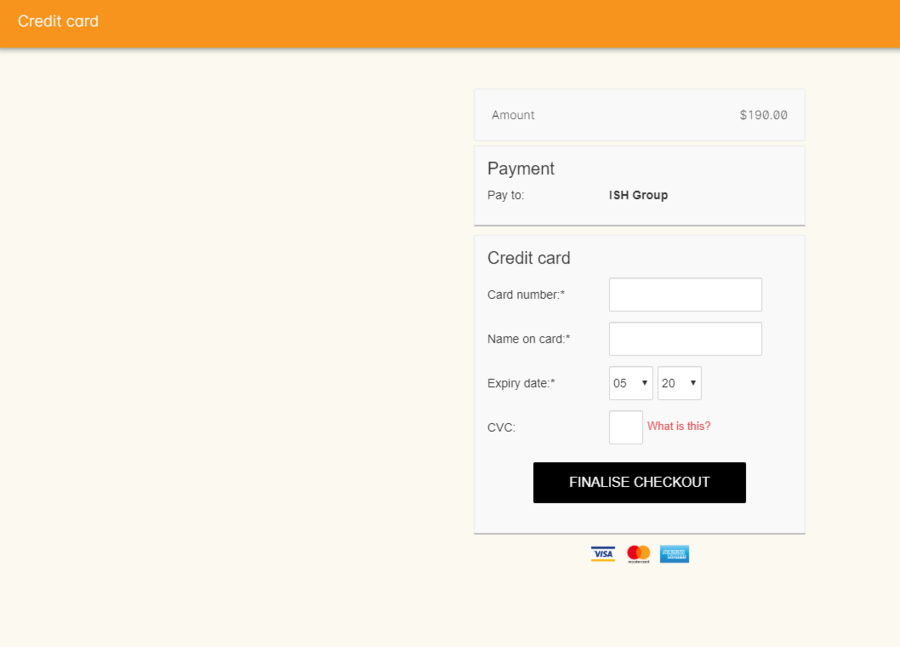
Using a new credit card
To process a new credit card payment you need to do the following steps:
-
Select Credit Card from the payment type drop down menu during the Payment step of Checkout.
-
The credit card secure payment gateway will open in the section to the right of the Payments column.
-
Enter the credit card details into the secure payment window and then click the Submit button to process the payment
Whilst the secure payment is being processed, the Checkout window will remain open with a processing enrolment message being displayed.
-
The payment will be processed and if successful, the payment gateway window will display the message 'Transaction successful' you can then close the payment browser window
-
The Checkout window will also update to show that the transaction was successful, you can then click finalise transaction and then send the enrolment confirmation as per the standard process.
-
Click the 'Share' icon next to the invoice on the Transaction Succesful window to open the Share menu on that invoice record in order to generate and print the Invoice. You can also click the go to shorcut icons to go directly to either the payment record or the invoice.
-
You can either close the tab or click 'Start New Checkout' to start a new transaction in a fresh checkout window.
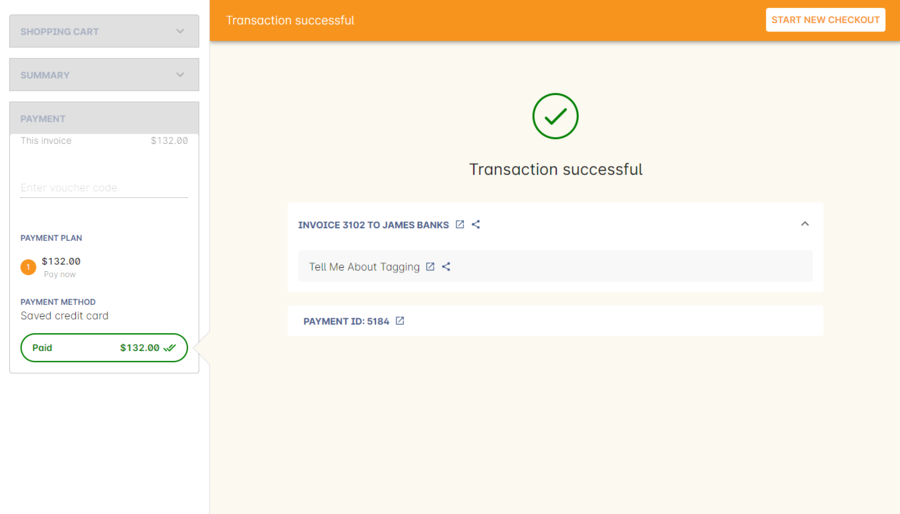
|
In the event that there is an outage with your internet connection whilst a credit card transaction is being processed, or you close the browser window without cancelling the payment attempt in the window, the payment will time out in 20 minutes. During this timeout period, the Checkout window will remain locked. An error message will appear notifying you "Payment was expired by timeout. The enrolment and unpaid invoice have been saved." Checkout will then allow you to save and close the enrolment with or without sending the normal notifications to the contacts. You can then reopen Checkout and attempt to process the payment again. |
Using a saved credit card
To process a payment using a saved credit card, the payer must have a credit card saved to their contact record. You can see this in their contact record, under 'Financial'. To select this option in Checkout, choose 'Saved Credit Card', then click Finalise Transaction.
Managing cancelled and failed credit card transactions
This section outlines how you manage the payment cancellation process and how onCourse reconciles those cancelled transactions
How to cancel a credit card transaction
You don’t technically need to cancel credit card payments in onCourse. You can simply change the Payment Method.
-
With the credit card gateway open, simply click the 'Payment Method' field and make another selection.
30.13. How to manage transactions where the payment has failed
When a credit card payment has failed, the secure payment window will display the message Payment Failed and a reason for the failure. You can either:
-
click 'Try Again' to try a new card
-
change the payment type and accept another type of payment, or
-
change the Pay Now price to $0 to create the invoice and enrolment only, and accept payment at a later date.

30.14. Processing unpaid invoices
If an invoice is unpaid at the time of enrolment, or partially paid, at a later date you will need to collect the rest of the money owed to you.
Until the balance of the invoice is paid, the payer will be recorded in the system as a debtor, and you can find them quickly in the invoice window using the filter 'unpaid invoices'.
When a payment is made, you need to record the details of the payment, to reduce the balance of the debtors account. You can do this either though Checkout, or by following the Payment In instructions below.
30.15. Processing a Payment In
Payments In must be processed from the owing invoice, or by clicking the + button in the Payments In window.
To accept a payment in on an invoice:
-
Go the Invoices window
-
Search for the invoice you wish to add a payment against, click it to highlight it
-
Click the cogwheel in the bottom-right of the window and select 'Apply payment in'
-
This will open the Checkout to the Payment window. The owing amount will appear in the Pay Now section. You can review any additional owing invoices on this contact’s record. Click the checkbox next to them to add them to the current payment.If the debtor has more than one invoice with a balance outstanding, by default the payment will apply to the oldest invoice(s)
-
Once the invoices are selected, select a payment type and apply the payment. Click Finalise Checkout to finalise the transaction.
Figure 237. List of outstanding invoices and the Pay Now amount showing the amount to be paid -
After the transaction is deemed successful, you’ll be shown a review of the created invoice.
-
After you complete this process an email will be sent to the payer with the payment details and the payer record will appear in the list view of "Payment In".

Clicking the + button will open a blank Checkout window, where you can add a contact, proceed to the payments window and select any prviously owing invoices due for payment.
Batch Payments In via Payments In
You can process a batch of payments using the batch payments in window. From Payments In, click the + button and select "Process all due payments". You can learn more about this in our Batch Payments chapter.

30.16. Sending invoices and confirmations
While reviewing the Summary in the Checkout is where you set who will be sent what in terms of confirmations and invoice notifications.
By default, the payer will receive the invoice, and everyone will receive confirmation emails. However, these can be switched off per contact in the summary by unticking the checkbox next to each option.
The enrolment confirmation goes to each student who has enrolled in a class. The tax invoice only goes to the payer. For example, if three friends were attending a class together, paid for by one of them as a gift to the others, you can set it so that the invoice and confirmation goes to the payer, and the others get nothing to retain the surprise.

30.17. Adding additional AVETMISS and other reporting information to an enrolment
Some additional information you need to record for your AVETMISS, traineeship, CRICOS or VET Fee-Help reporting can be added to the enrolment record after it has been created. This information cannot be added in Checkout at the time you create the enrolment.
To locate an enrolment, go to Enrolments and search for the enrolment you have created. Double click on your enrolment to open it in edit mode.
When editing a funding field on an enrolment with associated outcomes, a pop-up will open asking if you’d like to update the associated outcomes with the same change. Click the checkbox next to each field you’d like replicated across each outcome attached to the updated enrolment.

Fields to set at the enrolment level
In the VET section of the enrolment, you can set a value for the following fields. Most of these field only affect AVETMISS reporting.
Study Reason reported in the NAT00120 for students enrolling in a qualification or skills set. If you don’t set a value here, the default '11 - other reasons' will be exported
Fee Exemption Concession Type reported in the NAT00120 as a below the line state reporting option
Associate Course Identifier (SA - SACE Student ID) reported in the NAT00120 as a below the line state reporting option
Full Time Flag (QLD) reported in the NAT00120 as a below the line state reporting option
VET in Schools Enrolment reported in the NAT00120. If you don’t tick this option, an N for No will be exported as default
Outcome Identifier - Training Organisation reported in the NAT00120 as a below the line state reporting option. If you are reporting a Smart & Skilled enrolment in NSW, this is where you record a student who did not commence their training after being issued a Commitment ID
Training Contract: apprenticeships reported in the NAT00120 for students undertaking funded training
Client Identifier: apprenticeships reported in the NAT00120 for students undertaking funded training
CRICOS: Confirmation of Enrolment This is not a field reported in AVETMISS, but used for management of CRICOS (overseas) students and reporting to PRISMS
Eligibility exemption identifier (Vic) reported in the NAT00120 as a below the line state reporting option
VET FEE HELP indicator (Vic) reported in the NAT00120 as a below the line state reporting option
Training Plan Developed (NSW) reported in the NAT00120 as a below the line state reporting option
Fields that can be overridden at the enrolment level
On the enrolment general tab, you can override the default values set in other places in onCourse. Generally, these shared fields flow from the Class to the Enrolment, then to the Outcome.
|
Changing a default value will not have any affect on records that already exist. Instead, the new defaults will only take affect in any new records created after the change, and for any records specifically edited to reflect that change. |
Funding source - National This is inherited from the college default preferences, or from the class VET tab settings and can be overridden on the general tab for all outcomes attached to the enrolment, or on the outcomes tab for individual outcomes attached to the enrolment. This value is reported in the NAT00120 file.
Funding Source - State This is inherited from the class VET tab settings and can be overridden on the general tab for all outcomes attached to the enrolment, or on the outcomes tab for individual outcomes attached to the enrolment. This value is reported in the NAT00120 as a below the line state reporting option.
Purchasing Contract Identifier (NSW Commitment ID) This is inherited from the class VET tab settings and can be overridden on the general tab for all outcomes attached to the enrolment, or on the outcomes tab for individual outcomes attached to the enrolment. If you are using this field for reporting into NSW, to record a Smart & Skilled Commitment ID, the enrolment is the place to enter this information. This value is reported in the NAT00120 as a below the line state reporting option.

Fields that can be set at the outcome level
Status This is the Outcome Identifier - National that is reported in the NAT00120 file.
Hours Attended reported in the NAT00120 as a below the line state reporting option, only for outcomes with a status of 'withdrawn'
Specific program identifier this is the Specific Funding Identifier reported in the NAT00120
Fields that can be overridden at the outcome level
Module Code/ Module Name While this field doesn’t display with a lock/unlock symbol, by default it is showing outcomes linked via the enrolment in the course where the outcomes the student will complete were defined. These outcomes can be changed to any other unit of competency in the database. This value is reported in the NAT00120 and the NAT0060 files.
Start Date This information is derived from the class, and based on either the start date of the sessions for a timetabled class, or the student’s enrolment date for a self paced class. This can be overridden in the list view of the edit view. This value is reported in the NAT00120 file.
End Date This information is derived from the class, and based on either the end date of the sessions for a timetabled class, or the student’s enrolment date plus the class duration for a self paced class. This value is reported in the NAT00120 file.
Reportable Hours These are the Scheduled hours as reported in the NAT00120. They are derived from the nominal hours set at the unit of competency level. This value is reported in the NAT00120 file.
Delivery Mode This value is derived from the default college preferences, or the class delivery mode. If no delivery mode is set, onCourse will automatically export 'classroom based (10)' for all enrolments except those with RPL or credit transfer status, where it will export delivery mode 'not applicable (90)'. If the only correct value for exporting is 'not applicable (90)' because of the Status set, then onCourse will always export this value no matter what option you set in this field. This value is reported in the NAT00120 file
Funding Source - National This is derived from the college default preferences, from the class VET settings, or from the enrolment and can be overridden on a per outcome basis as needed. This value is reported in the NAT00120 file.
Purchasing Contract Identifier This is derived from the class VET settings, or the enrolment and can be overridden for individual outcomes attached to the enrolment. If you are using this field for reporting into NSW, to record a Smart & Skilled Commitment ID, the enrolment is the place to enter this information. This value is reported in the NAT00120 as a below the line state reporting option.
Funding Source State This is derived from the class VET tab settings, or the enrolment and can be overridden for individual outcomes attached to the enrolment. This value is reported in the NAT00120 as a below the line state reporting option.

VET Fee Help fields in the enrolment
Information about setting VET Fee Help field values in the enrolment can be found in Student VET Fee-Help Loan Requests
Enrolment Attachments
Enrolment records can contain private note records and document attachments on the 'Attachments' tab of the record. More information can be found in our document management chapter.
30.18. Checkout FAQ
If you have a question about Checkout that is not answered by this chapter, please feel free to post a question in our forum or lodge an onCourse support request.
How do I manage an overpayment made by a student?
onCourse does not allow overpayments of invoices. This is a deliberate design function to ensure data entry errors are not made. If a student presents a cheque made out for the wrong amount, so you can bank and process the cheque you can do the following:
-
Create the enrolment as usual in Checkout
-
Add an 'other charge' to the enrolment, with a line item title like 'overpayment'
-
Process the payment in Checkout with the total balance of the cheque that has been presented.
-
Go to Invoices and create a manual credit note for the person who made an overpayment. This credit can then be used towards other enrolments or refunded.
What do I do if I have recorded a payment (money) without any payment actually being made or I recorded the wrong amount?
If for example a student has not actually made a physical payment on their enrolment, but an onCourse user recorded their enrolment in onCourse as paid, you will need to follow these steps to resolve it. Only unreconciled payments can be reversed.
-
Locate the payment record in the 'Payment in' window and select it by single clicking it
-
In the to right hand corner or the window, go to the cogwheel and select the option 'Reverse payment'. This will create a new neagtive payment in against the invoice(s) where it was originally applied. Those invoices will now have a balance outstanding as before you completed the original transaction.
-
When you complete the reversal process, the status of the payment in will change from success to success (reversed).
-
You can now process the correct payment in method at the time the student pays or for the correct amount that was received.

How do I change part of an enrolment fee to a business, and part to a student?
The best way to charge part of an enrolment fee to someone and another part to someone else would be to follow these steps. We will use an example of a $100 enrolment where a student has paid half of an enrolment and the other half has been paid for by their job network agency:
-
Create a credit note for the student for $50 (half of the class fee). This will now drop their balance outstanding down to $50 (or $0 if they have already paid their half)
-
Create a manual invoice for the job network agency in the invoice window for the remaining $50.
-
Process the payment in for Job network invoice when they pay it.
For an invoice, you can not record some of the payment coming from a person other than the payer (in this case the student). The reason you would use this method is so that if the student’s enrolment is cancelled for some reason, they will only be entitled to a $50 refund, rather than the full $100.
How do I provide a student with a discount after they have already enrolled?
Invoices in onCourse are immutable; you can’t change them after they have already been issued.
You can choose to either cancel the original enrolment and process it again correctly, with the discount or you can create a manual credit note for the student
If the student has already paid the full amount, they will end up with credit that can be refunded or used towards another enrolment. If the student hasn’t paid against the original invoice, they will now have a lower balance due, because of their credit note.
How do I check to see if a student has been enrolled?
You can go to the Enrolment list view window and type the student’s name into the basic search. Double-click on the record to open it and view it in more detail. You can also check within the Class record itself by scrolling down to the Enrolments section, then clicking the 'Successful and Queued' button to open the enrolments window with all that classes current successful enrolments displayed.
If you require more information about an individual enrolment you can double click on an record; this will open the enrolment record to show it in more detail.

What happens if a student doesn’t meet the class age restrictions?
If a class has a minimum, maximum or age range set for enrolment in the General section of the class, then during Checkout, each student attempting to enrol in the class will have their date of birth checked.
If the student doesn’t have a date of birth at all, then they will not be allowed to enrol until a valid date of birth is provided.
If the student has a date of birth that means they do not meet the age requirements, they will not be able to enrol.
If the student is enrolling via the office, then their date of birth can be modified. If the student is self enrolling on the website, and has previously provided their date of birth, they can not change their date of birth without contacting the office. If you approve and change their date birth in onCourse, they will then be allowed to enrol in this class on the website.


30.19. Cancelling a single enrolment
It is important to remember that, within the accrual financial system of onCourse, every action has an opposite. When an enrolment is created, an invoice is generated to the payer. When the payer pays the invoice, a payment in record is created. If you want to cancel an invoice or refund a payment, you need to generate an equal and opposite record. This is calles a credit note (a negative invoice) and to give someone back their money, you need to create a payment out using this credit note.
If you need to remove a student from a class due to them withdrawing or failing to attend, you need to cancel their enrolment. If you wish to provide them with a credit note you can do this at the time of the enrolment cancellation.
The first step is to cancel and credit the existing enrolment.
-
Find the enrolment in the Enrolments window
-
Highlight the enrolment by clicking on it
-
Click on the cogwheel in the bottom right-hand corner and choose "Cancel 1 enrolment". This will bring up a dialog with a checkbox offering to also credit the enrolment fee charged - it is unticked by default. If you tick this, you will create a credit note. If you keep it unticked, you will retain all the student’s fees as part of your business income. 99% of the time you want to create a credit note.
-
In the cancellation window, choose if you want to send the student a credit note email. If you have not previously agreed to transfer the student to another class, or provide them with a refund, selecting this option will let the student know how much credit they have available with you for future redemption.
-
Hit "Proceed".
This process will cancel the enrolment, and create a credit note in the system for the value of the existing enrolment. Note that the credit note will apply to the original payer of the invoice. This may not be the student who enrolled in the class, but their employer, parent or other third party. Read the text in the cancellation window to confirm if the student, and the payer, are the same or different people.
If the invoice originally issued for this enrolment remains unpaid, the credit note created will create an automatic contra payment against that invoice, in effect 'cancelling' it from requiring payment.
If the originating invoice was paid in part or full, the remaining balance on the credit note can be used to contra pay another outstanding invoice from that debtor, enrol in another class, or it can also be refunded to the customer.
|
Please note that a refund payment back to the student will not be automatically created after cancelling an enrolment. That student might want use the credit to enrol into another class. Or you may wish to contact the student and arrange a refund. The next sections explain these options in detail. |
Outcome deletion on cancellation
While all enrolments in onCourse create outcomes, including those in non-VET programs, the outcomes that can cause concern for reporting are those associated with VET enrolments.
During the enrolment cancellation a checkbox is ticked by default that says 'Delete outcomes linked to this enrolment with status "not set"'. If you have not given any outcomes a status yet, this will mean all the outcomes attached to the enrolment will be deleted. This will be desirable for most types of enrolments, where you do not want to report the student as having enrolled in this program at all for AVETMISS purposes. You cannot delete outcomes associated with 'success' or 'unknown' tagged AVETMISS exports, and you also cannot delete outcomes associated with certificates that are not yet revoked.
If the student needs to be reported as a withdrawn student for AVETMISS purposes, you have two options. Either set the value of the outcomes before the cancellation process, and they will be retained by default. Alternatively, you can untick the option 'Delete outcomes linked to this enrolment with status "not set"' so all outcomes, both set and not set, will be retained. To avoid AVETMISS errors, you will need to make sure that any unset outcomes that are retained are given a valid outcomes status, such as 60 - Withdrawn after processing the cancellation.
Retained outcomes attached to cancelled enrolments are reported like all other outcomes. If you want to suppress them from all reporting, set the enrolment to 'Do not report for AVETMISS' within the VET section of the enrolment record.
Charging a cancellation fee
You can also elect to charge a cancellation fee (with or without tax) as per your college policies. The difference between the fee paid, and the cancellation fee charged will be available as credit to the student, or can be refunded to them.
Note that if you charge GST, this amount will be added on to the value you specify. You can see this in the screenshot example below where the user has charged a $20 admin fee on the cancelled enrolment, and that fee also requires a tax named 'GST', which makes the fee $22 (as GST tax defaults to 10%).
You can select to have this administrative fee deposited into the income account of your choice. By default, the income account associated with the enrolment income line will be selected. Any tax component will be credited to the tax account.

Cancelling an enrolment paid for by a voucher
On occasion, you may have cause to cancel and enrolment that was originally paid for by an onCourse voucher. If this is the case, a warning will appear in the cancellation window to advise you that a credit note will be made for this student, just like for any other cancelled enrolment. There is no automatic 'crediting' of their original voucher.
If you have a business rule that states that students who paid with vouchers cannot access a refund, then use the credit note to purchase a new voucher for the student that they can again redeem.
In the example below, the enrolment fee of $50 was paid for by a voucher - this can be found by looking at the original invoice for the enrolment.
When the enrolment is cancelled and the credit note created, you could then purchase another $50 voucher for the student with the credit note, or simply enrol them in another class and use the credit note for that.

30.20. Transferring an enrolment
If you are planning on transferring an enrolment, you can do this from the enrolment list view. This is similar to the 'cancel enrolment' process with the addition of opening Checkout at the end of the process, pre loaded with the student, payer and course details, allowing you to make a speedy transfer of the student to another class.
Highlight the enrolment you want to transfer, then go to the cogwheel and select the option 'Transfer an enrolment'. Once you have done this a popup will appear advising you what is going to happen. You then have the ability to delete outcomes linked to this enrolment with the status "not set", this option is marked as default. You also have the ability to do the following things related to the invoice or invoices attached to this enrolment:
-
Create a credit note to reverse the enrolment fee to the payer - this is marked as default.
-
Charge the payer an administrative fee of your choice - you can also choose if it includes GST and what account it gets recorded against.
|
You can only transfer one enrolment at a time. |

Once you have checked what you need to and pressed 'Proceed', a pre-populated checkout window will then open with the student’s and payer’s contact details along with the course from the 'transferred' enrolment. Select a new class, then ensure the correct credit note is being applied to the new enrolment in the Payments section by clicking on the 'previous credit'. If a credit note was created for the transfer, and it is being applied in the new checkout, then the payment method should appear as 'No Payment'.

30.21. Creating credit notes
On occasion, you may need to create a credit note of refund for a student without using the enrolment cancellation process. This may be because you wish to offer the student a credit to apply to further training (perhaps there was problem with the class they attended), because they purchased another product outside of the class enrolment, or because you created a credit note for the wrong amount during the enrolment cancellation.
Manually create a credit note
-
Begin by opening the Invoice window. In the bottom right-hand corner is a + button. Click it.
-
In the new Invoice record window, type the name of the contact you wish to give the credit note/refund to. The contact needs to already exist within onCourse.
-
In the invoice lines section of the window, click on the '+' button to add charges/credits to the record. Give your item a title, select the general ledger income account it will be debited from, enter the appropriate negative amount in the 'Price Each Ex Tax' field. Ensure if you are creating a credit note that the value has a minus sign in front of it.
-
Enter any other relevant information and save the credit note. You will now see in the list view window an unbalanced invoice for a negative amount. This is the credit note.

Using the Duplicate and Reverse function
The quickest way to create a credit note to fix an error is to find the original invoice, duplicate it and reverse it. Reversing an invoice manually allows you to make an adjustment (partial reversal) or complete reversal to an invoice created in error.
-
Begin by opening the invoice window and locating the problem invoice.
-
Single click on the invoice, and from the cogwheel select the option 'Duplicate and reverse invoice'. A new manual invoice/credit note window will open.
-
This new credit note will contain all the same invoice lines as the original invoice line, but with each line item reversed. Remove any invoice lines you do not want to include in this credit note.
-
To adjust the value of a remaining invoice line or charge the reversal to a different income account, click to expand it. You can make changes to any of the fields available in the box.
-
Optionally link the reversal back to its original course-class code to deduct this amount from the class income. This will also make the invoice show in the class budget tab.
-
Repeat the process for each additional invoice line you want to reverse.
-
Remove the check box from the 'send email' option if you do not want a copy of this adjustment to be sent to the payer.
-
Ensure the balance of the new invoice/credit note is as you expect before choosing save. You cannot edit the invoice/credit note after saving it.

30.22. Manual discounts after enrolment
Sometimes students enrol in classes and pay the full fee, and after enrolment they realise a discount needs to be provided as the student was eligible for a reduced enrolment fee.
In onCourse, when a discount is issued the COS account 'Discounts Given' is credited and the chosen income account is debited.
To create a manual discount, follow the steps above to issue a manual credit note, but enter an amount in the Discount Each ex tax field. This will create a credit note, but add the cost of the discount to the COS account, just like if it was taken during the enrolment.
Please note that discounts processed manually will not be linked to the class and will not show in the class budget, unless you add the link back to the class in the invoice line.
30.23. Using the credited amount as credit towards another enrolment
Contacts with credit will appear in the invoices window as 'unbalanced' invoices, showing with a negative balance. The next time the contact enrols, or pays for another student’s enrolment, they will automatically be offered their credit to use towards their fee payment in the checkout process.
This information will show in the Payments section of the checkout window next to previous owing as a minus amount. The amount due for payment will automatically adjust.

30.24. Payment reversals within the payment in window
If you processed a payment in record in error, i.e. recorded an EFTPOS payment that failed to process through your EFTPOS terminal, and want to reverse the payment to set the invoice back to unpaid, you can do this in the Payments In window.
Some payment types, like Credit Card, are set to bank automatically on creation. To reverse a payment, it must be unbanked.
If your payment is banked, double-click on the payment in record and remove the date banked date, then save and close the record.
Your payment in is now ready to reverse via the following steps:
-
In onCourse go to "Accounts" then "Payment In".
-
Highlight the payment in record to be reversed.
-
Click on the cog wheel and select "Reverse payment".
-
Click reverse of the new pop up window to confirm you want to the record to be reversed.
-
A new negative payment in will be created of the same payment type as your original payment, and both payment lines will have the status REVERSED. If the original payment was already marked as banked, then this reversal process will cause it to be unbanked.
-
The banking deposit window will show both halves of the reversal. You should bank them together, so they balance each other out.

|
Only 1 payment In item can be reversed at a time, and the date of reversal will be set as today’s date |

30.25. Refunding a credit note via Payment Out
If you wish to give a contact back their money, you need to create a credit note first, and then a payment out record. You can return cash to the payer, write a cheque, or if they have paid by a credit card through onCourse (not via an EFTPOS terminal) you can automatically reverse the payment back to their card. Manual credit card reversals can also be done through an EFTPOS terminal, but you will need to contact the payer to get their card details first.
|
If you refund a fee via an EFTPOS terminal, you will still need to record a payment out entry within onCourse, simply select payment type 'EFTPOS', even if the reversal was to a credit card. It’s the method that is important to record here, not the card type. |
-
Go to the Invoices window and single click on the credit note you want to apply a payment out to. Clicking the + button directly on the Payments Out window will also re-direct you to the Invoices window.
-
From the cogwheel choose 'Apply Payment Out'. This will create a new Payment Out record
-
The Payment Out window will open displaying the new record, the contact name will be pre-filled
-
Continue with selecting the refund type from the drop-down box, and type in the amount to be refunded. NOTE: if the type chose is Credit Card, you must also choose the payment that is being refunded from the drop down box list of previous payments made by the listed contact. The selected payment must have been for an amount equal to or more than the amount being refunded, or else it will not appear in the list.
-
Select a credit note to apply the refund to. Refunds must always apply to a credit note, otherwise the system will not allow it to be processed. The refund amount must be less than or equal to the amount in the credit note selected.
-
Hit Save to process the refund. If there is an error, or if the bank declines the refund for whatever reason, you’ll be notified via an error message.


A few notes on onCourse credit card reversals
onCourse stores a transaction reference number supplied by the bank for each credit card transaction made. This transaction reference number allows you to reverse up to the original amount paid during the transaction. This means you can refund the payer with complete confidence that the payment is being returned to the original credit card that paid for the enrolment.
There are some limitations that you need to be aware of however:
-
Credit card transactions are only available for a limited time after purchase. This is always set on the bank’s end, and onCourse is informed by the bank at the time of refund whether it is possible or not. onCourse does not choose which payments you can and cannot refund.
-
You can only refund UP TO the original amount of the transaction. You cannot refund the student more than they paid per transaction. For example, if two $100 enrolments we paid for in separate credit card transactions by the same contact and both cancelled and eligible for a refund, you would need to process two payments out of $100 each, once against each transaction.
-
If the credit card you are attempting to refund has been cancelled by its owner, or expired, the attempt to refund it will fail. You will need to contact the student and arrange an alternate refund method.

30.26. Cancelling a Class
If your class is not financially viable, or needs to be cancelled for other reasons, onCourse has the tools to allow you to cancel the enrolments, notify the students, refund the students or provide them with credit notes, and use their credit to book them in to another, or the next available class.
Before you cancel the class, you may wish to print a record of the enrolled students, via a report like a class roll or student contact list so you can annotate their preference of refund, credit note or transfer.
There is an optional script you can enable to automatically notify all students enrolled that their class is no longer running as scheduled. If this script is enabled, it will contact the students at the end of this process and there is no option to prevent the message from sending on a class by class basis. See below for more information regarding enabling and disabling the script.
To cancel the class, select the class in the classes window and from the cogwheel option in the bottom right, select "cancel class". There are a couple choices to make in this window:
-
Create credit note to reverse the enrolment fee - this is always checked and cannot be changed. This will notify you how many credit notes will be created.
-
Send credit note email (ticked by default) - this sends the credit note details created by the first step to each payer of the enrolment, advising them of the credit they now have available to use towards another enrolment, or request to be refunded.
-
Create credit notes to reverse invoices manually (ticked by default) - if you have manually created and linked additional invoices to the class, these will also be reversed.

Once a class is cancelled it will appear greyed out the class list view, and be available in the core filter 'cancelled classes'. Cancelled classes that were visible on the web will be removed.
A cancelled class cannot be 'un-cancelled'. However, should you need to reinstate the class, highlight your cancelled class and from the cogwheel option choose 'Duplicate 1 class' moving the class forward by zero days (essentially making another copy of the class with a new class code, but all the other details the same). However, this will not re-enrol the previously cancelled students. Should you wish to do this you will need to enrol them again in the new class as per the usual processes.
To prevent large scale errors, cancellations of classes are not available for bulk processing. You will need to cancel each class individually.
Scripts to automatically contact students and tutors when a class is cancelled
Two scripts and sets of message templates are available in onCourse to contact the enrolled students and assigned tutors to a class when it is cancelled.
The 'Cancelled class notice for tutor' must be enabled to automatically contact tutors via the 'Tutor notice of class cancellation' message template.
The 'Send class cancellation' must be enabled to automatically contact enrolled students via the 'Class cancellation' message template.
It is important you read, and possibly customise, the text of these two sets of message templates before enabling the scripts as the wording must be consistent with your college policies regarding cancelled classes, refund options and credit notes.
If you adjust the wording of any message template, be sure to adjust the plain text and HTML versions in the same way.
The student notification email can also be sent manually from the enrolment window. Highlight the enrolments you wish to send the message to and choose send message. In the window that opens, choose the correct message template and click 'Send'.

Reporting on cancelled classes
Should you wish to understand your cancellation rates and 'lost' potential income, a report called 'Cancelled classes count' is available from the class list of reports.
In the classes list view, select the core filter 'cancelled classes' to show only your cancelled classes in the list view, then search or highlight the classes in the range you wish to report on. Once you have selected the classes, click the Share button > PDF > Cancelled classes count.
This report will show you the enrolments that were in the class prior to the cancellation, and the income that had been collected.

30.27. Student Transfer Questions
If you wish to transfer a student, first you need to cancel their existing enrolment, then enrol them into a new class.
Student transfers need to be done one student at a time. Using the transfer wizard option outlined above will make this process fairly quick, ensuring the previous payer and class are pre-selected for you in checkout.
What if the value of the new enrolment is more expensive than the old class or less expensive?
As onCourse tracks the amount owing for the student, no money is lost by the system by cancelling and refunding. If the student has been given credit from their previous enrolment for $100, but the class you are transferring them into costs $120 you can either:
-
Do nothing and checkout will request payment for the additional $20, which you can collect via all the usual payment methods available including credit card
-
Choose to manually discount the enrolment in checkout by $20, allowing their credit of $100 to cover to apply leaving the account with a balance of $0.
If their new enrolment is less expensive than their previous class, you can choose to keep their credit on file indefinitely to apply to a future enrolment, or provide them with a refund for the credit remaining once you have processed the new enrolment.
Why can’t I just edit the existing enrolment?
onCourse tracks enrolments and financial data in a way which leaves a complete audit trail. At any time you will be able to see all the enrolment history for every student, including enrolments they have withdrawn from. This is very important for financial auditing and system security reasons which especially when several staff might be making changes or looking at the history in the system.
Further more, the refund/checkout process makes the work flow clearer when the new class has a different cost to the old. The operator is explicitly prompted to collect an additional payment or retain part of the credit note. By then applying an additional charge or discount, general ledger adjustments are kept accurate and clear.
How can I fix a mistake I made where I charged the student the wrong amount or credited a credit note in error?
Remember that the opposite of an invoice is a credit note. If the student owes you more than you originally charged them, create a manual invoice for the difference. If you charged them too much in error, create a manual credit note for the difference. To check the balance of a student’s account, go to the contact window and look at their finance section. This will show all invoices, credit notes, payments in and payments out at the current balance of their account e.g. do they owe you money, do you owe them money, or is everything square?
You can also use the contra pay feature to use the balance of a credit note to 'pay off' an outstanding balance on an invoice. Select the credit note in the invoice window, and using the cog wheel option 'Contra Invoice…' locate the invoice you want to pay. This only works for credit notes/invoices for the same contact.
How can I use one contact’s credit to pay for another student’s enrolment?
If the contact in credit wishes to use their credit towards another person’s enrolment ensure that you select the contact in credit as the payer.
31. Traineeships
31.1. Traineeship Courses
Traineeship Courses are a special type of course whose classes are created as part of the enrolment process.
To mark a course as a Traineeship Course, click the 'Traineeship' checkbox at the top of the course edit view when creating your course. You will be required to select a data collection rule and a VET Qualification in the VET section at the bottom of the course edit view.

31.2. Traineeship Classes
In onCourse, Traineeship Classes are a special type of class that can only take one enrolment per class. They can only be created using marked Traineeship Courses.
You can create traineeship classes the same way that you do normal classes, by creating them in advance in the Classes window, or by duplicating them from an already existing, or previously completed traineeship class by clicking the cogwheel and selecting 'Duplicate traineeship and enrol'. This will create a new copy of the highlighted traineeship class, and also open the Checkout with the selected class already chosen as an item.
Process payment to complete the enrolment.

Recording funding information about a traineeship
When a student is completing a traineeship, you will have been given a 'Training Contract Identifier' and a Client 'Identifier' by your state funding body. They may call them by different names, but the important thing to confirm is that they are the data that exports into the NAT000120 in positions 70 & 80 respectively.
This data is entered into the onCourse enrolment window. This data will need to be entered after enrolment by going to the Enrolment window, locating the student’s enrolment record and double clicking on it. On the general tab you will find these fields.
In NSW, you will need to put your Training Contract ID into BOTH of these fields, as NSW doesn’t issue a separate Client Identifier for trainees.
If you have broken the traineeship into multiple enrolments, each with one or more units of competency, you will need to enter this information into each enrolment record for the student that relates to the traineeship. This information is not recorded as part of the student’s master contact record, as the student may also have other enrolment records which don’t form part of this traineeship.
32. Applications
32.1. An overview of applications and enrolments
The Enrolment by Application function allows you to add an approval process between the student requesting a place in a class and the enrolment and payment taking place and to optionally provide the student with an individualised enrolment fee offer.
There are many reasons a course may require applications rather than allow direct enrolment.
A course may have certain pre-requisites that need to be assessed as being met, such as the student supplying evidence of completing the Certificate IV or equivalent workplace experience before enrolling in a Diploma course.
Another course may have competitive entry requirements, such as an audition, where students are competing to be offered a place in a limited enrolment class.
Some language programs may require the student to be assessed to determine which program level is the right option for their current spoken and written skills, prior to their enrolment.
Various government funded programs, like NSW Smart and Skilled, require the student to meet a suite of eligibility criteria to be accepted into the program at one of the multiple price points available.
CRICOS approved training organisations may use the application process to assess and offer a enrolment opportunity to an overseas student which they can then use to obtain the student visa they require to study in Australia.
Even from a marketing perspective, enrolment by application may be used for certain prestige courses to indicate that entry is not available to just anyone who can pay the course fees.
Setting the course to Enrol by Application
By default, all current and new courses in onCourse are set to 'Open Enrolment', in the enrolment type option located on the course record. When a course is changed to 'Enrolment by application' that will change your website to show any of the courses classes 'Enrol now' buttons as 'Apply now' and suppress the display of the class fee.

We recommend you add descriptive text to the Marketing section’s web description fee explaining the course fee structure for these courses. As the class won’t show a fee during the application process, as no fee applies until enrolment, it is important you indicate to the student prior to their application what fee they may need to pay if their application is approved.

Implications for classes and Checkout
When setting the enrolment fee for a class belonging to an enrolment by application course, we suggest you set the highest applicable fee. If the student is eligible for a discounted fee, their individual fee, defined in the application will be charged.
All fee override amounts set in the application are GST exclusive. An additional charge for GST will be applied on enrolment if the class fee is set to have GST.
Enrolments into classes marked as 'Enrolment by application' can still be processed directly in Checkout, without the need for an approved student application. It is only the online enrolment process that requires the additional step.
32.2. Navigating the application window
An application is created in onCourse when a student applies online or a manual application is created though the onCourse admin interface.
An application contains the student details, the course they are applying for, and any additional information you may wish to collect during the application process such as copies of certificates or portfolios.
All applications have a status that indicates where in the approval process they are up to.
Applications can be accessed by going to the Dashboard and typing 'Applications' into the Find Anything search bar, then clicking the search results.
By default the window will open into a standard list view showing a summary table of all the application records.

On the left-hand panel of the list view window are the application status filters. By default, all except 'expired' will be ticked when you open the window. You can check and uncheck these as needed to change the displayed list of applications.
In the bottom-right hand corner of the list view are the fullscreen edit, add, view mode, share (print) & cogwheel buttons.
The cogwheel option can be used to open in bulk related records to the applications, such as the student records or course records, or used to send messages to applicants. It can also be used to delete an application record. You may only delete applications that have a status of 'New'.
Double clicking on an application record in the list view opens the edit view. The application has three sections: general, notes and documents.

The general section contains fields that may be completed during the application or application assessment process. The notes section allows you add additional notes or documents to the record.
32.3. Creating applications
To create a new application in onCourse, click on the plus button in the bottom right-hand corner of the application list view window.
To create a new application you need to enter the name of a student who already has a contact record in onCourse, and the name of a course that is set to 'Enrolment by application'. You cannot create an application for an open enrolment course.
You do not need to add any additional information at this point, however you can optionally add additional notes or attach documents on the Notes section, or assign a tag to the record. Once complete, save and close the record, which you will then see displayed in the list view.
By default, all applications will be created with a 'new' status. New applications mean those that have been received but not yet assessed.
The date of the application and the source (office or web) will be automatically set for all new applications. These fields cannot be edited.
If applications can be made online, we suggest you enable the script 'send application received notification' and customise the email template 'enrolment application received'. The script will send the template email to the student, which should advise them what to do next, and also an email to the default office admin address, so you can schedule your own internal follow-up process to assess the application.'
Once you have begun the communication with the student regarding their application, you should change its status to 'in progress' to differentiate from applications that have been made but had no follow up yet. Changing an application status to 'in progress' does not trigger any scripts or email communications by default.
32.4. Approving and rejecting applications
The Status field indicates what stage the application is at in the approval process. You set these manually as you progress each application through to enrolment. The status types are:
- New
-
This is a new application that has yet to be evaluated.
- Offered
-
This application has been offered a position. Setting this status actually changes the course’s 'Apply Now' button to 'Enrol Now', allowing the student to finalise the enrolment process. If the right scripts are enable it will also trigger an email notification telling them they can accept and linking them to their course on your website.
- Rejected
-
This is given to applications where that are being rejected. If the rights scripts are enabled this will send an 'application rejected' message to the contact.
- Withdrawn
-
This is for when the student would like to withdraw their application.
- In Progress
-
This is for any application you are currently considering.
- Expired
-
This is when an application was initially offered but not accepted by the student before the 'enrol by' date. The contact will need to apply again.
When an application has its status changed in onCourse, this affects what actions are available to the student. For example, only a student with an application of status type 'offered' can proceed with an online enrolment in a class from the course.
Note that an 'offered' application for a course allows the student to enrol online in any published class from that course. This can be a useful option for courses that have a day and evening class option, or for courses that have classes starting every month.
Fee override and enrol by date
For an approved application, you can optionally add a 'fee override' and an 'enrol by' date.
If you don’t provide a fee override, the student can enrol at any of the standard or eligible discount rates you have set up for the classes of that course.
If you do provide a fee override, this is the only fee option available to the student when they enrol online, for all classes of the course. Using the fee override instead of the normal class discount options is most useful for government funded classes where a complicated metric determines the student enrolment fee on a student by student basis.
The enrol by date can put a cap on when the student has to decide to go ahead with the enrolment, possibly before the next class commences, or an earlier day, so you can offer the position to another student. This date is not required if the approval to enrol can be used at any time.
Reason for decision
When you are choosing to reject an application, you may wish to make your reason for the decision known to the student. In that case, provide some text in the 'Reason for decision (student visible)' field in the application.

As part of your application assessment process, you may determine that the student is not eligible to complete the course they applied for. For example, a student may have applied for a Certificate III level English course and your assessment process has determined they are at Certificate I level. You can choose to either reject the Certificate III application and create a new application for the Certificate I or just change the original application to the Certificate I and explain why in the reason field.
Custom fields
Any fields below the 'reason for decision' box that aren’t a part of Notes or Documents are custom fields that have been added in General Preferences.
When the student has an offer
Once the student has received their application offer they can choose to reject it, which then marks the application as 'Withdrawn' in onCourse. You can also mark an application as withdrawn at any time if the student notifies you they don’t want to proceed.
If the student proceeds to enrolment after receiving an 'offered' application notice, then the application status will change to 'accepted'. You cannot change this status once it has been set.
If you set an Enrol by date in an offered application and the student fails to enrol by this time, the status will be automatically set to 'expired'.You can reset the Enrol by date to automatically set it back to 'offered'.
Sending application emails
When an application is created online or via the office, a script called 'send application received notification' can be enabled to send the 'Enrolment application received' email.
If you have enabled the standard 'send application decision' script and customised your 'application accepted' and 'application rejected' templates, the information will be automatically sent to the students when you change the application status and save the record.
If you don’t want to send these emails automatically, but would still like to send them out manually, you can disable the script and use the cogwheel option to send the received, approved or rejected email instead.

32.5. Applications on the web
Courses set to 'Enrolment by application' need one or more classes enabled to display on the web to allow students to apply.
The usual 'Enrol now' button will say 'Apply now' and any information about the class fee will be suppressed. We suggest you add information to the course or class description about the fees that will be applicable if the student’s application is successful.

Applying online
A student can apply online for a course, or courses as well as purchasing other enrolments or products in the shopping cart. As per the usual checkout process, the contact details you have set to request on enrolment must be supplied.
There is no payment required if the student is only completing an online application.

At the end of the checkout process, the student will be sent an 'enrolment application received' notification, instructing them what to do next.
In the Automation window, under Scripts, a default script called 'send application received notification' is disabled by default. If you plan on using online applications, you need to make sure this script is enabled.
The email that is sent to the student can also be found in Automation, under Message Templates and is called 'Enrolment application received'. You must customise this template by inserting a location for the next stage of the application process, or replace it with some text to the effect of 'We will be in contact to request additional documentation'.

Enrolling after application approval
Once a student’s application documents have been received, you have determined the appropriate fee for the student and set the fee override, and changed the application status to success, a script called 'send application decision' (disabled in onCourse by default, please enable if you wish to use it) will send the email template 'enrolment application accepted'.
Within this template, is a special URL containing a unique student ID that will open the course page ready for the student to select their class, enrol, and pay their enrolment fee. If the student has been provided a special fee override, that is the price they will see listed for each class on the course page. Otherwise, they will now see the default class fee.

The application approval process is for a course. Once a student is approved, they can then enrol in any class from that course, but can only use their application approval to enrol in one class from the course.
Alternatively, if the student returns to the public website, locates the course and clicks 'Apply now' after they have an approved application, they will be able to proceed directly to the enrolment and payment process. This only occurs if the student uses the same first name, last name and email address they used for their approved application.
If during the enrolment and payment process, they wish to 'add a friend', then the friend will go through the application process. Only students with applications statuses of 'offered' can proceed to online enrolment and payment.

Application records in the portal
Students can also see the history of their applications in the skillsOnCourse portal by going to History and selecting the tab Applications. You can send the link to students https://www.skillsoncourse.com.au/portal/history to take them directly to this page after login.
The History shows all current applications where the assessment is in progress, offered applications, as well as any rejected or withdrawn applications.
Applications with a status of offered can be rejected in the portal by the student, which will change their status in onCourse to 'withdrawn', or the student can proceed to enrol and pay for their application from within the portal. This will redirect them to the normal online enrolment process.

32.6. Bulk adding or removing tags
You can add or remove tags in bulk from application records by, in the list view, highlighting the records you wish to change, clicking the cogwheel and selecting either 'add tags' or 'remove tags'. Select the tag and click 'Make Changes'.
IV: Data collection forms and rules
33. Data Collection Forms and Rules
Data collection forms and data collection rules combine to allow you to create a variety of online enrolment, waiting list, application, and other types of forms for different course types.
Data collection forms are a collection of fields that will be made visible to a user during an online interaction with your business. Each field can be set as optional or mandatory, and you can define the field label and helper text that applies.
In each form you can sort and group fields into sections with labels and descriptions to better explain the data collection process to the end user, and also hide or show certain questions based on the answers provided.
By combining standard onCourse fields with custom fields you have added to your onCourse database, to meet your business specific data collection requirements, a truly customisable data collection experience is available for all types of training organisations.
Data collection rules are the grouping of data collection forms. This rule group can then be applied to courses.
By default, your new onCourse database will contain data collection rules for both accredited (VET) and non-accredited courses, and a default field form for collecting data during product purchases. Consider these a starting point for guiding you through the basic ideas of creating your own forms and rules. You can also duplicate data collection forms that you’ve already made.
For every online enrolment, application or wait list, the first information asked is First Name, Last Name and Email address, to check if the contact already exists in the onCourse database, or determine if they are a new contact. You cannot add or remove these fields to data collection forms as they are always the mandatory first questions asked in all online transactions.
|
You can learn how to create Custom Fields to insert into Data Collection forms at the end of our chapter on General Preferences. |
33.1. Accessing the default data collection forms and rules
You can locate the data collection forms by going to the Preferences window and selecting 'Data collection forms' from the list on the left-hand panel.
By default, your onCourse database will contain numerous forms for enrolments, applications, waiting lists and student feedback.

The forms are grouped into 'Data collection rules', also available from the left-hand panel of the Preferences window.
By default, your onCourse database will contain two data collections rules:
-
Non-accredited course - These rules contain the non-accredited course enrolment form, and generic application and waiting list form.
-
Accredited course - These rules contain the accredited course enrolment form, and generic application and waiting list form.
Note that both of these data collection rules use the same form for waiting lists and applications. If you edit the default form, your changes will apply to both accredited and non-accredited applications or wait list entries. They do not have any forms set for student feedback, payer or parent.
If you do not want both data collection rules to use the same forms, you can create a new form and adjust the rule groups so each have their own application form, for example.
33.2. Editing data collection forms
You can edit the default data collection forms in onCourse to include your business specific rules. It is usually best practice to edit the forms included by default, before you start creating additional forms.
Mandatory or optional fields
You may wish to start by changing some fields from optional to mandatory. When a field is deemed mandatory, this means the student cannot progress further through the form without adding data. It also means if a student returns to your website to make another application, enrolment or purchase, they will only be asked to complete data for mandatory fields they haven’t previously completed. This assists in making return visits and purchases faster for your customers.
Changing field labels and help text
You can change the field label and helper text. By default, the field label will be the name of the field, but you can change it to make more sense in the context of the form.
For example, you may wish to change the label of the field 'street' to 'address', and the helper text from 'Enter your street address' to 'Enter your mailing address' if this is the data you would prefer to collect (keep in mind, if you are an Australian RTO obliged to report AVETMISS data for your students, you need to collect the student’s current residential address for reporting purposes).
The AVETMISS field labels are often phrased as questions, so 'Year School Completed' might be better labelled as 'What year did you complete school?'
In some website designs, the 'Help text' appears within the field before the student supplies their answer. In other designs, it appears when the field is hovered over. Consider your help text wording in the context of your website design choices.
You can also set some conditional logic on each question, which is explained later in the chapter
|
Some questions within the form are attached to certain types of fields, so try not to edit existing fields to accept different data. E.G. don’t change the address field to a marketing field. These fields map to specific areas in onCourse and changing them will result in unexpected data flowing to those areas than what the system expects. Create custom fields instead. |
Ordering and grouping fields under headings
You can adjust the order the fields appear in the form by clicking on the six dot icon next to the field name and dragging and dropping the field in the form.
Fields are grouped under headings. To edit the heading name or description, click the Edit button to the right of the heading name. Make your changes to the heading and click done when complete.
Heading descriptions are often used to provide instructions text to students or explain why the data is being collected.

Adding and deleting fields on the form
You can add additional onCourse standard contact fields, or your own custom fields to the form by clicking the + button under the form name. Select the field from the drop down list available. Fields you have already added to this form will not be available to select from the list again.
Your newly added field will be added to the bottom of the form you are editing. You will need to drag the field to the placement you want in the list.
Your custom fields are also available to add to forms. You should be careful to only add custom fields that make sense for the type of form you are creating, however they are labelled to help with this. For example, custom fields for contact records can be added to any type of form, but only custom enrolment fields should be added to enrolment forms.

You can delete fields from data collection forms by clicking on the garbage icon on the right of the field.
New headings and descriptions can also be added to your form, and dragged to the appropriate location, like fields.
33.3. Using conditional logic
Data collection in onCourse allows you to use conditional logic to hide or show certain questions depending on the answers provided.
Headings cannot be hidden or displayed using conditional logic, so please consider this when setting up your forms.

For each question you can set a display condition field and a display condition value.
-
Display condition field - Set the field/question that will allow this question to display. Leave blank if the question should always display.
-
Display condition value - Set the answer that will allow this question to display in the data collection form. In the screenshot above, the user is setting this as 'Yes', meaning that is a student answers 'Are you over 18?' with 'Yes', then this question will display dynamically. If they don’t answer 'Yes' then this question won’t display.
Conditional logic can only be set per question and cannot be grouped. If you want a set of questions to display dynamically together, they will need to have the same 'display condition field' and 'display condition value' set.
|
When using conditional logic, you can hover your mouse over the 'eye' icon that shows on each field to have the logic that has been applied explained as help text |
33.4. Creating new data collection forms
Add a new data collection form by clicking the + button just next to the 'Data Collection Forms' heading in the left-hand column.
Before you add a new form to onCourse, think about how this form will be grouped with other forms into a 'Data collection rule'. The name you choose for your new form will either need to be specific for the one type of rule it belongs to, or generic to make sense when you apply it to multiple rules.
You also need to consider what process this form will be used for - enrolment, application, waiting list, student feedback, payer or parent. It helps to name your form in a way that indicates its process.
You will then need to work through the process of adding group headings, fields and setting their label and help text properties. When creating a new form you should add the headings and fields in the order you want them displayed to the end user, to avoid you having to re-order them. You will also need to consider any conditional logic you’d like to use within the form and group your questions as such.
33.5. Duplicating data collection forms
You can easily duplicate any data collection form you’ve made in onCourse from the cogwheel menu. Simply hit the cogwheel icon, click the 'copy form' icon, enter a new name for the data collection form, then hit 'Save'.
33.6. Editing and creating new data collection rules
You can create a new rule group by clicking the + button next to the 'Data Collection Rules' heading in the left-hand column.
Data collection rules are a group of six forms; for the enrolment process, wait list, applications, student surveys, payers and parents/guardians. Only the enrolment, application and wait list forms will be assigned by default.
You can change the names of the rules or forms that have been selected for the rules.
Keep in mind that if your onCourse website is already using data collection rules, any changes you make to the form selection process will take effect immediately, for the courses where that rule collection is applied.
If you are creating a new data collection rule, you will need to add it to a course or courses, before it will appear as a set of questions on the web.

33.7. Adding data collection rules to courses
By default, any existing onCourse courses will have a data collection rule applied to them based on their VET status. VET courses will have the 'accredited course' rule selected, and non-VET courses will have the 'non-accredited course' rule applied.
You can change the data collection rule for any existing course, and will need to set the data collection rule for any new course you create. Set this at the top of the Course record, in the General section.

33.8. Data collection on the web
The field settings you have defined in your data collection forms and rules will drive the questions the students are prompted to answer when they engage with your website, whether that engagement is to add a course to their waiting list, purchase a product, apply for a course or enrol in a class.
What each individual student sees will depend on the combination of items in their shopping cart, and their previous engagement with you.
For example, if a student is an existing contact in your database and is matched on their first name, last name and email address with an existing contact, then they will only be asked to complete fields marked as mandatory in the data collection rules that they haven’t completed previously. They will not be shown the responses to any fields they have supplied before, or fields set to optional they haven’t completed.
Your details - contact fields
When a student is enrolling or applying for multiple courses and classes in the online checkout process, they will see the combination of required and mandatory fields based on the data collection rules assigned to all the courses in their shopping cart.
Breaking fields up into clear groups with headings to explain assists in creating a clear and self-explanatory user interface in your website. In the example below, this advice has not been followed.
You should always perform comprehensive user testing of your website application and enrolment settings when adjusting data collection rules so you can confirm the process the student sees is what you envisioned.

Summary - enrolment, product or application specific fields
Custom fields that apply to the enrolment or application are asked in specific relation to the course the student is enrolling in or applying for.
That means that if the student is enrolling or applying for multiple courses where the same data collection rules apply, they may be asked the same questions twice. The types of questions asked here should be specific to the course e.g. for an event with elective breakout activities, do you want to attend stream 1 or stream 2.
Generic questions about the students preferences or demographic information tend to belong in the contact record, rather than the enrolment or application.
The one place where this is not the case is for funded enrolments or applications, where the student needs to answer questions related to their funding eligibility and declare they are true and accurate at the time of application or enrolment. It would not be appropriate here to rely upon answers a student may have supplied six months ago in a previous application.

Form or File uploads
By creating a custom field with the data type 'File', you can have student’s upload files to the record that is being created. E.G. if the custom field is added to an Enrolment form then the file will appear attached as a document to the enrolment record that is created. Similarly, if the field is added to a form for Applications then any files uploaded will attach to the application record created.
Files will upload with the shareable link permission enabled.
V: Document management
34. Documents in onCourse
onCourse provides an effortless way to manage your documents. Documents can be uploaded to onCourse and linked to Courses, Classes, Enrolments, Contacts, Tutors, Students, Sites and Rooms. Because all documents are version controlled you will never lose any historic information, making RTO compliance easy.
Document management in onCourse can be used for lots of purposes:
-
Displaying images and other content on your website
-
Storing compliance documentation such as tutor resumes and qualifications
-
Maintaining a history of assessment and other enrolment related compliance
-
Distributing information to tutors through the skillOnCourse portal
-
Distributing assessments and course material to students
34.1. Adding new documents
You can add new documents directly in the edit view from many places in onCourse, in two different ways:
-
Drag-and-drop the file from your desktop into the window
-
Browse your system by clicking the plus symbol next to the Documents header

Drag and drop
If the document is one you haven’t yet uploaded to your onCourse system, you can add it and attach it to the current record simultaneously by simply dragging and dropping the file from anywhere on your computer on to the browser tab. The file will be uploaded and associated with the currently viewed record, you can name it and select a privacy setting, and then save it.
Browse
While viewing the record you wish to attach the document to, click the + button next to the Documents section heading. You will now be given a choice to find an existing document or upload a new file. Click on the 'Browse' button to find the file on your machine or, if you’ve already uploaded the file, type the name you gave it when you saved it.

Once a file has been added or selected it will take you to another window. If the file is new you can start entering additional information like a name, description, tags and setting permissions. If the file was already uploaded, then you can only view this information. You have to go to the document record in the Documents window to edit these details.

34.2. Attaching existing documents
If you wish to attach an existing document (one which has previously been uploaded in onCourse) to a record, simply go to that record and click the + button next to the Documents heading, then search for the name given to the document when it was uploaded, and select it from the list of results.
When attaching a document to a record you’ll be able to set its permissions, as well as any tags and give it a description. For a closer look at how permissions work, click here.
34.3. Document List View
The Document lst view is the main view of the Documents window. It functions the same way as other list views in onCourse do, allowing you to click a record to highlight it, use find-related, search queries and cogwheel functions.
34.4. Deleting a document record
Due to their nature, you cannot directly delete document record from onCourse, you 'mark' them for periodical deletion. This gives you the opportunity to review documents pending deletion to ensure that you aren’t getting rid of anything important.
To mark a document record for deletion, from the documents list view highlight a single document record. Click the cogwheel and select 'Move to Bin'.
When a document that is in the bin is highlighted, this cogwheel function will change to read 'Restore from Bin'. 'Restore from bin' will remove the record from pending deletion.
Documents marked for deletion are deleted when their 'modifiedOn' date is more than 30 days old.
|
Deleting a version of a document is different to deleting the document record entirely. Please see the 'History' section below for how to delete a version of a document. |
34.5. Editing document records
Once documents have been stored in onCourse you can edit their properties in the Document edit view. The edit view shows you a summary of the document, including a preview, tags, the name, document permissions and document history.

Open the document record by double-clicking on the record.
Document record view
There are a number of fields and settings in the document record. You need to give the document a name in onCourse (this is not the file name), a description, set who can view it and where they can view it. You can also see the document’s history.

If a document is marked for deletion, it will display the words 'Pending Deletion' across the screen.
34.6. History

When you use the 'Upload New Version' function, onCourse will keep a history of all versions of files you upload. Just click 'Upload New Version', then select the file from your local machine.
You can select which version of the document is used by selecting the tick box next to the documents under the 'History' heading.
You can view the historical document by clicking the four-arrowed icon.
You can also completely delete older or unused versions of documents by clicking the bin icon next to the file name under the 'History' heading. Document versions deleted this way are deleted permanently and cannot be recovered.
|
Deleting a version of document is not the same as deleting the document record entirely. For instructions on deleting the document record please see this section above. |
34.7. Contact pictures
Pictures added to contact, student and tutor records are stored automatically in the onCourse documents section.
If you open a contact record (company, tutor, student) in edit view double-click on the image at the top left, you can add your own photo of that person. A file dialog will appear and you will be able to choose a photo to add. It will be automatically resized to a thumbnail size before being stored.
As a matter of privacy, any image documents uploaded this way are automatically set as private, and need to have their permissions changed before the image will display publicly on your website.
34.8. Access rights
Each document has multiple settings that will tell the system who can view it and where they can view it. You can see information at a glance about who can see the document, and where, by looking in the blue 'Who can view this document?' box. This will change dynamically based on your selections in the boxes below.
- Attached To
-
Here you’ll see a list of the records that this document is attached to, which will also affect where the document displays both in onCourse and elsewhere, depending on permissions e.g. if a document is attached to a Course but both the Shared in portal and Shared by link switches are off, then the document will only appear in the course record of onCourse. If the Shared by link and Shared with website visitors switches are on, then the file will also display on the relevant Course page on your website.
If the document is attached to one record only, an 'Attach only to this record' checkbox appears here. Check this to restrict this document to a single linked record. You’ll also see related link icons next to each entity. Click these to see a list of associated records in that entity. If Skills onCourse 'Shared in portal' is on, you’ll see a list of contacts who can view the document in the portal.
- Skills onCourse
-
This box has a switch called 'Shared in portal' which, when active, allows the document to be viewed within the portal. Who can view this document in the portal is controlled by two factors; which records the document is attached to, and the checkbox settings in this permissions. the two checkbox options are 'Show to tutors' and 'Show to students'. 'Show to tutors' cannot be deactivated, but 'Show to students' can be switched off to show to tutors only.
If the document isn’t attached to any record but this permission is active, then the document is visible to EVERYONE with a portal login. If the document is attached to a class or course then the document will be visible in the portal to all permissable tutor and student records associated with that class/course.
You can send the class tutor or an enrolled student a link to the document inside the portal to allow them to access it e.g. https://www.skillsoncourse.com.au/portal/resources to access all their resources, or https://www.skillsoncourse.com.au/portal/class/5040367 to access the resources attached to a specific class, where 5040367 is the class id in the onCourse web database.
- Shareable Link
-
When active, this permission allows anyone with the generated link to access this file. If the document isn’t attached to any records, then only users with the link will be able to see it. Click 'Copy Link' to copy it to the clipboard for linking in a message or email.

All documents, when opened in onCourse, will open with a link, however only documents that have 'Shareable Link' permissions activated can be shared in this manner. If you share a link to a document without this permission the user will get an 'access denied' error.
- Website
-
Switching on this permission allows the document to be viewed on the website, and works as a pair with the Shareable Link permission. It is only viible when the document is either not attached to any record at all, or atached to a single course record.
It’s important to note that just because this permission is on doesn’t automatically mean the document will be displayed on the website; this also depends on the type of record the document is attached to. If the record isn’t attached to any record, but referenced using the shareable link, then it will only be visible if the link is placed within a rich text field and this permission is active.

The below example shows that this record is attached to 7 sites records, 1 asessment record, 3 contact records and 1 course. The shared in portal switch is on with both tutors and students checkboxes checked, but the shareable link is not active. As shown in the 'Who can view this document' box, you can see that this means only onCourse admin users and some students and tutors, specifically those contacts the document is attached to and in the portal for any tutor or student associated with the course '20 Great Ways to Promote Your Businesss Online'. The document will not appear on the Course’s website page unless the shareable link is active.

34.9. Bin
Documents sent to the bin are marked for permanent deletion. The bin is emptied at a random time every Sunday, and will remove any items that have a modifiedOn date of over 30 days old.
Documents added to the bin DO NOT have their associations with other records removed, and can be restored by simply clicking the 'Restore' button with the record itself.

Get notified about documents pending deletion
You can be notified of which documents are marked for deletion the following Sunday by enabling the Documents for Deletion script. This will send out an email (called 'Documents for deletion') that contains the file names of each document due to be deleted. Each document will be hyperlinked back to the document record in onCourse so you can easily restore it if you wish.
VI: Reports and exports
35. Reporting
35.1. Using reports
onCourse comes prepackaged with a large range of reports. You can use them as is, or copy and modify any of them to suit your needs. Advanced users can also create brand new reports from scratch.
Printing Reports in onCourse
The first thing to be aware of when attempting to print a report is that you must be in the right onCourse list view to print the expected report. For example, Class roll is a report available from the class list. You cannot print this report from inside the class record, only the class list view.
From each list window, click on the Share icon, the select 'PDF' to see the list of available reports,

All reports are printed to a PDF file which you can save to your computer, email, or print to a printer on your network. Your computer will need to have a PDF reader installed to create and view the report.
For exports to excel, XML or other formats, look at our exports chapter.
Before you print a report, you will usually need to collate your data by running a query on it first. For example, if you wish to print the class rolls for all the classes starting this week, you will need to do an advanced query for classes starting from today, to the last day of the week. For more information on search queries, check our search chapter.
The share window provides an alphabetized list of all reports available via the given window. Select the relevant report and a summary description and print preview (if it has been printed before) is provided of the highlighted report. This description will also clarify whether the report prints in Portrait or Landscape format.
In the print dialogue, you will be asked if you want to print selected or all records. A record count will be given for each option. Choosing 'selected' will print the results you have highlighted manually, while choosing 'all' will print the report for the one or more records you have selected in the list.
35.2. Print Backgrounds
onCourse printed reports can be set up with a defined background. These backgrounds must be created as a PDF document that is then imported into onCourse via the PDF Backgrounds section of the Automation window.
Generally, you will have a standard 'letterhead' style background, available in both portrait and landscape modes that can be used as the print background to common reports like invoices, enrolment confirmations and class rolls. You might also have some special backgrounds for certificates and other formal documents. Put all your graphic elements on these backgrounds such as signatures, logos, compliance icons and watermarks. It is easier to add these elements to the background than to the report itself.
Creating a backgrounds
Use your favourite page layout tool. Indesign, Quark, Word, Pages or any other tool which can create high quality PDF output will do fine. Make sure you set up the page size and orientation to match your report.
If you create a single page PDF, that background will be used for all the pages of your report. If you create a two page PDF, the first page of the PDF will be used as the background for the first page of the report and the second page of the PDF will be used for all subsequent pages. It is common to create a two page PDF with letterhead on the first page and a blank page for the follow-on.
|
Many of the built-in reports have 30mm header space. If you can keep your header within that area, you’ll not have to adjust the standard reports to fit. |
Adding a background to onCourse
Once you have created the print backgrounds for your reports, you can now import those PDF backgrounds into onCourse and attach them to their relevant reports. You only need to import each report background once.
Report Backgrounds are managed within the Automation window, under PDF Backgrounds:
-
In onCourse, from the Dashboard, search for 'Automation' then click it open the window.
-
Scroll the left-hand column until you see 'PDF Backgrounds'.
-
Click the + button next to the header, this will create a new background record that you can upload your background PDF to.
-
Name your new background, then click the 'Upload New Version' button.
-
Find where you saved your PDF file, click to highlight it, then click Open.
-
You will now see the filename appear just below the button. Click Save.
Figure 295. A newly uploaded PDF background showing its preview view

If you click back into your record, you will now see that it shows a preview of the background PDF (as shown above).
|
When printing, the report will default to the last background you used for that report. |
Choosing a Print Background
You can choose a print background in one of two places:
-
You can set it globally as a default background within a PDF report record itself, or
-
You can set it at the time you print a report from within onCourse. This is simple as setting the background on the print view screen from the PDF Background drop down box.
To set a global default background for a report:
-
Go to the Automation window and scroll the left-hand column until you see PDF Reports
-
Click into the PDF report you wish to set a background for
-
In the record that opens, make a selection from the PDF Background drop down box, then click Save

Background Previews
You may notice the Preview sections within the PDF Reports and PDF Backgrounds records. The preview window shows you a preview of how the current PDF Report will come out with the background that’s currently selected.
| Previews will only generate after a report has been printed at least once, and the 'create preview' tickbox was checked. |
To ensure you create a preview:
-
When preparing to print any report, ensure the correct background is selected
-
Ensure the 'Create Preview' tick box is ticked.
-
Check this the next time you print by making sure the preview box has an image in it.


35.3. Built-in reports
onCourse includes a range of printed reports as part of the standard software. These examples list the reports available and their purpose. Additional reports can be quoted and built on request if you do not have the in-house IT skills to build or modify your own reports.
Classes
From the Class list, select Share, then PDF and choose one of the following reports. You can print all available records, listed records (based on a query you have run) or the highlighted records. Some of these reports are also available in other parts of the application as well.
- Academic Transcript
-
To provide students with the information retained in onCourse regarding each of their enrolments and current status of their outcomes. This is also available within the Enrolments window.
- All Class Details
-
Detailed report of all information for a given class, including delivery mode, minimum and maximum places, enrolment numbers, fees and discounts, session details, course description, tutor information and directions for getting to the campus.
- Assessment Outcome Report
-
For use by the College Tutor to mark the assessment outcomes for each student studying a VET class. As well as enabling the Tutor to sign and date the entries prior to sending back to College Administrators for entering onto onCourse.
- Assessment Outcomes Per Student
-
For use by the College Tutor to mark the assessment outcomes for a student studying a VET class, as well as enabling the Tutor to sign and date the entries prior to sending back to College Administrators for entering onto onCourse. This is also available within the Enrolments window.
- Budget Details by Subject
-
In the example below, the classes are listed with the actual figures displayed. As detail has not been entered for the budget fields, the budget amounts are all listed as $0.

- Budget Details by Class
-
To obtain a detailed print out of the budgeted and actual income and expense lines, one page per class.

- Budget Summary by Subject
-
Enables Colleges to monitor budget against actuals at the summary level, includes details by subject on the number of enrolments, income generated, expenses and the resulting variances.

- Budget Summary by Class
-
Enables Colleges to monitor budget against actuals at the summary level, includes details by Class on the number of enrolments, income generated, expenses and the resulting variances.

- Cancelled Classes Count
-
Provides a summary list of the number of enrolments and monetary value of those enrolments for classes which have been cancelled and the students transferred, refunded or credited. This report can be useful for deciding if that type of class should be offered in the future, based on it’s level of previous student enrolment.

- Class by Subject Report
-
To obtain an overview of all classes status within a given time period, such as a term. Classes are grouped by their Category/Sub Category tag. Useful for holistic planning processes and work flow activities such as confirming course go ahead or managing cancellations.
|
M/F column: If a student’s gender is not set within their details, they will not counted for either M or F; thus M + F does not necessarily equal to the total number of enrolments. Target column: This is the number of enrolments to reach the target for this class, i.e.: -3 means 3 more enrolments are required to meet the target, 3 would means that there are 3 enrolments more than the target. |
- Class Contact Sheet
-
To create a list of students enrolled and the phone numbers and email addresses for those students. Hard copy lists can be distributed to tutors before classes commence if you wish them to have this information. Tutors can also access this information via their web portal if you organisation has enabled it.
|
Given that tutors may pass rolls around the room for students to initial their attendance, to comply with privacy legislation, there are no student contact details on the class roll. If the tutor requires the student’s contact details, a student contact list can be printed. |
- Class Details Report
-
To obtain full list of one or more classes scheduled sessions. This is a list view of the timetabled sessions. Useful information to provide to venue coordinators, tutors and students.
- Class Hours
-
A summary of the classroom, nominal and reportable hours for each class, for use in the administration of VET / AVETMISS courses.
- Class Information
-
Class information that can be provided for the enrolling student including course details, information about the Tutor, directions on where to go and the individual session details.


- Class Invoice Record
-
Invaluable as a method of cross-referencing incoming payments for a given Class. the report lists the names of all enrolling students, Invoice No, fee charged, fee paid and any outstanding balances. As well as the name and contact number of the payee

- Class Prepaid Fees Liability
-
This Report identifies how much of the invoice value is currently held in the Pre Paid Fees Liability Account and is yet to be transferred to the defined Income Account. This report is grouped by Class and sorted by Date.

- Class Roll
-
To create a list of students enrolled and columns for each of the scheduled sessions, used to mark attendance. The report will automatically re-size to fit the number of students and session conditions. Hard copy rolls are often distributed to tutors before classes commence, or PDF copies emailed to tutors or coordinators.
|
Given that tutors may pass rolls around the room for students to initial their attendance, to comply with privacy legislation, there are no student contact details on the class roll. If the tutor requires the student’s contact details, a student contact list can be printed. The roll is marked by session and will show "Y" if attended; partial attendance, "N" for absent; absent without reason and no value for unmarked attendance. |
- Class Roll - Age
-
A class roll with the students ages.
- Class Roll - Contact No (Number)
-
Report that provides a list of all students, their contact phone number, can be printed out and used for a roll call. Can also be used to contact students who are not in attendance at their enrolled session or class.
- Class Roll - Single Sessions
-
To be used for classes where the tutors need to return a student-signed copy of the class roll back to the college administration office after each week or session. Users need to print multiple copies of this roll if they require one for each session of a class.

- Class Roll - USI
-
A class roll with the students USI status and the course qualification and unit of competency information
- Class Tutor List
-
To obtain an overview of classes scheduled for each tutor. This report also provides the total hours the tutor is scheduled to teach for each class, which can be used for payroll purposes.

- Class Sign for Door
-
Report that can be printed off and used as a sign or label on door of Training Room
- Class Timetable Report
-
The purpose of this report is to allow the user to select multiple classes (which may contain the same students e.g. those doing a Diploma may undertake 4 classes simultaneously) and print a date-range specified timetable of sessions to show the students when and where to turn up to class. Useful for both students attending classes or could also be printed for all classes for a tutor who teaches multiple classes.
This report is also available in the Courses, Sites & Rooms windows.

- Class Timetable - Planning
-
This is an alternate version of the class timetable report which includes the session private notes field in the last column.
This report is also available in the Courses, Sites & Rooms windows.


- Class Tutor Pay Schedule Report
-
This report provides the detail of the expected payslip lines that will be generated for all tutors attached to a class with wages in the budget, allowing you to confirm that the correct details have been entered at the class level prior to generating the tutor pay.

- Classes
-
To obtain an overview of all classes status within a given time period, such as a term. Useful for holistic planning processes and work flow activities such as confirming course go ahead or managing cancellations. Classes are reported in the list order you have sorted the window data e.g. class name alphabetical order, start date order or code order.
|
The information available in this report is also available grouped by subjects in the Classes by Subject Report. |
- Commonwealth Assistance Notice
-
This reports provides information to the student on their enrolment, any HELP debt and student contribution paid, and any loan fee they may have incurred. If the student has a VET Student Help loan, you are required to provide a Commonwealth Assistance Notice to the student. This report will not print for enrolments in classes that do not have the option ticked 'This is a VET Student Loan eligible class.'
|
This report is accessible from both the Classes and Enrolments windows |
- Course Completion Survey
-
This report shows you a detailed summary of student survey results including a list of all students in a class that completed survey on the student portal, the scores from each student and their comments (if any). The report also shows the average results per class, and the average of all results is displayed at the bottom of the report.
|
Please note that the Course Completion Survey Tutor report should be used instead if the data will be used outside the office. |
- Course Completion Survey Summary
-
This report shows you a summary of all survey results including the average results for the class. The average of all survey results is displayed at the bottom of the report. Individual student scores or comments are not included.
- Course Completion Survey Tutor
-
This report shows you a detailed summary of student survey results including a list of all the scores from each student and their comments (if any). The report also shows the average results per class, and the average of all results is displayed at the bottom of the report. This report does not show the name of the students.
|
Please note that due to privacy considerations, this report should be used if the data will be used outside the office. |
- Demographic Data Report
-
This report shows the aggregate the responses to the standard student demographic questions such as age, gender, residential suburb, country of birth and language spoken for a selection of classes or enrolments.
|
This report is also available in the Enrolments window. |
- Discounts by Class
-
Report generates a list of all discounts that apply to a given Class. As well as a summary of the number of enrolments and the discounts taken up.

- Enrolment Confirmation
-
To provide students with details of their class once they have enrolled. During the enrolment process, if the student provides an email address, an email confirmation of enrolment can be selected. It is not necessary to provide hard copy enrolment confirmations for these students.
|
This report is also available from the Enrolments window. |
- Enrolment Summary by Account
-
This report shows you the number of enrolments and Income made per account code.
- Enrolments and Income by Account
-
This report shows the income and number of enrolments every account has taken per class.
- Class Funding
-
To keep track of delivery of funded program Student Contact Hours over a particular time period. This report shows a summary of each qualification and the hours delivered against each of the national funding types.
|
This report may be of particular interest to colleges who deliver programs with a range of funding sources and who are required to report the delivery of these hours. By regularly running this report, the year to date delivery can be checked and be used to assist with program planning. |
- Income Journal Projection
-
To show the projected pre-paid fee liability to income journals for each of the next 7 months from the date the report is run, for each class.
- Income Summary Projection
-
This report allows you to see a summary of the projected income for the selected class.
- Individual Training & Assessment Plan
-
ASQA compliant, multiple page report that provides a detailed outline of the units of competency for the given Course/Class, as well as the start and end date for each unit. The report also includes a Delivery Plan which outlines as to when each Unit of Competency are taught within the overall Class schedule
|
This report is also available from the Enrolments window |
- Sales by Course Location
-
Provides a summary list of the number of enrolments and monetary value of sales for each site, with further detail regarding number of enrolments and monetary value listed by Course. This report is also available within the Enrolments window.

- Sales Report
-
This report provides a comparative analysis of sales figures (shown as number of enrolments and monetary value) from one College site to the next.
| This report is also available within the Enrolments window. |

- Simple Class Roll
-
Session by session grid for marking student attendance

- Student Contact List
-
To export the contact details provided for students enrolled in a class. This report is also available in the Enrolments window.
|
This report may be used to accompany the Class Roll |
- Student Special Needs
-
Used as a reference for any special needs such as wheelchair access, dietary requirements and provides an indicator as to whether the student and or tutor has been contacted to confirm or follow up this information.
| This report is also available in the Enrolments window |
- Total Discounts
-
To confirm uptake and cost of discounts across a selection of classes. This report is also available in the Enrolments window
- Contacts
-
From the Contacts list, select Share, then PDF and choose one of the following reports. You can print all available records, listed records (based on a query you have run) or the highlighted records. Some of these reports are also available in other parts of the application as well.
- Statement Report
-
To print a list of all transactions (both debits and credits) for a particular contact for all time, showing their opening and closing balances.
- Student Attendance Averages
-
This reports allows you to calculate monthly student attendance averages, of particular use to CRICOS providers.
- Student Details
-
A useful educational report showing an overview of all units a student has undertaken at the training organisation and their outcomes.
- Transaction Detail
-
Generally this report is printed for one selected record at a time, but can be printed for all record as needed. Select the appropriate background for this report then run the report. This report is available on financial windows also.

- Transaction Summary
-
To provide a more general overview of transactions made over a specified period of time. This report is commonly printed each month and used to prepare a journal for import into the primary accounting system. This report is available on financial windows also.

- Tutor Details
-
The contact details and scheduled sessions for a Tutor
- Tutors List
-
A list of tutor names and addresses
- Courses
-
From the Courses list, select Share, then PDF and choose one of the following reports. You can print all available records, listed records (based on a query you have run) or the highlighted records. Some of these reports are also available in other parts of the application as well.
- Course Details
-
To create a print out of the full course information including scheduled classes. Can be used to create print copies of all the web information to mail to students without web access.
- Courses Report
-
To create a print out of the list of courses
- Enrolments
-
The following reports are available predominantly from the Enrolments window, although they may be accessible elsewhere also.
- Academic Transcript
-
onCourse includes AQF recommended templates for full Qualification Certificates, Statements of Attainment and transcripts. Certificates can only be generated from units that are recorded as part of onCourse enrolments. If you wish to include Credit Transfer units, you will need to add these outcomes to the students record before you create the certificate. The Transcript report can be printed as required from the Certificate window for all types of certificate records.
- Certificate Attendance
-
Report is generated at the conclusion of any non VET short courses to verify that the student attended all of the required number of classes.
- Enrolment Summary by State
-
A list of contact enrolments by state.
- Traineeship Training Plan
-
This report provides summary information on the required units of competency that need to be completed for a given student. As well as provision of signatures and sign off on the Training Plan by the student’s employer, the trainee themselves and the Registered Training Provider (RTO)
- Financial
-
The following reports are the main reports that can be found in their respective Financial windows, like invoices, transactions, payments in,payments out, discounts etc.
- Aged Debtors and Creditors Report
-
To obtain an aged debtors and creditors report for all unbalanced invoices. This report can be run against invoices and/or credit notes.

- Banking Report
-
The report can also be re-printed for only payments in or payments out from either of those respective windows, for each record you highlight prior to clicking the Export button. Remember to select the appropriate background for this report then run the report.

- Cash Movements Detail Report
-
This report can be used to reconcile payments in and out with banking deposits.

- Cash Movements Summary Report
-
This report can be used to help reconcile payments in and out with banking deposits.

- Corporate Pass List Report
-
List of all current CorporatePass records. This report prints in Portrait format.

- Corporate Pass Detailed Report
-
Provides detailed breakdown of usage of Corporate Pass records, including invoices generated against each Corporate Pass. From the Corporate Pass window, find the Corporate Pass records you wish to include in the report and highlight them. Then click the Share icon, then PDF and choose report Corporate Passfrom the list of available reports. Remember to select the appropriate background for this report then run the report.

- Discount Take Up Report
-
This report shows during the date range specified, and for each discount chosen, the detail of the enrolments which have taken up a discount offer.
- Discount Take Up Summary
-
This report shows during the date range specified, and for each discount chosen, how many enrolments for each class have used that particular discount.
- Invoice
-
To supply hard copy Tax Invoices to students and other debtors. Other invoices, not relating to enrolments, can be manually created and printed via the invoices window.
As seen below if you have enrolled into a class using a payment plan the Tax invoice will show you the next payment due dates and the amounts payable.
|
When a student is enrolled, and provides an email address, a tax invoice will be emailed to the payer, and an enrolment confirmation email will be sent to the student enrolled. Often this will be the same person. |

- Payments In Report
-
To obtain an overview of payments processed, declined or rejected, processed through either your office or over the website.
|
All payments made, or attempted, as part of the enrolment process will created a Payment In record. You can also manually create payments in from this window, against any outstanding invoice. |

- Payments Out Report
-
To obtain an overview of payments out processed.

- Payslip Report
-
This allows you to print the payslips for error checking prior to exporting them to your payroll system

- Training
-
The following reports are available from their respective training windows, like sites, rooms & qualifications.
- Qualifications Report
-
A list of the all the data downloaded from NTIS which you can use to start building courses.
- Room Timetable
-
The purpose of the report is to allow users to print the details of all sessions that are scheduled for a particular room, for a particular date range.
- Rooms List
-
List of all rooms and their related sites and seating capacity.
- Site Details
-
Detail of all each site, venue information, rooms and each room capacity for the site
- Site List
-
List of all sites and their addresses
- Certificate - Statement of Attainment
-
onCourse includes AQF recommended templates for full Qualification Certificates, Statements of Attainment and transcripts. Certificates can only be generated from units that are recorded as part of onCourse enrolments. If you wish to include Credit Transfer units, you will need to add these outcomes to the students record before you create the certificate. For detailed information regarding VET Certificates, refer to the RTO Guide Chapter of the User Manual.
From the Certificate window, select the student(s) you wish to print certificates for. Select Share, then PDF and choose the Certificate from the drop down menu of reports. Remember to select the appropriate background for this report then run the report.
The resulting report (Statement of Attainment or Qualification) is dependent on how you have set up the Certificate record. If you have more units in the Statement than will fit on a single page, the report will automatically break into two pages.
- Certificate - Qualification
-
onCourse includes AQF recommended templates for full Qualification Certificates, Statements of Attainment and transcripts. Certificates can only be generated from units that are recorded as part of onCourse enrolments. If you wish to include Credit Transfer units, you will need to add these outcomes to the students record before you create the certificate. For detailed information regarding VET Certificates, refer to the RTO Guide Chapter of the User Manual.
From the Certificate window, select the student(s) you wish to run certificates for. Select Share, then PDF and choose the Certificate from the drop down menu of reports. Remember to select the appropriate background for this report then run the report.
The resulting report (Statement of Attainment or Qualification) is dependent on how you have set up the Certificate record.
- Student Feedback
-
This report shows a list of the feedback left by students. Data included in the report can be either the highlighted records, or the entire list of feedback.
- Waiting List
-
List of all current wait list entries, including name of course, name of student, client, and site where course is held.
36. Importing and exporting
onCourse offers you a variety of ways to get data into and out of the system. The onCourse DSL (Domain Specific Language) that outlines the database objects and enumerations is available at https://www.ish.com.au/onCourse/doc/latest/dsl/
This chapter is recommended for Intermediate to Advanced users of onCourse who have a good general understanding of structured data and the onCourse schema.
You can find Exports within the Automation section of onCourse.
36.1. Export Templates
onCourse Export files
The list of exports available to you will include those supplied as part of the default onCourse application configuration and any additional custom exports you have created or have commissioned ish to create on your behalf.
Generally, export files that end with CSV (comma separated files) are designed to be opened, viewed and edited in a plain text editor or spreadsheet application. These are flat files containing columns and rows of data. Export files that end with XML (eXtensible Markup Language) are designed to be imported into other software applications and represent a relational data structure.
Each export displayed in this list has a Name, Type, Output, Key Code, Variables, Options, and an Available From section.
The Name is a descriptor of the export and usually includes information about the export format type.
The Type (formerly Entity) is the object in the database that the export is joined to, and will indicate which list view you will be able to find this export.
The Output is the requested file extension of the export and the types of Variables that become available to you.
The Key Code is a unique identifier for the export and when supplied by ish as part of the default onCourse application will begin with 'ish'. When the export is custom, the key should begin with an identifying acronym for the organisation.
Variables are values that are set when you run an automation (a script, import, print report or export). This value is then used to change the behavior of an automation without directly editing the code itself. A variable can be a date, a word or checkbox. For example; perhaps you would like to write a script to check what classes will start between now and a specific date. You can add a date variable to this script so you can change specified date when the script is executed.
Like variables, Options are values that are used to change the behavior of an automation. However, an option’s value is set while editing/creating a script. For example; imagine you’d like to change the message template that is sent to students by a script. An option could be created and inserted into the script so that user can set the template without having to go into the code to change anything themselves.
You can double-click on the export record in the list to see the structure of the export file, what fields are included and what formatting is applied.
The Filters search panel in the left-hand column can help you find specific exports you’re looking for by simply typing the name of the export.

How to Export
Like print reports, the list of available exports in the list view are those exports linked to the entity, or list view, you are viewing.
Each list view in onCourse has the ability to export data in a variety of formats. To export, you can either highlight the records you wish to export and click on the Share icon, or just click the Share icon without selecting records. In the Share menu, select 'Excel'.

Next select the export name. Finally, you can choose whether to include only your selected records, or all records. Lastly, hit Share.
Copy to Clipboard export
You can copy selected rows of data to your computer’s clipboard in the format of one of your system’s CSV exports. This is useful for when you’re compiling spreadsheets in excel, creating an email or word processing document. Copy items to the clipboard by doing the following:
-
Highlight the records you want to copy to the clipboard
-
Click the Share button
-
Select 'Excel' then click 'Copy to Clipboard'
-
You can then change focus to the program you want to copy the data to, and use the paste function to paste the data.

Examples of default exports and their uses
Begin by opening the Classes window and running a query or otherwise selecting the range of classes you wish to export for the brochure.
From the share options, select 'InDesign Brochure XML export' and save the resulting file to a location on your computer. This default layout includes the information from the course general section 'Print brochure description' and combines it with the class summary information including location, cost, start date and time and tutor. The information is grouped by the Subject tag hierarchy.
The XML file is designed to be imported into a publishing product such as Adobe InDesign and then customised however you wish with the addition of styles and images. The XML tags in the onCourse export can be mapped to styles in InDesign, allowing the data to be imported and dropped into a brochure layout as many times as needed during the production cycle process. The XML file created by onCourse is not designed to be opened or edited in a product like Word - it is designed for import into a specialist layout and design software tools. If you do not have software that can work with these files installed on your machine, you should be able to email the file to your design staff for them to work with directly.
The class list includes a number of CSV exports, some with specific purposes. The 'CourseClass CSV export' is a generic export that includes most of the class fields.

-
Highlight the Class records you wish to export within the Class window.
-
Click the share icon in the bottom right-hand corner of the list window
-
You then have the following export options to select from the drop down menu:
- CourseClass CSV export
-
Standard export of Class information
Figure 334. Excerpt of standard Class export viewed via excel - Class Budget Summary CSV export
-
Provides a Class per line summary of budgeted income and expenses against projected and actual costs.
Figure 335. Excerpt of Class budget summary export viewed via excel - Class Outcomes CSV export
-
Report for student outcome results for date range so Colleges can conduct their own reporting and easily identify students with outcomes that are not set.
Figure 336. Excerpt of student outcomes export viewed via excel - Extended Outcomes CSV
-
A report to show data like the AVETMISS NAT00120, but in a human readable format
Figure 337. Excerpt of extended outcomes export viewed via numbers - CourseClass Sessions CSV
-
Export for class session information including enrolments, room allocation, seats available and tutors assigned
Figure 338. Excerpt of Class sessions export viewed via numbers - Attendance CSV
-
Export for class session attendance showing who marked the roll (online or via the office) and when the attendance was last modified information
Figure 339. Excerpt of Class attendance export viewed via Excel


|
When exporting the above class exports, the resulting CSV output file will have the same name in all instances: it will be labelled as 'CourseClassExport<dateTime>.csv', with the date and time of the export being appended to the end of the file name. You can then re-label these export files to whatever you need. |
onCourse enables users to export not only the invoice information, with each invoice reflected as one line within the resulting output file, but also export the invoice line detail.
-
Highlight the invoice records you wish to export information for from within the Invoice window.
-
Select the share icon
-
You can then export either the invoices as a standard Invoice CSV (one line per invoice) or alternatively you can export the invoice line detail.
The following excerpts of the exported information as shown within excel, provides a comparison between the kind of information that each export generates within the resulting output file.


|
When exporting the above two invoice exports, the resulting CSV output file will have the same name in all instances, it will be labelled as 'Invoice CSV export<dateTime>.csv', with the date and time of the export being appended to the end of the file name. You can then re-label these export files to whatever you need. |
36.2. Other export types and options
AVETMISS export
To export your AVETMISS you can either go to export directly via the 'Export AVETMISS 8' window, or via the Export AVETMISS 8 cogwheel function in the classes or enrolments windows. We recommend the Export AVETMISS 8 window for ease of use.
For more information about how the onCourse data collection and various AVETMISS export options work, see AVETMISS Reporting.

Exporting to Adobe InDesign
onCourse already comes with a template for exporting to Adobe InDesign.
-
Open the class list view
-
Use the searching feature to find the classes you want in your brochure. This might be one or a thousand classes.
-
Click the Share icon, select and select "XML". Select "InDesign Brochure XML Export" then click
Share. Export this data and save it to disk somewhere. It will be an XML file, ready for InDesign.
Now fire up Adobe InDesign and import this file.
-
-
Choose your XML file which you just exported from onCourse.
-
Ticking "Link" will keep the InDesign document linked to your source XML so that changes to the XML flow through
-
The structure of the data will now appear in the left column. You can drag any element into a text box in your layout and have the text automatically flow through.
-
Use the "map tags to style…" menu item to map the tags against your paragraph and character style sheets. Once this is done you can save the mapping so that next time you create this document with fresh data all the styles are linked quickly and simply.
If you now spend a bit of time tidying up your stylesheets (both character styles and paragraph styles) in InDesign you can set up the whole process to be almost completely automated. Next time you export from onCourse, the data will flow right into InDesign complete with all the formatting you need. Just paginate your brochure, place in some pictures and you are done.
If you need to customise your export further, you can do this yourself if you have the skills in house, or engage ish to make the changes for you.
OLGR CSV Export
onCourse has an export that allows you to export student data into OLGR for the state of NSW. To do this:
-
Open the
Classeswindow and locate the RSA class you want to create the file for -
Single click on the chosen class
-
Click the Find related icon and select 'enrolled students'. This will open the students from this class in a new contact window
-
With the contact window at the front of your onCourse view, click the Share icon > Excel
-
Choose the option 'NSW OLGR CSV export' and click
Share. -
Open the CSV file in excel and use your current process to upload the data into OLGR
Exporting to MYOB
If your organisation utilizes MYOB as the key financial system, you can generate an export that is specifically designed for importing data directly into MYOB. There are 2 different pathways within the onCourse Client to access and generate the financial data export for MYOB.
Generating a MYOB Export via the Financial Summary Extract Menu
| You must be an admin user to access this export script. |
The steps involved in running this export are as follows:
-
Type 'MYOB' into the find anything search, or click on 'All' in the left navigation column, and select 'MYOB export'
Figure 343. Selecting MYOB Export via Summary Extract menu -
Set the 'from' and 'to' date range for the next MYOB Export
Figure 344. Select date range for MYOB ExportThe benefit of utilizing the Summary Extract path when exporting financial data, is that onCourse enables you to set the date range for the data that is to be exported. As well as remembering the date up to when the last data export was run.
-
Click on the
Run Scriptbutton to run the export. Note that the resulting file will be generated as a CSV file.
Figure 345. Extract of MYOB Export viewed via Microsoft Excel


Generating a MYOB Export via the Transaction Window
Unlike the approach of generating the MYOB Export via the Summary Extract menu of onCourse, by running the export via the Transactions window, you can define exactly which transactions you wish to export to the resulting text file. The steps involved in running this export via the Transactions window are as follows:
-
Filter and highlight the transaction records you wish to export within the Transaction window
-
Click the Share button, then select 'Excel'.
-
Select the 'Account Transaction MYOB export' export
-
Click
Share. The resulting file will be generated as a CSV file.
Figure 346. Extract of MYOB Export viewed via Microsoft Excel
36.3. Customising export templates
There are a range of options for creating custom exports in onCourse. What you choose depends on your familiarity with database structures, queries and the Groovy language.
-
Copy an existing export to make a new export file, and then make changes to the copy
-
Create a new export from scratch
-
Create a standalone export that is run manually, or an export that is triggered by a script to pass it certain pre-defined parameters
-
Engage ish or Groovy developer of your choice to create a custom export for your business
onCourse exports are powered by a groovy based scripting language. These scripts run on the server and call the same groovy DSL that you’ll find in the scripting chapter and available here: https://www.ish.com.au/onCourse/doc/latest/dsl/. You can use the full power and expression of the groovy language, and have access the entire onCourse schema. In short, you access the data to export from the variable "records" and just return from the script the formatted text to export.
There is a built-in CSV toolkit, so exporting to CSV is the simplest export type to create or edit without a great deal of prior experience. By default the delimiter is a comma, but you can define a different delimiter like a tab as per the example below:
csv.delimiter = '\t'

records.each { AccountTransaction t ->
    csv << [
            "Date"          : t.transactionDate?.format("D/M/Y"),
            "Memo"          : t.transactionDescription,
            "Account Number": t.account.accountCode,
            "Debit Amount"  : t.amount.compareTo(Money.ZERO) > 1 ? t.amount.toPlainString() : Money.ZERO.toPlainString(),
            "Credit Amount" : t.amount.compareTo(Money.ZERO) > 1 ? Money.ZERO.toPlainString() : t.amount.toPlainString()
    ]
}
Creating a new export
The simplest place to start with a new export is by finding an already existing export that’s similar to what you want to make and click the Save as new export template button to create a copy of the export. Give it a unique key code, then hit Save and you’ll be taken to your copied export, where you’ll be able to start editing the code.
Default ish exports cannot be edited, they must be copied first.
For example, if I wanted a new export for Tutor data that started from the Contact entity, I’d choose the default 'Contact CSV export' as my starting point.
-
Go to the
Automationwindow, find the export 'Contact CSV export' under Export Templates and click it to open it. -
Click the Save as new export template button in the top right, you’ll be prompted to give your new export a new key code. This must be unique, but you can make it up. Once you’ve entered a key, then click Save. You’ll be shown your new, editable export. Make sure you give it a memorable name, as this is what displays when you run it.
Figure 347. The Contact CSV Export

The first part of the export code…
records.each { Contact c ->
csv << [
means that in this file, the letter 'c' will be used as shorthand for the 'Contact' object and the export will create a CSV file. For your export to work correctly, do not modify this header information.
Go to the DSL documentation for the entity so you can see the fields, or instance methods names and values. For the contact entity, this information is available at https://www.ish.com.au/onCourse/doc/dsl/#Contact
Each row that follows defines the column name in the CSV export and where that data comes from in onCourse, and how it is formatted. You can add additional rows to the export, or delete or re-order rows. Note that each row ends with the comma delimiter "," except the last row in the export file. For example, the contact export ends with the resume field value, so there is no comma after this row.
+
            "workingWithChildrenCheckDate"  : c.tutor?.wwChildrenCheckedOn?.format("yyyy-MM-dd"),
            "workingWithChildrenCheckRef"    : c.tutor?.wwChildrenRef,
            "workingWithChildrenCheckExpiry"    : c.tutor?.wwChildrenExpiry?.format("yyyy-MM-dd"),
            "tutorResume"                    : c.tutor?.resume
        ]
}
You can also see above that the export file ends with the bracket closure characters "]" and "}". It is important you don’t remove these.
Joins
If you want to access data from other objects than the entity defined in the export, you need to add joins to the export and structure your query in a way that matches the onCourse DSL and schema. For example, in the contact CSV file, some of the fields are from the student or tutor object. These joins are represented by the full stop character. For example, the Working With Children Check Reference number is part of the tutor object, so the join from the contact to the tutor is 'c.tutor.wwChildrenRef' which means the same as 'contact.tutor.wwChildrenRef'.
"workingWithChildrenCheckRef" : c.tutor?.wwChildrenRef,In this example, the addition of the ? character is a safe-navigation operator to avoid the export throwing a null pointer exception. Null pointer exceptions occur when the export cannot follow the join you have defined because it doesn’t exist (i.e. not every contact selected for export will be a tutor, so if there is a non-tutor contact included, adding the safe-navigation operator just means the export will skip past this field for that record.)
Custom Fields in Exports
If you have custom fields you wish to include in your export, you can use the custom field keycode to add these fields. You won’t find these fields defined in the onCourse DSL documentation as they are custom to your database. This is why you should make your key’s relevant and memorable.
For example, if you have a contact custom field with the keycode 'howDidYouHearAboutUs' you could add it your export as follows:
"How Did You Hear About Us?" : c.howDidYouHearAboutUs?.valueAlternatively, if it was in an enrolment record, you can also use something like below:
"Column Name" : e.customFields.find { cf -> cf.customFieldType.key == "listTest" }?.valueThis second method is the best way to retrieve a value from a list of options.
Refer to the Custom Field Types for more information about creating custom fields in onCourse.
Creating and testing your export in onCourse
When you are ready to test your new export in onCourse:
-
Go to any of the windows listed under the Available From section
-
Select a record from the window and hit the Share button.
-
Choose the output type from the left most column, and then select the export, then click Share.
If you attempt to run the export and instead of generating the expected output, it shows an error in the window, then you need to adjust your export code to resolve the error, save the changes and try again. This may be a process you repeat a few times if you are new to creating and editing export files.
When your export runs successfully, check the output is formatted as expected, and make adjustments to your export as needed.
| When opening CSV files in a spreadsheet application like Excel, Excel may reformat some of your data based on its own rules. For example, data it thinks are numbers will often be reformatted, so the leading zeros from mobile phones numbers may be stripped . You should run your formatting checks in a text editor like Sublime or Notepad. |
36.4. Importing
Using the onCourse Groovy scripting engine, powerful import process can be created in onCourse for either once off events or a regular data transfer between onCourse and a third party software service.
For once off type data imports, you may like to read our chapter on migrating to onCourse.
For regular data transfers, you may like to read our chapter on External Integrations.
Custom import processes and integration scripts can also be created on request. Please send your request to support@ish.com.au for a proposal.
Standard Imports available
- onCourse AVETMISS outcome import
-
Using data from an import set of NAT00120, NAT00060, NAT00080 and NAT00085 file, create new students in onCourse with their existing AVETMISS file student number. Import their contact record into onCourse and update their record with their outcomes in the onCourse prior learning record.
The prior learning records are grouped by qualification, where the qualification data is supplied in the NAT00120. This import is most commonly used during system migration to import data from another AVETMISS reporting tool into onCourse. Running this import on the same data set twice will create duplicate records for each student.
- onCourse AVETMISS outcome update import
-
Using data from an import set of NAT00120, NAT00060, NAT00080 and NAT00085 files, update existing students in onCourse with prior learning data. This process does not create new contact records, only adds prior learning data to existing contacts.
- onCourse AVETMISS student import
-
Using a data from an import set of NAT00080 & NAT000085 files, create new student contact records in onCourse. Running this import on the same data set twice will create duplicate records for each student.
- onCourse AVETMISS student update import
-
Using a data from an import set of NAT00080 & NAT000085 files, update existing student contact records in onCourse. This process does not create new contact records, only adds prior learning data to existing contacts.
- onCourse contact CSV import
-
Import contact data from CSV file to create new contacts, students, tutors and/or companies in the database. Running this import on the same data set twice will create duplicate records for each student.
- onCourse paymentIn CSV import
-
Using CSV data, import paymentIn information in order to automatically match paymentIn records with invoices.
- onCourse Contact Update Subscriptions CSV import
-
Search for contacts based on the provided email address and update their marketing permissions in bulk.
- onCourse custom field types import
-
allows the creation of custom fields in bulk by attaching a .txt file with data in json format (cannot be a .json file, must be .txt).
Payment In Import file set up
Please see below for the import file specification. You will need to ensure that each line in the CSV relates to an invoice, or the import will fail. To make sure this is the case, please deleted any lines in the spreadsheet that appear after the last invoice record.
| payment.invoice | payment.dateBanked | payment.amount | paymentIn.paymentMethod.name | payment.chequeBank | payment.chequeBranch | payment.chequeDrawer |
|---|---|---|---|---|---|---|
the onCourse invoice numbers |
date the payment was banked here, in date format DD/MM/YYYY |
the payment amount as numbers. Do not use dollar symbols or commas |
the payment type. the name must be the same as the payment type in your onCourse database |
if payment was by cheque, the bank issuing the cheque |
if the payment method was by cheque, the name of the branch issuing the cheque |
if the payment method was by cheque, the name of the drawer on the cheque |
12045 |
31/10/2017 |
1295.50 |
other |
|||
12892 |
30/10/2017 |
1000 |
Cheque |
Commonwealth Bank |
Bendigo |
A J Spencer |
Contact Update Subscriptions CSV import
This import will allow you to update, in bulk, the email, post and sms subscription preferences of a contact record, as identified by its email address. Below is an example of how your CSV file should be laid out. When you format your CSV, be sure to allow the table headers otherwise the import will fail.
| allowEmail | allowPost | allowSms | |
|---|---|---|---|
TRUE |
TRUE |
FALSE |
|
TRUE |
FALSE |
FALSE |
|
FALSE |
FALSE |
FALSE |
Custom field types import
This allows you to create custom field types in bulk. The schema to use for this import should be formatted like so:
  {
      "name" : "custom field name",
      "isMandatory": 1,
      "choices": [
                    {"label":"label 1", "value":"1"},
                    {"label":"label 2", "value":"2"}
                    ],
      "fieldKey": "ishFieldKey",
      "entityIdentifier": "Enrolment"
  }
]- Name
-
The name of the custom field
- isMandatory
-
Denotes whether the field is mandatory or not
- choices
-
These are the list selections that will appear in the drop-down box. You can set both a label and a value.
- fieldKey
-
the unique key given to the new custom field. This must be unique.
- entityIdentifier
-
The name of the entity i.e. Enrolment, Contact, CourseClass etc.
VII: Scheduling and rostering
37. Class type and timetable
The class timetable is where you set up the class type (timetabled, self-paced or hybrid) which is how a class is delivered.
-
Timetabled - These are standard classes that are made of one or more sessions.
-
Self-paced - These are classes that have no scheduled timetable, but rather a set time to completion.
-
Hybrid - Allows for a combination of timetabled sessions and self-paced study. Students are required to attend a minimum number of sessions to be considered 'completed'.

For a self-paced class, ensure the 'self-paced' switch is turned on within this section, then save and close the record. For Hybrid classes, make sure the 'Is Hybrid' switch is turned on and that you set a minimum number of sessions for completion as well as set up at least the same number of sessions.
For a class with timetabled sessions you’ll need to create each session. Sessions have their own start and end time, tutors, sites and rooms. Tutors assigned to sessions can each have their own rostered hours, separate of the session.
For classes with lots of sessions, create one and then duplicate the rest from that initial session.
37.1. Creating sessions
In the timetable section of the class record, hit the + button to create a new session. First enter the start date and time, then the session’s duration in hours; this will fill in the session end time.
Next, set the location of the session by setting the site and the room that the session will take place in.
|
If the Tutor Time and Attendance section appears empty, then you haven’t added any tutors to the class. Add your tutors to the class by clicking the + button next to the Tutors heading and filling in the fields. Once added, come back to this section. |
Click + next to Tutor Time and Attendance and select one of your class tutors from the drop-down list. By default, any tutor added to the session will be assigned a roster exactly the same as the session. E.G. if the session starts at 9am and ends at 3pm, any assigned tutor will by default have the same roster; 9am to 3pm, unless explicitly changed.
To set a custom roster, click the chevron next to the tutor’s name reveal the roster start, roster end and payable time fields, as well as the attendance notes field. Add your times and ensure the payable duration is correct. If the roster is different from the session, this will appear next to the tutor’s name in the session card.
Lastly, set any public or private notes for the session. These are covered later in this chapter.
How to easily create multiple sessions for different days
The following is a detailed example of how you would add sessions for a class on different days of the week. This example will use the scenario of a user wanting to add a total of 10 sessions over consecutive Saturdays and Sundays.
The idea here is to create the first session for each different day of the week the sessions are being held on, and then we’ll duplicate those sessions as many times as we need. First we’ll create the first Saturday session, then we’ll create the first Sunday session. Lastly, we’ll duplicate those sessions four more times each so that they take place each subsequent week from the first session, making it a 10 session class.
Here’s how:
In the timetable section of the class record, hit the + button to create a new session. First enter the start date and time, then the session’s duration in hours; this will fill in the session end time.
Next, set the location of the session by setting the site and the room that the session will take place in. Lastly, add tutors to your session.
Below is an example of how your first class will look once filled out. This one starts on the Saturday 03rd June 2023 at 9am. The class goes for 6 hours, and each tutor has the same roster as the session timetable. If any tutor is given a different roster, this will be clearly indicated next to their name.

Next, repeat the steps above but for the Sunday session. When you’re done, you should have two sessions, one for Saturday and one for Sunday.
Now we need to create the other sessions. Rather than going through all of that again, we’ll simply duplicate both sessions four times each, giving us five sessions on Saturday, five sessions on Sunday, and a total of ten sessions altogether. In the session you wish to duplicate first, click the repeat button, it’s directly to the left of the delete icon inside the session view.

Set the number of times you want the session to repeat, and then how regularly you want it repeated. You can select between Hours, Days (including weekends), Days (excluding weekends), Weeks, Months and Years. For this example we’ll set this to repeating 4 times and to repeat every week.

Press the button 'create sessions'. You should now see the sessions for Saturday appearing like so:

Now you need to do all of this again for the Sunday sessions. Once completed, your timetable should appear as the example below.
If you create any sessions in error, simply hit the delete button on that session and it will be removed.

37.2. Tutor rostering
You can set a separate roster for each tutor, per session.
When creating a session, click the name of the tutor you want to set a new roster for and the roster fields, including payable duration, will display. Here you can set the roster start and end time, and the payable duration for the session, which will directly flow on to the tutor pay when generated.

Once a separate roster has been set, you will be able to see this clearly marked for each tutor. Tutors with nothing indicated use the same roster as the session.

|
Session times and tutor roster times are separate, so if you attach tutors to a session and then alter the session time, the tutor roster WILL NOT update as well. Ensure you set all your sessions first before setting tutors and their rosters. |
37.3. Bulk changing sessions
If you make a mistake in setting up a class and happen to duplicate that mistake across all your sessions, the easiest and fastest way to resolve it will be to use the bulk editing tool.
You can select all sessions, or individual sessions, to edit or delete entirely either by clicking the checkbox next to each record, or clicking the checkbox next to the Timetable heading in the class edit view to select all sessions for this class.
Select your sessions using the checkbox, as shown in the screenshot below

Click the Cogwheel next to this checkbox. Here you can choose whether you want to delete all the selected sessions, or edit them

Selecting 'Bulk change…' will open up a pop-over window where you can select what aspects of the sessions you want to edit. Tick the checkboxes to mark what you want to change. Here’s what you can edit in bulk:
-
Tutors - Allows you to select which tutors to assign to the selected sessions. REMEMBER: Tutors must be added to the Class before they can be added to the sessions
-
Location - Allows you to change the Site and Room setting for the selected sessions
-
Actual Payable Duration - Allows you to set a new payable duration amount in hours and minutes e.g. 3 hours and 30 minutes would be expressed as
3h 30m -
Start Time - Allows you to set a new start time for the selected sessions. Click the clock icon in the field to select a new time, or type it out e.g. 12:45 pm is simply 12:45, while 5:45pm would be written as
17:45. -
Duration - Allows you to set the duration of the class e.g. 3 hours and 30 minutes would be expressed as
3h 30m -
Move Forward - Allows you to move the sessions forward a set number of days.
-
Move Backward - Allows you to move the sessions backwards a number of days.

Click the Update button. This confirms the changes and updates the selected sessions.
37.4. Session collision detection
If you create sessions with tutors, rooms or timetables that clash in any way, you’ll be notified within the Timetable of the class edit view. Clashes appear in red, but will not stop you from creating a session. They are only provided as a guide, not a hard-stop form of validation.

37.5. About class timetables
The timetable section is used to create sessions for your class. You can set the following for each individual session:
-
If a class is self-paced
-
Session times
-
Tutor(s) assigned to deliver each session
-
Session Duration in hours and minutes. You can also enter 3.5 for 3h 30mins
-
Tutor roster - Set separate start and end times for tutors based on a roster.
-
Payable duration - the time payable to the tutor, for example this could be shorter than the session duration by 30mins to account for an unpaid break, or longer than the session duration to account for coordination duties
-
Private notes (for scheduling or equipment notes)
-
Public notes (for session content you want to publish to students and the web)
You can also see if any sessions or resources you have chosen conflict with other existing bookings. This might be other classes in the same room, or with the same tutor, or unavailability bookings across the whole college, or linked resource.
Each session can also have its own public and private notes. Public notes are designed for information you want to publish to students like the training content of each session. Private notes are for internal notes like resourcing or room configuration issues you want to record for the delivery of each session.

Adding public and private information to class sessions
Click on a single session in the timetable section to view the fields for adding public and private session information.
The public information will appear on your onCourse website, to provide additional information to students enrolling in the class about the content they will learn each session, or any special instructions for materials they need to bring for the session.
Any information added to public notes will also appear inside the student and tutor portal for the session. The tutor will also see the private notes.
The private information will appear on printed reports that your venue coordinators can be given. Private information may be useful for recording information you don’t want seen publicly. The report 'Class Timetable Report - Planning' can be accessed from either the site, room or class share windows.


37.6. About self-paced classes
Self-paced classes are classes that do not have sessions but a set time to completion.
Switching on 'self-paced' within the Timetable section will update the display to show different fields for the user to add both the 'maximum days to complete' and the 'expected study hours' for this class. You can also select a virtual site for this class. You can learn more about virtual sites in our sites chapter.
Please note that by nominating the class as self-paced, the class record will no longer display a timetable or attendance, and any session you had previously created for the class will be deleted.

|
When setting a given class as self-paced, the start date and end date for the student outcomes are set as follows:
|
Self-paced classes display online similarly to a timetabled class. The words 'self-paced' appear in place of the start and end dates and instead of a fixed duration, show the words 'approximately xx hours' based on the expected study hours you set in the class general section.
As there is no start or end date, self-paced classes will stay online and available for enrolment until you choose to change their status and remove them from website display.

37.7. About hybrid classes
Hybrid classes are classes that have a combination of timetabled sessions alongside a self-paced component.
Switching on 'Hybrid' within the Timetable section will update the display to show different fields for the user to add both the 'maximum days to complete' and the 'expected study hours' for this class. You can also select a virtual site for this class. You can learn more about virtual sites in our sites chapter.
Hybrid classes must also have at least one session. You will not be able to save the class if it’s set as Hybrid and there isn’t at least one session and a maximum number of days to complete set.

|
When setting a given class as hybrid, the start date and end date for the student outcomes work the same as in standard classes. You can set units of competency to be delivered on certain dates, or onCourse will just use the default start and end session dates. Otherwise, if it’s a non-VET class, the start date will be the date of enrolment, while the end date will be the date of the last session. As always, these can be overidden using the override fields in each outcome. |
Hybrid classes display online similarly to a timetabled class, showing the date of the first session, as well as the expected hours to completion.
Availability rules
All bookable resources in onCourse, such as sites, rooms and tutors can be given availability rules. After you have created these rules the unavailable periods will be highlighted in the timetable with a warning if you try to book the resources in a way that conflicts with their availability. Double bookings receive the same warning i.e. when you try to assign a tutor to two classes whose sessions overlap. onCourse does not prevent you from making double bookings as their may be legitimate reasons for you to do this, it just brings them to your attention.
You can flag a Tutor as not available, for whatever reason, in the following way:
-
In an open tutor record, click the + button next to the Availability Rules header. This will create a new rule.
-
Add the start and end dates and times. You can choose whether it will be all day and how often to repeat the record, e.g. you may have someone who is not available any Thursday, so you’d add a Thursday date, and then repeat every week.
-
The 'next' box is most useful when repeating days, as it will show you each day the tutor is out in the coming future. Set an end repeat date is required.
-
You can delete an availability rule by clicking the Delete button, and then confirming.

38. Timetables
When scheduling classes, it can be helpful to know at a glance when a room or a site might have some availability free to book up, or is booked out solidly for the next four weeks. onCourse allows you to track scheduled class sessions across a variety of records using out detailed Timetable view.
38.1. Accessing Timetable View
The Timetable view can be accessed from the Dashboard in the Scheduling category, or from within either a site, room, tutor or student record.
-
Search for timetable on the dashboard for a full timetable of all classes
-
For student and tutor specific timetables, go to the student or tutor record and click the timetable link
-
For specific sites or rooms, go to the site or room record and click the timetable link

38.2. Timetable Window
The Timetable window features a mini-calendar marking today’s date, the date selected and any days with sessions booked.
The mini calendar also acts as a heatmap, giving you an at-a-glance idea of which days are relatively booked up versus which days have more space. The deeper the colour, the more relatively busy that day is compared to the others.

Additionally, there are three separate time of day filters; before 12pm, 12pm-6pm, and after 6pm. Selecting any combination of these filters will filter out results that appear outside these parameters.

You can also create custom filters using our Advanced Query Language, or AQL, a relatively simple but powerful way to search across numerous records in onCourse.
You will always see a list of current sessions booked, the date, session length, session times, site and room information, and the name of the sessions tutors, if they’re set. You can also see any tags and associated tag colours for each class.
The class name can be clicked to open the applicable class record.
38.3. Timetable View Options
The timetable offers three different views that each display data in a different way: Compact, Gap (Days) and Gap (Hours), as well as options for setting how you view tags, and some other grouping options.
Each view will show the date, time and session length of a class, as well as the tutor, the room, and the site name. It can also show any associated tags and their tag colours. The view options available are:
-
Compact View - Shows all booked sessions only. Does not show any available spaces or timetable gaps.
Figure 372. The Timetable window in Compact view -
Gap (Days) - Shows any days that are fully available (no bookings that day), as well as all currently booked sessions
Figure 373. The Timetable in Gap (days) view mode -
Gap (Hours) - Shows an hourly breakdown of each day from 9am to 6pm. For Sites, it will group each class by the hour. You can see a breakdown of each class within the hour by clicking the down chevron. For Rooms, it will display the name of the class for each hour it’s booked. Any available times are marked 'available'.
Figure 374. Gap (hours) view mode shows classes grouped by hours of the day


38.4. Tags in Timetables
You can change how tags are viewed as part of the timetable using the tags option drop down
-
Tag names - Displays the tag colour and tag name in full
-
Tag dots - Displays the coloured tag dots only
-
Tag off - Hides the tags from timetable view
38.5. Grouping options
There are three grouping options for you choose from for the timetable view. Each view still breaks down classes per day, but these options will allow you to break the options down even further, either by tutors or by rooms.
-
No grouping - Works like per usual, classes are grouped by date only
-
Group by tutor - Groups classes per date, per tutor
-
Group by room - Groups classes per date, per room
38.6. Creating Custom Timetable Filters
You can apply custom filters to the timetable utilising the onCourse advanced query language, which you can learn about in more detail in our search chapter.

One example of a simple filter would be if you wanted to see when all your courses with Music in the name are on, you would select , then adding the following AQL code:
courseClass.course.name contains "Music"
AQL uses pre-selectable options to choose from, which makes creating filters like this, or even far more complex ones, very simple.
You can save any custom filter you create by clicking the sliders icon at the end of the search box. You can save it so it’s visible for everyone, or just for you.

When you choose that, the filter will appear in the panel on the left with a bank name field. Enter your name, then click the Save icon and the filter will be saved for you to recall at any time.

39. Tutor pay
In this chapter, we cover how to set up standard rates of pay for your Tutors, how to include Tutor costs within the overall class budget, confirming tutor rostering / hours worked and how to generate Tutor pay from onCourse.
Before you work through this section, you need to ensure you have already set up a class with a timetable and have assigned a tutor.
39.1. Types of pay
Pay rates can be of the following types:
- Fixed
-
A flat amount of pay payable to the tutor on the first day of the class. The fixed type of pay has no relation to the tutors teaching schedule in the class timetable, or number of students enrolled. A tutor who is eligible for a fixed pay type does not need to be assigned to any of the class sessions, but does need to be added to the class tutor section.
- Per session
-
An amount paid per session in the class timetable only where the tutor is assigned to that session. This rate is payable regardless of the duration or payable time set for the session.
- Per enrolment
-
A per enrolment rate of pay pays the tutor an amount multiplied by the number of active enrolments in the class at the time the payroll is run. A per enrolment rate of pay can be paid in addition to a per session, or per timetabled hour rate and may be used for additional allowances, such as an assessment marking allowance. Like fixed types, per enrolment types are payable on the start date of the class, and can be paid to tutors not attached to deliver any of the class sessions e.g. an assessor.
- Per timetabled hour
-
This is the most common type of pay rate used, and is based on the tutor’s attendance at a session i.e. the tutor is assigned to the session, and the session duration is 3 hours therefore the tutor is paid for their rate per timetabled hour x 3 hours. There is also an additional 'Payable Time' field for each session that can override the session duration for payroll purposes e.g. to pay to an additional hour to allow for opening and closing a venue, or to pay less time than the session duration, to account for unpaid breaks. As the timetable is changed, the amount payable to the tutor will automatically increase or decrease. Fixed payroll wage types and per enrolment types can be paid in addition to a per timetabled hour rate to a single tutor in a class.
- Per student contact hour
-
Per student is a rate that’s paid per sactive enrolment, per hour of delivery. A rate set for this type is multiplied by both the number of active enrolments at the time the payroll is run x the number of timetabled hours for each session. It is more commonly used for the provision of government funding than it is for payroll. Per student contact hour pay lines are calculated as a single wage line due on the start of the class and can be used in combination with other pay types. The 'Payable time' field in the timetable also sets the hours multiplier for this rate.
- Per unit
-
This is most commonly added as a secondary payment to cover variable costs like travel or food allowances. You can set the Per Unit rate as well as the number of units.
Pay rate can be assigned on oncost to take into account any additional expenses related to employment, such as superannuation, leave loading, payroll tax and workers compensation costs. Oncosts are added to the budget to reflect the costs of employment, they are not added to or displayed on the payslip.
Updating pay
Once a pay run has been generated tutors with pay cannot then be deleted from the class or timetable which are linked to those payslips. You can however change the payable hours in the timetable sessions and they will not update the payslips which are already generated.
If you add a tutor to additional classes or timetables and assign a pay in those class budgets, then tutor pay will be generated on your next pay run no matter how far in the past you’ve made that change. This allows you to correct past underpayments in payroll by just adding the correct rates within a class budget and linking them to the tutor.
If your pay rate doesn’t start until today, but the class start date is prior to today, no automatic pay rate will be found when you add the Tutor to the class. You can still create a manual pay line in the class. Also, if the pay rate changes during the class progress, i.e. class spans June and July, and at the start of the financial year a new pay rate applies, that class budget information will only show the original pay rate in the cost calculations, but the actual payslip calculations will be correct as to the timing of each session and the pay rate that applied as each session was delivered.
You can assign tutors multiple tutor roles, and therefore multiple pay rates, by adding the tutor to the class more than once.
39.2. Tutor pay rates
onCourse allows you to assign pay rates to Tutor types. These are used by default but can be created, overridden and edited per class as needed. So when you assign a tutor to a class timetable and give them a role of "assessor" any pay rates from that role are automatically applied.

You can assign multiple pay rates for a single tutor role, each with a starting date. This allows you to plan for future award and negotiated rate changes even if that change occurs in the middle of a class timetable. onCourse will automatically adjust the pay rate on the transition date.
Disabling tutor roles
If a tutor role and rate is no longer used by your college, you can make the role inactive.
To make a role inactive, select the pay rate you’d like to disable and then click the 'Enabled' switch so that it appears deactivated. Inactive roles will show as greyed out in the Tutor Pay Rates list.

39.3. Class budget
Once you have defined the default pay rates for the various classifications of tutors you employ, you can use these to automatically add wages costs to your class budgets. You can do this by adding Tutors to classes, and then assigning the tutors to sessions. Classes and sessions can have multiple tutors.
If you add a tutor twice or more to assign them multiple tutor roles, each tutor role will be given a separate wage line in the budget. As you assign tutors to sessions, the budget numbers will update accordingly.
You can learn more about adding tutors to classes in our Classes section.
|
If you do not know who the individual tutor or tutors will be in advance to your class scheduling, we recommend you set up a tutor named something like 'To Be Advised' whom you can assign to classes. This will allow you take wages into account in your initial class budget and viability calculations. When you know the name of the individual who will be running the class you can replace TBA with the actual tutor, and make any changes to their pay rate as required. |
39.4. Confirming the tutor roster
onCourse uses the tutor roster within sessions to confirm the tutor payroll at the default rate scheduled, or record whether they stayed for longer or shorter than their scheduled time. You must confirm tutor rostering for payroll to be processed, either by setting it manually or allowing the 'generate tutor pay' process to set all unmarked attendance as payable.
|
For payroll purposes, the tutor roster for a session CANNOT be confirmed until after the session is complete. |
Tutor rostering can be set and confirmed for each session in the class timetable. Rostering can only be confirmed for sessions that the tutor is assigned to in the class timetable.
-
Open a class record and navigate to the timetable section.
-
Set the tutor roster status: there are three in total:
-
PAYABLE H: This is an unconfirmed status that shows the number of hours payable. E.G. PAYABLE 5H is 5 hours payable. Any roster with this status during a generated pay run can have their status confirmed using the 'Confirm Now' button that appears in the 'Generate Tutor Pay' pop-over.
-
ABSENT: The tutor was absent and will not be paid for this session.
-
PAY SCHEDULED: This payroll is now confirmed.
-
-
The PAYABLE <x>H' denotes an uncomfirmed roster and is selected by default.
You must do this for each tutor, in each session, to confirm the full tutor payroll.
Figure 380. Set the roster status next to the name of each tutor.

To change the payable time for a session to more than or less than the rostered time:
-
In the session card, click the chevron next to the tutor’s name to expose the rostering fields.
-
Set the payable duration to the correct setting, then hit Save. You cannot change this after the pay run has been completed for that session.
39.5. Generating Tutor pay
onCourse generates Tutor pay records in bulk, up until a specified date, based on the wages set in the class budget and the class attendance records for Tutors.
Tutor pay is run for payslips up to and including your defined date. It’s best to use yesterdays date if you do not want todays payslips included.
|
If a tutor’s pay has not been added to the class budget by clicking 'Add Pay' when you add a tutor to the class, then their tutor pay will not generate regardless of the roster status. |
If rostering has not been confirmed in the classes for the individual sessions, then tutor pay will not be processed. However, you can use the 'generate tutor pay' function and confirm in bulk all currently unconfirmed sessions. To generate tutor pay, simply:
-
Open the Tutor pay window
-
Click the cogwheel and select the "Generate tutor pay"
Figure 381. Generating tutor pay from the cogwheel -
Enter the date you want the payroll run until. The date chosen will be included in the pay generation. A count of the confirmed and unprocessed wages and the unconfirmed wages will display on the sheet too.
Figure 382. Generating tutor pay screen -
Use the open related icon to see all the classes that have unconfirmed tutor wages. You can then print reports from the classes list view to ensure your course coordinators mark their tutor payroll confirmations.
-
You can choose to proceed to only process wages that have already been confirmed, or by clicking 'confirm now', automatically set all unconfirmed sessions to confirmed so the payroll can be processed. There is no undo option from here, so proceed with caution.
-
Press save and wait until a new list view, showing all newly created Tutor pay records is displayed. They will have a creation date of 'today' and will be marked with a status of 'new'.
.png)
.png)
onCourse assists you to view the payslips by tutor with the Payslip report. This report is a summary of the payslips by classes, session, and can be run against a single tutor, a group of tutors, or all tutors.

Creating payroll through the class window
You can also create payroll through the cogwheel menu in the Class list view. You can either generate pay for selected classes that you click on to highlight, or if no classes are selected, pay will generate for all classes. Once the classes are selected, click the cogwheel and select Generate tutor pay.

Status
The status of a tutor pay record relates to where it is in your payroll workflow.
- New
-
This is a newly created entry and can be edited or deleted as required.
- Completed
-
This is for records that have been initially reviewed, had any additional custom pay lines attached and is now ready for final approval.
- Approved
-
This record has been reviewed and is approved for payment/export.
- Paid/Exported
-
This record has been exported and is considered paid. The record cannot be edited or deleted.
Tutor pay records
Once Tutor pay records have been created they can be edited. Each Tutor pay record has a list of items grouped by class and based on the relevant attendance/wages/sessions for that class. Payslips can only be edited with they have a status of 'new'. Once you finalise or export them they become locked.
the 'Pay Type' field has two choices, Employee and Contractor. These tie in to the default notifications that are sent to tutors when they are paid. Set this per tutor record. You can learn more about this below in our section on employees and contractors.
Switching off the 'Include in payslip' option will remove it from being paid in this payroll cycle. The next time you run a payroll it will be added to the tutor’s payslip again.

Additional custom or manual Tutor pay items can be added to the payslip by clicking on the + next to 'Add new custom pay item'. Add a description and the payment amount then save the record.

Tutor Pay can be modified until it is finalised. To finalise a Tutor pay record select it and choose "Finalise Tutor pay" from cogwheel menu. The finalised Tutor pay records display status "Paid/Exported". These pays can no longer be edited or deleted.
You do not want to automatically confirm all sessions for payment if you have a manual process where you confirm each session at a time. It is perfectly ok to proceed to process the payroll with unconfirmed sessions. Those that aren’t confirmed will not be processed until they are.
|
Tutor pay can have following statuses: New, Completed, Approved and Paid/Exported. Only a status of "Paid / Exported" prevents the editing of the record. |
Managing employees vs contractors
As the onCourse payroll functionality is a time and attendance calculation, rather than a complete payroll system that calculates income tax and leave allowances, both employees and contractors should be treated in the same way within the system, with the only difference being the 'pay type' set on each pay record.
These 'pay types' are used to tell the system which notification to send the tutor. There are two default notifications for tutor pay, one for employees and one for contractors. When the corresponding scripts for these notifications are turned on, any tutor pay record that is set to 'Contractor' will be sent a contractor tutor pay notification when the pay status is set to Approved, and any record set to 'Employee' wil have the employee notification sent to them when their pay status is set as 'Paid/Exported'.

39.6. Automated pay notifications
onCourse has two default scripts and message templates to notify tutors of their pay; one set for employees and another for contractors. Its important to note that these notifications don’t contain tax information, only the gross pay rate and amount for each class they are being paid for this run.
- For Employees
-
This uses the script 'notify tutor of processed payslip' and the default message template called 'Tutor pay processed'. This script will send out the applied message template whenever a pay record with the type 'Employee' has its status set as 'paid/exported'.
- For Contactors
-
This uses the script 'notify contractor of approved payslip' and the default message template called 'contractor pay processed'. This script will send off the applied message template whenevr a pay record with the type 'contractor' has its status set to 'approved'
Send pay notifications manually
You can also send the above notifications manually from the tutor pay window. Highlight a record and then select the cogwheel, click 'send message' and then select the correct template from the template list that you want to send. Make sure you select the correct template type for the tutor pay you want to send i.e. don’t send a contractor notification to an employee.

Tagging Payslips
Payslips are taggable to assist you in creating your own custom steps for handling payroll processing. For example, you might have tags like:
-
Awaiting approval
-
HR to review
-
PAYG
-
Waiting tutor invoice
-
Exported

You can add or remove tags in bulk from payslips by, in the list view, highlighting the records you wish to change, clicking the cogwheel and selecting either 'add tags' or 'remove tags'. Select the tag and click 'Make Changes'.
39.7. Payroll access control
A number of access control options exist around the tutor pay functions, so you can ensure that only users with the appropriate permissions have the ability to create, edit, approve or override pays. See Controlling User Access (authorisation) for more information on setting up Access control.
- Tutor Roles
-
permission to view, edit or create new tutor roles and pay rates
- Tutor Pay
-
permission to view, edit or create payslips
- Override tutor session payable time
-
permission for the payable time to be overridden at the session level from the scheduled payable time
- Bulk confirm tutor wages
-
permission to automatically approve all un-approved sessions for payment for the next pay run
- Override tutor pay rate
-
permission to edit the tutor pay rate to a value different to the tutor role default when a tutor is assigned to a class
39.8. Payroll Questions and Answers
Q: Can I have multiple tutors teaching, and being paid for the same session?
A: Yes, you can assign many tutors to a session. Each tutor is attached to the class with their own payroll type and rate, and this is the rate that will apply to them as they teach the session. Each tutor attached to the session will be paid their rate multiplied by their roster’s payable time, in the case of per timetabled hour pay rates.
If the tutors attached to the session have different payable times due to them i.e. only one of the tutors is paid an extra hour for opening and closing the venue, then use the tutor rostering feature to mark out each tutor’s correct starting and ending time’s as well as their correct payable duration.
Q: A tutor called in sick and was replaced by a casual. How can I reflect this so they are not paid for that class session?
A: You can either untick the tutor from the session, removing them from that session’s pay run, or by marking their tutor roster as 'Absent' if they couldn’t attend. Either option will prevent a per timetabled hour or per session payroll type being generated for them for that particular session.
You can then add the casual who filled in for them to the class and just assign them to that session and ensure the appropriate wage line is added to the budget for them (it’s best to untick the option 'add selected tutor to all class sessions' when you just want to add a casual replacement tutor to a single session)
Q: Our award requires the tutors to be paid for a minimum of two hours per session, but the session is only one and a half hours long. How can I pay them correctly?
A: The payable time field in the session on the timetable is the first option for overriding the pay, so you could increase this from the default session time of 1 hr 30 mins to the two hours you want the tutors to be paid. This would then show in the budget the correct costs for the tutors wage.
Q: Our award requires tutors to be paid an additional 20% of their normal hourly rate when they work 4 hours or less. How can I calculate this?
A: There are a few ways you could approach this change of rate.
One option would be two have two different roles which each had two different per timetabled hour rates e.g. Tutor Part Time, $40 per timetabled hour and Tutor Casual with a rate of $48 per timetabled hour. You would then choose the appropriate role and rate when you assign the tutor to the class, knowing it’s daily session duration and if they are being paid at the Part Time or Casual rate.
The second option is to use a single rate, but for the sessions with a 4 hour or less duration, to add 20% more time than the session duration to the session payable time. 20% of an hour of payable time is 12 minutes, so if they are working for 3 hrs, you could pay them the Part Time rate for 3 hrs and 36 min payable time to get 3 hours of payable time at the Casual rate.
Keeping in mind that a tutor in onCourse has a role and rate which applies to all of their sessions for that class, so using an increase in the payable hours is a good option if the session duration, and appropriate pay rate, varies during the class. For example if the first 9 sessions of the class are 6 hours long, so the tutor is paid at the Part Time rate, but the last session is an exam and only 3 hours long, so the tutor should is paid at the higher per hour Casual rate for this session only. This is where changing the payable time to 3 hrs and 36 mins would be most appropriate.
A final option, if trying to calculate the difference in payable time to arrive at the new rate is too complicated, is to add a second wage line to the budget for that tutor for a fixed rate of the extra amount they should be paid. In this example, for the final 3 hour exam session, the tutor would be paid an additional $32 on top of their normal hourly rate. Remember that if you choose this option, the fixed amount will show up in the payroll run for the first class session, as all fixed rate types are payable on class commencement. You can use the untick option for that line in the payslip to remove it on every payslip generated until the pay run when you want it to be paid, but this requires a little more manual intervention.
Q: Our tutors are paid a fixed daily rate when they work between 6 and 8 hours. How can I set this up?
A: onCourse does not have a concept of a daily rate. A per session rate may be an appropriate way to express this provided your class timetable has only one session per day.
If single day in the class timetable is often broken into multiple sessions, expressing the daily rate as a per timetabled hour rate would be more appropriate. For example, if the daily rate was $300, you may choose to express this as a per timetabled hour rate of $50 per hour, and you would then ensure all classes with a daily duration between 6 and 8 hours have the payable time per day set to 6 hours.
If your teaching day started at 9am, finished at 4pm and the day was broken into 3 x 2 hour sessions with gaps between them for breaks, the default payable time would be the same as the session time, so you wouldn’t need to alter anything and the daily rate would be calculated correctly.
If your teaching day started at 9am and finished at 5pm with a single session having an 8 hr duration, you could adjust the payable time to 6 hrs so the daily rate would calculate correctly.
VIII: Learning and assessment
40. RTO Setup
40.1. Chapter Overview
This chapter looks at how an RTO can prepare their courses and classes in onCourse to ensure they’re set up properly and can correctly report their data for funding. Included in this chapter is what to do before taking enrolments, how to set up funding sources/contracts, and how to set up sites, courses and classes.
40.2. Before Taking Enrolments
If you’re required to report AVETMISS or funded training there are a few steps you’ll need to take to ensure that reporting time goes as smoothly as possible. Do these things before you accept your first enrolment into any VET classes.
Set up General Preferences
Set up your AVETMISS details within the Preferences window.
Make sure that the 'Show RTO related screens and menus' checkbox is enabled, then fill out the rest of the page and be especially certain both your Training organisation name and RTO Identifier field match the details recorded on training.gov.au.
When you’ve finished, hit the 'Save' button.
Competency components
onCourse imports information from training.gov.au such as Qualifications, Accredited Courses, Skill groups/sets, Units of Competency, and Modules. It also tracks higher education Courses and Units of Study.
onCourse automatically imports all this data regularly. You can view Units of Competency or Qualifications form the nav menu by clicking Training > Units of Competency or Training > Qualifications.
You can also create your own competencies for skills groups, modules and higher education which aren’t imported automatically from training.gov.au. You can learn how to create your own Modules, Units of Competency and Qualifications in the paragraphs directly below.
How to create your own Modules and Units of Competency
You can add your own modules and units of competency to the onCourse system from within the Units of Competency window.
It will open a new column in the window where you must enter a title, the national code, the field of education code, a credit points value, and an expiry days value. You cannot save the record without these fields being filled. After filling these fields, the save icon will become enabled. Click the icon to save the record.

There is an additional field for specialization, however this is not mandatory in order to save the record. If required, this can be entered manually.
The credit point value is the number of CPD points given for completing this module. Expiry days relates to the number of days these points remain valid. You can learn more in our CPD chapter.
Type is a drop-down box where you can select whether the record is for a unit of competency, a unit of study, a module, or other. There’s also an 'Is Offered' check box that, when ticked, flags that UoC as being offered by your college.
You can delete a custom record by highlighting it and clicking the cogwheel icon, then clicking delete record. You can only delete custom records.
How to create your own Qualifications
From within the Qualifications window you can create your own Qualifications and Skill Sets. There are four mandatory fields that must be filled out before the record can be created: Type, Level, Title and National Code.
The Type field is a drop-down box that will allow you to specify the type of record; a qualification, an accredited course, a skill set, a local skill set, or higher education. Level, title and national code are all free-text fields.
| For AVETMISS purposes, the presence of a Local Skill Set during the reporting period will create a NAT00030A file in your AVETMISS 8 export. |
Additional fields include the ANZSCO number, field of education code, specialization code, and the number of nominal hours. There’s also an 'Is Offered' check box that, when ticked, flags that qualification as being offered by your college.
You can delete a custom record by highlighting it and clicking the cogwheel icon, then clicking Delete Record. You can only delete custom records.

Site setup
Before creating courses or classes, you should ensure that all the sites you’ve set up have the correct address, suburb, postcode and timezone set. Any sites that are used for VET classes will have most of these details included in reporting, so ensuring accuracy in this data is important.
You can learn more details about Sites and Rooms.
Course setup
|
In this section when we talk about Qualifications we really mean "Qualifications, Accredited Courses or Skillsets". When we say "Unit of Competency" we also include "Modules". Although the words are different between state and commonwealth accreditation regimes, the processes in onCourse are exactly the same. |
Before going any further, you should read Creating Courses to understand the basics of what a course is in onCourse, and how to go about creating one.
Once you have a course created, in the VET tab of the new course record you can select the Qualification, and the Units from the built in NTIS data for your chosen course. If your course is VET, but not from a training package or accredited course, you can also flag it VET here and allocate its Field of Education ID. This is something you may need to do as part of your government funding requirements for non accredited courses.
|
Do you deliver state accredited courses? You will find the course listed in onCourse but not the modules that make up the course. This is because they are not publicly available on training.gov.au. You can add your own by hitting the + button on either the Qualifications or Units of Competency windows. |
onCourse does not contain the qualification packaging rules, so it is up to you as the RTO to ensure that you are compliant with your own scope of registration, and the requirements of the training packages you are authorised to deliver. You should refer to these requirements when creating your courses and only select those units which are allowed to contribute towards that particular qualification.
-
A full Qualification where you know all the units the students will complete in advance i.e. all students will complete the same core and elective units. Students will graduate with a complete Qualification.
-
A full Qualification where all students will undertake the core units, but may all select different elective units. Students will graduate with a complete Qualification.
-
A short course which has one or more units of competency embedded within it. The units may or may not all contribute to the same Qualification. Students will graduate with a Statement of Attainment.
-
A short course where you know which qualification a student will be working towards in advance, but the students in the class will complete a variable number and selection of units. Some may achieve a Statement of Attainment, some may be working towards a full Qualification, and some may simply receive a non-vet Statement of Attendance.
-
A course which is not linked to any national or state accredited training packages or accredited courses, but has a vocational learning outcome. Depending on your reporting requirements, these courses may also contribute towards your annual VET delivery.
In onCourse, outcomes (records of undertaking and achieving a unit of competency) flow down from the course to the student via an enrolment in a class. If a course has 15 units attached to it, the students enrolled in that class will have 15 outcomes created for them - one for each unit. You can always modify the units for the student in their own enrolment, for example if they change to a different elective.
Creating a VET Course
-
Go to Courses and hit the + button to create a new course record. For a detailed view on how to create a new course in onCourse, read Creating Courses.
-
When you’re done with the initial course setup, open the VET tab.
-
Enter the National Code. The fields are clairvoyant, so as you type in them, onCourse will search for and list the qualifications in the built in training.gov.au database. Select the qualification by clicking on it. You can also search for qualification by name in Qualification. Omit the words Certificate in or Diploma of in your search. For example, search for the Certificate IV in Aged Care by typing 'Aged Care'.
-
The qualification information is broken into different fields, so the Certificate IV Training and Assessment would read National code - TAA40104 Qualification - Training and Assessment Level - Certificate IV
-
You can then add modules, and the units by clicking the +icon on the right-hand side of the screen. This will open a drop down screen.
-
Enter the National Code or Title These fields are also clairvoyant so make your selection and press ok. You will then be returned to the course screen where you will see the modules and units listed. To add more units simply click on the +sign and repeat the process. To delete any units, click the - sign. When you are done, click save. You can also set the nominal hours for the units as you attach them to the course.
How to "add" a unit of competency to a course
You cannot actually add a Unit of competency to a course if it already has enrolments (see the caution above), you can only cancel the old course and then create a new course with the additional unit of competency you want included. This is because changing the units of competency changes the very nature of the course, but the history of the old course and its previous students need to be retained.
If needed, you can also add units directly to student enrolments. This will not change the course units for new students enrolling, but can be used to correct or update the records of existing students.
If the unit change is substantial, you may want to consider creating a new class against the new course, and transferring all the students from the class linked to the old course to the class linked to the new course. This will remove all the old units from their record (provided outcomes have not yet been set), and with their new enrolment, add all the new units to their record.
|
Changing units in a course
Once a course has a class with an enrolment in it you CANNOT change the units of competency assigned to the course. This is because onCourse has created an immutable relationship with this data - if you changed it at the course level, every student ever enrolled in a class for this course would have their outcomes changed. However - you can always retire the old course and create a new course to use for future enrolment using the 'duplicate course' option in the list view cogwheel. The new course can have the same name but will have to have a different course code. You may choose to change the code of the old course instead, so the new course can use the existing code, which is advantageous for your SEO. Make sure to set the status of the old course to 'course disabled' and when you are ready, the status of the new course to 'enabled and visible online'. You may also want to duplicate one of the classes from the old course and assign it to the new course to use the same timetables and teaching schedules. |
How to duplicate a course:
-
First go to "Course" list view and single click to select the old version of the course
-
From the cogwheel, select the option 'duplicate course'. This will make another course with the same name and all the same content, with a course code with a 1 on the end.
-
Courses can have the same name, but every course has to have a unique code. Because the course code is what forms your URL on the website, it is better for SEO purposes to change the code of the old course to something different before you disable it e.g. BCDCERTV could become oldBCDCERTV. Then you can change the code of the new version of the course from BCDCERTV1 back to BCDCERTV.
-
Open the old version of the course and set the status to 'course disabled'.
-
Open the new version of the course and make the required changes to the listed units of competency by adding or deleting from the current list on the VET tab. Note you will need to delete all the non-required units, save the record, and then reopen it to add new units.
-
When you are ready to save and close the new course, set the course status to 'enabled and visible online'
-
Open the class list view and locate a recent class from the old course. Following from the example before, this might be class oldBCDCERTV-90.
-
Using the class cog wheel option, duplicate this class, making any changes to the dates as appropriate. This new class will have the code oldBCDCERTV-91 and be linked to the old course.
-
Double click on the new class to open it. In the course code field in the top right-hand corner, change the code from the old course to the new course e.g. BCDCERTV. This has now linked the class to the new course. Save and close.
You can only change the course a class is linked to before any enrolments are processed into the class. If a class has enrolments, even if those enrolments are cancelled, you can not change the course code it is linked to.
Courses which are complete qualifications or skill sets
When a course has the flag 'Satisfies complete qualification or skill set' checked on the VET tab, this means that if the student successfully completes all the attached units, they will be eligible for a Qualification or Skill Set Statement of Attainment.
Using the automatic 'create Certificates' options from the class or enrolment cogwheels will look at the value of this flag and determine what type of certification to create.
This flag, for AVETMISS purposes, also signifies the student’s intent to complete a qualification. Outcomes linked to a class with this flag checked will be reported linked to the parent qualification, where courses where this isn’t selected will be reported as module only enrolments.
This value of this checkbox can be changed as needed after the course has been created, and even after students have enrolled.
Partial qualifications
Remember that in onCourse a course is about the product you are selling to your students. Sometimes you may break a program of study e.g. full qualification into lots of short courses for students to buy, complete and over time, to work towards the final outcome of a qualification.
In onCourse, courses don’t have to be linked to a qualification or a unit of competency. They can just be a non-accredited course.
If students are working towards a unit of competency that they will complete in another course, you may like to indicate this in the program description that you use for marketing purposes. If the student only completes this course, they will only be eligible for a non-accredited Certificate of Attendance, not a Statement of Attainment.
You can set up this type of program in onCourse by attaching the Qualification that the student will be working towards in the VET tab of the course, but not adding any Units of Competency to the course. You do not have to add the Qualification at all - this is optional, and would not be appropriate if the program of study never led to any formal Qualification outcome.
When students enrol in this course, they will get a dummy outcome (used for reporting purposes in some states) with the name of the course. You can set this dummy outcome to pass (81) or fail (82). Using this outcome, you will then know when the student enrols in the next course (where the units have been attached) that they have successfully completed the part one component.
When you set up the second part of the course, you will add the qualification and the units to the VET tab, so when the student enrols they will get the appropriate units of competency added to their record. Then you are able to record their final outcome result as per the standard list of VET options.
In the example below, a student is working towards a cluster of units from the Certificate I in IT. Only when they have completed the second course, Understanding Computer Basics, are they eligible to be assessed against the unit outcomes. The first course, Computing Basics, has no units attached, and the second course has three units attached.

40.3. Class setup
First, you should be familiar with creating a Classes in onCourse.
Where a class has multiple units of competency assigned to it, you should create a training plan to define at which points during the class delivery each unit begins and ends. Also ensure you add any assessment tasks to the class so that these can be set in the training plan also.
For some government funding training, is it important to show in the AVETMISS reporting the sequence of the delivery of units by having varied start and end dates. Training plans allow you to achieve this.
40.4. Training Plans
Training plans are linked to sessions and can be found in the VET section of the class record.
By default, all units of competency are assigned to all sessions unless you choose to change this in the training plan. Units can’t be assigned to no sessions as they would then have no start or end date, creating errors in AVETMISS reporting.
Assessment tasks assigned to the class also appear in the training plan and can be attached to outcomes they relate to. This will move any start/end outcome dates if the due date of the assesment extends beyond the set session delivery dates.
The Training Plan report allows you to provide hard copy evidence of the outcomes delivered in each session of the class, and the tutors you have assigned to deliver them. This report may be useful to provide to government funding bodies or ASQA auditors, as well as being used for internal planning and resource management.
|
The outcomes/modules must have been set at the Course level first or else you won’t be able to build a training plan. |
To create a training plan:
-
For any VET class, open the class record and go to the VET section.
-
In VET, there’s a sub-heading called 'Training Plan' which lists out the outcomes defined in the Course record, as well as each session date listed in the class’s Timetable.
Figure 396. Select all outcomes for delivery per session. -
New classes appear with every box checked. To quickly uncheck them, hover your mouse over the dates at the top and click the chevron that appears, then select 'Not Assigned'. this wil unassign each outcome for that date, and you can now set them as you wish.
-
Just like when marking student attendance, click any circle to add a check mark, click again to remove it. This will mark that outcome as being taught in that session, and will adjust that outcomes start and end dates within the class training plan accordingly. You can see these dates below each outcome heading as you add check marks. Every outcome should have at least one check mark next to it. A combination of these dates, the tutors for each session and other class details form the training plan.
-
Once the class record has been saved, the start and end dates are now set for each unit and can be reviewed by clicking the 'Show All Outcomes' button at the bottom of the Class edit view.
-
The start dates and end dates defined by each unit must fall within the sessions of the class. You cannot manually set a date in a training plan outside the class boundaries, but you can do this on an outcome by outcome basis if required. To edit outcome dates individually, click 'Show All Outcomes' at the bottom of the class view, then in the window that opens, double-click the student/outcome you wish to edit the dates for. Outcome dates may have a padlock next to them, you can click this to unlock it and edit the field.
-
If a student’s outcome has been modified manually e.g. the end date has been extended beyond the duration of the class, the Training Plan settings will not modify the manual overrides you have created.
-
To print the training plan report for all class enrolments, save and close the record and ensure the class is selected in the class list view. Click the Share icon > PDF > Individual Training and Assessment Plan. You can also print training plans for individuals from the Enrolments window. Go to Enrolments, highlight the enrolment you wish to create the Training Plan for then select the Share icon > PDF > Individual Training and Assessment Plan.


40.5. Funding source/contract
Once you’ve created the class, add the correct funding contract at the Class level via the VET tab, and then make any required changes for individual students at the Enrolment level. You can go here to learn more about Funding Contracts.
When you make any changes to funding source fields in the VET tab after you’ve already created the class, if there are already enrolments and outcomes associated with the fields you’ve just edited, you’ll be prompted via pop-up whether you want to copy that change to all associated enrolment and outcome records. You can push the changes to enrolment records only, outcome records only, or both types.
40.6. Funding invoices
You can create funding-specific invoices in onCourse for any funded VET class. There is a very specific process to creating this special invoices, which can be used to track payments from any funding body for any funded enrolment.
Funding Invoices appear as an extra step within the Checkout process, after the Summary. They will only appear for single new enrolments if the class being enrolled in to has a 'default funding contract' that isn’t 'fee for service (non-funded)'.
If you don’t require a funding invoice, or don’t wish to use one, you can simply disable the tracking switch and move on to Payments.
The Summary is the invoice going to the student, whereas the Funding Invoice isn’t sent to anyone, but used to track the funded payments internally for each enrolment. To correctly set up a funding invoice you must:
-
Ensure the 'Track the amount owing' switch is turned on - you can change the funding contract this is recorded against here as well by selecting a new option from the drop down box.
-
Set the Funding Provider contact record - generally this would be the Department of Education or another similar contact you keep in your system. If you don’t have one, create one.
-
Set the purchasing contract ID (NSW Commitment ID) - this will appear as the customer reference in the invoice record.
-
Set the Price - this is the full amount of money you’re expecting to be paid in funding, NOT from the student. Student invoices are all controlled via the summary in Checkout.
-
Set the Payment Plan estimates - The payment plan will show a date entry for each day a session is held in this class. You will also see a breakdown of the class training plan, which will show you the number of units commenced by that date, and the number of units completed by that date. These are intended as a guide to help you work out your payment estimates and are taken directly from the settings in the class training plan.
Just like in other Recurring Payments, you can click a payment plan entry (not the first entry), and set an amount. As with other payment plans, the total amount put into the payment plans must equal the amount you entered into the Price field above.
These invoices are all traceable within onCourse, just like a normal invoice, from the invoices window.
The invoice will display with unique invoice lines noting that funding is being provided, the name of the student and the class enrolled in.
|
Single student enrolments into a class that has the same default funding contract set will all be grouped into the one funding invoice. This is to make it easier in cases where each individual outcome is separated out into separate classes. |

41. Enrolments and Delivery
Right, that’s everything you need to take care of before letting students hand over their money to enrol in your courses.
All you need to worry about from this point is what to do while you’re delivering training, but before you hit the 'Export' button on the AVETMISS runner to collate all your reporting data there are some things to consider.
41.1. Editing VET data
You can edit any AVETMISS related data in the VET Reporting window. You can also individually edit any relevant enrolment, class, course, student (contact) or outcome record. AVETMISS fields are usually found in the VET category of these records.
41.2. USI
For all VET enrolments you are required to validate each student USI against their first name, last name and date of birth with the USI Registry System. If you have an onCourse support plan and have correctly set up your USI Integration in onCourse, onCourse will do this automatically for each USI supplied. For more information on creating and validating USIs, please refer to the USI Chapter.
Students who are exempt of the USI requirement will need to report the value 'INTOFF' or 'INDIV' in the USI field to demonstrate that they are exempt and show their exemption type. onCourse will assist you with complying with the requirements by automatically exporting 'INTOFF' for students with a residential address in a country outside Australia.
41.3. Key data fields
Below are descriptions of some of the key fields you need to capture data in for AVETMISS reporting. These can all be set within the VET Reporting window by finding a student and opening the record, then setting each field as required.
- Training Contract Identifier
-
This information can be entered on the General tab on the student Enrolment.
- Client Identifier - Apprenticeships
-
This information can be entered on the General tab on the student Enrolment.
- Fee Exemption/Concession Type Identifier
-
This is set in the student’s Enrolment record on the General Tab.
- Purchasing Contract Identifier
-
This can be set in the class on the VET tab or in the student’s enrolment General tab.
- VET in Schools Flag
-
This information can be entered on the General tab on the student Enrolment.
- Specific funding identifier
-
This field is labelled 'specific program identifier' and can be found on the outcome record.
- Outcome Identifier - Training Organisation
-
This information can be entered on the General tab on the student Enrolment.
- Funding Source - State Training Authority
-
You can enter this information in the Class VET tab, the general tab in Enrolment or in the individual outcome record on the Class Outcomes Tab or the Enrolment Outcomes tab. Double-click the outcome to see this field.
- Client Tuition Fee
-
This is the fee you charged the student at the time of enrolment, divided by the total nominal hours in the course, multiplied by the nominal hours of each unit to set a proportional student fee for each unit. To charge a fee, set a class fee in the Class General tab. VET courses are usually GST exempt.
During the enrolment process, you can charge the student the full fee or give them a manual discount if they meet fee exemption criteria. The fee they pay here is what is reported. If you don’t usually use onCourse for invoicing and payment records, create a full cash payment for each student on enrolment. Don’t worry about the invoices that are automatically created here - they have nothing to do with AVETMISS.
- (VIC) Eligibility Exemption indicator
-
Exported from the option set the Enrolment record value from the field of the same name.
- (VIC) VET FEE-HELP (Income Contingent Loan) Indicator
-
Exported from the option set the Enrolment record value from the field of the same name.
- (VIC and QLD) Student number - VSN or LUI
-
This is entered on the contact record AVETMISS tab in the field labelled Government Student Number (VIC/QLD)

41.4. Setting and modifying outcomes
When you enrol students into a newly set up VET course and class, outcomes will automatically be created for each of the units of competency you assigned to the course, while other properties: start and end date, reportable hours, delivery mode and funding type are set in the class.
There are multiple places you can access the outcomes and set them, plus modify the details mentioned above for individual students - in the outcomes window, the find related outcomes window and in the certificate window when you are creating a new certificate.
What are outcomes?
A student’s outcome is the record of their engagement with a Unit of Competency or Module from a training package or accredited course. Outcomes are often reported to government through processes such as AVETMISS and must meet certain validation rules. Primarily, an outcome records if a student has passed or failed their course. The outcomes available for selection are as follows:
-
Competency achieved/pass (20)
-
Competency not achieved/fail (30)
-
Withdrawn (40)
-
Recognition of prior learning granted (51)
-
Recognition of prior learning not granted (52)
-
Recognition of current competency granted (53)
-
Recognition of current competency not granted (54)
-
Credit transfer (60)
-
Did not start (NSW: 66, SA: @@)
-
Continuing enrolment (70)
-
Non-assessed enrolment - Satisfactorily completed (81) **
-
Non-assessed enrolment - Withdrawn or not satisfactorily completed (82)
-
Result not available (90) *
Refer to the NCVER publications, VET Provider Collection Specifications and AVETMISS Data Element Definitions for more information regarding the definitions and use of these outcomes. Additionally:
-
You do not need to set the outcome 'Continuing enrolment (70)' for any outcomes. During the AVETMISS export process, if the outcome end date is in the calendar year after the date range of the export, 70 will automatically be exported.
-
If you export data for non-VET outcomes, you do not need to set the outcome 'Non-assessed enrolment - Satisfactorily completed (81)'. This will always be exported for unset non-VET outcomes.
-
You may not need to set 'Result not available (90)'. During the export process, you can choose to set this outcome for all unset VET outcomes.
Finding outcomes
Outcome data is available in the enrolment record, the student record, the class record and via the 'Find related' outcomes option.
Go to the Outcomes window to see all outcomes in your system. The outcomes list view allows you to search and sort on all outcomes, or use the core filter to view outcomes in progress, pre-commencement or completed.
To see outcomes related to a particular record, such as an enrolment record, double-click on the enrolment and navigate to the outcomes section. You can do the same thing in a class to see all outcome records for the students enrolled in that class.
When you look at the education section of a student’s contact record, you can see all their outcomes. These outcomes could have been created via enrolments in onCourse or through prior learning record imports.
-
Start from the classes window and locate the class, or group of classes you wish to find the outcomes for.
-
Highlight the classes, and from the 'Find related' icon in the list view, select 'outcomes'.
Figure 401. Finding the related outcomes for the highlighted classes -
A new window will open showing the outcomes list. From this list you can run further searches or use the filters to search the outcome list for outcomes in progress, pre-commencement or completed.
Figure 402. Looking at the outcomes list view -
This same process can be done from the contact, student or the enrolments list view. Outcomes linked to prior learning records (which are available from the contact or student record) will not show any data in the course or code column, as they were not created via an enrolment in onCourse.


41.5. Setting individual outcomes
To set the outcome, modify the start or end date, or delivery mode, simply open the record you wish to change and enter the data. You can also modify the unit/module the outcome is linked to, change the funding source or change the reportable hours.

If you wish to add additional outcomes to a student’s enrolment, open the enrolment record to the outcome tab, and click the plus sign to add an outcome. You may need to do this if a student completes an additional unit by RPL, or if the entire class complete an additional unit to what was originally planned in the course.
There are several dates on display here, with the following meanings:
-
Training plan start date - Date of the first session in the class training plan
-
Training plan end date - Date of the last session or assessment in the class training plan
-
Actual start date - Date of the first session in the class. If this is in the future it will read 'Not yet started'.
-
Actual end date - Date of the last session in the class. If this is in the future it will read 'Not yet finished'.
-
Overidden start date - Is a locked field that, when the padlock icon is clicked and unlocked, can be manually edited.
-
Overidden end date - Is a locked field that, when the padlock icon is clicked and unlocked, can be manually edited.
You can see these definitions in onCourse by hovering your mouse cursor over the headers.
|
When setting a given Class as Self Paced, the start date and end date for the student outcomes are set as follows:
|
41.6. Setting outcomes in bulk
You can set outcomes in bulk from the Outcomes window by highlighting the outcome records you want to update, clicking the cogwheel and selecting 'Bulk Edit'. You can choose from a number of fields to update:
-
Status
-
Funding Source
-
Purchasing contract identifier
-
Funding source state
-
Purchasing contract schedule identifier
-
Delivery mode
-
Reportable hours
Depending on the field you can either make a selection from the drop down box, or add text into the field, then hit Submit.
To learn about setting outcome dates in bulk by using assessment submissions and marking dates, check out our assessments chapter.
Hours Attended
If you need to set the hours attended you can find the field in the Outcome record. Double-click the outcome to see this field called 'Reportable Hours'.
41.7. Exporting outcome data
All RTOs are obliged to report their training activity data under the AVETMISS standard, as part of their registration obligations. For more information on Total VET Activity Reporting, please refer to the AVETMISS chapter of the user handbook.
There may be other occasion when you need to export your outcome data for your own recording keeping purposes. To that end, onCourse contains some CSV exports you can open in excel that are a little like more user-friendly, readable versions of AVETMISS data.
The 'Class Outcomes CSV' or 'Extended Outcomes CSV' exports in the class window show outcome data, funding sources, and useful information for audit evidence trails like the name of the tutor contact who marked the outcome via the portal.
Another class export called 'Class Attendance CSV' exports an electronic record of the marked class roll, with any comments made for partial attendance or approved absences and the details of the tutor who marked the roll.

41.8. Importing and adding prior learning
If you are migrating to onCourse from another AVETMISS compliant student management system, or have students who have completed training at another RTO, you can add prior learning data to a student’s record that can be used to create Certificate records in onCourse and be exported out as AVETMISS data.
Manually adding prior learning records
The education tab of a student record is comprised of four sections - enrolments, prior learning, outcomes and certificates. In onCourse, both enrolments and prior learning can be vocational, and linked to one or more units of competency or be non-vet and linked to no formal study units.
To add prior learning to a student record, click on the + option to the right of the prior learning panel.
Prior learning must have a title - this can be descriptive of the course or training conducted elsewhere. Optionally, the prior learning record can be linked to a Qualification or Skills Set on the general tab, contain reference to an external system reference number e.g. the course code or enrolment code from the previous system and optional descriptive notes.
On the second tab, outcomes, you can manually add one or more units of competency or accredited modules to the prior learning record. It is important you add start and end dates to the units of competency, and a valid outcome status here if you want to report them for AVETMISS or use the unit to create a certificate. If you are adding units completed at another RTO, you should record the outcome status as 'Credit Transfer'.
If you scan any documents, such as a copy of their Certificate, you can add them to the prior learning record also. You will just need to make sure you save the prior learning record first, before adding documents.
Once the prior learning record has been saved, the outcomes attached to the prior learning will appear in the outcomes section of the student’s education record, combined with any outcomes completed by the student via enrolments into onCourse classes.

Importing prior learning using AVETMISS files
If you are migrating to onCourse and wish to bring over your student and outcome data, onCourse can import standard AVETMISS files to create student contact records with prior learning data.
There are four built in types of AVETMISS data imports, with different purposes depending if you are importing new data to onCourse, or updating existing onCourse records. If you are importing data into an active onCourse database, please speak with us first to confirm what import option is the best option to avoid creating duplicate student records.
- onCourse AVETMISS outcome import
-
This option is best for colleges starting a new onCourse database who want to import AVETMISS files from another system, and do not have student records in the onCourse database yet. You will need NAT00060, NAT00080, NAT00085 and NAT00120 files for this import. This import will create student records in onCourse, and attach prior learning records to those students. If you run this import twice, you will create duplicate student data. This import does not check for matches.
- onCourse AVETMISS student import
-
This is an alternative import option for colleges new to onCourse to import student contact data only, via the AVETMISS NAT00080 and NAT00085 data. This will create contact records without any learning history.
- onCourse AVETMISS outcome update import
-
This import option is for colleges who already have student contact records in onCourse and wish to update those records with data from an external source e.g. ARMS data for AMEP students. This import will try to match a student to their existing onCourse record based on a firstName, lastName and DoB match, and will create a new student record if it can’t find a match. Note that any student matches found will have their contact data overridden by the data from this import.
This import also tries to match importing outcome data to data already recorded in onCourse, and avoid creating duplicate prior learning records if the record doesn’t already exist. This import will add additional outcome data to existing prior learning records when it finds multiple outcomes belonging to the same qualification code.
You will need NAT00060, NAT00080, NAT00085 and NAT00120 files for this import.
- onCourse AVETMISS student update import
-
This import updates student contact details in onCourse based on NAT00080 and NAT00085 data files imported from another system. This import will try to match a student to their existing onCourse record based on a firstName, lastName and DoB match, and will create a new student record if it can’t find a match.
Note that you could potentially update onCourse student records with outdated data using this import option, so use with caution when importing data from a record set older than your onCourse records.
You will need validated NAT00060, NAT00080, NAT00085 and NAT00120 files first. Make sure these files have been validated in the NCVER AVS tool and are reporting no errors before importing them into onCourse.
To import these files, type Import into the Dashboard, then select the result 'Import…'. Select the onCourse AVETMISS option required. The import process will prompt you to open each of the NAT files listed above from a location on your computer.
Once you have selected all the required files, click on the import button on the bottom of the window.
41.9. Understanding how outcomes are attached to enrolments
When a VET course is created, qualifications, accredited courses, skillsets, modules and units of competency are set at the course level. More information about setting up VET courses is available in the Courses chapter of our documentation. Classes for the course inherit the units set at the course level. You can see these units by clicking the button under Outcomes in the class record.
When a student enrols in the class, the units of competency attached to the course become the outcomes attached to the student’s enrolment. The start and end date of class become the start and end date of the outcomes, unless you choose to define different dates in the training plan. The settings in the class VET section become the default settings for each outcome for that class, but can be changed on an outcome by outcome basis. Within the class level outcomes can be changed or set, but cannot be deleted and new outcomes cannot be added here.
You can see the outcomes that have been assigned to each student in the class in the outcomes section, in the student’s record in the enrolment section, and in the enrolment record in the outcomes section.
Via the student’s enrolment record, outcomes added in error can be deleted from the enrolment record and additional outcomes can be added. Adding or deleting outcomes needs to be done per enrolment where training and assessment is taking place at your RTO. For outcomes gained in learning outside of onCourse, prior learning records can be imported, or manually added to the student’s education section.
Once outcomes are linked to certificates and the certificate is printed and issued, the outcomes become locked in the system and greyed out so they can’t be edited. If the certificate is later revoked, the outcomes can be edited again.

41.10. Cancelling VET enrolments
Sometimes when you cancel a VET enrolment, it is because it was created in error and you want to delete all the outcomes. At other times, often when the training is funded, you want the enrolment cancelled to make another position available in the class, but have the outcomes retained for reporting purposes.
When you cancel an enrolment, by default the checkbox option retains any outcomes that have had a status set, and deletes any outcomes with a status of 'not set'.
If, at this point, no outcomes have had their status set (for example, the student was enrolled into the wrong class) then all outcomes will be deleted. However, if this was a funded enrolment and you wanted to retain all the outcomes to later mark as 'withdrawn' then you can uncheck this option.
If you are cancelling an enrolment where you have already set all the outcomes, e.g. all set to withdrawn already, leaving this option checked will delete nothing.
If you have set outcomes on an enrolment record and want them deleted, and not retained, then you will need to either set them back to 'not set' before cancelling the enrolment, or you can manually delete them from the enrolment record after processing the cancellation.
If you have created a certificate that includes outcomes from the enrolment, they will always be retained on the student’s outcome and cannot be deleted manually, even if the certificate has been revoked.
41.11. Tracking outcome progression
Using a combination of assessments and class attendance, you can more easily track the progression of a students outcomes.
In the outcome record, you’ll notice two graphs in the Progression section. One if for attendance, the other is for assessments. Each graph will animate and fill out to show you how far through completion of this outcome the student is based on these attributes.
You’ll need to make sure the following is set up correctly in your Course/Class workflow:
-
The course has the correct modules/UoC added to it
-
The assessment task records are created in your system
-
The correct assessment tasks are added to the class in the Assessment Tasks section of the class edit view
-
The class training plan has been set up for the class - this is essential as it’s what ties together all the outcomes, assessments, outcome start and end dates etc for the tracking to work.
-
Attendance is marked

41.12. Marking attendance
You must ensure that tutors are marking student attendance for every class. This can either be done in onCourse itself, within the attendance tab of the applicable class window, or more likely via the SkillsonCourse Portal. Accurately marking attendance means that certain fields will update automatically once a course has completed.
You can learn more about marking attendance in onCourse here in our Classes chapter.
41.13. Marking outcomes
Tutors should always be marking student outcomes in the SkillsonCourse portal periodically to ensure data is as up-to-date as possible.
You can also set Outcome statuses in the class record by clicking the 'show all outcomes' button. You can bulk set an outcome status but selecting all the records, clicking the cogwheel and selecting 'bulk edit…'. Or you can set them all one by one, whichever you prefer. You can also set the outcome status in the enrolment record.
If you set an outcome an RPL, RCC or Credit Transfer status, the Delivery Mode Identifier will always export as 90 - NA regardless of what is set in the outcome value.
41.14. Creating certificates
onCourse will create AQF compliant certificates for your students, but for the purposes of lodging AVETMISS, you don’t need to print or issue them. Qualification and skill set completions are reported in the NAT00130 file for all states. If the export flavour is for a funding type that requires it, details of anticipated qualifications e.g. NSW Smart and Skilled or Victoria’s Skills First.
The 'issued on' date determines the date of certificate issue for AVETMISS reporting purposes. By default, this date will be the date the certificate was created in onCourse. If you create certificates early in a calendar year that need to be reported as part of the previous calendar years completions, be sure to back date the 'awarded on' date to the previous year.
More information about certificates, check our Certificates chapter.
41.15. CSWE courses, classes and outcomes
Setting up Certificate in Spoken and Written English (CSWE) courses
Some colleges who deliver CSWE courses run open English language programs at different levels, aligned to the levels available in the CSWE program. Students enrol in course that is of an appropriate level and when a class group is formed, the tutor then assess the students and selects appropriate units from the CSWE curriculum for them to work towards. Some students in a class group may be working towards a single unit, while others may be working towards multiple units. Some students may be fee paying, some may be funded under various government programs. Some students may enrol in a class two or three times before attempting assessment against a CSWE unit and some students may not wish to be assessed at all. All of these circumstances combined can make headaches for the English classes coordinator who both wants to make sure the students and tutors needs are met, as well as reporting accurate statistics for funding purposes.
Setting up the course
onCourse includes all the available TGA data relating to accredited courses and classes. Unfortunately, TGA isn’t able to provide details of accredited course modules, but for both the current and recently expired CSWE, we have built in all the modules to onCourse so you can select those you deliver.
If your college chooses different modules for each class, when you create a CSWE course, simply add the accredited course code to the VET page but leave the module list empty. If you always use the same modules, you can set up your CSWE course like any other VET course, with accredited course detail and modules.
If you do not set any modules in the course, student enrolling in CSWE linked classes will be given a VET-flagged but non accredited outcome, named whatever your course is named. You will override these outcomes later when you have the correct module information for each student.
Enrolling students in CSWE classes.
You can enrol students in CSWE classes like you would in any other program. It doesn’t matter if you mix AMEP, BACE and fee paying students together - the outcomes you set later on will separate them for AVETMISS purposes.
We realise many students attending CSWE classes may have enrolled in English classes at your college previously. Knowing the student language background, what classes they have attended, and what units they have completed will assist your tutors in selecting the best units for their current enrolment.
Once your students are enrolled and classes are ready to start you can print the Student Details Report from the class window, which will provide the tutors with the information listed above.
Setting CSWE outcomes.
Once your tutor has reported back to the college each of the outcomes attempted and/or achieved by each student in the class, you can enter the data into onCourse, ready for your AVETMISS exports.
Go to the enrolment window and search for all the students in the class group you wish to work with by conducting and advanced search on the course code and class code.
The outcome tab of each student’s enrolment will show a non-VET outcome. Open it and change it to the first CSWE outcome you wish to record. You can also set the funding source information in this window.
You can also add additional outcomes to the enrolment if a student has attempted more than one module during this class by clicking the plus sign.
If a student chooses not to be assessed against any outcomes, you either leave them with the VET flagged non-accredited outcome or choose a VET outcome and set it to 30 - Competency not achieved/fail or if you have documented evidence that they have refused assessment, yet successfully attended the class, you can set a suitable module outcome to 81 - Non-assessed enrolment - Satisfactorily completed
41.16. VET delivery hours
This is how and where onCourse records and calculates student contact hours.
VET data in the class window
On the class window, there is a tab called VET, which contains fields that are useful for RTOs and relate to AVETMISS and other delivery statistics. There are also three AVETMISS specific fields 'Delivery mode', 'Funding source' and 'DET booking ID'.
- Delivery Mode
-
This refers to how the class is conducted. Most programs are classroom based, and this is the default value. You can also change this at the outcome level if necessary, e.g. if one student completes the program by distance.
- Funding Source
-
This refers to how the class is funded. These are set selection of national codes. You can also change the funding source at the outcome level, e.g. for AMEP funded students. For more information, visit the NCVER site.
- DET Booking ID
-
This field is specific to the NSW APL report. Visit Training Market NSW for more information on reporting and lodging your data.
Information about the qualification, accredited course, skillset, modules and units of competency delivered in your class are set at the course level.
Nominal hours, classroom hours and Student Contact Hours
The following fields in the class relate to your delivery hours and AVETMISS reporting. This section has been deliberately made complex to assist our clients who are obliged to report AVETMISS for both VET delivery and non-VET delivery.
- Qualification Hours
-
These are the nominal hours set by NCVER for the qualification. Often, this field is left blank, which is acceptable for AVETMISS. You can also add the nominal hours to the qualification yourself in the Qualification table.
- Nominal Hours
-
The nominal hours field in the class is the total of the nominal hours of the units of competency assigned to the course. While the nominal hours for each unit are usually set by NCVER, you can override them or add them where they are missing in Module/Unit of Competency record. You can edit these values when you attach units to courses by double clicking on the unit record.
- Classroom Hours
-
The total hours you have defined as scheduled activity by setting sessions or by defining the minutes per sessions and number of sessions. This is not reported as part of AVETMISS for real VET outcomes - it is for your information only.
- Reportable Hours
-
These are the hours that will be reported against each enrolment in the NAT00120 file. They default to the nominal hours of the units attached to the course. If there are no nominal hours set in the unit, i.e. in a non-VET course, the nominal and reportable hours will default to the classroom hours. You can override the reportable hours field to the classroom hours or any other number that you wish to export in its place for non-VET courses only. You can also override the reportable hours in each outcome, if they differ from the unit nominal hours.
If you have created a class which has units of competencies assigned and not set nominal hours for these units, your contact hours and reported hours for these outcomes will always be zero.
Reportable hours based on delivery hours only populate non-VET outcomes.
- Student Contact Hours
-
This totals the reportable hours in the outcomes attached to the class. This can also be simplified to number of students x total class nominal hours for most cases, but in VET classes, some students may have different units assigned or different reportable hours for their units. SCHs are often used by funding bodies to measure delivery. If you have not set nominal hours in the units of competency, your student contact hours will calculate to zero. If your classes' course does not have units of competency assigned to it e.g. it is a non-VET course, the student contact hours will by default equal the classroom hours x number of students, unless you override the reportable hours field in the class.
The report Class funding will provide you with summary information, per qualification, per funding code of how many student contact hours you have delivered over the classes selected for the report. This can be used to check at various points during the year, the number of hours you have delivered that compare to your funding targets.
41.17. Courses by Cluster
How to set up qualifications that are delivered by internal clusters where units of competency overlap
Clusters, in this case, refers to an internal grouping of units of competency that a college delivers to break up a qualification into teaching-focused groups of units. Sometimes one unit from a qualification may be delivered across multiple clusters, and a student must successfully complete the assessments in each cluster to achieve competency in the unit. For example the Qualification Certificate IV in Training and Assessment has 12 units in total, but the four Environment units are assessed in each cluster.
The course is delivered in three clusters and each cluster has a fee that applies to it.
Creating the Qualification
Create a new course and attach all the units that you deliver as part of the qualification. This is the formal enrolment where you will record the student’s completion of outcomes once assessment has been sufficiently completed across your various clusters.
This is the course that you will advertise on your website, so make sure you include the full course description and information about how you deliver the program.
Next, create a class for this course, entering the dates, student fees and venue information. Details on how to create a class is available in our creating Classes chapter. Make this class visible online so students can enrol.
You may choose to set up this course as an 'application fee enrolment' and advise the students of the full fee within the course description. You can learn more about enrolments by application in our Applications chapter.
Creating the clusters
The cluster courses that you create are for your scheduling and management purposes only. They will not be advertised online, as you will enrol students in these classes as appropriate.
The clusters that you create are not VET courses - do not attach the qualification or units of competency to these records. You can put details of the units and content covered in the description if you wish.
Set up each course and class with the assigned sites & rooms, tutors and sessions.
Enrolments and Payment
As onCourse will invoice students class fees, you can allow students to make full payments or part payments at the time of enrolment.
For example, you could set the full fee on the first class and track students as they make payments towards this total amount. Alternatively, you could set up multiple classes with fees attached, so students are only invoiced for a portion of the course fee each time they are enrolled in a new cluster.
Learn more about payment plans in our Payment Plans chapter.
41.18. Quality Indicator Reporting
All RTOs registered with ASQA must provide an annual summary report to ASQA of their performance against the learner engagement and employer satisfaction quality indicators. You are required to send a survey to every student who undertakes VET training with your college (the Learner Questionnaire), and to every employer with whom you conduct traineeships (the Employer Questionnaire). Read more on ASQA’s requirements here. Remember that students and employers don’t have to complete these surveys, but you do need to send them out.
You will need to collate the responses and complete ASQA’s Quality Indicator annual summary report.
Using SurveyMonkey
SurveyMonkey is an online survey tool which can help you remove any paper from the survey process. SurveyMonkey has some pre-existing templates for the Questionnaires so you can get started very quickly. Set up a new account and then add them:
-
Log in to SurveyMonkey
-
While still logged into SurveyMonkey, click on links below
There is no cost for copying these templates, and SurveyMonkey has some cheap or free plans, depending on your usage needs.
Other survey tools
You might also want to look at FormStack, Alchemer, Google Forms and wufoo forms as some other survey tools. While you might need to create the survey yourself, each of these tools has some interesting strengths.
Sending survey links
There are two ways to send students a link to your survey automatically.
Integrated option
In this option, onCourse sends SurveyMonkey or Alchemer details of each student completing a VET course. The survey tool then sends out an invite to the student, with a link to the questionnaire.
The advantage of this approach is they you can log into your survey tool to see a list of all the students who have not yet responded. There are features there which allow you to send reminders. You’ll need a paid account with the survey tool and this option takes a bit more work to set up.
Information on how to link your onCourse to your Survey Provider Account in our External Integration chapter.
Email link to questionnaire
Alternatively you can just email the student a link to the questionnaire. This will work with any third party tool, but you will not easily be able to generate a list of students who have not completed the questionnaire. Mostly this doesn’t matter, because you only have to invite the student to complete, not ensure they respond.
Instructions for getting the SurveyMonkey link.
Instructions for getting the Alchmer link.
These links are then added to an email template that can be sent out to all completed students. The records of the emails will be stored in onCourse, while the Survey results will be stored on the third party tool.
42. Assessment tasks
You can access Assessments by finding 'Assessment tasks' in the Dashboard.
42.1. Assessments in onCourse
Assessment tasks are records that you create and assign to classes in onCourse. When an assessment task is assigned to a class, it has a release date, due date and assessor nominated, as well as a 'submitted on' date and 'marked on' date for each student enrolled in the class. Next to these dates is a 'grade' column, where you can set the student’s assessment score according to criteria set in the Preferences > Grading types section.
An assessment task comprises a name, description and attached documents, and is designed to:
-
Instruct the candidate, or student, of the assessment activity they are required to complete for the assessment task
-
Instruct the assessor, or tutor, of the marking guidelines and criteria for the assessment
42.2. Creating an Assessment task
Assessments can be set as 'active' or 'not active'. Only active assessments can be assigned to classes.
-
In the bottom right-hand corner of the assessment tasks window, click the + button to create a new assessment task
-
Give your assessment task a code and name you will remember. This is how you will look up the task later.
-
Add a description to the description field that describes the overall assessment task and its requirements. This will be visible to candidates and assessors in their web portal. The description field allows for rich text entry, so you can format your text with headings and other elements to make the content easy to read.

Any content added to the notes tab is internal data and will not be visible to candidates or assessors.
To add a document to the assessment, click the + button to the right of the Documents heading, type the name you gave the document in onCourse, or drag and drop the document into the window from your desktop.
Add any assessment documents to distribute to the candidates or assessors. Be sure to set the appropriate permission for each document attached.

When you’re done, save and close the assessment task. By default, it will be set as 'Active', so you can add it to classes.
42.3. Assigning an Assessment task to a class
After you have created your assessment tasks in onCourse, you can assign them to classes. To do this:
-
Open an existing class and click on Assessments in the right-hand column.
-
Click on the plus button next to the heading Assessments.
-
Type in the code or name of the assessment task to look it up and add it to the class.
-
Select from the existing class tutor list who will be set as the assessor responsible for marking this assessment task for the class group. You can select multiple assessors if multiple tutors are assigned to the class.
-
Enter an optional release date. The release date is when the assessment task is made visible to students enrolled in this class through the portal. You may choose to make this a date prior to the class commencement, on commencement, during or after training. If you do not set a date here, the assessment task will be available on enrolment.
-
Enter a due date. This is when the students are required to submit their completed assessment task.
-
Save the class to save the assessment. You can repeat this process to add multiple assessments to a class as needed.
During the class duplication process your assigned assessments will be duplicated also, and moved forward by the same date schedule, unless you uncheck this option.

42.4. Assessment tasks list view
The Assessment task list view uses pre-populated filters for the status, and comes with its own set of Assessment specific tags. You can add to or delete the individual tags, but the tag and tag group cannot be edited. Assessment tasks can have more than one tag.

42.5. Training and Assessment Plans
For VET classes, assessment tasks assigned to the class inform the training and assessment plan for that class.
In the VET section of the class record, you will see all sessions, outcomes, and scheduled assessments for a class under the heading 'Training Plan'.
Assessments will be mixed with the scheduled sessions based on their date. Some assessments will have due dates during the class training period where other assessments will have due dates after the training period is complete.
For each assessment task, you can indicate if a scheduled unit of competency will be assessed via that task by assigning the unit to the task.
In this example, there is an assessment task due on 5 Feb (with an open related icon link). This assessment task has been linked to the third unit of competency listed in the class. Assessment tasks can be linked to more than one module if need be.
If the assessment due date is after the class completion, outcomes attached to the assessment will have end dates linked to the due date. Additonally, if an assessment has a marked on date set, as this is usually after the day of submission, that will become the primary end date for the outcome.

The training plan set up in the VET section can also be modified in this view. There is a tick / untick all units assigned to a session date. This allows you to set up the training plan per column of this view.
You can tick or untick all sessions assigned to the unit. Next to each unit code is a chevron that appears when you hover over the name. Clicking here give you a drop down list to assign the unit to all sessions and tasks, or unassign the unit to all sessions and task. This allows you to bulk edit the training plan per row.
Between the column and row edit options, you can quickly create your class training and assessment plan.

42.6. Assessment Submissions
Assessment submissions is another window in onCourse that automatically creates a new record any time an assessment task is marked as submitted by a student.
The record contains the student name, class name, assessment task name, two checkboxes for 'submitted' and 'marked', a grade field for grading, a date field for each checkbox, and notes and documents.
The 'marked' date field can also have a tutor applied to it, to denote who marked the assessment.

How training and assessment plans calculate outcome start and end dates
Outcome start and end dates are inherited from the class training plan settings.
If you have an assessment task attached to the outcome in the training plan section of the class, the end date for that outcome will become the 'marked on' date of the assessment.
You can change this in bulk for a whole class by setting a marked on date for all students. Open the assessment task record in the class and hover your mouse over the Marked heading, a calendar icon appears. Click the icon and set a date, then save the record. Provided this date is past the currently set outcome end date, this date will now show as the outcome end date.

If your class has no scheduled sessions (a self paced class) the outcome start and end date will default to the day the student enrolled (start date) plus the 'maximum number of days to complete' (end date). If no 'maximum number of days to complete' has been set, the end date will default to 12 months after the start date.
42.7. Bulk adding or removing tags
You can add or remove tags in bulk from assessment task records by, in the list view, highlighting the records you wish to change, clicking the cogwheel and selecting either 'add tags' or 'remove tags'. Select the tag and click 'Make Changes'.
42.8. Grading types
In the Preferences window of onCourse there is a Grading types section where you will be able to define the various types of grades offered on assessments. onCourse has numerous default options that cover a number of standard assessment scoring methods, however you can also create your own by hitting the + button at the top of this section.

There are two types of grading:
-
By Number - For when you simply want to choose a score between the minimum and maximum set values, usually 0 to 100.
-
by Choice List - Lets you choose from a set of defined options, which can also map to a score if you wish. E.G. The University grades type uses terms like High Distinction, Distinction, Credit, Pass and Fail, but all of these also map to scores as well. If both a score and choice type are set, then both will display in the assessment submission record.

|
If an assessment has no grading type set, then the 'Marked' and 'Grade' columns will not appear in the assessment submission view. |
43. Certification
There are two types of Certification available within onCourse:
-
Vocational Education Training (VET) Certification, which creates a permanent record stored in the database for compliance purposes, and forms the basis of NAT00130 Program Completed data reported to NCVER that is used to create the student’s official USI Transcript.
-
Certificates of Attendance for non-accredited and professional development course certification. No formal register of this type of certificate creation is stored in onCourse, nor is their issuance reported to any formal bodies.
43.1. Creating Certificates
There are three parts to the process of creating certificates in onCourse.
- 1 - Creating the certificate record
-
This is either done automatically as part of a scheduled script, manually as part of a bulk process for a group of students, or individually.
- 2 - Verifying the certificate record
-
Before printing, check the details are correct. Additional validation will also take place during the print process.
- 3 - Printing the certificate record
-
This 'locks' the certificate record for further editing and creates a printed Certificate and Transcript based on your certificate report templates and selected background.

Step 1 - Creating the certificate record
Automating the Certificate creation process
There are two pieces of the VET certification process you can automate with default scripts. You can choose to enable one or both of these scripts depending on the business automation aspects you wish to use:
-
Automatic Creation of VET Certificates: This script creates the certificate records. It looks at the units attached to the student’s enrolments, and the Qualification properties of the course they have enrolled in. When all units from the enrolment have been assigned outcomes, the script creates either a Statement of Attainment or Qualification/Skill Set certification for the student.
-
Send certificate vet created notification: This script issues a generated PDF copy of the students certificate to their Portal page. It if the certificate is eligible to be printed based on the student’s USI status being verified, and then prints the certificate, attaches it to the enrolment record, uploads it to the portal and sends the student an email notice where they can click and retrieve their certificate without a password (for 7 days) or retrieve by entering a password past 7 days.
Enabling the automatic VET Certificate creation script
Like most included scripts, the 'automatic creation of VET Certificates' script is disabled by default. To automate this script you will need to enable it in the Scripts window.
The script checks at 4am every day check for outcomes which have been modified in the previous 24 hrs. If any outcomes attached to the enrolment are not yet marked, the enrolment is skipped for certificate creation. When all outcomes have a status, then the certificate creation process is triggered. This means if outcomes are marked over time, the certificate will not be created until the last outcome of the enrolment is marked.
Creating certificates manually
If you have a student who has collected units of competency across multiple enrolments and you want to print a certificate showing this, you can create a manual certificate directly in the certificate window, selecting your choice of qualification reference and appropriate units from their entire transcript list. To create a certificate record manually:
-
Open the Certificate window and click on the + sign to begin creating certificates.
-
Type the student name into the first field. This field is clairvoyant and will detect results as you type. The student must be in the database and the name entered correctly to proceed. The students suburb and date of birth will be displayed when their record is found.
-
Enter the National Code for the Qualification, Accredited Course or skill set you wish to use for the certificate. This is not limited to qualifications the student has attempted at your college, as many units are valid towards a number of qualifications.
-
If you wish to issue a full qualification or skill set, select 'Satisfies complete qualification or skill set'. 'Statement of Attainment' will be selected by default.
-
Select the + sign next to Transcript to begin adding modules/units from the students record to the certificate. You can add as many as you need – you must ensure that you only add units that meet the qualification packaging rules of the qualification or skill set you selected above. Modules/units selected can be added to this certificate only once, however they can be used again to create other certificates in the future.
-
By default, the 'Awarded on' date will be the date you created the certificate record. Edit this if needed. At this point, the 'Issued on' date will be blank, and will be set based on the date you print the certificate. You can manually set this date now if needed.
-
Add any public notes that you wish to display on the certificate face, such as information about the funded program that this certificate was delivered under, or the language the training was delivered in (if not English).
-
If your certificate should have an expiry (E.G. a first-aid certificate), you can enter the expiry date into the expiry date field.
-
When the information is correct, select save.
Created certificates appear in the Certificates window. From this window, you can print the certificates. Highlight the certificate records you wish to print certificates for, select the Share icon > PDF > and ensure you select a certificate PDF report before selecting 'Share' to generate the PDF’s.

Creating certificates in bulk
How to create certificates for a class group
If you wish to create certificate records for the whole class group, we recommend creating the certificate records from the class cog wheel option. You can do this by going to the Classes window, clicking the cogwheel icon, then selecting 'Create certificates'.
-
Open the class window and highlight the class(es) you wish to create certificates for.
-
Select the cog wheel option 'Create certificates'. This will automatically create Statements of Attainment or Qualifications (depending what was chosen at the course level and the student’s outcomes) and transcripts for each student enrolled in the class. These records are created in the certificate table.
-
Open the certificate window and edit any certificates that need changes and/or delete any certificate records that have been created for students who are not eligible for certification. Units can be added or removed from individual certificates as needed, but only prior to printing.
-
You can create the certificates, but will not be able to print them, until each of the outcomes are set. Ensure the outcomes have been set in the class outcomes window, the enrolment records or via the student’s contact record.
-
From the certificate window, click the Share icon, select PDF and print the certificates as needed.
How to create certificates from enrolment records
If you wish to create a certificate based on a single, or group of student’s enrolments, then you can do the same thing from the enrolment window by highlighting an enrolment or group of enrolments and using the cog wheel function to create the certificate records. This option only picks up outcomes attached to the particular enrolments you have selected (manual outcomes can be added to enrolments prior to certificate creation if needed).
-
Highlight one or more enrolments in the enrolment list view window.
-
Go to the cogwheel and select the option 'create certificate(s)'. This will automatically create Statements of Attainment or Qualifications (depending what was chosen at the course level and the student’s outcomes) and transcripts for each student enrolled in the class. These records are created in the certificate table.
-
Open the certificate window and edit any certificates that need changes and/or delete any certificate records that have been created for students who are not eligible for certification. Units can be added or removed from individual certificates as needed, but only prior to printing.
-
You can create the certificates, but will not be able to print them, until each of the outcomes are set. Ensure the outcomes have been set in the class outcomes window, the enrolment records or via the student’s contact record.
-
From the certificate window, click the Share icon, select PDF and print the certificates as needed.
|
When generating certificates from the cogwheel in either the Classes or Enrolments windows, remember that Not Set outcomes will not be included. If all related outcomes are Not Set then a certificate will not be produced. |
Certificate generation logic
Here is a quick explainer of the logic onCourse uses to determine whether a statement of attainment, full qualification or certificate of attendance should be generated when certificates are generated manually via the cogwheel:
- Full Qualification
-
Created when the course modules are marked as sufficient for a full qualification, and that the outcomes have either of the following statuses - competency achieved, RPL granted, credit transfer or RCC granted.
- Statement of Attainment
-
Created if the course modules are marked as sufficient for a full qualification but at least one of the outcomes is not marked as complete. This will show a dialog box asking if you’d like to create a statement of attainment which a checkbox in it. Mark the checkbox to create a statement of attainment. If the check mark is not checked, nothing is created. A Statement of Attainment is also created if the course modules are not sufficient for qualification, regardless of outcome status.
- Certificate of Attendance
-
is a non-VET certificate, awarded when a course has no VET modules attached. These can be awarded regardless of attendance marked during the class.
Step 2 - Verifying the Certificate
Manual verification prior to printing
Certificate records in onCourse can either be full Qualifications, Statements of Attainment working towards a Qualification, Statements of Attainment with no qualification reference, or a Statement of Attainment for a skill set.
If you have created the certificate from the course or enrolment cogwheel process, onCourse will select the most appropriate certificate type based on the course settings and the student’s outcomes. For example, if a student enrolled in a complete qualification has one or more outcomes not set, a Statement of Attainment, rather than a Qualification will be created for them. You may need to add the missing outcome status and then change the certificate type to 'qualification or skill set' prior to printing.
You should confirm the certificate record was created automatically is of the correct type prior to printing as this cannot be changed afterwards.
It is worth noting, that as with the course set up process, onCourse does not contain any reference data to determine if a full Qualification is valid or not. It is up to you as the certifying RTO to ensure when you create and issue a certificate record you have deemed a qualification, the student has achieved sufficient outcomes those outcomes are attached to the certificate record.
You can also choose to attach unsuccessful outcomes to the certificate record, for example, outcomes where the student has withdrawn or been deemed not yet competent. These outcomes will print on the accompanying transcript that is generated when you print a certificate, but will not print on the Statement of Attainment certificate face. Only successful outcomes will print on the certificate face.
If you wish to alter the Awarded on date from the default date the record was created, or the Issued on date from the default date the certificate was printed, you should do this prior to printing. These fields can be changed after printing if you notice the dates are incorrect, and the certificate reprinted.
Add any public notes that you wish to display on the certificate face, such as information about the funded program that this certificate was delivered under, or the language the training was delivered in if not English, need to be manually added during the pre-printing verification process. There is no automatic population of this data from anywhere in onCourse. You can add information to this field, and the private notes field, after printing if you require, and reprint the certificate.
Certificate record verification during printing
When you attempt to print a certificate created in onCourse, the following verification checks will take place. If the certificate is not valid, you will not be able to print it until you have corrected the data.
-
You can attach any outcome from a student’s transcript to the certificate record, but if you attach an outcome where the status has not yet been set you will not be able to print the certificate. Update the outcome status in the student’s record first, then attempt to print again.
-
If a certificate record contains all unsuccessful outcomes e.g. 40 withdrawn, it cannot be printed. You may choose to delete this type of certificate record.
-
As of 1 January 2015, it is mandatory for all student’s being issued a VET certification to have a verified USI on record. During print attempts, a check is conducted against the student record and, in the abscence of a verified USI, the print process may be denied. If the student doesn’t have a USI or doesn’t have a verified USI, an access control option can allow you override this restriction and print the certificate. More information is available in our USI chapter.
Revoking Certificates
On occasion a printed certificate will contain an error, like a misspelled name.
After printing a certificate, if you determine the certificate was printed in error, you can choose to revoke the certificate using the cogwheel option. This maintains the certificate reference in the database, with a note as to why you have revoked it.
A revoked certificate cannot be printed, but other valid certificates can be reprinted at any time. The last date you printed the certificate is automatically recorded in the certificate record.
Step 3 - Printing Certificates
To print a single certificate, go to the Certificates list view then hit the share button. Select the type of certificate you’d like to print and the background you’d like to use, then hit Print. A PDF version of the certificate will appear for you to print off for a student, or attach to an email to send to them.
Customising the layout of your VET Certificate template
The certificate templates in onCourse contain the information about the certificate that is stored in the onCourse database, like the student name, qualification name and code and unit names and codes.
Your RTO contact and registration details, logos, other required certificate logos and any other fixed visual elements in a printed certificate template should be in your background document.
When you print a certificate record from onCourse, the onCourse certificate record information is overlaid on your background document to create a AQF compliant certificate. You can store multiple report background types in onCourse to use during printing.
Certificate Backgrounds
The standard Qualification report includes a second report, the transcript, as the second page while a Statement of Attainment is only a single page report.
If you already have a certificate background you have had professionally designed, which you order from the printers, you can choose to embed this background in the report. You should request a A4 PDF of your backgrounds from your designers first.
If you do not have a professionally designed background, you can easily create your own using a simple word processing tool. Keep in mind the ASQA guidelines for issuing certificates and the appropriate use of the formal logos, when designing your backgrounds.
You will also need a second page PDF background for the transcript report.
If you create and upload a two page PDF, comprised of your Qualification background design followed by your letterhead or transcript design, for example, these pages will be used correctly when printing the combined report from onCourse. If the transcript is more than one page long, the second page of the template will be used for the subsequent pages printed.
If you are printing Qualifications in bulk, onCourse will recognise when the student record has changed to the next student and therefore apply the first page of the PDF background again as this is a new Qualification.
When creating a background for a Statement of Attainment report, only a single page background is required. On occasion, Statements of Attainment may contain reference to more units that can fit during printing on a single page. In this instance, the report will be split into multiple certificate pages. Each certificate number will be appended with a page number on printing e.g. certificate 472 may display as 472/1 and 472/2 if multiple pages are created.
If you are manually printing a range of Statements of Attainment and Qualifications to the printer at a time, and you have different backgrounds for these reports, you need to print them in two groups - once group the Qualifications with their background chosen, the next group the Statement of Attainments with their background chosen. If you use the onCourse automated script to run the print and issue process, the correct background will be selected automatically.
There is more information about how you can create and update report backgrounds in Using reports.
Certificate signatory name and title
You can update the signatory name for your Certificate reports via the AVETMISS tab / General Preferences settings of onCourse. Remember that this field will appear as one line on your Certificate report, so you would add the name and title of the nominated signatory name in the one line. Go to the Preferences window and click on the AVETMISS section and add the name to the 'Full certificate signatory name' field. Whatever content you add to this field, will appear automatically within your Certificate Reports, unless your custom report has this information hard coded into it.
If you require a different layout for the signatory fields i.e. two names, name and title on separate lines or embedded digital signature, we recommend you put all this data in the background and remove the signatory details from the onCourse report templates.

Changes to the report templates
Within the onCourse user interface, you can make some simple customisations of your certificate template wording. More detailed customisations require you to edit the report outside of onCourse.
If you wish to make other changes to the fixed wording, the font sizes or styles or embed any other images into the certificate templates, then you will need to modify the report files outside of onCourse.You can do this yourself, or you can request a quote from ish to do this for you if you are on any of our support plans. There is more information about custom reports in our reports chapter.
Printing Certificates with QR Codes
By default, the onCourse Statement of Attainment and Qualification Certificate templates print with an embedded QR code and unique URL for online certificate validation through the onCourse Certificate Verification Service.
This service allows employers or other RTOs to verify the issuing data presented to them in PDF or paper format against the RTOs records, without having to make personal contact with your admin staff. The end user can scan the QR code, or visit the www.skills.courses URL and type in the verification code. They will then be shown the name, qualification and/or units of competency that the certificate was issued for, plus the issuing date and issuing RTO details.
This online validation service allows you to meet your RTO obligations to ensure your Certification process is secure and difficult reproduce in a forgery context, and also to make your certification documentation accessible to past learners.
If you do not wish to print certificates with QR codes you can uncheck this option during the print process.

Examples of default Certificate layouts
Standard Qualification
To create a qualification for a student you need to ensure the following:
-
If you are creating the Certificate directly from the class or the enrolment, the course has to have the option 'satisfies complete qualification or skill set' checked and be linked to a qualification by its national code to create a certificate of type 'qualification or skill set'.
-
You need to manually confirm that the qualification record you are creating meets the training package requirements, by adding sufficient and valid units of competency from the student’s record which they have completed successfully.
-
When you print a Qualification you will also print a transcript which shows the outcomes status of each unit you have selected. Unsuccessful outcomes you have added to the certificate record will also print on the transcript. It is your choice to add these to the certificate record or not, depending on your organisation’s policies.


Qualification for a Traineeship/Apprenticeship
As per the instructions above for creating a standard Qualification, you can modify a qualification certificate record to show the text 'achieved through Australian Apprenticeship arrangements' by entering this text in the public (printed) notes field in the certificate record.

Statement of Attainment with qualification reference
To create a Statement of Attainment that references a qualification to need to ensure the following:
-
If you are creating the Certificate directly from the class or the enrolment, the course has a qualification defined, and 'satisfies complete qualification or skill set' is not checked you will create a Statement of Attainment record linked to a qualification. If you have not defined the reference qualification in the course, you can define this in the certificate record before printing.
-
Any unsuccessful outcome you add to the certificate record will not print on the certificate face, but will print on the accompanying transcript.

Statement of Attainment without qualification reference
If you wish to create a Statement of Attainment that doesn’t include a reference to a qualification, you need to ensure that National Code field is left blank in the certificate record. Otherwise the instructions are the same as above.

Skills Set Statement of Attainment Certificate
A skill set is a relatively new concept of a fixed grouping of units of competency to meet an industry need, that are less units than completing a whole qualification. Skill sets are defined by Training Packages and available on training.gov.au, and their names and codes are automatically downloaded into onCourse, along with units of competency and qualifications. You could think of a skill set as a mini qualification. In onCourse, they are treated similarly to a qualification, as in a student has to be competent in all the skill set outcomes to be issued a complete skill set.
Like a qualification, completed skill sets are reported in the AVETMISS NAT00130 file. Normal Statements of Attainment are not reported.
If the course has been defined as being a 'complete qualification or skill set', and the student has successfully completed all the units of competency, then onCourse will attempt to create a skill set certificate for the participant.
If you are manually creating a skill set certificate, you need to select the option inside the certificate window 'qualification or skill set' rather than Statement of Attainment, even though a skill set is a type of statement.
On training.gov.au, each skill set includes suggested words for the Statement of Attainment. If you wish to add these words to your printed certificate, be sure to copy and paste them into the Certificate public (printed) notes fields.
Below is an example of a Skill Set Certificate record, and a printed copy of the certificate using the default onCourse template with no background.


Certificate Distribution
If you wish to distribute your VET Certificates electronically, you can either enable the default onCourse script to schedule this print and distribution process automatically, or you can manually print and distribute the PDF.
Scripted Certificate Distribution
A default onCourse script called 'send certificate vet created notification' is available to enable so you can automate the printing, upload to the portal and notification to students of their VET certificate availability.
By default, this script runs at 5am each day and prints all unprinted certificates in the database, where the student has a verified USI.
Before you enable this script you need to ensure you have created and tested the printing of the certificate reports with the following backgrounds:
- vet_qualification_background.pdf
-
This background is for printing certificates of type full Qualification. It should be a two-page background with a certificate face page, followed by a transcript page background
- vet_soa_background.pdf
-
This background is for printing certificates of type Statement of Attainment. It should be a two-page background with a certificate face page, followed by a transcript page background
- vet_skillset_background.pdf
-
this background is for printing special Statements of Attainment that are of full Skill Set type. It should be a two-page background with a certificate face page, followed by a transcript page background
This script sends the message template 'certificate available' which you should adjust as needed before enabling the script. Keep in mind this message template is also used by the script to send non-VET certificates, 'send certificate created notification', so if you adjust it, and use both scripts, then the wording needs to make sense for both VET and non-VET courses. Alternatively, you could make a copy of this template, and use two different versions, one for each script.
When the script runs, it will send an email, with the default template encouraging the student to complete the course feedback process in the portal.


Manually creating and issuing PDF Certificates
Once you have printed a Certificate to PDF, you can either send the PDF as an email attachment (outside of onCourse) or attach the Certificate PDF record to the student’s Enrolment using the onCourse document management system so it is available in the student’s skillsonCourse portal. You can also send them an email with the link to access it.
-
Print the Certificate to PDF with the background of your choice.
Figure 433. Printing a certificate -
Save the PDF file to a location on your computer, and give it a name that makes sense for later retrieval i.e. the student’s name and qualification.
Figure 434. Saving a certificate to your computer -
Find the enrolment you want to attach the certificate in the enrolments list view.
Figure 435. Enrolment being found and selected -
Open the enrolment record and click the + button next to the Documents heading.
Figure 436. Attaching the certificate to the enrolment record -
Type the name you gave the uploaded file in onCourse into the search bar that appears, it should appear as a search result to select. More information about how to upload a file can be found in our document management chapter.


|
When uploading the Certificate you will need to set the Access level to 'Tutors and enrolled students' otherwise the student won’t be able to see if in skillsonCourse. |

Once the Certificate is attached to their enrolment record, the student will be able to see the file and download it in their skillsonCourse portal. Send the student an email advising them the certificate is available in the portal.
If you create an email template to this, you can use the code ${enrolment.student.getPortalLink(document)} to send the student a login free link directly to retrieve their Certificate.
After 7 days, this login free link expires, however the student can still click the link and login to access their Certificate again at any time. If you want to extend the link beyond 7 days, to say 30 days, format the link
${enrolment.student.getPortalLink(document,30)}
43.2. Verifying VET Certificates issued from onCourse
onCourse supports your requirement to verify VET certification for Employers, other RTOs and interested parties with the Certificate Verification Portal. The Portal is an automated verification service of VET Certificates and Statements of Attainment issued in onCourse using the QR code printing function. See Printing Certificates with QR Codes for more information on printing your certificate with a QR code.
Interested parties can confirm the certificate was issued to the student named without the need to contact your RTO.
The Employers or RTOs have three options to access the service.
-
From a tablet or phone, scan the QR code using a QR code reader. This will prompt them to visit the portal.
-
From a computer, tablet or phone, open the PDF certificate and click on the QR code. This will prompt them to open the Portal.
-
From a computer, tablet or phone, go to the URL http://www.skills.courses and typing in the unique certificate code.
A verification page will be displayed with an electronic record of the units successfully completed, student name and date of issue.
A revoked certificate or statement will state it was revoked. If the code used is invalid, or a false code used, it will display 'no certificate found'.

43.3. Exporting Certificate data
As an RTO, you may be required to provide reports of the certificates you have issued to your VET Regulator. In Western Australia, a defined format for providing this information existing in a format called the Client Qualifications Register (CQR).
In other states and territories, there is no set defined format, outside the AVETMISS data reporting of the NAT00130 file.
onCourse contains both a CQR layout export CSV option for use in WA and a generic Certificate CSV export option for use in other jurisdictions. Both of these file formats can be opened in Excel, Numbers or other spreadsheet or text editing tool of your choice to view or edit.
To access these exports, first select the records in the certificate window you wish to export by either running an advanced search or by highlighting the records in the window. Then click the Share icon, select 'Excel', then select the CSV export and click Share.
The export will download the spreadsheet to your browser after running.

43.4. Non-VET Certificates of Attendance
Certificates of Attendance can be created manually and printed to paper for distribution, or automatically created when the class is finished and distributed via PDF upload to the skillsOnCourse portal, with automatic email notifications to students.
By default, the automated script is disabled in new onCourse databases, but you are free to enable or disable this script as your require.
Manually creating Certificates of Attendance for non-VET courses
Sometimes colleges run non-VET courses that are not eligible to receive official Qualifications or Statements of Attainment, however the students would still like to receive some recognition that they completed the course. In this case, you may wish to supply the student with a Certificate of Attendance. Please refer to the latest AQF Certification Guidelines regarding the issuing of non-VET certifications.
-
Open the class window and select the class(es) you wish to create certificates for.
-
Select Share > PDF > Certificate-Attendance, then click 'Share'.
-
The certificates will be created on in a PDF file within the browser, which you can then print or save and send to the student electronically. When printing from the Class record, the whole class’s certificates are created in the one PDF file. If you only want to print a certificate for one student, locate it in the PDF and use your print functions to print the specific page.
-
Alternatively you can print a Certificate of Attendance for a single student by going to the enrolment window, highlighting the student’s enrolment and selecting Share > PDF > Certificate-Attendance
-
You can re-create these certificates at any time. There are no records created in the certificate window as they are not VET certifications.
Manually creating a Certificate of Attendance for a VET class student
On occasion, a student may attend a VET course but choose not to be assessed. If they have met your attendance requirements, you may choose to issue them a Certificate of Attendance.
You can do this by going to the enrolment window, highlighting the student’s enrolment and selecting the Share icon > PDF > Certificate-Attendance, then click 'Share'.
Please note that if you have named the course the official title of the Qualification or Unit of Competency (e.g. Certificate IV in Frontline Management) their Certificate of Attendance will include that wording.
No certificate record is created in the certificate table for the printing of a Certificate of Attendance. This is just a printed report.

Automatically create and issue Certificates of Attendance
The onCourse script "send certificate created notification" is an automated process that will:
-
Checks at 6am daily for all non-VET classes that had their last session the day before
-
Optionally check for 80% or other minimum attendance requirement before creating the certificate
-
Print to PDF a Certificate of Attendance using the background template "certificate_attendance_backgound.pdf"
-
Attach the PDF to the student’s enrolment record and upload it to the skillsOnCourse portal
-
Send the student and email notification with a no-login link to complete a short survey and download their certificate
Before you enable this script, there are some tasks you need to undertake to ensure the script and associated message templates are configured to meet your requirements.
Decide if you want to check attendance before issuing Certificates of Attendance
The standard script includes a commented out option to check the attendance of students before issuing them with a Certificate of Attendance.
To enable this requirement you will need edit rights to adjust the script. We suggest you copy the script into an editor such as Sublime Text to make these changes, then copy your changes back into the script body when it is complete.
There are instructions inside the script to show you how to adjust the requirement to 80%. For example, below is an adjusted script to only issue Certificates of Attendance to students who had met a 75% attendance requirement.

Create and test a certificate background
The script calls on a PDF background in onCourse named 'certificate_attendance_backgound.pdf' to merge with the report inside onCourse called 'Certificate-Attendance', called by the script through its keycode "ish.oncourse.nonVetCertificate"
If you have a custom Certificate of Attendance report with a different keycode, and/or a background report with a different name, you can change the references under the Options heading within the script record.
If you do not want to edit the script, and use the standard 'Certificate-Attendance' report as is, you will need to make sure you have uploaded a background with the exact name 'certificate_attendance_backgound.pdf'. Note that the file name is all in lower case and uses underscores, not hyphens, to separate each word. Create, edit and save the background document on your local computer, and then upload it to onCourse for testing.
You can do this in the Automation window under the PDF Backgrounds. You can then either select the background from the Share menu when printing, or set the background as the default for that report by clicking on the report in the PDF Reports section, and then selecting the background from the drop down box of the default background field.

Print and test your report layout, and if it is successful it will look something like this:

If you need to adjust your background document layout after testing, return to the original file on your computer and make the necessary changes. Ensure the file is saved with the same name on your computer.
Before you try testing the background in onCourse again, delete the first copy of the background by going to the Automation window, finding the background under the PDF Backgrounds heading, highlighting it, then clicking the cogwheel and selecting the delete icon.
Repeat the earlier process of printing, uploading and testing the background layout and alignment with the embedded report elements until you are satisfied with the result.
Customise your email template
The onCourse message template 'certificate available' contains a time based link to allow the recipient to access their class via the skillsOnCourse portal, complete the satisfaction survey, and download their certificate as a PDF all without logging in.
The link is valid from 7 days after the email is sent. If the user clicks on the link after 7 days, they will be redirected to the login screen to supply their name, email address and password before they can access their certificate.
By default, the link in the email template is to ${enrolment.student.getPortalLink(enrolment)}, which takes the student to their class page and presents them with the survey.
If you do not wish to use this feature, you can instead replace the link in the template with ${enrolment.student.getPortalLink(certificate)} to direct the student directly to their certificate. You will also want to adjust the wording of the template depending on which link you use. Be sure to make your changes to both the plain text and HTML versions of the email.
You can test your emails by ensuring an enrolled student has your email address in their contact record and using the 'send message' function in the enrolment window cogwheel.

43.5. Information About onCourse Certificates
onCourse includes the AQF recommended templates for full Qualification Certificates, Skill Set Statements of Attainment, Statements of Attainment and transcripts. These templates can be modified as needed to meet your own style guides and content preferences. Certificates can only be generated from units that are recorded as part of onCourse enrolments or Prior Learning records. If you wish to include prior learning or credit transfer units, you will need to add these outcomes to the student’s record before you create the certificate.
General
By generating the certificate record in onCourse you will have created the data required to meet the ASQA Standards for RTOs 2015 - Standard 3. The certificate list is your Certificate Register. A certificate record you create is available in the certificate table in onCourse for printing, AVETMISS export and re-printing. Once created, the certificate record can be edited and amended or even deleted prior to printing, but after the record is printed it becomes locked in the database to ensure an accurate record of your issued certificates are retained.
The associate outcomes that make up the certificate also become locked in the database, so they cannot have their outcome status changed, or be deleted after the certificate has been issued.
Every certificate record created is issued a unique certificate number, which is printed on the certificate face. The same number series is used for Qualifications and Statements of Attainment. The records will begin at 1 and automatically increment each time a certificate is created.
If you are required to generate and submit AVETMISS data, any certificate record you create that is marked as being for a full Qualification or skill set will create a corresponding record in the NAT00130 file. You can also export a CSV of your certificate register from the Certificates window.
There are several dates in an onCourse certificate record. They are awarded date, issued date, expiry date, printed on date and revoked on date.
- Awarded
-
Awarded is the date the certificate record is generated in onCourse. It’s an arbitrary date in that it can be edited up until the certificate has been printed, or a PDF generated.
- Issued
-
Issued is the date the Certificate PDF was first created from the certificate record. It can be edited up until the time the certificate has been printed, or a PDF generated. This is the date shown in the NAT00130 for AVETMISS reporting.
- Expiry
-
Expiry dates are only used for timed certificates, like First Aid Certificates. This is the date that the certificate will expire.
- Printed On
-
This is the date the certificate record was last turned into a generated PDF and either distributed to the student digitally, or printed on to paper. It will update each time a new PDF is generated.
- Revoked On
-
This is the date the certificate record was revoked by the system.
Automated Certificates
It is important to note here that an outcome with an indeterminate status like a 70 or 90 will trigger the certificate creation process. There are almost no cases where you should enter this value in an onCourse record - allow the AVETMISS export runner to set these values as needed.
For students with at least one successful outcome, create the certificate record (Statement of Attainment or Qualification, based on the 'Satisfies complete qualification or skill set' flag at the course level). If the outcome is already joined to a certificate, this script will not create a new certificate containing that outcome.
You can identify these auto-created certificates in onCourse as the issued on date will be 'not set' until they are printed.
Q: What will happen if a student has enrolled in full Qualification but only successfully completed some of their units?
A: If all the outcomes have been given a value, and some outcomes are unsuccessful, then the student will be issued a Statement of Attainment, rather than a Qualification. The successful units will print on the certificate face, and on the accompanying transcript, both the successful and unsuccessful units will be printed.
Q: What happens if a student is enrolled in a class with a single outcome and it is marked as unsuccessful, but then they resubmit and assessment and the outcome becomes successful?
A: They will not be issued a certificate in the first instance, because they were unsuccessful, however when the outcome is changed to success, it will trigger the certificate to be created
Q: If a student has three outcomes attached to their enrolment are two are marked as successful and one is not marked, will they get a Statement of Attainment for the two successful outcomes?
A: No, the automated certificate creation process won’t be triggered until the final outcome is marked. You can choose to make them a Statement of Attainment for the first two units manually, and when the third outcome is marked, they will get a second Statement of Attainment containing only that unit. If you do nothing, they will get a single statement containing all three units when the final outcome status is provided.
Q: If a Statement of Attainment is created automatically for a student who partially succeed in completing a qualification, but I don’t want to issue it, what should I do?
A: Before the Certificate is printed, you can delete it, or if it has been printed, revoke it.
Manual Certificates
If at the course level, you checked the option 'Satisfies complete qualification or skill set' on the VET tab, enrolled students will be automatically generated either the qualification or skill set certificate for which the course is for. If you have not selected this option, Statements of Attainment will be generated. This option only selects outcomes from the student’s record that have been created due to their enrolment in this particular class.
Additional validation rules apply to this creation process to ensure that only student’s who have achieved the outcome of the course are issued with the correct certification. For example, where a course is marked 'Satisfies complete qualification or skill set' on the VET tab, and the student has one or more unit with a non-successful outcome, a Statement of Attainment will be generated instead of a Qualification or skill set certificate. Where no outcomes have been marked as successful, no Statement of Attainment will be created.
44. Unique Student Identifier (USI)
This section is only important for RTO’s. If you are not an RTO, you don’t need to worry about the USI or this section of the documentation.
44.1. The onCourse USI process
Our primary goal is to make obtaining and verifying USIs the responsibility of the enrolling student to minimise the data entry and management effort required by your office staff.
If a student enters their USI online, or you enter it manually in onCourse the USI can automatically be verified against the USI Agency system. In order for this process to work you’ll need to run through the USI Integration process, listed on our Integrations page.
The verification system is not available to onCourse community edition users who don’t have a support agreement with ish. You can still capture the USI within onCourse and report it for AVETMISS but you will not be able to take advantage of the online student self-service process or the automatic verification process. Community users can verify their student’s USIs manually using the USI Agency RTO portal.
How onCourse automates the USI process
When a student enrols in a course which is identified as a VET course, their enrolment confirmation will include some additional text explaining what a USI is and why they need to tell you theirs. This email directs them to a special onCourse portal page (no log in required) requesting they supply their USI or go through the process to create one.
Most students will be going through the process of creating a new USI. Once they complete this part of the process, we will then take that new USI and verify it against their first name, last name and date of birth as supplied on their enrolment. If the USI doesn’t validate (possibly because the student used a dummy date of birth on enrolment, or a shortened version of their first name) then they will be prompted to update the incorrect data in onCourse to match their USI, so we can pass the USI validation process.
Provided you have the 'send usi reminder' script enabled in the Automation > Scripts section, every Monday morning (this timing can be changed), all recently enrolled VET students who have not supplied you with their USI will be sent an automatic reminder email on how to complete this process and why it is important they do so. A student who doesn’t complete this process or cannot validate their USI will be flagged in onCourse for you to follow up.
Enabling automated USI validation
You can enable the USI validation by following the steps laid out in the USI section of our external integrations chapter of our documentation. There are a handful of steps that must be completed externally to the onCourse system before running the integration so ensure you follow each step closely before moving on to the next one.
44.2. Capturing the USI in onCourse
The USI does not need to be captured at the time of enrolment, but typically you’ll want to have it entered and verified before the class is completed in order to not delay issuing of certificates.
Creating a USI for a student
Some students will not be able to navigate the USI portal to obtain their own USI, in which case you are able to do this on their behalf within the VET section of their contact record, just click the cogwheel next to the USI field then select 'Create a USI…'

Clicking on this link will open a web portal where you can complete the student details and identity document information. You will need to declare that you have obtained permission from the student to complete this process on their behalf.
We do not recommend you copy or store the student’s identity documentation in their onCourse record as this is in breach of the USI legislation.
Manual entry of a USI
When you create a new student or update an existing one, you can type the USI directly into the field available on the VET tab in their contact record. This can also be done directly within the checkout process. The USI will be checked for validity (it is the correct length and matches a checksum) and then verified against the USI agency.

If you have completed the steps to set up the USI Integration successfully, then the USI validation system in onCourse will be enabled.
Once a complete USI is entered, the background validation process with the USI Registry System will run automatically. The validation process is checking that the student’s first name, last name, date of birth and USI match the data held by the USI Registry System.
If it succeeds the USI will be marked as verified with a green pill next to the USI field and the student’s first name, last name and date of birth will become locked.

If the one of the fields do not match e.g. the student’s first name in onCourse is a shortened version of their legal name, then the USI verification process will fail. Hovering over the information icon next to the USI field label will show the reason why the verification process failed. You can update the non-matching data in onCourse and the verification process will run again, automatically, when you change one of the first name, last name, date of birth or USI field’s data.

Editing a locked student record
After successful USI validation, the data that was matched with the USI - the first name, last name, date of birth and USI of the student, becomes locked and will no longer display an edit icon next to the field.
On occasion, a student may inform you that they created their USI with the wrong name details and wish to update their records. To do this, they need to contact the USI Agency by logging into their own portal and completing the process to make the change. Once the USI Agency has the details of the change, you can go ahead and update their onCourse records to match.
In the VET section of the contact, click the cogwheel next to the USI field and click 'Update USI'. This will empty the student’s USI field and unlock their first name, last name and birth date fields. Once updated you’ll need to re-enter the student’s USI number for validation.

44.3. Student self-service
On enrolment through the office or the web, onCourse will send an email enrolment confirmation to the student. If the course is VET flagged, the confirmation template will include some text directing the student to obtain and supply you with their USI.
Another default script in onCourse can be enabled to send a reminder email to students every Monday at 9am until the class is complete or the USI is entered. You can modify these templates or alter the script which determines when and how often to send these emails.
Note that students are only sent this email if they are enrolled in a VET flagged class, to avoid bothering your students engaging in non-VET training, however by default VET flagged courses without qualifications or units will also trigger this email as they are usually reported via AVETMISS for funding arrangements. You may wish to alter the scripts to only send the email when the course has a qualification record attached.


Once the student gets the email requesting their USI, they will be able to click on a link which takes them directly to a page within the skillsOnCourse portal. They will not require a password and the link will be valid for 7 days from the email being sent. The URL is cryptographically signed so that they will not work after the expiry date and they will not be transferable between students.
You can change the default 7 days expiry to any number of your choosing by editing your enrolment confirmation and USI reminder email templates.
The skillsOnCourse portal page will explain the USI to the student and give them a convenient link to create or recover a USI if they don’t have one or have forgotten it. This has been optimised so that it can be used on mobile and tablet devices. The student will be able to enter the USI and onCourse will handle the verification process automatically. The student will be asked to complete three steps
Step 1: Personal Details
The first step requests additional contact data not already captured on enrolment, that is mandatory for AVETMISS reporting or USI validation. No information they have previously supplied will be visible, only fields that are currently blank. This allows you, if desired, to collect minimal information during the online enrolment process and request the additional data be supplied post enrolment.
In the example below, the student is required to complete some mandatory fields such as their street address and country of birth, plus some options contact details such as home phone numbers. Previously supplied contact details like email address and mobile phone number are not displayed.

Step 2: AVETMISS questions
The second step requests the student complete the AVETMISS questions. Responses to these questions are not mandatory but may be important for verification of student access to various types of government funding, for example, accessing lower student fees for Smart & Skilled funded programs.
For each VET enrolment the student has in progress, they will be asked to complete a 'reason for study' question. Some students may have this question once, for a single enrolment, where other students enrolled in multiple programs.

Step 3: USI
The third and last step requests the student supply their USI. If their date of birth was not supplied on enrolment, they will be asked to enter this also. If the student doesn’t have, or know, their USI, they can click on the link to visit the USI Agency website to obtain or retrieve it.
On clicking next, the student’s USI and contact details will be verified with the USI Agency.


If the USI agency reports back that the student’s name is wrong (for example, they enrolled in onCourse with their maiden name but their USI is issued in their married name) then onCourse will give them the opportunity to fix this.

44.4. USI Exemption Process
There are two types of exemption currently available for students who don’t want to, or can’t, obtain a USI - international students who complete their training offshore (INTOFF), and students who have an individual exemption due to a personal genuine objection (INDIV). Check the USI website to ensure you have the most current information available about who is entitled to an exemptions and the process required for reporting.
To set a USI exemption in a student’s contact record:
-
Open the contact record and navigate to the VET tab
-
Click the cogwheel option next to the USI field
-
Select the exemption type that applies
-
The record will update to inset the exemption code and marked the student’s record as verified. This will allow you to print Certification.


Should a student’s exemption status later change, the cogwheel can also be used to remove the special USI status, so an actual USI value can be entered and verified.

44.5. Certificate printing and the USI
The USI legislation requires that RTOs only issue formal certification to students who have supplied a USI which has passed verification.
From 1/1/2015 all certificate record print attempts will check the student USI status. A warning will show for any certificate print or reprint where the student doesn’t have a USI. A certificate created after 1/1/2015 will not print without a verified USI.
A range of warnings and errors will appear based on your onCourse access rights. By default, all non admin users do not have permission to print certificates for students without verified USIs.
All admin users will see the warnings if a student doesn’t have a USI or verified USI, however they will be able to proceed to print for all certificates if they choose.

All access roles have two optional levels of access - print certificate without verified USI (this means the student has supplied a USI that meets the checksum requirements, but for whatever reason it hasn’t passed verification with the USI Registry System) and a higher level of permission, print certificate without USI.
We do not recommend that you allow staff permission to print certificates without verified USIs.

44.6. USI FAQ
Q: How do I make the USI validation process run in onCourse?
A: When onCourse detects you have entered a USI in the USI field on the Student VET tab, it will check that you have an RTO ID entered in your general preferences, and a First Name, Last Name and Date of Birth entered in the student record. If all these fields are complete, the USI Validation process will run automatically in the background.
If it fails, and you need to change some of the data to make it try again, make the change, click out of the field (use tab on your keyboard, or click into any other field) and the process will run again. If you don’t need to change any data, just click in the USI field and click out and it will try again. You can do this as many times as you like - the validation check is quite fast, less than 3 seconds in most instances, and there is no limit to the number of times you can try to validate a USI.
Q: How can I test that my onCourse USI portal access is working as required?
A: Go and create yourself a USI. Then you can use your own details to create a new student contact and test the USI verification. Try without a date of birth or misspelled name to see the error responses you’ll get in onCourse. You can discard the contact instead of saving it onCourse after sufficiently testing the verification process.
Q: What should I do when the student has created their USI in a name different to the name they enrolled with?
A: Commonly, students will enrol with the name they prefer to use e.g. Bob rather than Robert, but their USI will be issued in their legal name. When you try to verify the USI they supply against their name, an error will be returned telling you that the first name (or last name, or date of birth) doesn’t match the USI you supplied. In that case, you can change the data in onCourse and the verification process will automatically run again.
If the student uses the USI portal to supply you with their USI, then they can correct their name spelling themselves. You might need to call the student to get their correct name spelling if you are collecting and verifying USIs via an office based process.
Of course, we have also had instances of students whose name is spelt incorrectly on their ID and therefore the name linked to their USI has the wrong spelling, or students who have enrolled using a married name, when the ID they used to create their USI was in their maiden name. You’d need to enter their name into onCourse as an exact match as their USI name to make it validate, but you probably don’t want to do this as then their certificate will be issued in the wrong name too. For the time being, leave it as an invalid USI.
In these instances you need to get the student to log into their own USI Agency Portal and make the change there, and advise you once this has been done. Then you can try the validation process again, and it should pass with the right spelling.
Q: How can I find out which students USIs have failed to pass validation in onCourse?
A: In the contact window, you can search for students without a verified USI by using the following query:
student.usiStatus is NON_VERIFIED
You can then work through the list of returned to results to check the error messages, contact the students and make the appropriate changes. As you change the data, the verification process will run again.
Q: How can I find out which students need USIs but don’t have one recorded in onCourse?
A: Using the class window, locate all your VET classes that are running and highlight them all. Use the find related function to find all 'Enrolled students' related to the highlighted classes.
In this new group of students, pop the following search query into search to find the students without verified USI’s:
student.usiStatus is NON_VERIFIED
You can then manually follow them up with phone calls or find their enrolments to send them the USI reminder email.
To send the reminder email, select all the students and use the find related icon to find related enrolments. When the enrolment window opens, check the filter options 'current active' and 'completed active' to remove any cancelled or failed enrolments from the list. Then highlight all the enrolments and from the cog wheel choose the option 'send emails from template' and select the template called 'USI reminder email'.
Q: What happens when merging contacts with USIs?
A: You cannot merge two contacts with different verified USIs. If you attempt a merge, a notification will be displayed informing you that you can’t do this.
If only one of the contacts has a USI, then they can be merged, but their First/Last Name and date of birth can’t be changed during this process.
Q: How do I validate a student who has only one name?
A: You can put their 'one name' into both the first name and last name field in onCourse and it will pass validation. For example, a student with a single name like 'Madonna' will be entered as first name 'Madonna' and last name 'Madonna'. Their certificate and other documentation issued from onCourse will be in the single name 'Madonna', and the AVETMISS files will export the expected 'Madonna, Madonna'. Some students are setting up their USI with 'one name' because they misunderstand the question in the USI portal. They think it means no middle name. If you have a student with a name like 'Sally Smith' who has created their USI as one name, then you can record her as First Name = Sally Smith and Last Name = Sally Smith so her USI passes validation.
45. Funding Contracts
45.1. What are Funding Contracts?
Funding Contract allows you to connect additional funding to an enrolment. Whether this is from a state funding source or private agreement, funding contract allows you to create a default payer and payment that will be used to fund all or part of an enrolment. It allows you to easily locate a report on one or more funding contract types to your funding agency.
Funding contracts encompass state funding sources linked to Smart and Skilled or CSO, but also allows you to set up custom funding contracts. The funding contract can also be linked to the AVEMTISS Reporting type required for that contract.
45.2. Default Funding Contracts
onCourse has created default templates for the state-based funding contracts, and integrated them with your AVETMISS reporting options. On higher level subscriptions, you are able to create custom funding contracts for any source of funding that supports the student enrolment, such as grants, department co-payment or even private contracts with large organisation.
All subscribers have access to the make the default funding contracts active. Default funding contracts are available for the major state funding sources.
Funding Contracts and AVETMISS exporting
Many Funding Sources have their own reporting requirements, and for State Training Authorities, this is often a modified version of the AVEMTISS standard.
AVETMISS reporting’s discussed in detail in our AVETMISS Reporting chapter.
State funding contracts often have their own reporting requirements. You should contact the relevant department for your state to learn more about their specific requirements.
Funding Contract List View
To view the funding contract list view, go to the Preferences window, then scroll the left-hand panel until you see Funding Contracts.
Activating a default funding contract
To activate a default funding contract, open the funding contract list view and then double click on the funding contract you wish to activate. Tick the box 'Active' to active the contract and then save.

Adding the default Funding Contract to a class
Once a Funding Contract is active, you can add it as a default funding type to the class. If you add the funding contract at the class level all new enrolments in the class will have that funding contract added to their enrolment. A pop up will then ask you if you want to change any already existing enrolments for that class. You can remove the Funding Contract from individual enrolments if needed, for example, if a fee for service student joins a class that’s funded under CSO.
The funding contract drop down on the class will only let you select from active contracts.
If you tick 'Assign the same value to the VET Fields' when you duplicate a class, the funding contract will be duplicated to the new class.
Changing the funding contract on a class will not change the funding contract applied to any enrolments already processed. It will only apply to enrolments created after the change is made.
The default funding contract setting for all new classes is 'Fee for service (non-funded).' By default these enrolments will export using the AVETMISS standard flavour.

Adding or Editing the Funding Contract on an Enrolment
Once a Funding Contract is active, you can add to an enrolment on the General Tab of the enrolment record. An enrolment will have the Funding Contract that was active on the class record at the time the student was enrolled.
The Funding Contract drop down on the enrolment will only let you select active contracts.

You can learn more about process enrolments here, in our Processing Enrolments chapter.
Searching for Funding Contracts
In the enrolments and classes list view, you can use a search query to find any records with the associated funding contract. For enrolments you’d use: 'relatedFundingSource.flavour is' and then select a flavour from the drop down list that will appear when entering this into the search.
45.3. Creating custom Funding Contracts
If your subscription allows you to create a custom Funding Contract, you can create them in the Funding Contract section in the General Preferences window.
You may use this feature to create different contracts for specific program types, for funding streams within state funding, or for additional funding sources outside the normal state contracts, such as grants or commercial agreements.
To create a new contract, click on the "+" button to create a new record.
You will need to name the funding contract appropriately. It’s a good idea to include the type of funding or source.
If there is a reporting requirement you can select the AVETMISS Flavour appropriate to the funding type. If there is no specific flavour you should select NCVER (AVETMISS Standard) as the AVETMISS Flavour.
Lastly, you need to ensure the Active box is checked, otherwise the funding contract won’t be available for selection in the application.
Click save to complete the new contract.

45.4. Funding Invoices
A funding invoice is a second invoice created with the purpose of tracking funded training payments. It is created within the checkout process inside onCourse, appearing after the Summary section. This section will not appear unless your new enrolment meets the following criteria:
-
It is a single enrolment
-
the class being enrolled in has a default funding contract that isn’t 'fee for service (non-funded)'
If you don’t wish to use this section, you can flick the switch at the top of the window to disable it and continue on to the Payments window.
To learn more about the function of funding invoices, look at Funding invoices.
46. VET Reporting
The VET Reporting screen is the easiest place in onCourse to manage all the data relating to individuals who are undertaking some kind of reportable, government-funded training. As these fields appear across three different types of records, Contacts (students), Enrolments and Outcomes, we’ve combined the VET fields from each of these sections into one, easy-to-use window, so you can now manage most of, if not all of your VET data from the one spot in onCourse.
The process is as simple as selecting your student from the list and opening the record to their contact data. From here you can select one of their enrolments within the same window and the VET data for that enrolment will display. Then finally you can select any outcome from that enrolment and set any relevant data at the outcome level as well.
46.1. Editing student reporting data - Contact
The VET Reporting screen looks just like the Contacts window, opening with a list of students. You can use queries and filters to help filter out any records you don’t need.

Select a student and you’ll see something similar to their contact record, where you can edit some of their basic information, as well as any VET-related fields that appear on their contact record.

46.2. Editing student reporting data - Enrolment
Below the contact information you’ll see an 'Enrolments' heading and a drop-down box.
Select the enrolment of this student you wish to edit the data of. The search results will show you both the name of the course and class that the student enrolled in as well as the enrolment’s status.


Once an enrolment is selected, the VET fields that normally appear on the enrolments window will display for the selected enrolment record, allowing you to edit and change anything you need to at this level.
At this level is where you can also set any fields relating to VSL (VET Student Loans), Credit and RPL.
46.3. Editing student reporting data - Outcome
Lastly, the final section to appear is a list of Outcomes. The list of results will automatically show the outcomes associated with the enrolment selected above.

|
If the outcome search results are empty, then you’ve selected a NON-VET enrolment. Change the enrolment selection to one that contains Units of Competency. |
Select the outcome you wish to amend and the full outcome edit view will open., allowing you to set the status, training plan dates and other VET-related data fields.

Once you have completed your changes, click the 'Save' button at the top of your window.
47. AVETMISS Reporting
This chapter looks at the AVETMISS reporting process in onCourse, including how to extract your data from the system, and how to navigate the different choices and selections you can make from the AVETMISS export window.
47.1. Editing your AVETMISS data
You can edit any student’s AVETMISS-related data in the VET Reporting window. You can also individually edit any relevant enrolment, class, course, student (contact) or outcome record. AVETMISS fields are usually found in the VET category of these records.
47.2. AVETMISS Exports
There are a number of ways to export your data in onCourse, however the easiest and best way is to do so directly from the Export AVETMISS 8 window.
-
On the Dashboard, type 'AVETMISS' into the search and select Export AVETMISS 8
-
Select the AVETMISS Flavour you wish to report. Total VET Activity will be NCVER (Standard AVETMISS).
-
Select the funding courses and fee for services state training you wish to include. Not all states require you to lodge your Total VET Activity with NCVER, particularly if you already have a funding contact. The NCVER (Standard AVETMISS) Flavour is only accepted by NCVER and NT. Every other state has its own variations.
-
Enter the date range for your AVETMISS data. By default, the dates will be the recent or previous calendar year. You may also select a custom date range if you wish. Then push the Find button to run your initial query.
-
If you run both VET and non-VET training, you may choose to export only VET courses. Non-VET training can be exported under the AVETMISS standard as needed, by ticking the 'non VET' checkbox but for Total VET Activity Reporting it can usually be excluded.
-
If running Total VET activity, do not check the option 'include all outcomes linked enrolment'. This is used for funded training.
-
In the 'Started (not assessed)' section there is 'don’t require assessment' switch - this controls whether or not you are using assessment tasks to determine suitable engagement. If you wish for students to be reported as starting without assessment, then switch this on. If you are using assessment tasks in onCourse to determine engagement and wish only to report outcomes with proven engagement (the outcome has at least one assessed and graded assessment), then keep this switch off.
-
In the 'Delivered' section you can optionally select to export all completed but not yet set outcomes with continuing enrolment (70) by pushing the end date forward by 7 days. This is useful if you have students who have not completed their training on time according to their original schedule. However, for Total VET Activity, these students should have completed or actually have their end dates manually moved. You can use the find related icon next to "x completed VET outcomes need a status' to open a list of the outcomes affected and modify the end date manually or set a final status if available.
-
Outcomes that are still in progress will be automatically exported as 70. A count of these is provided.
-
The export runner will also indicate the total number of outcomes you have selected.
-
Click Export to complete.
The export will download a ZIP file containing all the generated files.

If you have activated a default or custom funding contract in onCourse, you can use this to pre-select the enrolments during export.
-
On the Dashboard, type 'AVETMISS' into the search and select Export AVETMISS 8
-
Select the AVETMISS Flavour for the lodgement e.g. STSOnline(NSW)
-
The AVETMISS export flavour chosen will auto select all Funding contract enrolments from the contracts associated with that funding. You can tick additional checkboxes as needed. Funding Contract types are discussed further in the Funding Contracts Chapter.
-
A note on non VET data: Some training contracts, like CSO include non Non-VET training courses. If you have set the Funding Source for these courses, the VET and non-VET data will be included. However, if you tick 'Non-VET' training here, you will export all your non-VET data - not just the non VET data attached to the funding source. It would be rare you want to do this.
-
Enter the date range for your data. 'Commenced outcomes' is usually the preferred choice for funding contract data.
-
When running a funded export, you often need to select 'include all outcomes linked by enrolment' as this collects the additional outcomes associated with the funded enrolment that may fall outside the outcome date range selected.
-
You can optionally select to export all completed but not yet set outcomes with continuing enrolment (70) by pushing the end date forward by 7 days. This is useful if you have students who have not completed their training on time according to their original schedule. You can use the find related icon in the Delivered box to open a list of the outcomes affected and modify the end date manually or set a final status if available.
-
Outcomes that are still in progress will be automatically exported as 70. A count of these is provided.
-
The export runner will also indicate the total number of outcomes you have selected.
-
Click Export to complete.
You should use the Funding Contract feature instead of this method for exporting, however if you need to export a small specific group of records, this feature may be useful.
Sometimes you may wish to export one or a select group of classes only. You can do this from the class window.
-
Open the class window and run the query or filter to return the classes you wish to export
-
Highlight from this list the classes you want to export
-
In the cog wheel, select AVETMISS export
-
Select the funding contract or requirement you are exporting for. You can choose to define a date range for the export at this point, or leave it blank. Choosing a date range will restrict to exporting the outcomes from the class that start or end between the date range. If you leave the dates field blank, all outcomes from the class will be exported. Note: Outcomes from cancelled classes or enrolments will be exported, if their outcomes were retained during the cancellation process.
-
Your files will be downloaded to the browser.
You should use the Funding Contract feature instead of this method for exporting, however if you need to export a small specific group of records, this feature may be useful.
Sometimes you may wish to export one student’s enrolment only, or a selected group of enrolments. You can do this from the enrolment window.
-
Open the enrolment window and run the query or filter to return the enrolments you wish to export. You can search on items like contains 'NSW Commitment ID', to find all Smart & Skilled enrolments, or Funding source - state begins with CS to find all CSD/CSR coded enrolments for the CSO program.
-
Highlight from this list the enrolments you want to export
-
In the cog wheel, select AVETMISS export
-
Select the State or requirement you are exporting for. You can choose to define a custom date range for the export at this point, or leave it blank. Choosing a date range will restrict to exporting the outcomes from the enrolments that start or end between the date range. If you leave the dates field blank, all outcomes from the enrolments will be exported. Note: Outcomes from cancelled classes or enrolments will be exported, if their outcomes were retained during the cancellation process.
-
Your files will be downloaded to the browser
47.3. Explaining the AVETMISS runner choices
- Flavour
-
This AVETMISS variation type you want to export. Often these variations are based on State.
- Select enrolments from
-
This directs the export runner to chose certain enrolments based on their Funding Source. If you haven’t set any funding sources, all your courses will be Fee for service VET (non-funded) by default. For 'Fee for Service', you can further refine by delivery state. You can select multiple options here.
- Date range
-
The options available here are date based and will collect the OUTCOMES that fall into this date range:
- Commenced Outcomes
-
all outcomes that have a start date in the past from the chosen enrolments. Be careful choosing this with 'Fee for service VET' or 'Non VET' as you will export every outcome ever created in your onCourse database. It is better chosen in combination with a specific Funding Source.
- Previous calendar year
-
this will show in the drop down as a date range like '2020'
- Previous calendar quarter
-
this will show in the drop down as a date range like 'Fri 01 Jan 2021 - Sun 31 Jan 2021'
- Custom date range
-
this will display two text fields where you can enter your own start and end dates.
|
AVETMISS reporting is designed to report data in the past, so your date range end should be no later than today. The end date is considered to be 'Reporting as of' date, meaning that the exported data will be true to how it was set as of the end date in this field. |
- Include linked outcomes (Checkbox)
-
When running a funded export, you often need to select this option as this collects the additional outcomes associated with the funded enrolment that may fall outside the outcome date range selected. For example. when reporting to Smart and Skilled, you must always report all outcomes associated with the funding, even if they haven’t yet commenced, or completed in the past. This option is only available when you run the AVETMISS export from the Export AVETMISS 8 window directly. It doesn’t display when running from the cogwheel, as all outcomes from enrolments are always included.
- History
-
This section shows you a list of the most recent AVETMISS exports to be run on your system, allowing you to run them again or review the outcomes exported by each. You can also set a status for each–either Success, Fail or Unknown–so you can tell in the future which extracts were reported successfully.
|
Any outcome that is reported as a part of a funding upload that is listed as 'Success' or 'Unknown' will be locked. |

Other options will appear once you have made your initial query (after hitting the 'find' button), these are outlined below:
- Outcomes & Enrolments Count
-
The exact number of outcomes, and their attached enrolments, will appear at the top of the new window. Check this number matches the value you are expecting.
- Status Breakdowns
-
Each outcome status has an individual breakdown showing the number of outcomes to be exported with this status. Click the 'open related' icon to the right of the number count to see a full list of each outcome with this status.
- Started (not assessed) - don’t require assessment
-
This switch will control whether your export will include outcomes that have some kind of proven engagement through the use of assessment tasks and assessment submissions in onCourse. With the switch on, outcomes DO NOT require any related assessments to be exported and will be reported as continuing (70). With the switch turned off (default), before an outcome is exported it requires a submitted assessment be recorded in the class/enrolment. These related outcomes without an assessment will be exported as starting in 7 days (85).
- Delivered - xxx pending status. Export as continuing (70) ending 7 days from now
-
If the AVETMISS pre-run checks find outcomes that ended in the past where you haven’t set a final status, you can automatically push the outcome end date forward by 7 days and report a 70. This does not change the outcome end date in onCourse, only for the data in the export file. The find related icon here also allows you to open the records in question and actually set a final outcome status if required. Note that if you have set an export end date in the future, this setting will not make much sense. e.g. If I have an outcome that was due to end next week, it would be reported today as an in progress 70. If I set an outcome end date of the end of the calendar year, the outcome is considered to have been completed, but not properly finalised. Moral of the story - don’t set an export end date after today’s date unless you want some funky data issues.
- Final Status
-
This is a breakdown of the number of different outcomes included in the final export data. This window, in fact the whole screen, is a useful tool to review the data before you generate the file, so you can visually see any possible issues before you submit to AVS. If you do spot anything out of the ordinary, you can click the 'open related' icon to the right of each record to see an overview of each outcome included with that status.

47.4. History
When you run an AVETMISS export, a history of the upload is stored in the History section of the AVETMISS Export window. When you open the export window after running an export, you’ll be asked whether the previous upload was successful or not, and will record the answer. This section also allows you to change the status of the export to record if it was successfully exported (and uploaded) to NCVER or your funding provider, or if it failed. By adding this information to onCourse, you will have a history stored of each time you export your data as is required under various contractual arrangements, and can access the same exports more quickly in the future by simply clicking the 'run again' button next to the export you wish to run.

Each funding upload record shows how many outcomes were exported. You can use the find related option to look at the outcomes that were exported. Please note: the outcomes may have been changed in onCourse since the export was run - when you use the find related option you are looking at the outcome values as they exist right now - not at the time of the export.
When opening the export window, if you’ve run an export in the past you’ll be asked to let the system know whether the upload to the reporting body was successful, failed or unknown. This lets you keep a centralised record of previous exports and whether they were successful or not, which can be useful when needing to report again in the future, letting you access them again quickly.
An access right control exists for this feature, so each user who needs permission to view or edit these records must have the appropriate access right assigned.
Outcome funding history
From within an individual outcome record, you can review which funding uploads this outcome has been included in by looking under the Funding Uploads heading. It will show you a list of AVETMISS 8 Exports this outcome was included in, when the export was run, who it was run by, the number of other outcoimes included, and the success flag of the export.
|
If the outcome is included in a funding upload that is flagged as 'Success', you will not be able to edit that outcome any further as it is considered reported and therefore unchangeable. |

47.5. AVETMISS FAQ
Can I stop a class and all its students being exported for AVETMISS?
Yes. In the class VET tab, select the option 'Do not report for AVETMISS'. This switch is bypassed if you elect to export the class, or classes, using the cogwheel in the classes window.
How about a single enrolment, can’t I stop that also?
Yes. In the enrolment record, under the VET header, select the option 'Do not report for AVETMISS'. This is something you may need to do if reporting a withdrawn Smart & Skilled student in NSW. This switch is bypassed if you elect to export the individual enrolment using the cogwheel from the Enrolments window.
Where do I enter the State Funding Codes in onCourse for the state where I am reporting to?
There are three places where you can set your state funding source codes; the Class level, then the Enrolment level, and the Outcome level. This data is semi-hierarchical, meaning anything set at the Class level will be mirrored at the Enrolment and Outcome levels for any new enrolments taken for that class, but won’t change any previously taken enrolments. When you set a funding source at the Class level, this makes it the default code for all associated enrolments and outcomes moving forward, but does not change any existing enrolments.
To update the state funding source code at the Class level you’ll need to open the Class record, navigate to the VET section and then enter the code into the Default funding source state field. You will need to make sure you have an up to date list of the appropriate State Funding Codes to use within your reporting state. onCourse doesn’t maintain a list of these codes, you will need to contact your local reporting officer to obtain this information.

If a student has a different funding code which applies to them, you can just change their enrolment or outcome funding codes to make it different to the one set at the class level. If all students in the class have different funding codes, you don’t need to set anything at the class level, but can set each enrolment or outcome separately.
- For the Enrolment level
-
Find and open the enrolment record, then add the code to the 'Default funding source - state' field.
- At the Outcome level
-
Find and open the outcome, then add the code to the 'funding source state' field.

You can also override these values in the outcome, where needed E.G. if the student had funding to complete some outcomes but not others. Just go to the correct outcome record using the find related tool and amend the field, then Save it.

How do I record a student’s outcome who has completed a different elective from the rest of class?
Once you have set up the outcomes at the Course level, every student enrolling in a Class from that Course will have all the outcomes applied to their record. If a student chooses a different elective from the one you have set at the course level you can change their outcomes at the enrolment level. That way it is linked to a different Unit of Competency.
To update, edit, add or remove an outcome at the enrolment level, go to the Enrolments window, find the enrolment record for the student you wish to update and double-click to open it, then click the Outcomes button. It will take you to the Outcomes window with the appropriate outcome records available. Open the record, make your edits and then click the Save button.
If you wish to add or delete an outcome from the student’s record, you need to do this from the Enrolment Outcome tab. You will see a + and a - button in the top right-hand corner. Use these to add or delete outcome records as required.

How do I record information about a clients traineeship?
When a student is completing a traineeship, you will have been given a 'Training Contract Identifier' and a Client 'Identifier' by your state funding body. They may call them by different names, but the important thing to confirm is that they are the data that exports into the NAT000120 in positions 70 & 80 respectively.
This data is entered into the onCourse enrolment window. This data will need to be entered after enrolment by going to the Enrolment window, locating the student’s enrolment record and double clicking on it. On the general tab you will find these fields.
In NSW, you will need to put your Training Contract ID into BOTH of these fields, as NSW doesn’t issue a separate Client Identifier for trainees.
If you have broken the traineeship into multiple enrolments, each with one or more units of competency, you will need to enter this information into each enrolment record for the student that relates to the traineeship. This information is not recorded as part of the student’s master contact record, as the student may also have other enrolment records which don’t form part of this traineeship.
Why do some outcomes in the NAT000120 export with start and end dates of 00000000?
This is a date that has not been defined, e.g. instead of exporting an eight digit date like 01012012, it has exported no date, or a string of zeros as placeholders.
What this means is that the class the outcome belongs to has no sessions defined. With no sessions, there are no start or end dates available. Also, if you have a self paced class where you have not defined the duration, the start date will be the date of enrolment as usual, but the end date will default to 12 months after the start date.
Look for any unscheduled or self paced classes in your onCourse records, and add either some session information or manual start and end dates to each outcome in the class.
Why, in the AVETMISS export, do my non-VET courses have codes like ISH123?
In onCourse version 5.0 we increased the Course Code field length to 32 characters, to give onCourse Web users more SEO choices for the URL that was created for their course page.
The AVETMISS standard NAT00060 allows for up to 12 characters in the 'subject identifier text'. We also have some users who have to report to other government bodies which further restrict them to using 8 or 10 of these available characters only as they append their own codes to this field.
While we require course codes in onCourse to be unique, if we only exported the first 8 characters of user defined course code, we could very easily end up exporting two courses with duplicate codes that then causes an AVETMISS validation error. Take, for example course codes ComputerClassSeniors and ComputerClassOpen, both which are valid in onCourse and create good URLs like www.mycollegename.com.au/course/ComputerClassSeniors and www.mycollegename.com.au/course/ComputerClassOpen.
Exporting the first 8, 10 or 12 characters for these courses would give us the identical code 'Computer', 'ComputerCl' or 'ComputerClas', all of which would be duplicates. Instead of this possible duplication, we export a made up code that will look something like ISH123 and will not ever create duplicate records in the export.
Keep in mind, that for courses that aren’t linked to training packages, the code reported in AVETMISS here has no meaning at all - it just has to be a unique identifier within your organisation. These 'made up' codes only affect your non-VET courses - real VET enrolments are always referenced to the unit(s) of competency the student enrolled in.
This does mean if you need to follow up another sort of validation error referencing an enrolment in ISH123 you’ll need to check your NAT00060 export file to see that ISH123, for example is the export code for the course with the name 'Introduction to Computers for Seniors'.
As always, we walk the line in meeting the best business, sales and marketing functions for your college AND meeting the AVETMISS requirements in the most non-onerous way we can. Where these two needs conflict, we will try and code our way around it in the export process so we that don’t stop you doing what you want in the onCourse software.
How does prior learning affect AVETMISS reports?
Prior learning records only export from AVETMISS exports run directly from the Export AVETMISS 8 window. They will not export from the cogwheel option in the classes or enrolments window, because they are not associated with either a class or an enrolment, but instead are attached directly to the student.
When you create a prior learning record with one or more outcomes attached, and the start and end dates of the prior learning outcomes fall into the 'outcomes after' to -'outcomes before' date range set in the AVETMISS export runner, then the data associated with the prior learning record will export.
At a minimum, to create successful AVETMISS files your prior learning outcomes need, in addition to a start date and end date, an outcome status. All other values are optional.
If a Delivery Mode is not set, 'classroom based' will export as the default, unless the outcome has an RPL status, in which case the delivery mode ' not applicable' will export.
If the Funding Source - national is not set, then the default funding source set in the college preferences will be applied.
If the prior learning record was linked to a qualification or skills set, then the Commencing Program Identifier will export as '3 - commencing enrolment', otherwise it will export as '8 - module only enrolment'.
If the prior learning record was linked to a qualification or skills set, then the Study Reason Identifier will export as '11 - other reasons'.
The VET in Schools flag will always export as No.
The training location for all prior learning outcomes will be set to your college default administration site address.
How can I add the outcome 85 to my AVETMISS data?
This outcome is not available in the drop down list to set in onCourse because it is a transactional outcome status, not a final status. Transitional statuses are outcomes that change over the duration of the student’s study and just have meaning related to the outcome start and end date, like 'in progress' or 'not yet commenced'. 85 means 'Not Yet Started' therefore, the outcome start date is after the day you run the export. If your start and end dates are set to represent the student’s intended training plan, 85 will export automatically where it is the only correct value. The same process applies to '70 - Continuing Activity', where the outcomes start date is before today and end date is after today.
I set an outcome status in onCourse, but something different came out in the AVETMISS export. Why?
onCourse includes advanced error correction in the AVETMISS export process to reduce the error rate during the reporting process. For example, if you have an outcome end date after the export end date (or today, if you have entered no export end date), then the only valid outcome is '70 - Continuing Activity' because the outcome is still in progress. If you have set a final outcome, like '20 - Competency Achieved' but the end date is in the future, then 70 will be exported because it is the only valid status for the date range.
Note that if your tutors use the SkillsOnCourse portal to set outcomes, it will automatically set the outcome end date to the day a final status is set, reducing the instance of this issue.
Why can I add the outcome 70 to my AVETMISS data if it applies automatically when it’s required?
For the management purposes of enrolments with complex and changing training plans, some organisations like to manually set 70 to indicate a student has actually commenced their scheduled training, and leave the outcomes that are yet to commence as 'not set'. This can be a second process check along with ensuring the training plan dates in onCourse are accurate.
There is no need to ever set 70 in onCourse for accurate AVETMISS reporting, but you can set 70 for other, internal data management, reasons.
48. RAPT - AVETMISS Reporting in Western Australia
48.1. RAPT Reporting
The Resource Allocation Program for Training (RAPT) contract management system is the reporting standard used to collect data from registered private providers. AVETMISS information is extracted from RAPT to meet the local and national timetables for vocational education and training enrolment statistics reporting.
All publicly funded data reporting is submitted directly to DTWD, the State Training Authority (STA) in WA via current RAPT reporting requirements.
The RAPT formatted data is like a cut down version of AVETMISS, and includes student enrolment information like their USI.
You can export your onCourse enrolment data to the RAPT Standard for either your:
-
Total onCourse training activity (enrolment and prior learning outcome data) for a date range period
-
Training activity for a selection of onCourse classes (enrolment outcome data only)
-
Training activity for a selection of onCourse enrolments (enrolment outcome data only)
Exporting all training activity to RAPT
Where your training data includes both outcomes created via students enrolling in onCourse classes and outcomes created by importing data into onCourse (prior learning), this option will collect all outcomes for all students that fall within the specified date range.
-
Go to the Export AVETMISS 8 window
-
Select the AVETMISS flavour 'WA RAPT'
-
Enter the date range export dates
-
Click 'Find', then when the results overview pops up, click 'Export'.

Exporting selected classes or enrolments to RAPT
If you only want to select student enrolment data for a specific class group, or for selected enrolments, you can begin the RAPT export process from either the class or enrolment window.
Start by highlighting the particular classes or enrolments in the class list view, and then go to the cogwheel and select the option 'AVETMISS 8 Export'.
Select the AVETMISS flavour 'WA RAPT', click 'Find' then click 'Export'.
48.2. Client Qualifications Register (CQR) Reporting
The Client Qualifications Register (CQR) is a system for the permanent recording of Australian Qualifications Framework (AQF) student records from RTOs.
Therefore in the event that an RTO ceases to trade, students will still have access to their records and employers will be able to verify qualifications.
WA RTOs are required to submit information on student achievements to TAC via the CQR. RTOs need to provide data on achievement at the unit of competency and the qualification level as well as provide some minimal student information for identification purposes.
To export this data from onCourse, begin by opening the certificate window from Activity > Certificates.
Once in the certificate window you can export the required data by following the steps below:
-
Run a date range the query to return the certificates for the time period you wish to export
-
Highlight what you want to export from this list of certificates
-
Click the Share icon, select Excel, then select 'Certificate CQR CSV export' from the list of export options and select Share.
-
Your file will be downloaded to your browser

49. VET Student Loans and FEE-HELP
49.1. What are VET Student Loans?
In the onCourse context, VET Student Loans are a type of database export and reporting standard for students enrolled in courses for which they can apply for a government study loan.
VET Student Loans are available to assist eligible students studying approved Diploma level and above VET Qualifications to pay their tuition fees. Part, or all, of an eligible student’s tuition fees can be deferred into VET Student Loan, up to a capped amount. Some Government funded course fees can also be deferred under the VET Student Loan scheme.
An RTO needs to be pre-approved to offer VET Student Loans on some or all of their courses. If you are an approved RTO, onCourse Fee Help functions will enable you to meet your reporting and record keeping obligations.
Set your Fee Help Provider Code in the AVETMISS general preferences panel to export your VET Student Loan files with your code embedded.

49.2. Creating a VET Student Loan eligible course
onCourse Courses are used to map to both the VSL courses and VSL units of study. You set this up in onCourse by creating a parent course as the VSL course, and then another course for each unit of study - e.g. if there are four units of study to the course, then you’d make one parent course and four more 'unit of study' courses.
For the course modules, set up each unit of study course with one module each in order for the TCSI export to work correctly.
You’ll need to set a relation between all these courses soon, but first, in the course VET section, you will need to begin by checking the option 'This is a VET Student Loan eligible course'. This will show the additional VSL fields.
-
This is a VET Student Loan eligible course - When ticked, sets the course as VSL enabled and displays further VSL related fields.
-
Equivalent full-time student load - this must be expressed as a whole number where 1 = a full time student load, 05 is 50% of a full time load and 0125 is equal to 1/8th of a full time student load.

When creating VSL class records within VSL courses, the following fields are available to set:
-
Type of attendance - select from Full time, Part Time, OUA (Open Universites Australia) or non-higher degree, and no information.
-
Census date - This is the last date students can withdraw before incurring the course VET Student Loan fee. This must match your pre-approved census dates for the course or subject. This only displays when the parent course has 'This is a VET Student Loan eligible course' ticked.
Make sure each field is set correctly for the course/unit of study you’re creating.
The last step is these courses then need to be connected with a special type of relation called 'Higher Education'. From within the parent course record, go to Relations and create a relationship with each of the applicable unit of study courses you’ve made, using relation 'Unit of study (Higher education)'. Make sure that each unit of study course has this relationship with the parent course. If viewing a unit of study course, the relationship to the parent course will appear as 'Course (Higher Education)'.
You can learn more about this specific type of relationship by visiting our Course Relationships chapter here.
49.3. Setting the Student’s VET Student Loan eligibility
For all students enrolled in a class where VET Student Loans are available, every participant must have additional data in their student VET section record completed, even if they are not applying for a loan.
You will need to create and record a CHESSN for each student, and complete the student’s contact details and AVETMISS questions responses as usual.
There are some additional fields in the VET section of a contact record that need to be completed if the student is applying for VET FEE-HELP. You will need to mark the checkbox called 'VET FEE-HELP eligible' for them to appear, these are:
-
Citizenship status - select an option from the drop down box
-
Tax file number - record the number provided by the student which they have obtained from the ATO

49.4. Student VET Student Loan requests
Every enrolment record has a VET Student Loans section that is used to record the VET Student Loan request, or report that the student doesn’t wish to apply for a loan. This section is hidden by default unless the student is enrolled in a VET Student Loans eligible class.
First you must set a reporting status on the enrolment. The default setting is 'eligible' but you can choose from one of four. Each setting does something different:
-
Eligible - the default selection. It hides the VSL fields but adds the enrolment to the TCSI reporting.
-
Not eligible - hides the VSL fields and the enrolment is NOT added to the TCSI reporting.
-
Ongoing - displays the VSL fields, allows the VSL fields to be edited and adds the enrolment to TCSI reporting.
-
Finalized - displays the fields but locks them for editing. This will also stop the enrolment being reported to TCSI.

In the FEE HELP requested field you can indicate that the student doesn’t wish to apply for a loan by leaving the default value as $0.00 or enter an amount up to the full class fee.
The loan fee will be calculated based on the date of the enrolment and the value you have set in Fee Subsidy (read below). Non-state government subsidised courses will incur a 20% loan fee that you’ll see added to the Total Loan amount. Subsidised courses incur no loan fee.
The Fee Subsidy field is hidden from the UI but is drawn automatically from other data:
If 'fee help requested' is $0 then we export one of the 400 codes. Which 400 code we export depends on the flavour/state associated with the funding contract set on the enrolment. E.G. if the fee help requested field is $0 and the funding contract is STSOnline, which uses the STSOnline flavour, then we export fee subsidy as 404.
If 'fee help requested' is more than $0 then we export one of the 500 codes, and again also use the flavour/state associated with funding contract on the enrolment to determine which one we use. Using the same example above, if the same enrolment had a fee help requested of more than $0 then the fee subsidy field would export as a 504.
You can also override the Type of Attendance information at the enrolment level. By default, the enrolment will inherit the attendance type of the class, but you can change it here if you have students attending the same class, but with different attendance types.
Beyond this required data, you can optionally complete the fields in the section headed 'Credit and RPL'. Leave the fields blank that do not apply this student’s enrolment.
-
Credit offered value - This field contains EFTSL value of the credit/RPL offered at the reporting date towards the total requirements of the course and can contain values from 0001 to 9999.
-
Credit used value - This field should report the sum total value of all credit/RPL used by a student toward their current course, at the reporting date. The value reported in this element must be less than or equal to the value reported in the 'Credit offered value' and can contain values from 0001 to 9999.
-
RPL Indicator - select from the drop down list
-
Credit Field of Education ID - A code that records details of the field of education of the VET study for which credit/RPL was offered. Valid codes are in the range 0100 - 1299 and can be found on the Heims Help website
-
Credit offered provider code - A code indicating the Higher Education Provider where the studies for which the credit/RPL was offered were undertaken. Valid codes are in the range of 1000 to 6000 and can be found on the Heims Help website
-
Credit type - select from the drop down list
-
Credit provider type - select from the drop down list
-
Credit level - select from the drop down list

49.5. Exporting VSL
The export process for VSL is very simple provided all your data has been entered correctly. Simply go to the Enrolments window in onCourse, highlight the enrolments you wish to export then click the cogwheel and select 'Execute script' > 'VSL Export'.
This will not only export the data, but will push it to the TCSI system for reporting.
Fields for export
The following fields are mapped for inclusion in the TCSI export:
| VSL Field Name | onCourse Field Name | onCourse Window |
|---|---|---|
Student number |
Contacts |
|
Date of birth |
Contacts |
|
Last name |
Contacts |
|
First name |
Contacts |
|
Middle name |
Contacts |
|
Gender |
Contacts |
|
Indigenous Status |
Contacts |
|
Country of Birth |
Contacts |
|
Language spoken at home |
Contacts |
|
Achieved in year |
Contacts |
|
Highest school year |
Contacts |
|
Country |
Contacts |
|
Country |
Contacts |
|
Postcode |
Contacts |
|
Postcode |
Contacts |
|
Street |
Contacts |
|
Suburb |
Contacts |
|
State |
Contacts |
|
Tax file number |
Contacts |
|
Commonwealth higher education support number (CHESSN) |
Contacts |
|
Unique Student Identifier (USI) |
Contacts |
|
Disability type |
Contacts |
|
Citizenship Status |
Contacts |
| VSL Field Name | onCourse Field Name | onCourse Window |
|---|---|---|
Code |
Courses |
|
Name |
Courses |
|
Equivalent full-time student load |
Courses |
|
An aggregate of first class duration of all related courses |
Classes |
|
Date of the earliest related class |
Classes |
|
Date of the last related class |
Classes |
| VSL Field Name | onCourse Field Name | onCourse Window |
|---|---|---|
Site ID |
Sites |
|
Earliest outcome start date |
Outcomes |
|
Street |
Sites |
|
Suburb |
Sites |
|
Country |
Sites |
|
Postcode |
Sites |
|
State |
Sites |
|
(optional field) |
N/A |
| VSL Field Name | onCourse Field Name | onCourse Window |
|---|---|---|
Disability type |
Contacts |
|
Enrolment creation date |
Enrolments |
|
Always 'null' |
N/A |
| VSL Field Name | onCourse Field Name | onCourse Window |
|---|---|---|
Citizenship status |
Contacts |
|
Enrolment creation date |
Enrolments |
| VSL Field Name | onCourse Field Name | onCourse Window |
|---|---|---|
Student number |
Contacts |
|
Course code |
Courses |
|
An aggregate of first class duration of all related courses |
Classes |
|
Type of attendance |
Classes |
|
Prior educational achievement |
Contacts |
|
Study reason |
Enrolments |
|
Employment category |
Contacts |
|
Depends on enrolment status for parent course. 1 when enrolment completed. 2 when enrolment cancelled. |
Enrolments (not based on a single field, but enrolment status) |
|
Last related outcome end date |
Outcomes |
|
Basis for admission |
Enrolments |
|
NULL |
N/A |
|
NULL |
N/A |
| VSL Field Name | onCourse Field Name | onCourse Window |
|---|---|---|
Basis for admission |
Enrolments |
| VSL Field Name | onCourse Field Name | onCourse Window |
|---|---|---|
NULL |
N/A |
|
NULL |
N/A |
| VSL Field Name | onCourse Field Name | onCourse Window |
|---|---|---|
Course admission resource key or Unique course admission combination |
Combination of student number, course code of the higher education related course and aggregated start/end dates of related higher education courses |
Contacts and Courses |
Course code |
Courses |
|
Site ID |
Sites |
|
Field of education |
Units of Competency |
|
If End date - Start Date > 10 months then is true, otherwise false |
Class start and end dates |
|
Census date |
Classes |
|
Outcome start date |
Outcomes |
|
Equivalent full-time student load |
Courses |
|
1 - If child course enrolment is cancelled 3 - If all outcomes in child course are successful (or no outcomes at all) and end date has passed, or 4 - None of the above are true |
Set automatically |
|
Outcome end date |
Outcomes |
|
This will always come out False |
N/A |
|
Type of attendance |
Enrolments |
|
Derived from fee help requested amount and funding contract code of the enrolment |
Enrolments |
|
Related Invoice line amount including tax and discounts |
Enrolments |
|
Related Invoice line amount including tax and discounts |
Enrolments |
|
Loan fee |
Enrolments |
|
Fee HELP requested |
Enrolments |
|
RPL Indicator |
Enrolments |
|
Always NULL |
N/A |
50. Funded Training
Smart and Skilled is the NSW funded training programme and Skills First is the Victorian State government programme administered by Skills Victoria. Other states also have funded training programmes which are also supported by onCourse.
These contracts require you to lodge your compliant training files (NAT Files) every few weeks. This is known as progressive or ongoing reporting. You may wish to report even more often in order to receive funding more quickly. Concepts which are common to these funding programmes are:
- Commencement
-
The enrolment is reported with a commitment ID and at least one outcome reported as
70 - Continuing Enrolment. Because onCourse automatically reports 70 when the outcome commences you don’t need to manually change the outcome status. Just ensure the student attendance is marked and onCourse will report the commencement. - Progression
-
As outcomes are completed (or withdrawn) certain funding will be paid as per your contract. Just keep reporting AVETMISS exports to your funding body and onCourse will ensure the correct progressions of the students are reported.
- Completion
-
Finally, when you create a Certificate in onCourse and all the outcomes are finalised, you’ll be able to receive your final payment.
50.1. Skills Groups
Skills Group are special 'made up' Skill Sets or mini qualifications that have been invented by funding bodies to allow funding for clusters of units.
onCourse includes by default all official training package and accredited course qualifications from Training.gov.au, but not the Skills Groups.
-
When you receive a Skills Group contract, it will include a code like SG00001234
-
In onCourse, go to the Qualifications screen and click the + button to create a new record
-
The first drop down box is the Type field. Select 'Skill Set'.
-
Fill out the remaining fields with relevant details; Level, Title & National Code are mandatory fields that must be filled out.
-
Click Save.
-
Once saved, it will be available for you to add to your course on the VET tab national code field
-
Make sure you tick the option 'Satisfies complete qualification of skill set' to ensure the data is correctly reported for these students as an enrolment in a mini qual, rather than a standalone set of units.
-
Add the units the Skills Group funding covers to the course and save the course

50.2. General configuration
Data collection rules and forms allow you to define what information is collected during the online enrolment, application and waiting list process. You can create custom fields and forms for using the Data Collection feature, and assigned them to particular courses, which can assist with the individual requirements of your contact. You can read more about Data Collection Forms and Rules.
You should set up a Funding Contracts or even create multiple contracts to report separately.
When you create courses for enrolling your funded students into, think about whether you want to allow students to enrol directly or have them enrol by application. The application process will give you more opportunity to review the enrolment eligibility and student fee component.
Finally, set up your classes and decide whether the enrolments in that class will be allocated a funding contract by default or are mostly fee for service students with no funding contract.

50.3. Enrolments
After processing the student enrolment ensure you add the Commitment ID to the Purchasing Contract Identifier field. If the student has multiple enrolments under this funding committment ID (for example you may have split up the delivery into separate classes) make sure they all have exactly the same ID so onCourse can join them together in the AVETMISS export.

50.4. Eligibility Checks and Provider Calculator
onCourse has developed processes that allow you to collect the student’s information and lodge it with State Training Services using the STSOnline provider portal, using onCourse’s Smart and Skilled Bulk Upload export. You will need to ensure everything is set up at the course level before you can proceed.
Creating the Bulk Upload Export
-
From the Dashboard, open the Applications window.
-
From the Applications list view, sort and filter the list until you have the applications you want in the batch. Ensure they are highlighted.
-
Go to the Share icon on the bottom right hand of the list view, select Excel, and the export file "Smart and Skilled Bulk Upload" and click Share.
-
Save the file to your computer.

Editing the Bulk Upload Template for Eligibility Checks
The bulk upload template will need to be edited before you can upload it via the STSOnline provider portal.
Certain fields are mandatory and must be completed for a successful upload. Some fields are conditional and only need to be completed if another field has a value. A few fields are optional and do not need to be completed for the eligibility checks.
Full details of the fields and their specifications are found in the "Smart and Skilled Provider Calculator Data Specifications and User Guide Multiple Student Process" available from the STSOnline provider portal.
onCourse has added values where applicable from the student, employer, course or class and included some default values for fields as details below, however, the provider will need to confirm that they are accurate and correct for each upload. All values in the export will need to be reviewed and verified by the operators to ensure it’s compliant. You should consult the documentation on the STSOnline provider portal for specific information.
We recommend you download the "Smart and Skilled Provider Calculator Data Specifications and User Guide Multiple Student Process" Table 1 Bulk Upload file and confirm the values you will need to enter with your compliance team or management before you do your first upload.
Please make sure to check that the dates are formatted as DD/MM/YYYY for all date columns, some spreadsheet programs will change the date formats when the file is opened.
If you encounter issues with the upload failing or student not being accepted, you will need to contact Training Market for assistance: https://www.training.nsw.gov.au/about_us/contacts.html
Export values for an Eligibility Checks
| Column | Column Name | Pre-filled by onCourse? | Where to locate the information | Location in onCourse | Mandatory (M) / Conditional © /Optional (O) |
|---|---|---|---|---|---|
A |
National_Provider_ID |
Yes |
General Preferences |
M |
|
B |
Provider_Student_ID |
Yes |
Student Contact |
O |
|
C |
Enquiry_Or_Notification |
Yes |
Default |
M |
|
D |
Activity_Period_ID |
Yes |
Default |
M |
|
E |
Region |
No |
Refer to STSOnline’s https://www.training.nsw.gov.au/forms_documents/smartandskilled/deliver_training/regions_postcodes.pdflist |
N/A |
M |
F |
Prog_Stream |
No |
Refer to Field 6 in the Table 1. Bulk Upload file in the "Smart and Skilled Provider Calculator Data Specifications and User Guide Multiple Student Process" |
N/A |
M |
G |
Nat_Qual_Code |
Yes |
Course |
M |
|
H |
First_Name |
Yes |
Student Contact |
M |
|
I |
Surname |
Yes |
Student Contact |
M |
|
J |
Other_Name |
Yes |
Student Contact |
O |
|
K |
DOB |
Yes |
Student Contact |
M |
|
L |
Gender |
Yes |
Student Contact |
M |
|
M |
Lives_in_NSW |
Yes |
Student Contact |
M |
|
N |
Residential_Postcode |
Yes |
Student Contact |
M |
|
O |
Residential_Suburb |
Yes |
Student Contact |
M |
|
P |
Still_At_School |
Yes |
Default value is No. Please refer to Refer to Field 16 in the Table 1. Bulk Upload file in the "Smart and Skilled Provider Calculator Data Specifications and User Guide Multiple Student Process" if other value needed |
N/A |
M |
Q |
Residency_Status |
Yes |
Student Contact |
M |
|
R |
Qual_Since_2017 |
Yes |
Student Contact |
M |
|
S |
Highest_Post_School_Qual |
Yes |
Student Contact |
C (See R) |
|
T |
Apprentice_Trainee |
Yes |
Default value is No. Please refer to Field 20 in the Table 1. Bulk Upload file in the "Smart and Skilled Provider Calculator Data Specifications and User Guide Multiple Student Process" if other value needed |
Default |
M |
U |
Apprentice_Trainee_Type |
No |
Please refer to Field 21 in the Table 1. Bulk Upload file in the "Smart and Skilled Provider Calculator Data Specifications and User Guide Multiple Student Process". |
N/A |
C (See T) |
V |
Work_in_NSW |
Yes |
If no employer listed, the default value No will be used. |
Employer Contact |
C (See M) |
W |
Employer_Org_Name |
Yes |
If no employer listed, field will be left blank |
Employer Contact |
C (See V) |
X |
Org_postcode |
Yes |
If no employer listed, field will be left blank |
Employer Contact |
C (See V) |
Y |
Org_subrub |
Yes |
If no employer listed, field will be left blank |
Employer Contact |
C (See V) |
Z |
ATSI |
Yes |
Student Contact |
M |
|
AA |
Another_SS_Qual |
Yes |
Default value is No. Please refer to Field 27 in the Table 1. Bulk Upload file in the "Smart and Skilled Provider Calculator Data Specifications and User Guide Multiple Student Process" if other value needed |
Default |
M |
AB |
Disability_Status |
No |
Please refer to Field 28 in the Table 1. Bulk Upload file in the "Smart and Skilled Provider Calculator Data Specifications and User Guide Multiple Student Process" if other value needed |
N/A |
M |
AC |
Disability_Assess_Type |
No |
Please refer to Field 29 in the Table 1. Bulk Upload file in the "Smart and Skilled Provider Calculator Data Specifications and User Guide Multiple Student Process" if other value needed |
N/A |
C (See AB) |
AD |
Welfare_Status |
No |
Please refer to Field 30 in the Table 1. Bulk Upload file in the "Smart and Skilled Provider Calculator Data Specifications and User Guide Multiple Student Process" if other value needed |
N/A |
C (See AB) |
AE |
Welfare_Type |
No |
Please refer to Field 31 in the Table 1. Bulk Upload file in the "Smart and Skilled Provider Calculator Data Specifications and User Guide Multiple Student Process" if other value needed |
N/A |
C (See AD) |
AF |
Planned_Start_Date |
Yes |
Class |
M |
|
AG |
Delivery_Mode |
Yes |
Class |
M |
|
AH |
LTU_Evidence |
Yes |
Default value is No. Please refer to Field 34 in the Table 1. Bulk Upload file in the "Smart and Skilled Provider Calculator Data Specifications and User Guide Multiple Student Process" if other value needed |
Default |
M |
AI |
Planned_End_Date |
Yes |
Class |
O |
|
AJ |
Unique_Student_ID |
Yes |
Student Contact |
O |
|
AK |
ESP_Client |
Yes |
Default value is No. Please refer to Field 37 in the Table 1. Bulk Upload file in the "Smart and Skilled Provider Calculator Data Specifications and User Guide Multiple Student Process" if other value needed |
Default |
O |
AL |
ESP_Org_ID |
No |
N/A |
O |
|
AM |
Client_ID |
No |
N/A |
O |
|
AN |
Referred_by_ESP |
No |
N/A |
O |
|
AO |
ESP_Referral_ID |
No |
N/A |
O |
|
AP |
Confirmed |
Yes |
Default value is Yes. Cannot upload students if they do not consent, no value will fail upload. |
Default |
M |
AQ |
In_Social_Housing_Register_Or_Wait_List |
No |
N/A |
M |
|
AR |
PAS_No. |
No |
N/A |
M |
|
AS |
Waiver_Strategy |
No |
N/A |
M |
|
AT |
Fee_Or_Waiver_Code |
No |
N/A |
C (See AS) |
|
AU |
Training_Location_Postcode |
Yes |
Site |
C (See AG) |
|
AV |
Training_Location_Suburb |
Yes |
Site |
C (See AG) |
|
AW |
Training_Location_Region |
No |
Please refer to Field 49 description in the Table 1. Bulk Upload file in the "Smart and Skilled Provider Calculator Data Specifications and User Guide Multiple Student Process" Use STSOnline’s https://www.training.nsw.gov.au/forms_documents/smartandskilled/deliver_training/regions_postcodes.pdflist for the region code |
N/A |
C (see description) |
AX |
Residential_Address |
Yes |
Student Contact |
M |
Export for an Application for Commitment IDs
You can use the same Bulk Upload template to upload your commitment IDs, however, some of the mandatory and compulsory fields will change.
Certain fields are mandatory and must be completed for a successful upload. Some fields are conditional and only need to be completed is anther field has a certain value. A few fields are optional and do not need to be completed for he Eligibility checks.
Full details of the fields and their specifications are found in the "Smart and Skilled Provider Calculator Data Specifications and User Guide Multiple Student Process" available from the STSOnline.
onCourse has provided the unique student values, course or class values and some defaults to the most commonly used values included, however, the college will need to confirm that they are accurate and correct for each upload. We recommend you download the "Smart and Skilled Provider Calculator Data Specifications and User Guide Multiple Student Process" Table 1. Bulk Upload file and confirm the values you will need to enter with your compliance manager before you do your first upload.
| Column | Column Name | Pre-filled by onCourse? | Where to locate the information | Location in onCourse | Mandatory (M) / Conditional © /Optional (O) |
|---|---|---|---|---|---|
A |
National_Provider_ID |
Yes |
General Preferences |
M |
|
B |
Provider_Student_ID |
Yes |
Student Contact |
O |
|
C |
Enquiry_Or_Notification |
Yes |
Default |
M |
|
D |
Activity_Period_ID |
Yes |
Default |
M |
|
E |
Region |
No |
Refer to STSOnline’s https://www.training.nsw.gov.au/forms_documents/smartandskilled/deliver_training/regions_postcodes.pdflist |
N/A |
M |
F |
Prog_Stream |
No |
Refer to Field 6 in the Table 1. Bulk Upload file in the "Smart and Skilled Provider Calculator Data Specifications and User Guide Multiple Student Process" |
N/A |
M |
G |
Nat_Qual_Code |
Yes |
Course |
M |
|
H |
First_Name |
Yes |
Student Contact |
M |
|
I |
Surname |
Yes |
Student Contact |
M |
|
J |
Other_Name |
Yes |
Student Contact |
O |
|
K |
DOB |
Yes |
Student Contact |
M |
|
L |
Gender |
Yes |
Student Contact |
M |
|
M |
Lives_in_NSW |
Yes |
Student Contact |
M |
|
N |
Residential_Postcode |
Yes |
Student Contact |
M |
|
O |
Residential_Suburb |
Yes |
Student Contact |
M |
|
P |
Still_At_School |
Yes |
Default value is No. Please refer to Refer to Field 16 in the Table 1. Bulk Upload file in the "Smart and Skilled Provider Calculator Data Specifications and User Guide Multiple Student Process" if other value needed |
N/A |
M |
Q |
Residency_Status |
Yes |
Student Contact |
M |
|
R |
Qual_Since_2017 |
Yes |
Student Contact |
M |
|
S |
Highest_Post_School_Qual |
Yes |
Student Contact |
C (See R) |
|
T |
Apprentice_Trainee |
Yes |
Default value is No. Please refer to Field 20 in the Table 1. Bulk Upload file in the "Smart and Skilled Provider Calculator Data Specifications and User Guide Multiple Student Process" if other value needed |
Default |
M |
U |
Apprentice_Trainee_Type |
No |
Please refer to Field 21 in the Table 1. Bulk Upload file in the "Smart and Skilled Provider Calculator Data Specifications and User Guide Multiple Student Process". |
N/A |
C (See T) |
V |
Work_in_NSW |
Yes |
If no employer listed, the default value No will be used. |
Employer Contact |
C (See M) |
W |
Employer_Org_Name |
Yes |
If no employer listed, field will be left blank |
Employer Contact |
C (See V) |
X |
Org_postcode |
Yes |
If no employer listed, field will be left blank |
Employer Contact |
C (See V) |
Y |
Org_subrub |
Yes |
If no employer listed, field will be left blank |
Employer Contact |
C (See V) |
Z |
ATSI |
Yes |
Student Contact |
M |
|
AA |
Another_SS_Qual |
Yes |
Default value is No. Please refer to Field 27 in the Table 1. Bulk Upload file in the "Smart and Skilled Provider Calculator Data Specifications and User Guide Multiple Student Process" if other value needed |
Default |
M |
AB |
Disability_Status |
No |
Please refer to Field 28 in the Table 1. Bulk Upload file in the "Smart and Skilled Provider Calculator Data Specifications and User Guide Multiple Student Process" if other value needed |
N/A |
M |
AC |
Disability_Assess_Type |
No |
Please refer to Field 29 in the Table 1. Bulk Upload file in the "Smart and Skilled Provider Calculator Data Specifications and User Guide Multiple Student Process" if other value needed |
N/A |
C (See AB) |
AD |
Welfare_Status |
No |
Please refer to Field 30 in the Table 1. Bulk Upload file in the "Smart and Skilled Provider Calculator Data Specifications and User Guide Multiple Student Process" if other value needed |
N/A |
C (See AB) |
AE |
Welfare_Type |
No |
Please refer to Field 31 in the Table 1. Bulk Upload file in the "Smart and Skilled Provider Calculator Data Specifications and User Guide Multiple Student Process" if other value needed |
N/A |
C (See AD) |
AF |
Planned_Start_Date |
Yes |
Class |
M |
|
AG |
Delivery_Mode |
Yes |
Class |
M |
|
AH |
LTU_Evidence |
Yes |
Default value is No. Please refer to Field 34 in the Table 1. Bulk Upload file in the "Smart and Skilled Provider Calculator Data Specifications and User Guide Multiple Student Process" if other value needed |
Default |
M |
AI |
Planned_End_Date |
Yes |
Class |
M |
|
AJ |
Unique_Student_ID |
Yes |
Student Contact |
M |
|
AK |
ESP_Client |
Yes |
Default value is No. Please refer to Field 37 in the Table 1. Bulk Upload file in the "Smart and Skilled Provider Calculator Data Specifications and User Guide Multiple Student Process" if other value needed |
Default |
M |
AL |
ESP_Org_ID |
No |
N/A |
C (See AK) |
|
AM |
Client_ID |
No |
N/A |
C (See AK) |
|
AN |
Referred_by_ESP |
No |
N/A |
C (See AK) |
|
AO |
ESP_Referral_ID |
No |
N/A |
C (See AN) |
|
AP |
Confirmed |
Yes |
Default value is Yes. Cannot upload students if they do not consent, no value will fail upload. |
Default |
M |
AQ |
In_Social_Housing_Register_Or_Wait_List |
No |
N/A |
M |
|
AR |
PAS_No. |
No |
N/A |
M |
|
AS |
Waiver_Strategy |
No |
N/A |
M |
|
AT |
Fee_Or_Waiver_Code |
No |
N/A |
C (See AS) |
|
AU |
Training_Location_Postcode |
Yes |
Site |
C (See AG) |
|
AV |
Training_Location_Suburb |
No |
Site |
C (See AG) |
|
AW |
Training_Location_Region |
No |
Please refer to Field 49 description in the Table 1. Bulk Upload file in the "Smart and Skilled Provider Calculator Data Specifications and User Guide Multiple Student Process" Use STSOnline’s https://www.training.nsw.gov.au/forms_documents/smartandskilled/deliver_training/regions_postcodes.pdflist for the region code |
N/A |
C (see description) |
AX |
Residential_Address |
Yes |
Student Contact |
M |
IX: Financial
51. Invoices
51.1. About invoices
Every time you create a purchase through Checkout, an invoice will be automatically created for you. Each item purchased will create an invoice line, so multiple students enrolling in multiple classes each can be recorded on a single invoice.
An invoice is assigned to a debtor, so an employer requesting two students enrolling in three classes each can be issued a single invoice through one Checkout process. Whereas two individual students each enrolling and paying for their classes themselves would be enrolled through two Checkout processes, to create two invoices - one for each student.
During the Checkout process you can see the draft details the invoice you are creating, and add additional information like a customer’s purchase order number or notes.
Invoice lines automatically created by Checkout may include purchases of enrolments, products, vouchers or memberships.
Full or partial payment against an invoice may be taken at the time of creation through Checkout, or at a later date. A due date for the invoice can be manually set in Checkout, during the Payment step.
These invoices are then visible within the Invoice list view. Like all other lists you can sort, search, export and print from this view.
The invoice list view can be opened by selecting Invoices from the global navigation. Use the core filters to whittle down the results, and search queries to further refine your results.

|
The 'Overdue' column will show the total unpaid component of the invoice that is due prior to tomorrow e.g. amounts due today, and in the past, which are unpaid are considered overdue. This updates daily, not in real time. |
Invoice Terms
By default, an invoice created by onCourse will have a due date of today i.e. their day of creation.
If you wish to set a different default term for all your invoices, then you can set a 'default invoice terms (days)' in the Preferences window, in the Financial section. This is a good choice for organisations who do not usually take payment upfront during the enrolment process. These terms can also be set on a per class basis, in the class budget. You can learn more about class budgets here.
However, if most of your enrolling students require invoices with a due date of 'today', and some corporate contacts require invoices with due date terms, you can also set invoice terms per contact.
In the contact record, open the Financial tab and unlock the default invoice terms. Replace the value with the customer specific terms.
All future invoices created for this customer, including invoices created for enrolments processed over the website using a corporatePass, will have a due date set according to the custom terms.

Creating a manual invoice
While you will usually create an invoice through using Checkout, it is sometimes useful to create an invoice without an associated product or enrolment. You can easily do that by opening the list of invoices and pressing the plus icon at the top right.
Invoices created manually can have an invoice date in the past or the future, although the default setting is today. Invoices created with a date in the past can be created prior to the financial period finalised date. They can only be created for unlocked periods. If you create a invoice in the past (or future) the general ledger transaction lines will be created for that date. You cannot pay an invoice though that has a creation date in the future, as it doesn’t yet exist with an outstanding balance.
Remember to associate each invoice line with the correct income account code. Once you save the invoice you will not be able to change this code. Only select option 'Other' if you know what you are doing. Read the Caution box for more information.
|
When selecting an income account during manual invoice creation, there is an option called 'Other' which allows you to set any active account in your system, even ones that aren’t designated income accounts. In almost all cases, DO NOT SELECT this option. If you select it by accident, clear the unsaved invoice and start again. Specifically, if you select an expense account this will create a transaction trail from asset to expense account, instead of the usual asset to liability transaction. |
Each invoice line can have a discount applied by selecting one from the drop-down box that appears. Only valid discounts can be selected, and they can only be set during invoice creation. They cannot be edited after the invoice has been saved.
By default, invoices are ticked to 'send email'. This sends the standard invoice email template to the debtor contact when you save the record.

Link invoice lines to class budgets
When creating invoice lines you may optionally link each line to a class. This will treat the income with the same general ledger pre-paid fees and income deferral plan as invoices created by enrolling in the class. This also adds the total of that invoice line to the class budget and can be very useful when invoicing a company for an entire classroom delivery without recording individual enrolments or need to include additional income such as funding in a classes budget.
Type the course name or code, and select the class code from the drop down list to join a manual invoice line to a class budget.

Editing Invoices with Credit Notes
Invoices cannot be deleted or edited once created - only the invoice due date and payment plan information can be changed. Although this may seem like an inconvenience, immutable invoices are extremely important to ensure a robust audit trail and to guarantee the integrity of the general ledger transactions.
If you need to modify an invoice you should instead create a credit note. A credit note is an invoice where the invoice lines have negative dollar values. Remember if you are cancelling an enrolment or a class there are easier ways to do that from the class and enrolment list views.
A credit note is an invoice with a negative total and is shown alongside invoices in the same list view. The owing amounts on an invoice and a credit note are not automatically zeroed against each other, however you can cancel them out by using the cog wheel option 'contra invoice'.
Applying a Payment In via Cogwheel
You can apply a payment in for a specific invoice from the Invoice list view by:
-
highlighting a single invoice
-
clicking the cogwheel
-
selecting 'Apply payment in'.
This will open the Checkout screen with the contact field pre-filled and, provided the selected invoice is due on or prior to the current date, the highlighted invoice will be ticked within 'Payment' under 'Pay previous owing'. If more than one invoice is owing, you can apply the single payment across multiple invoices by selecting them by clicking on 'Pay previoud owing', then selecting them in the Payment section of the checkout.
The total payment amount will be auto-calculated to the balance of the selected invoice, but this can be edited in the Payment window.

Invoice payment plans
Invoices have payment plans. You can learn more about payment plans in our Payment Plans section.
Using payment plans you can set the amount of the up front deposit and a series of dates for payment of the remainder in instalments. By default, invoices have a due date of the day they are created. Sometimes you will want to allow students to pay for training over a longer period of time.
Then click on the '+' symbol next to the Payment Plans/Payments heading inside the invoice record to add a planned payment date. You can add as many as you like, provided the total of the payment plans adds up to the total invoice amount.
| The payment plan total MUST add up to the invoice total amount, NOT the owing amount. |

Once this has been done you can then start editing these payment plan lines starting with the dates you want the payments to be due. Click on one of the payment due date fields in the table and changing it to a date that you want the payment to be due by. Then do the same for the other payment due date fields until they are all setup correctly, then click Save.

Then lastly change the amounts that are due on each of these dates from $0 to your chosen amount. This is also done by double clicking on the relevant field in the table and editing the fee amount.

The 'Overdue' column in the Invoices list view will show the total unpaid component of the invoice that is due prior to tomorrow.
You can edit the payment plan amounts and due dates at any time, for example if you grant the student an extension to the payment plan.
Duplicating and reversing invoices
This feature is mostly used to create a credit note when you have cancelled the enrolment, but retained the invoice by mistake. These types of enrolments will have the status 'cancelled' rather than 'credited'.
Alternatively, you might use this option to 'fix' the fee due post enrolment, if the student was charged the wrong fee during the enrolment process and you don’t want to reverse the enrolment entirely. In this case, you would create a reversed invoice for part of the course fee.
You can also use this process to reverse a credit note that shouldn’t have been created. The reversal of a credit note will be an invoice.
Remember, you can’t edit or delete 'mistakes' in onCourse invoices, but every invoice or credit note can be corrected by creating an equal and opposite reversal action. This tool is your shortcut to fixing those sorts of mistakes.
This feature can only be used on one invoice at a time. To duplicate and reverse an invoice:
-
Open the invoice list view and single click on the invoice you want to fully or partially reverse.
-
Click on the cogwheel and select the option 'Duplicate and reverse invoice'.
-
A new invoice window will open. This will be a duplicate of the original invoice, in reverse. e.g. all the original dollar values will now have negative sign in front of them.
Figure 498. Duplicating an invoice from the cogwheel -
You can edit the value of every field of the new invoice/credit note, including changing the value the reversal is for, to make it more or less than the original invoice value.
-
Note that each invoice line from the original invoice will be reversed. You can delete invoice lines from this credit note you do not want to reverse e.g. if there were two enrolments on the original invoice and you only want to credit one.
Figure 499. This reversed invoice has two invoice lines. Select one and click the minus sign (delete) button to remove it from the invoice. -
You can also add additional lines to the invoice, with either negative or positive values, for example, if you wanted to manually charge an admin fee, you can add the fee as an additional line with a positive amount. This will reduce the balance of the credit available to the student.
-
If you want this new invoice/credit note to be applied to the class budget and pre-paid fee liability process, double-click on each invoice line and manually link it to the course and class by code. If this invoice reversal was for an enrolment, you will see the course and class code you need to manually reverse against in the invoice line description.
-
By default, this new credit note won’t be sent by email to the payer. Check the option 'send email' if you want a copy to be sent.
-
Save and close the new credit note/invoice once you have confirmed all the values are correct. You cannot change any of the data after you have saved it as all financial records are immutable.
-
If you wish to use this new credit note to contra pay and existing invoice with a balance outstanding, select in the invoice list, and from the cogwheel choose 'contra invoice'. A new window will open allowing you to select unpaid invoices from the same contact you can credit against.


Applying tags in bulk to invoices
You can apply or remove tags in bulk to any invoice by highlighting them in the list view, clicking the cogwheel and selecting 'bulk edit tags'.
Select whether to apply or remove the tags, complete your work and then save. The tags will be added/removed from the highlighted records.
52. Quotes
Quotes allow you to offer a customised, editable quote to a contact in your system without it becoming an obligation to buy. If a quote is accepted, they can then be turned into Invoices with the click of a button. They must be linked with a Lead. You can read more about Leads here.
A quote is like a draft invoice, it can be changed and edited as many times as you like up until it becomes an invoice. Once a quote becomes an invoice, it can no longer be edited.
|
A quote must, at minimum, link to a lead and contain one quote line before it can be saved. |
52.1. Creating a new quote
There are two main ways to create a new quote:
-
From within the 'Invoices' window, click the + button, then click 'Create Quote'.
-
Within the lead record, click the + button next to the 'Invoices' heading and a new quote will open in another window.
Link the quote to a lead and add a quote line, add a title if required, then click Save to save the quote.

Adding quote lines to a quote
To add a new quote line, within the quote record click the + button next to 'Quote Lines'.
Just like invoice lines, quote lines can be assigned to a specific account, have its own description, unit count and quantity, be assigned to an individual class budget or enrolment, and have a discount assigned to it as well.
You can add or remove as many quote lines to a quote as you need, but a quote must have at least one quote line in order to be saved.
52.2. How to edit a quote
To edit a quote, go to the Invoices window and make sure only the Quotes core filter is selected. Double-click the quote you wish to edit.

52.3. Converting a quote into an invoice
When you’re done with the quote process and wish to convert it to an invoice, highlight the quote from the invoices list view, click the cogwheel and select 'Convert quote to invoice'.

52.4. How to duplicate a quote
You can easily duplicate a quote using the duplicate function in the cogwheel menu, as in the screenshot above. Highlight the quote, click the cogwheel and select 'Duplicate quote'. A duplicate record will be created. Make your changes then hit 'Save' to see it added to the list.
52.5. Printing a quote
If you want to print a quote to send to a contact, you can do so by highlighting the quote and clicking the Share icon. There is a specific Quote PDF that uses the 'Title' field as a reference that we provide as a default PDF report.
53. Discounts
In an ideal world you’d never have to give students a discount. They would all flock to your courses at full price. But discounts can form an integral part of your marketing strategy. Used well, they allow you to attract students who would not otherwise have enrolled at the full price. Used poorly, they represent income you give away to students who would have happily paid full price. In an ideal world, you will sell to each student at the maximum price they would have paid. This is called 'differential pricing' and one way to achieve it is through well-placed discounts. It allows you to set your full price to be higher than you would normally, and target those individuals who would be discouraged at that price point with special offers.
This approach has several benefits to some types of colleges: it positions you as a premium service, it creates an impression that you are looking after certain special customers and it allows you to discount more deeply for certain demographics knowing that higher income is coming from others. As an example of this approach look at the airline industry: it is very unlikely that the person sitting next to you paid the same for their seat as you did. An airline’s economic model is a lot like education; your product is completely perishable. Once the flight takes off or the class starts, those empty seats can never be sold.
53.1. Introduction to discounts
- What is a discount?
-
A discount is an onCourse marketing tool allowing you to sell a class at a reduced price.
- How is the value of a discount calculated?
-
A discount value may be applied in dollars, percentage or a change the fee to a set amount (where you specify the same fee that will apply for all classes eligible). All discount values are ex GST, meaning GST (if it applies) will be recalculated on the resulting class fee.
For example, if a class fee is $150 (inc GST) and you offer a $50 discount, the fee the student pays will not be $100.
In this instance the class fee is actually $136.36 and the GST is $13.64. When the $50 discount is deducted, the class fee becomes $86.36. GST is now re-calculated on the new class fee to be $8.64 and the total fee payable becomes $95 (inc GST).
If the $50 discount is offered on a class where the fee is $150 (ex GST) then the fee payable will be $100 (ex GST).
In both instances, your college earns $50 less income by providing the discount. In the example with GST, the government also earns $5 less GST income as the sale cost of your product has been reduced.
You can link classes both with and without GST to the same discount policy as the calculation will be determined on each class fee individually. - How is discount eligibility calculated?
-
- Students
-
Discounts may be offered to anyone; students under or over a certain age, students in a certain postcode, students with particular memberships such as corporate members, or students with a concession such as a senior’s card. If a student meets the requirement of the discount, it will be offered automatically on enrolment. If a student is eligible for multiple discounts, the best discount available will be offered.
- Classes
-
Discounts may be offered to a course (and all its classes), a class, all current and pending classes or any combination of the above. If an eligible student is enrolling in an eligible class, the discount will be offered automatically.
- Discount validity
-
The discount itself may have a valid from or expiry date, or require students to enter a special promotional code. Discounts may automatically apply when the invoice contains multiple enrolments, or when the value of the invoice exceeds a specified value. Discounts are offered automatically when the student(s) in the enrolment process meet the discount requirement.
- When is a discount applied?
-
Discounts always apply automatically when the discount conditions have been met. Discounts can be made available for online enrolments, or only for enrolments processed through the office.
There are two ways a discount will apply:
-
Discounts based on the student or invoice meeting an eligibility criteria - This means you have defined some restrictions on who is able to receive this discount when they enrol e.g. students with a senior’s card. If the student meets this criteria, or this criteria is added during the enrolment process, the discount will apply. Invoice criteria include the number of enrolments, total invoice value, or the use of a CorporatePass to create the invoice.
-
Discounts using a promotional code - These discounts are often part of a marketing campaign and are designed to be 'shared' amongst your targeted clients and their friends. They do not usually have additional restrictions attached - whoever can supply the promotional code can access the reduced fee. The promotional code has to be supplied at the time of enrolment to access the discount.
-
- What happens when a student is eligible for multiple discounts?
-
When a student is eligible for more than one type of discount, onCourse will automatically apply the discount that gives the student the best possible price. For example, if a student is eligible for a $10 discount and a 10% discount on a $50 enrolment, the $10 discount will be selected by default.
In checkout, you can change the discount applied to a different discount in the Summary section. The student must be eligible for the discount for it to appear in the list to select from. Ineligible discounts won’t appear.
Conversely, when one or more negative discounts apply (a surcharge fee for using a corporatePass, for example) the highest fee for the student will be chosen from the discounted,full fees and surcharge fees the student meets the eligibility criteria for.
53.2. How to create a discount
The Discount window can be found using the search function on the Dashboard. Opening the discount window will show a list view of all discounts created, whether it is active or inactive. You can choose to view only the 'active' or 'inactive' discounts by ticking the box beside it from the core filters on the left pane.
Single-clicking an item will let you edit the discount on the same window but on the right pane. If you are in the 3-column mode.

Double-clicking on an item in the list will open the discount edit window.

You can create a new discount by clicking on the + in the bottom-right corner in the discount window. You can delete a discount by highlighting it, clicking the cogwheel and then clicking 'delete record'.
Discounts which have been used by students cannot be deleted, but they can be made inactive by setting an end date in the past. This will not affect any discounts already processed.
Defining the discount value
The first section in the discount edit view is the value section. This is where you define the way the discount is calculated.
The name of the discount will appear on the website, on invoices and in finance reports making it important to choose a name that clearly identifies the discount.
Value types and value
A discount percent allows you to define a percentage amount that will be taken off the class enrolment fee. A discount dollar lets you fix a dollar amount that will be taken off the class enrolment fee (note, the classes attached to the discount may have a variety of fees, so a discount dollar will be better for some classes than others). Override fee lets you set a new fee for all the classes linked to the discount.
At this point, you can also select if the discount will have any minimum or maximum caps or rounding applied to the nearest dollar, 50 cents or 10 cents.
The discount value set here can optionally be overridden at the class level, to assign varying class fees sharing the same discount name, as well as in the checkout itself when the discount is applied. This option may be especially useful for funded programs like Smart & Skilled. For example, a number of courses and classes can share the discount ‘First Qualification rate' but each class can have its own discounted price. In the class record edit view, double-click on the discount in the class budget section to edit the value for that class.
Accounting
Discounts can be set to post to a COS (Cost of Sale) account, or not. If a discount posts to a COS account, this means the full class fee is sent to income, and a corresponding expense is charged for the discount value. This type of discount is best used for discounts that are promotional in nature, and need to be tracked as a business expense. The COS account can be selected from the drop down list. One default COS account exists in onCourse called 'Discounts Given', but you can create additional COS accounts in the Account settings if you wish to segment your COS options further.
Discounts which are not linked to a COS account reduce the income value posted to the general ledger. This is the preferred method for recording discount types which are about recognising different fee structures that may exist for different types of students, like overseas CRICOS students vs onshore students, and government funded students.
The default forecast take-up can be set here, or set individually in the classes you have linked the discount to. This is a prediction that will assist you in your income budgeting, based on the percentage of students you expect to utilise this discount for each class, and therefore the potential cost of providing this discount to your business.
Require Promotional Code
A discount which requires a promotional code needs the code defined here; activate the switch and then set a promotional code. This promotional code has to be entered, and any other restrictions you may have set for the discount has to be met, in order for it to apply. This can be used either online, in the office, or both.
Setting a valid to or from date is optional. Many types of discounts don’t require a date until you decide to retire the discount by editing it to set a date in the past. You can also set days here that are relative to the starting date of the class, allowing you to create a range of early bird discounts that automatically cut in and out based on how far out from commencement the class is.
Web
A discount that is set as 'Online only' will mean that only students enrolling using the onCourse website have access to this discount. Discounts can also be set to 'Online and office', this will allow the discount to be applied if a student is enrolling via the website or through the checkout. You may have chosen to stop a concession card type being added online, but can make the discount still available online for existing students with the concession type on record.
You can choose to hide/show the discounted price on the website by unticking/ticking the checkbox option 'Hide discounted price on web'. Ticking this would come as a 'surprise' during the checkout process.
How a discount displays on the web is based on if it is available to all students, in which case the normal fee is crossed out, and the new fee displayed, or to a subset of students, in which case the fee is displayed in brackets next to the primary fee. Restricting a discount to a subset of students is done on the next tab 'Students'.
The public description field contains any additional information you wish to provide to potential students about who and how this discount can be accessed and is displayed on the website.

Defining the eligible students
The second section on the discount edit window allows you to define who can access the discount.
Some types of discount may be available to anyone, meaning any person who enrols will automatically have the discount applied. They may also have to supply a promotional code, or enrol within a fixed period depending on what you set in the first section.
More often, discounts are restricted to people who meet certain criteria. A discount may require the student to meet multiple criteria. For example, in the Senior’s Discount window below, the student needs to provide a Senior’s Card, but you may also include one that proves they must be over a certain age as well. For this to work effectively, you would need to ensure that the date of birth field was set to mandatory for website enrolments, otherwise clients just providing the details of their seniors card would not be sufficient to access the discount.
You can limit the discount to students who have previously enrolled in the same course or students with a certain membership status.
To link concessions or memberships to the discount record, they need to already be set up in your onCourse records. See the concessions and memberships chapter for more information about how to create a concession or membership.

Defining the eligible classes
The classes section of the discount window is where you define which classes can access this discount during enrolment.
To attach a discount to a class, click the + button next to the Classes heading.
You can search for class names, class codes, class tags by starting the search with a hashtag (#) or even use our advanced query language to add a particular selection of classes, or all classes (see the screen shot just below). You can read more about our advanced query language here.
For example, to add all your current classes you could use the following query, then click 'Add All':
isActive is true

Using the checkbox option 'Add this discount when creating or duplicating classes' will automatically add this discount to every new class you create from now on. This can be useful to select for a global discount that applies to all your classes.
Once you have added classes, you can also use the garbage icon to delete classes from the list. The icon is hidden until you hover your mouse over a class in this section. The delete option works on one class at a time.
At the bottom of this window are some additional enrolment requirements which relate to the multiple purchase style discounts, e.g. purchase two enrolments from the list above to activate this discount, or spend at least $1,000 in one transaction to access this discount. If you add multi purchase discount options, the discount will apply to each of the eligible classes in the list. These can be left empty if you don’t need them.
|
You can also add a discount to a class from within the class window, directly in the budget section. Just open the budget and click the + button next to the discounts header, type the name of the discount into the search field and click 'add' next to any results you want to add. |

Linking a Corporate Pass to a discount
To make a discount available to a certain Corporate Pass, switch on the Limit with Corporate Pass button, then type in the name of the Corporate Pass contact and click 'Add'.
A discount strategy may only apply when a Corporate Pass is used in the purchasing process. Corporate Pass can only be used during online transactions, so make sure this discount is available via online enrolment in the general section.
A Corporate Pass discount could be used to offer a special enrolment price to the employees of the companies you regularly work with.
Alternatively, a negative discount could be used for enrolments processed with some types of Corporate Passes to surcharge online enrolments processed via external agents or vendors.
During the online enrolment process, a surcharge style discount will always apply, even if there is a discount also available to the user. For example, if you surcharge Corporate Pass users 5%, but offer a 10% discount to people using the code TENFREE, the Corporate Pass holder surcharge will override the discount.

53.3. Overriding a discount at the class level
A discount scheme may allow for a 15% discount across a range of classes. If, for one of these classes, you want the discount to be 20% instead, you can override the discount at the class level. Open a class that has the discount linked to it, go to the Budget section, go into Discounts then double-click on the discount line.
When you first view the override screen, you will see the discount scheme converted from a percentage (if it was one), to a dollar value.

To override the discount, click on the unlock icon next to the dollar value and enter a new value. When a discount has the lock icon next to it, you can see it is locked to the discount scheme. When it has been manually overridden, this icon changes to be unlocked.
You will see in the examples that when the discount is manually overridden, the GST calculation also changes. This is because the GST value must be charged on the class fee, and as the discount changes, the class fee changes.
On occasion, to meet the rules of your discount scheme e.g. round to the nearest whole dollar, a rounding figure may also be calculated to bring your total to the value you desire.

Example of how to create custom discounts for Smart and Skilled fees
Under Smart and Skilled, you may have five or more price points available. The fee a student is charged depends on them meeting various eligibility criteria.
onCourse provides a range of tools for setting up the various fees using discount strategies, and then ensuring all students are automatically charged the right fee based on their eligibility.
In onCourse, we recommend you set the most common fee type as the class fee for all your Smart and Skilled classes. You can then create various types of discounts that either increase or decrease this fee to reflect the other student fee rates that may apply.
In this example, we assume most students enrolling at the college are eligible for the 'First Qualification' pricing, so the college will set these fees as the standard class fee for each class in the budget section. This will be the fee that applies to students enrolling by default, unless another fee type is selected.
In this example, the college offers three Smart and Skilled courses with the following prices:
- Certificate III in Early Childhood Education and Care
-
-
Full Fee: $6540
-
First Qual: $1590
-
Second Qual: $1910
-
Traineeship: $1000
-
Concession: $240
-
- Certificate III in Community Services
-
-
Full Fee: $5340
-
First Qual: $1440
-
Second Qual: $1730
-
Traineeship: $1000
-
Concession: $240
-
- Certificate III in Permaculture
-
-
Full Fee: $6080
-
First Qual: $870
-
Second Qual: $1040
-
Concession: $160
-
Steps to creating the discounts
To begin, create a range of Concession types in your onCourse preferences for each of the other student fee types. Call them something like 'S&S full fee', 'S&S 1st qual', 'S&S 2nd qual', 'S&S trainee', 'S&S concession'. These concession types will be added to the student as their eligibility is assessed, and then used to determine their fee type.
Because these discounts are really an indication of a class fee pricing scheme, rather than a promotional style discount, it is advised from a financial perspective to create each of these discount types as NOT being posted to a discount COS, so the income value of the class will instead be reduced (or increased) as necessary.
Think of each fee that isn’t the First Qual rate as an offset of that value. The Full Fee and Second Qual rates require negative discounts (or surcharges) while the Traineeship and Concession fees require discounts. Each type of price will require its own discount strategy. This will allow you to report, for each class, on how many students enrolled at each price point using the standard discount reports.
A discount type called S&S Full Fee could be created that applies to all smart and skilled classes with a discount dollar value of -$3900, and that applies to students with the concession type S&S full fee on their record. This amount will make the Full Fee price for Certificate III in Community Services correct, but the other two classes will need the fee further increased.
After saving the discount type, open the Certificate III in Early Childhood Education and Care class, double-click on the S&S Full fee discount in the budget section, and override the -$3900 fee to -$4950 to bring the total to $6540. Similarly, the S&S Full Fee for Certificate III in Permaculture discount would be overridden to -$5210.
Repeat these steps for each of the discount types for S&S Second Qual, S&S Traineeships and S&S Concession fees.
For the Full Fee to apply during the enrolment process, the student will need to have the concession type 'S&S full fee' attached to their contact record. This will then automatically select the right price for the class they are enrolling into.
53.4. Negative Discounts
Along with being able to create discounts that can help reduce the fee of an enrolment or product. You can also create negative discounts (i.e. a surcharge for companies booking now, paying later) in both discount schemes and manual discounts. This means the increased fee is part of the enrolment invoice line, so the full fee charged will be reversed should the enrolment be cancelled.
Creating a negative discount works just the same way as when you create positive discount with the only difference being is you would make the 'Discount value' a negative value.
Discounts with a negative value always supersede discounts of a positive value, so if a student is simultaneously eligible for a discount, and a surcharge on enrolment, only the surcharge will be applied.

53.5. Accessing discounts during enrolment
Depending on the discount settings, discounts can be made available to students enrolling through the web and office, or just for students enrolling through the office.
Accessing discounts through checkout
If the student and their chosen class meet the requirements of the discount, it will be applied by default on enrolment. If the student is eligible for multiple discount types, the discount that provides the lowest cost to the student will be applied.
The reverse is true for negative discounts - if a student is eligible for multiple surcharges, then the highest cost to the student will be applied.
During the enrolment process, discounts that require a promotional code can have the code entered on the Summary screen. Again, any eligible classes will have their fee reduced.
You can also manually adjust the class fee as necessary by unlocking the price and overriding it to a price of your choice. You must have a discount selected in order to do this.

Accessing negative discounts through checkout
If you have attached a negative discount to a class then the total fee is increased by the amount of the surcharge. In the example below enrolling Jenny Smith in the class Woodwork (WDWK-41) incurs a surcharge to pay an admin fee. This fee could be charged because you are trying to encourage students to enrol online rather than taking up a staff member’s time on the phone to manually enrol them through checkout.

|
If a class has two discounts, one negative and one positive, the negative discount always takes precedence over a positive one. This is the case for the class below which has a negative for -$5 and a positive discount for $6.82, and as you can see by default the negative discount gets applied. |
Accessing promotional code discounts in onCourse through checkout
During the enrolment process, if a student supplies a promotional code this needs to be entered in the field 'Find promotions' in the Summary section of Checkout.
Any applicable classes and students in the enrolment process will have their enrolment fee’s updated to meet the promotional code conditions.
Membership discounts during checkout
If a student holds a valid membership, is related to a contact with a membership where discounts apply, or purchases a membership during the enrolment process, the best applicable discount will automatically apply.
For example, if you have created a discount policy for members and friends to access two different class prices - members with a 30% discount and friends of members with a 10% discount, members who are friends with other members will always be given the higher of the two discounts.
Memberships can be purchased during the checkout process, with these memberships providing discount benefits immediately providing the class being enrolled in is taking place while the membership is valid.
To purchase a membership, click on the 'Find course or item…' field in the checkout shopping cart and either start typing the membership code or select the option 'MEMBERSHIPS' on the right side of the window. Look up the membership by name and make any changes as necessary to the membership start date, end date and cost. Continue with the enrolment process as usual.
If a student already has a membership purchased, you can see the details of that membership in their contact record.
If your discount policy so allows, and a student is related to a contact who holds a membership, you will not see a membership recorded in the relation’s record. You can see the details of their relationships, however.
For example, memberships are often sold to corporate partners. In onCourse, these contacts are 'companies', and companies cannot enrol in classes as they are not real people. Employees of companies can enrol, so you may like to set up the discount policy, so the discount applies to member and their employees.
If an employee of the membership enrols, and the relationship is noted in their contact record (you can add this during the enrolment process) the membership discount will automatically apply.
Accessing discounts on the web
If you wish, discount rates and fees can be displayed inline with the class fee on the website.
When users hover over the discounted fee, they can see who is eligible to apply for it. Discounts which calculate to the same fee will be displayed once, with a dual label on the website. E.g. if both seniors and students are eligible for a 10% discount, and have separate discount policies set up, the website will show one fee and the hover will show both discount names. This makes the class fee display neater, especially for colleges who have a large variety of discount policies.

When a student is completing the enrolment process, by default they will be charged the full fee. If you allow the entry of the concession card details via the website, they can then select the option during enrolment to select a concession card type and enter the appropriate details you require.
While concession card numbers and validity can’t be checked by the website enrolment process, all students must confirm that their claim to access the concession is valid and that their details may be checked. You should ensure your enrolment policy and procedures includes information about how additional charges will be levied if students can not produce their concession card on request.


Promotional codes on the web
Promotional codes, gift certificates or voucher codes can also be added during the payment process. Codes added at this time will also apply the discount to any applicable students and classes in the enrolment selection.

Membership discounts for online enrolments
If a student holds a membership which entitles them to a discount, or is related to a member which entitles them to a discount, this discount will be automatically applied during the online enrolment process.
Relationships cannot be added during the online enrolment process, so for the discount to apply, the relationship already needs to have been recorded in the student’s onCourse record.
53.6. Creating effective discount strategies
The first consideration in creating a discount is how will you use it to help you bring in additional enrolments that you would have otherwise not received.
Consider low income discounts. These are the discounts you think of when you imagine children, seniors, disability card holders or unemployed discounts - people who may have limited disposable income and for whom the cost of the full course is a deterrent for enrolling. These are discounts which can be given either as a percentage of the course fee, or as a fixed dollar figure. If you decide to give a percentage discount you can also set the minimum and maximum dollar discount which can be given. So you might to decide to give 10% off for seniors but cap it at $50 so that $800 course doesn’t start to be discounted too heavily for you. Or a 2% discount which gives at least $5 off that $100 course, so it doesn’t appear too stingy.
Another option is to offer early enrolment discounts, as by encouraging people to enrol and pay well before class start dates makes resource management easier on the college. You could also provide last minute style discounts, to encourage the spare seats to be filled or to get a not quite viable class over the line. These discounts could be automatically given to all enrolling students, or be restricted to students who can provide the matching promotional code.
For these type of discounts you would set a start and end date, where other types of discounts continue indefinitely. onCourse gives you the choice.
Other types of discounts may be a 'buy one get one free' style of discounts. These types of discount apply when the invoice being created during the enrolment process meets certain criteria, such as containing 3 enrolments from the list of specified class.
When considering who can access the discount, you might want to restrict it to all students who have enrolled in the past, are over a certain age, live in a particular suburb or who have certain type of concession card or membership. You aren’t locking it to the students who currently fit the requirement: any student who later is entered into the system with the right age, suburb, concession or membership type will be able to obtain that discount.
Finally, you are able to set the list of classes which may receive the discount. This might be every class you run, just your computer courses, or just one course you choose. This gives you flexibility to offer discounts where you think they will be appropriate, useful and affordable. You may be able to offer lower discounts to outsourced courses given your margins, or it may not be helpful to offer seniors discounts to pre-natal sessions.
With all this flexibility, you can offer discounts to your students in exactly the way you choose. For instance:
-
all students under 25 receive 10% off all courses - these are often people with lower disposable income and discounts are a useful way to attract them
-
all students who attended a course last term automatically get 20% off selected courses this term
-
all students with a senior’s card receive a $20 discount off any of the daytime arts and craft classes
-
all students purchasing more than $500 worth of enrolments in a single transaction automatically receive a 5% discount
Generally, concessions apply on a long term basis and are based on your college’s fees and charges policy. Concessions are automatically applied to fees on enrolment if a student meets the conditions you have set. If you wish to give a special deal to a certain group of people for a limited time only, it is more suitable to create a promotion.
Promotions (Promotional Codes) are another type of discount with a string attached. The student must know a particular word or code in order to obtain the discount. You might decide to perform a letterbox drop in a particular area with postcard sized teasers for your new dance classes. They explain that the recipient can get a 15% discount by going to the website and typing in 'WALTZ'. When they do this, the website alters and shows the courses with fees crossed out and the discounted price alongside in red. The idea is to:
-
create the feeling of an offer targeted to a particular group of people, so the recipient feels special.
-
track the effectiveness of your letterbox drop
-
use an expiry date to create urgency
-
micro-market: use different strategies for different demographics
You might distribute your promotional codes by using:
-
targeted printed material
-
an email mail out to existing or potential students
-
SMS
-
an alliance with a club or user group - such as a deal with a local RSL that gives their members a discount through a code in their newsletter
Remember, the point of promotional codes is not to keep the code secret and prevent recipients telling their friends about it. The effectiveness of your marketing is greatly enhanced by potential students telling as many people as possible about this great deal they can get by typing in a 'secret code'.
Long term, analysing the percentage take up estimations vs the actual use of the discount on a per class, or per enrolment period will assist you in determining if the strategies you are employing are effective at encouraging new or repeat enrolments.
53.7. Financial aspects of discounts
Discounts play a part in the budget of onCourse, and the process of determining if a class will be financially viable based on the student fee’s collected. As a business, you may also like to include predictive information about the expected take up of a discount. Discounts in onCourse are charged to a cost of sale account, rather than considered a straight reduction to income collected, as a discount is considered as a cost of doing business.
Discounts in the class budget
You can see a summary of all the discounts attached to a class within the Budget section of the class, by expanding the Discounts line.
In each discount you create, you can define a 'Default forecast take-up'. What this means is that across all the classes this discount applies to, you expect, say, 5% of all students to use this discount on enrolment.
You can further refine this forecast on a class by class basis in the class budget. Double-click on the discount line in the budget, unlock the default forecast and set a new forecast of your choice.
Based on your enrolment maximum, projected and actual, all three columns will update, with the actual column showing you also the percentage of students enrolled using the discount.

Using the garbage icon, you can delete discounts from classes in the budget. This will prevent future students from enrolling and accessing this discount. It will not remove the discount given to existing students.
When the discount line has been deleted from the budget you will not see the total value of the discounts given itemised. Any budget printed report will still contain the detail of how many of these discounts you have given, and the class total incomes will still be correct. If you add the discount back via the classes section in the discount, the discount and value of any discounts applied will be visible again.
Accounts and discounts
There are two ways discounts can be set up to behave in your chart of accounts.
-
The discount can post an expense to your chosen COS (Cost of Sale) expense account. This makes it easy to track how much discount has been offered, showing income and expenses separately on your profit and loss statement. If you choose this option, the amount of the discount will be posted to your COS account and as a negative income at the time the invoice is created.
-
Alternatively the discount can simply reduce the income value. This means that your income shows only the net amout charged.
In the onCourse chart of accounts, a default account called 'Discounts Given' is used to record all the COS discounts. You can add additional COS accounts as needed.
Understanding GST and rounding in discounts
GST is an Australian Goods and Services Tax, currently set to a flat rate of 10% for all applications of the tax. GST often doesn’t apply to enrolments in vocational classes, but does apply for enrolments in leisure classes. When GST applies to a class, it is important to understand that any discount applied to the class fee will cause the GST to be recalculated.
The reason behind this is that GST must be 10% of the product cost you charge to the customer. If the ex GST cost of the product sold drops from $300 to $200 due to a discount, then the GST charged must also drop from $30 to $20.
If you have discount policies that apply to groups of classes, including both GST inc and GST ex fees, you will notice that the resulting fee payable by the student is different, even if a fixed discount amount is given.
To put it another way, if you have a GST free class costing $300 which has a $100 discount, the student will be charged a straight $200. A $100 reduction in the fees payable by the student has been applied.
However, if you have a GST inclusive class costing $300 which has a $100 discount, the student will end up paying a GST inclusive fee of $190. The student has been given an effective discount of $110, instead of $100. Why do students paying GST now get a 'better' discount? Because they are now liable to pay less GST.
In a class fee of $300 incl GST, $272.73 is the fee income. The remaining $27.27 is not your income - it is GST you are collecting on behalf of the government and holding only until the time you reimburse it to them. In onCourse, GST is always posted to a liability account, never to your income account. onCourse budgets always exclude GST from any profitability calculations.
As the $100 discount is actually being given on a $272.73 class fee, reducing it to $172.73, the GST now must be recalculated on the new fee. The GST of $17.27 (instead of the previous GST of $27.27 on the standard fee) now brings the total fee payable back to $190.
Obviously, the different end values of the discounts are most obvious when comparing the same GST exclusive and GST inclusive total fees side by side. If, instead like in the first example, your GST inclusive class of $300 was a total cost of $330, while your GST free class was just $300, the $100 discount would result in total fees of $220 and $200 respectively. The GST paying student still pays 10% more for their class than the GST free student does, instead of the unexpected 5% less when the discounted GST inc/GST free classes have the same starting fee.
Rounding is apply to the final price after GST is added on. For example if you have a class that costs $115 and there is a15% discount being applied along with being rounded to the nearest $1, then $115 will be divided by 1.1 to take away GST which equals $104.54. Then you would apply the 15% on to that which will be $104.54 x 0.85 = $88.86. Then you have to add the GST back on, so $88.86 x 1.1 = $97.75. Finally you would round this amount to the nearest dollar, so the final cost would be $98.
Discount offset from class start date
When you are creating discount schemes, the flexibility of start date offsets can allow you create a range of standard price options.
Early Bird Pricing
Creating this price scheme requires three discounts to be created for the same group of classes, each with their own price restriction settings. As one price scheme cuts out, the new price scheme automatically cuts in.
-
Enrol 30 days or greater prior to the start date and receive 10% off
-
Enrol between 29 days and 14 days prior to the start date and receive 5% off
-
Enrol 13 day prior to the start date, or after the start date and pay the full fee
Variable pricing depending on when student join an 10 week class
For example a children’s tutoring program that allows continuous intake.
-
Enrol any time prior to the start date and pay 100% of the class fee
-
Enrol 7 days after the start date and receive a 10% discount
-
Enrol 14 days after the start date and receive a 20% discount
-
Enrol 21 days after the start date and receive a 30% discount etc
53.8. Example discount campaigns
Some examples of possible campaigns are outlined below:
-
Select Discounts from the dashboard by searching or using your favourites
-
Select + button from the bottom right of the window
-
In the new window, enter a name for this concession e.g. Seniors Card Discount
-
To set a 10% discount, select the Discount Percent under Value Type and type 10 into the discount value field.
-
You can also set a minimum and maximum amount for the concession e.g. min $1 and max $10 and set the discount to round to the whole dollar, nearest 10c or nearest 50c.
-
Ensure the option 'available for online enrolment' is ticked, if you want this discount to be available to Seniors enrolling online. If it is unticked, the discount will only be available to Seniors enrolling via the office.
-
Setting a valid from and valid to date is optional. If you want to make the discount apply at all times, leave these fields blank.
-
Move to the 'students' section. In this example, you might select 'with the following concession type(s) and add concession types you have previously defined asAged Pensioner concession or Seniors card concession. You may also choose to add, or use instead the parameter Age over 60. This will require the student to supply a valid date of birth as well / instead of a concession card to access the discount.
-
If you would like students to see the discounted fee that may be eligible for when browsing the web, ensure you have not ticked 'Hide discounted price on web'. This will suppress the display of the price on your onCourse website.
-
The last section allows you to assign this discount to certain available classes. You can add or remove classes by searching for the by name, courseClass code, or using a search query. Try 'isActive is true' to add all your currently active classes.
In this example we will create a last minute discount for our previously enrolled students.
-
Create a code for your promotion. This will be what students enter on your website to access the promotional discount (or can be entered by your enrolment staff with phone, mail or in person enrolments). An example code might be VIPSTUDENT.
-
Name and describe your promotion and decide if it is to be available to students enrolling online and through the office, or only to students enrolling through the office.
-
Set the amount and valid to and from dates. In this example we have limited the date to a one week range. It is usual for a promotion to run for a set period of time, but you could leave these fields blank to always allow this discount to apply.
-
This promotion is for re-enrolling students, so we can set it to students who have enrolled within 60 days.
-
Select your eligible classes. Generally promotions are limited to a few select programs, such as those which already are over the minimum required, or dance classes or those which are starting in the next two weeks. So lets try using 'startDatetime < [date]', where [date] is the date two weeks from today. Use the date picker.
Don’t forget, promotional codes only work if you market them. You can always email or SMS special promotions to your students to get them out there quickly. With most promotions you would not want to set a qualifier, like enrolled within x days, as you want as many people as possible to 'use' the special code to enrol in your classes, and hope the students you market the promotion to assist you in your marketing efforts by passing the deal on to their friends.
In this example we will create a membership students can buy to entitle them to a 100% discount for any of our computer classes for the next six months.
-
Open the membership window and create the membership for purchase. Set a cost for purchase and the duration of the membership in days.
-
Open the discount window and create the discount policy for computer club members. The discount is for 100%. Decide if you want this discount available to students who hold this membership and enrol online, or only via the office.
-
Leaving the option 'Hide discounted price on web' unticked is a good choice for this discount, as seeing the $0 enrolment fee online available will also encourage other students to purchase this membership for the benefits it provides.
-
Go to the students section of the discount window and select the option 'Limit to students with Membership' and add the new membership you just set up be searching for its name. In this instance we will choose to apply this discount only to the student who purchased it.
-
Go to the classes section on the discount window and add all your currently active classes.
-
Save and close the record. The membership is now ready for purchase, and the discount policy as defined will be applied.
In this example we will create a concession based discount for college staff, entitling them to 50% off all classes. The concession type 'staff' cannot be self selected on the website.
-
Create a new concession type in Preferences > Concession Types called 'Staff' and de-select the option 'Allow students to self-select on the website'. This is because we only want college staff to determine who is a staff member (and entitled to the discount). This concession will not require a concession card number or expiry date either.
-
Ensure all college staff whom you want to access this discount have student/tutor records in onCourse, and have the concession type 'staff' added to their record.
-
Create a new discount called 'College staff' and leave the option 'Available via online enrolment' selected. This will let staff self enrol and access the discount online. Set the value to 50%, and a maximum value if desired.
-
Tick the 'Limit to students with Concessions' switch, then apply the discount to students with the following concession types - Staff. Ensure the option is ticked 'Hide discounted price on web'. This way the general public visiting the website will not be privy to the discount available to staff members.
-
On the classes section, add all the applicable classes for this discount.
-
When college staff enrol online, the discount will be applied automatically during the checkout process. They will not see the details of this 'hidden' discount until they have been matched as a staff member using their first name, last name and email address on record.
In this example, we will offer a $10 discount to students who enrol in two or more classes for themselves, or with a friend from the list of available classes.
-
Open the discount window and create a new discount called 'Buy two and save $10'. In the discount value, set the discount dollar to $5 (if your classes have GST included in their fee, to achieve a $10 discount over two enrolments, you can set the discount value as $5.45, and set the rounding to nearest dollar)
-
In the students section, make sure 'restrict this discount to certain students' is unchecked.
-
In the classes section, add your classes to which the discount applies. Lets try a tag this time, so type # and then select a tag from the list.
-
In the bottom of the panel, enter the option 'Require at least [2] enrolments on one invoice from the classes above.Save and close the record.
Setting this discount at 2 requires at least two enrolments to trigger the discount. If there are three enrolments eligible in one enrolment process, then the discount applied will be $15.
-
When a checkout process is created that includes at least two enrolments from this list, each eligible enrolment added will have the $5 discount applied. If you remove enrolments from the window, and the set of enrolments are no longer eligible, the discount will be automatically removed from all enrolments.


53.9. Reporting on discount use
The Discounts by Class pdf report is available from the Classes list view by clicking the Share icon > PDF. This report shows you for each class selected, how many enrolments you have processed at full fee and any applicable discount, and the total value of any discounts applied.
As discounts are all posted to the Cost of Sale account, Discounts Given. Transaction reports for this account can also be printed for the date range of your choice.
Transaction reports can be printed either from the Transaction window, or the Account window. If you choose the account window, you can choose to print all the transactions for just one, a group of, or all accounts.
In the example below, a date range query has been run and a Transaction Detail report printed for just the Discounts Given account. This report shows the movements both in and out of the account in the time frame.
In this account, the debits are the discounts given and the credits occur when an enrolment is cancelled and refunded which had a discount. The balance of this account sits on the debit side of the ledger. Each detail line is linked to the invoice number and invoice payer which can be followed up in onCourse as needed.
There is a report that can be print from the discount window called ‘Discount take up summary'. This report shows during the date range specified, and for each discount chosen, how many enrolments for each class have used that particular discount. This report is for marketing purposes, so show you the take-up success of a particular discount during a campaign date range.

54. Recurring Payments
54.1. Payment plans
Every invoice generated in onCourse have payment plans. You can learn more about the basics of invoices in our Invoices chapter.
By default, invoices have a due date of the day they are created. Sometimes you will want to allow students to pay for training over a longer period of time. Using payment plans you can set the amount of the up front deposit and a series of dates for payment of the remainder in instalments.
Invoice due dates
An existing or new invoice can be converted to a payment plan by adding payment due dates. This can be done either during invoice creation, or after an invoice has been created and saved. While in the invoice record you want to make a payment plan for, click on the '+' symbol next to the payment plans / payments table to add a new payment. You can add as many additional payments as required to pay off the invoice total.
Next, start editing these payment plan lines, starting with the dates you want the payments to be due. This is done by double-clicking on one of the new payment fields and changing both the date and the payment amount.
Keep doing this until the payment plan amounts total up to the invoice total. If there are any errors, such as the amounts not adding up, you will not be able to save the invoice. The payment plan dates should also line up with the due date of the invoice, with the final payment falling on the invoice due date. This ensures any automated reminder notifications you may have set for students will go out at the expected times.
The 'Overdue' column in the Invoices list view will show the total unpaid component of the invoice that is due prior to tomorrow.
You can edit the payment plan amounts and due dates at any time, for example if you grant the student an extension to the payment plan.
Class payment plan template
If you wish to offer a deferred payment scheme to all students in a particular class you can set up a payment plan templates from the class edit view you where you normally set the class fee.
This can be quite useful if you’re an RTO who is bound by the Standards that limit your prepayment of fees to $1,500. For example, if you offer a 10-week course that costs $2000, the course costs $200 per week. Therefore, you could collect $1500 at the time of enrolment, and the remaining $500 after week seven without needing to have any protection measures in place.
You may also like to use payment plans as part of your online marketing strategy, by encouraging students to commit to enrolment early with a small refundable payment (say, $100), with the remainder of the fee becoming due on the class commencement.
The payment plan template can include an amount on enrolment (deposit) and as many other amounts on dates relative to the start of the class. If you subsequently adjust the class timetable and change the class start date then the payment plan template will automatically be adjusted. When you duplicate classes the payment plan template will also be adjusted with the new timetable.
To create a payment plan for a class where the fee has already been set, you need to:
-
go into the class record
-
click to the Budget section
-
click and expand the Income section
-
click the pencil icon next to 'Student fee'
-
edit the 'On Enrolment' amount to set the amount payable on enrolment.
Click the + next to Payment Plan to add an additional payment after the enrolment date. You can set this amount and the number of days after the class starts that the payment is due. When adding payment plans, ensure that the amounts you’re adding add up to the full, expected amount of the enrolment fee. You can add as many payment plans as you like, though the payment dates you select should obviously make sense within the context of when the class is running i.e. don’t accidently make students pay after the class is finished.

Checkout
During enrolment into a class with a payment plan, only the deposit amount will normally be charged at enrolment. The payment field will auto adjust to this amount, but you can manually alter it to be more or less as you need in the third step of the checkout window, called 'payments'.
If, at the time of enrolment, the next payment dates have already passed those amounts will also be charged. So, let’s take an example class with a $1000 deposit and $500 due 7 days before the start of class. A student enrolling 10 days before the class starts will be charged $1000 and a student enrolling 5 days before class starts will be charged $1500.

Online enrolments
If a payment plan applies to the class, we suggest you make some note of it in the class web tab, so a potential student enrolling via the web can see what amount is payable and when. The full class fee will still display in the class block when a payment plan applies.

When the student completes the enrolment process, the 'pay now' component will be reduced to the deposit payable. The invoice the student receives on completion of the enrolment process will itemise the remaining payment components and their due dates.

Automating payment plans with scripts
If you have payment plan templates to create for lots of classes you may wish to instead use a script to automate the process. A simple script might identify all classes with a fee over $1500 and then limit the amount due on enrolment to $1500 with the remainder payable over the duration of the class.
More sophisticated payment plan scripts can create different plans depending on the duration of the class, the amount of the fee, whether the class is VET or not and any other criteria.
Payment plan scheduled reminders
When a student is on a payment plan, you may wish to enable the default system script 'send payment plan reminder' so the debtor is automatically emailed a reminder 7 days before their payment is due. The default reminder contains a link to make the payment via the skillsOnCourse portal. You can enable this from the top menu by going to Scripts, then clicking on the script 'send payment plan reminder', click on the checkbox 'Enabled' in the top right side of the window, then Save.

This default reminder will also send overdue notices to any debtor who has an invoice (on a payment plan or otherwise) where the payment is overdue.
This script will trigger the email template 'Payment reminder' which can be edited by going to the Automation window and clicking into the Message Templates section. Look for the 'Payment Reminder' template in the section that expands open and click it.

54.2. Stored Cards
If a contact makes a payment via the Checkout with a credit card, you can tick the Store Card checkbox and it will store their card details to process future payments.

Card information is shown in the Financial section of the contact record. If you wish to delete the stored card data, it can be done so by clicking the Delete button next to the data in the contact record.
54.3. Batch Payments In
The Batch Payments In window will list out for you all the contacts in your system that meet all the following criteria:
-
have an invoice or invoices that have a due date in the past
-
that invoice has an overdue amount on them
-
the contact has a stored credit card in the system.
You can use the stored card to process the overdue payment.
If you want to see a full list of all contacts with owing payments, regardless of whether they have a stored card, you can turn off the 'Only show contacts with a stored card' switch, which is on by default.
The total of all owed amounts currently ticked is shown in the bottom right of the window. The total you see next to each invoice and contact.
If you don’t wish to process a particular payment, you can untick the invoice and a payment attempt will not be made for that contact. You can also open any particular contact in Checkout and apply an individual payment in that way. Just hover your mouse over the contact name and click 'Open in Checkout'.

When you click on an owed payment, the selection will expand to show more details of which invoices are included for each contact.
You can click on an invoice to remove it from the payment and it will uncheck. Any checked item will have a payment attempted once you click 'Process Payments'.

When the process is running, each payment will take its turn one-by-one to process. You’ll see a small processing symbol appear, and when the process is either successfull or failed, the icon will change.

Whether a payment is successful or failed, it will show an icon at the end of the process indicating which payments were successful and which ones failed. If you want to run another attempt, refresh the window.

55. Budgets
Use the class budget feature to determine whether classes are profitable, predict how many more enrolments they need to break even and create projected budgets across groups of classes. You can compare actuals against projected income and expenses to determine whether your marketing planning needs adjustment in some areas of your course delivery.
55.1. Budget overview
The following is a list of common terms and definitions used within the onCourse Budget feature
- Enrolment Income
-
Class fees paid by students enrolled in a class
- Other Income
-
Income such as fee subsidies that are separate to enrolment income
- Expenditure
-
Costs incurred in running the class
- Sunk Costs
-
A cost that would be incurred even if the class does not proceed, sunk costs can also be referred to as a "fixed" cost.
- Running Cost
-
A cost that is only occurred if the class proceeds, running costs can also be referred to as a "variable" cost.
Go to the Budget section in the class window. Here you can see a list of income and expenses for the class, plus a summary of the Actual and Projected income and expenses.
You can also hover your mouse over the Budget section to be shown a rundown of the totals. This works when viewing the record in full screen, or when viewing it in three-column mode.
If you have already added a tutor and added a payroll amount, you may already have a cost assigned for the tutor wage. If you’ve added the tutor but don’t see their wage, add their tutor wage manually. Click the + button next to the Budget heading, then click 'Tutor pay' and select the tutor you wish to add. You need to have already assigned the tutor to the class. You can then define the rate and any associated oncosts. Note that for the tutor wage to be automatically calculated, the tutors name has to be ticked for the sessions they are teaching in the class timetable.
Additional expenses and income can also be added by clicking the + button and selecting the option you’re after. Expenses may include items like room hire, student textbooks and advertising charges. Some expenses may be considered 'sunk', that is, they are incurred even if the class is cancelled.
The Actual summary will show the income and expense given the current students enrolled in the class. To set an estimate, or budget, type the number of expected students in the Projected field. The income and expenses will then be calculated accordingly in the Projected column.
From the class list window, a range of budget reports are available to assist you with evaluating your program profitability. The Budget Details report shows line by line detail of the budget you have created. The Budgets report will show a summary of the actual and projected income and expense for a selection of classes. Access them by clicking the Share button.
55.2. Adding and Editing Budget Items
Additional income and wages for a class can be recorded via the budget section, so the profitability of a class can be accurately calculated for your actual and projected enrolments. Clicking on the + sign next to the 'Budgets' heading will bring you three options:
-
Expense
-
Income
-
Tutor Pay
For each item you wish to add to the budget, you can choose if the cost is calculated based on an hourly amount, a per student contact hour amount (per student per hour), per enrolment, per session or fixed. As these reference items change e.g. when another student enrols or when you add more time to the class duration, the budget items will automatically adjust.
Expense items can be capped at maximums and minimums for the class, have tax applied as needed, have oncosts associated with them (e.g. super, on top of wages) and be deemed as sunk costs.
A sunk cost is the cost you will incur even if the class is cancelled, for example you may consider advertising as a sunk cost. Using sunk costs is important in a detailed budget as it will assist you in determining if it is financially viable to run a class even if the sunk costs have not been met.

As you continue to add items to the class budget, such as the tutor wage, room hire fees, student fee income, applicable government funding income, resourcing costs and others, the actual and projected summaries will update automatically.
If you need to delete a budget line item, simply highlight the entry and click on the trash can icon for that line. If you wish to edit a line entry, double-click on the entry to bring up the edit window.
Using 'Projected numbers' as a calculation
An important part of the budget calculations are the projected enrolment numbers you have estimated. This number is an estimate of how many students you believe will enrol in the class and is used to calculate the figures under the 'Projected' column in the budget section.
The budget will then calculate the enrolment number required to go ahead (meet your refundable costs) and the enrolments required to profit (meet your refundable and sunk costs). This information is displayed in the budget section of a given class.
|
If you do not enter any expense items for a given class budget, the information on the number of enrolments required to make a profit that is found in the budget section will be hidden. |
Tracking Discounts via the Budget
As well as reflecting all fee income within a given class, the budget section allows you to track discounts. With each discount type listed as a line item within the budget. You can add a new discount directly to the class budget by clicking the (+) button next to the discounts header, inside the budget section. Type the name of the discount and then click the 'Add' button.
When defining the parameters of a given discount, you can also enter an estimated percentage of students within a given class who are likely to take up this discount. This figure is set within the general section of the discount and is identified as the default forecast take up.
The default forecast take up of a given discount will be applied to all classes that have that discount, but if you wish to adjust the take up percent figure on one class, you can do this by double-clicking on the discount line item within the budget section of that class.

Once a discount has been assigned to the class, and you have entered a figure for the projected number of enrolments that are likely to be received, the budget will calculate the discount amount based upon the percentage of projected enrolments that are likely to take up that discount.
The dollar value of discounts given during the enrolment process will be visible in the budget section against their corresponding discount strategy.
If you give a manual discount during enrolment, the balance will be deducted from the total income field and be visible in the discounts section of the budget section, as all manual discounts at Checkout must be linked to a discount record. This allows onCourse to keep track of all discounts applied.
55.3. Linking manual invoices income to the class budget
You can create a manual invoice for income earned through other means and link it to a class’s budget. Any invoice linked to a class will be counted toward the class income automatically, and the pre-paid fee liability rules of the class will also apply to the invoice.
To create the manual invoice, open the 'Invoice' window. This can be found by typing 'Invoices' into the main search on the Dashboard.
Once you have the invoice list view window open, do the following:
-
Click on the '+' symbol at the bottom right side of the window.
-
Add information such as whom the invoice is being sent to, whether you want the invoice date and due date to be a different date, whether you want to add a customer reference.
-
Once these details have been filled in, click in the '+' symbol next to invoice lines.
-
A sheet will appear that will let you link this invoice to a class. You will have to fill in information such as Title, Quantity, Price, Income account and, under 'Assign to Budget' what course and class code it’s linked to.
Figure 543. Adding an invoice line to a manual invoice -
Then click on Save.
Figure 544. Adding a manual invoice


You will be able to see this manual invoice in the Budgets section of the selected class. It will appear under the table that says 'Custom Invoices' above it.

56. Accounting
The following chapter provides an overview of the principles of the onCourse accounting process.
56.1. Relationship between the Student and the Debtor within onCourse
onCourse has a clear separation between financial data and enrolment data. Students enrol in classes. Students may not be a company, since only people can enrol in a class. The contact linked to an invoice (the debtor) may however be a company or a natural person. The student and the debtor may be the same person; this often happens for a simple enrolment of one person into one class. The student and the debtor could be two different people, or in fact a debtor could pay for the enrolment of multiple students on one invoice.
In the following example of a basic enrolment, there are students Peter and Amy, and the invoice is issued to the debtor Geoff (1). Geoff then pays the full amount (3).

If an enrolment needs to be cancelled for whatever reason, the cancellation process can generate a credit note to the debtor. It is important to note that although Peter might phone to cancel his enrolment, the credit can only be issued back to Geoff in onCourse.

As the credit note is attached to the debtor, it can be applied to another enrolment for the same student or a different student. In the following example Peter wishes to cancel his enrolment, so the credit note is issued to Geoff as the debtor. Geoff is then able to enrol another person (Sue) into another course using the credit note that has been issued.

56.2. Principles of Accrual Accounting
In cash accounting system income is recorded to the General Ledger (GL) at the time payment is received. Although this is simple, it isn’t a good way to understand what your debtors and creditors represent on your balance sheet and it can limit how you structure your tax at the end of a financial year. You may receive large payments in advance (for example prepayment for training at the start of term) which aren’t matched by expenses (like tutor wages) and look like large profits that in reality don’t exist. onCourse is not a cash accounting system and cannot be used in that way. Trying will end in tears.
onCourse works on the principle of deferred accrual accounting, which means that prepaid fees (liability) are recorded to the General Ledger at the point the invoice has been generated, irrespective of when the payment is received.

Prepaid fees
Prepaid fees (also known as Unearned income) is income received before goods are sold or a service is provided. When you enrol students, you collect the fees for the class. When the class is delivered, the income is then 'earned' by the provider. This is sometimes called deferred accrual accounting.
When an invoice is generated within onCourse, those funds are initially listed within the GL against the Pre Paid Fees (Liability account). These funds are then transferred to the income account of the GL at the commencement of the Class.
As you can see from the above diagram, the method by which onCourse determines how the unearned income is transferred across from the Pre Paid Fees (liability) account is as follows:
-
First session of class is run
-
At approximately 1am the following morning, the system will run a comparison between the amount of funds in the liability account and the amount of funds in the income account for that Class. It will also check how many hours of the overall Class have been run and how many are yet to be run
-
Based on the above comparison, onCourse automatically transfers an instalment of funds from the Pre Paid Fees account to the Income account
-
This nightly comparison will continue for the duration of the Class until all remaining funds are transferred from the Pre Paid Fees account to the Income account.
Changing classes and timetables
As you would have noted within the previous section, onCourse runs a nightly comparison of the amount of funds in the Pre Paid Fees account against the amount of funds in the Income account.
If for example you have to cancel a session within a given Class, the next time the system does an overnight check of the status, it will allow for this cancellation and transfer all remaining funds to the Income account.
Alternatively, if you have to add additional sessions to a Class, the system will adjust the nightly instalment of funds being transferred to allow for the increased number of total hours in the given Class.
Journalling options
A College may decide that they do not wish to transfer income incrementally across the duration of a given Class.
If you don’t want to use this feature within onCourse, you can easily deactivate this within the Financial Preferences in the onCourse Application.
By choosing to not assign funds from liability to income in nightly increments, the system will instead transfer all funds from the Pre Paid Fees account to the Income account the night after the first session of the Class is run.
Please note that this setting is universal, so all Classes are either assigned funds incrementally across the duration of the Class, or the funds are transferred in one installment after the first session of the Class is completed.
56.3. Financial Transactions generated by onCourse
onCourse follows the basic concepts of double-entry accounting: all financial transactions are written to the general ledger in balanced pairs. Asset and expense sit on the left, and liability and income on the right. So an increase in Asset could be matched with an equal decrease in another Asset. An increase in Expense might be matched by an equal increase in Liability.
| Debit | Credit |
|---|---|
Asset |
Liability/Equity |
Expense |
Income |
Within the Transaction window of onCourse, you can clearly see the individual transaction lines that are generated by an enrolment. In this first example, a user creates an enrolment for one student into a class with no GST.
-
$300 is added to the Pre Paid Fees Liability Account linked to the Class being enrolled in
-
$300 is added to Trade Debtors which is a record of the money owed to the college
-
Now the payment reverses the $300 in Trade Debtors
-
$300 is credited to the cheque account, also known as the deposited funds account, where your income is receipted,
-
Unearned income is transferred from Prepaid Fees Liability account to Income account once the Class commences.

For a class fee that includes GST, this would add 2 x additional transaction lines for the GST component of the class fee as shown.
-
$350 is added to the liability account linked to the Class being enrolled in
-
$350 is added to Trade Debtors which is a record of the money owed to the college
-
$35 is added to Trade Debtor which is a record of the GST amount owing
-
$35 is the GST amount to be received from the Customer (shown as a liability)
-
Now the payment reverses the total amount owing (Fee + GST component) in Trade Debtors
-
$385 is credited to the cheque account, also known as the deposited funds account, where your income is receipted
-
Unearned income is transferred from Prepaid Fees Liability account to Income account once Class commences.
Transactions created when a COS discount is applied
For each discount created, you can choose to either charge the discount to a Cost of Sale (COS) account - to track the discount as a business expense - or to allow the discount to reduce the income received. Manual discounts given at the point of sale by overriding the class fee in Checkout are always posted as reduced income, and will not post to the COS account(s).
Generally, discounts like promotional codes are better set up as COS discounts, while variable course fees for differently funded students are better set up as discounts which reduce income. Discounts which aren’t linked to a COS post the reduced income as per the standard liability > income processes.
By default, Discounts linked to a COS account are charged to an account called Discounts Given. You can also create additional COS accounts as needed for different departments or promotional types. The transactions processed to this account, and balance of this account allow you to keep an accurate track of the cost to the business of the discounts given during the sales process. To determine the income earned, you can deduct the balance of the COS accounts(s) from the appropriate income account(s).
Discounts work in conjunction with the standard enrolment transaction posting process, and the unearned income posting for income.
For example, for a $300 (GST free) enrolment fee, with a $100 COS discount applied at time of enrolment, the student owes and pays the balance of $200 in full during enrolment:
-
$200 is recorded as pre-paid fees liability. This is the income for the full enrolment, excluding the discounted amount.
-
$200 is recorded as owing in the Trade Debtors account.
-
$100, the value of the discount, is posted to the classes set income account.
-
$100, the value of the discount is posted to the COS sale account Discounts Given.
-
The student pays the balance of the enrolment fee, $200 and the cheque account, also known as the deposited funds account, is credited while the Trade Debtor account is debited. The student has now paid in full and owes no further money.
-
When the class (or other choice of setting) commences, the remaining income, $200 from the enrolment is debited from the pre-paid fees liability and credited to the income account set for the class.

Financial Transactions Generated by Enrolment Cancellation
When canceling an enrolment and a credit note is issued (this doesn’t happen automatically), this results in the opposite effect to the original invoice. Note that this does not automatically generate a payment out to the student since they might use that credit against a further enrolment or choose to have it paid to them in one of a number of ways.
If you need to cancel an enrolment or enrolments for a Class that has not yet commenced, the cancellation process will trigger the deferred income held in the Prepaid Fees Liability Account to be transferred to the income account. This transfer is the first part of the cancellation process.
|
If an enrolment or enrolments are cancelled after the Class has commenced, the remainder / balance of funds will be transferred from the Prepaid Fees Liability Account to the Income account, this is triggered by the cancellation process. |
-
Unearned income is transferred from Prepaid Fees Liability account to Income account.
-
$300 is removed from your income.
-
$300 is deducted from the trade debtor account since you are reversing the debt this person had to you.

If a refund is to be given to the original debtor, the resulting financial transactions are as follows:
-
When you pay the debtor their refund, $300 goes out of the cheque account, also known as the deposited funds account
-
$300 of trade debtors is removed.

Here is an example of the transactions generated for an enrolment cancellation and refund for a class with GST:
-
Unearned income is transferred from Prepaid Fees Liability account to Income account
-
$350 is deducted from the trade debtors account since you are reversing the debt this person had to you
-
$350 is removed from your income
-
The $35 GST portion of the debt is expunged
-
$35 debt to the ATO for this GST is also removed
-
When you pay the debtor their refund, $385 goes out of the cheque account, also known as the deposited funds account
-
$385 of trade debtors is removed.

Transactions created when a COS discount is reversed
For example, for a $300 (GST free) enrolment fee with a $100 COS discount applied at time of enrolment, the student owes and pays the balance of $200 in full during enrolment. When this enrolment is cancelled and the student is refunded, the following transactions are processed:
-
$200 is reversed from the income account. This is the income for the full enrolment, excluding the discounted amount.
-
$200 is recorded as owing to the student/payer in the trade debtors account.
-
$100, the value of the discount is also reversed from the classes set income account.
-
$100, the value of the discount is reversed from the COS sale account Discounts Given.
-
The student is refunded $200 and the cheque account, also known as the deposited funds account is debited and the Trade Debtor account is credited. The student has now been paid in full and the college owes them no further money.

Vouchers and Financial Transactions
Vouchers are a mechanism to pre-purchase access to training before the user has selected a product and in effect, have credit available to redeem at a point of their choosing up until the voucher automatically expires. For more information on creating and selling vouchers, refer to Vouchers.
All voucher sales are non-taxable supply, as the GST component cannot be determined until the voucher is redeemed and onCourse knows if the product chosen has GST applied or is GST free. Voucher sales are grouped on invoices under the heading 'The following items are not a taxable supply'.
When a voucher is purchased, the purchase price of the voucher is held in a liability account until such time as the voucher is redeemed or expired. The choice of liability account is set in your financial preferences, but by default will be called Voucher Liability.
As a voucher can be sold for less than it’s redemption value, or given away for free, the difference between the sale cost and the redemption cost will be calculated as a Cost of Sale and charge to your chosen account for Voucher Underpayment.
At the point of redemption, a voucher acts as a payment in method, and behaves like cash, cheque or card. Mixed payments can be made during redemption if the voucher balance doesn’t cover the full cost of sale.
-
In this example a voucher is sold for $200 with a redemption value of $200. When the voucher is purchased, an invoice is raised for the sale price. The Trade Debtors account is increased.
-
The sale price of the voucher increases the Voucher Liability account by the same amount. If the voucher was given away for free, the sale price would be $0.
-
When the invoice for the voucher is paid for, the Cheque Account, also known as the deposited funds account, is increased by the value of the payment made.
-
The Trade Debtors account is reversed by the value of the payment in for the invoice. Vouchers do not have to be 'paid for' to be redeemable. Your invoice payment terms for vouchers can be negotiable as per all your invoice terms.
-
A student enrols in a class and the cost of the enrolment fee is posted to the Trade Debtors account as per any other invoice created.
-
The income component of the class fee is posted to the Prepaid Fees Liability account if the class has not yet commenced, as per all enrolments.
-
The voucher is used as a payment method. In this example, the total invoice balance outstanding is $264, but the voucher is only valid for $200. The Trade Debtors account is debited by the value of the voucher.
-
The Voucher Liability account is debited by the sale price of the voucher. There is no Voucher Liability (or credit available to the voucher holder) remaining.
-
The balance outstanding of the invoice is paid by another payment method such as cash or credit card.
-
The Trade Debtors asset is reduced by the amount paid in the previous step. The amount payable on the invoice created on enrolment is now $0.

-
In this second example a voucher is sold for $300 with an open-ended redemption value of one enrolment (from a pre-approved list of courses). The actual dollar value of the redemption value will depend on what class is chosen. When the voucher is purchased, an invoice is raised for the sale price. The Trade Debtors account is increased by the sale price.
-
The sale price of the voucher increases the Voucher Liability account by the same amount.
-
When the invoice for the voucher is paid for, the Cheque Account, also known as the deposited funds account, is increased by the value of the payment made.
-
The Trade Debtors account is reversed by the value of the payment in for the invoice.
-
A student enrols in a class and the cost of the enrolment fee is posted to the Trade Debtors account as per any other invoice created. In this example the class fee is $5,200, which is significantly more than the purchase price of the voucher.
-
The income component of the class fee is posted to the Prepaid Fees Liability account if the class has not yet commenced, as per all enrolments.
-
The voucher is used as a payment method. In this example the total invoice balance outstanding is $5,200, but the voucher is only for $300. The Trade Debtors account is debited by the purchase price of the voucher.
-
The Voucher Liability account is debited by the original sale price of the voucher. There is no Voucher Liability (or credit available to the voucher holder) remaining.
-
The balance outstanding of the invoice is 'paid for' by charging the difference to the Cost of Sale account for Voucher Underpayment, in this case $4,900.
-
The Trade Debtors asset is reduced by the amount charged in the previous step. The amount payable on the invoice created on enrolment is now $0.

Unlike in these examples, the entirety of the Voucher redemption value does not need to be used in a single enrolment for a single student. The voucher credit can be redeemed over time or can be used to pay for multiple invoices and/or enrolments.
If a voucher expires before it’s value is fully redeemed, any remaining credit in the Voucher Liability general ledger account will be transferred to the Vouchers Expired income account.
You can manually extend voucher expiry dates prior to them expiring, but they cannot be adjusted after the expiry date.
56.4. Contra Payment Types for invoice reversals
A contra payment is a special type of payment that debits the balance outstanding on an invoice with the balance of an available credit note. It saves you from having to look at the total balance of a student’s debits and credits and works out what their end position is. It may be especially useful for companies who process multiple students in an invoice and have some students cancel and credited.
Contra payments are processed automatically for a credit note that is created through the enrolment cancellation process. For example, if the student had enrolled but not paid for their class and it was later cancelled, you would issue them a credit note. Automatically both the credit note and their original invoice would have a $0 balance, as they would cancel each other out. The credit note will 'contra pay' the unpaid invoice.
In the enrolment transfer process, a credit note created from the original enrolment invoice cancellation will be used to contra pay the new enrolment invoice being created during the transfer process.
These are the only two instances where contra payments will apply automatically. In other situations, you will need to decide how to apply the credit as a contra payment.

When a cancellation or transfer takes place and the student has credit remaining, as well as other unpaid invoices, you can choose to manually apply the credit as a contra payment against the invoice of your choice.
For example, if a student had an invoice for $100 for an enrolment that they have not made a payment against, so have a balance outstanding of $100, and they’re then issued a credit note for $70 for a different class they had paid for, you could choose to 'contra' the $70 credit note balance against the $100 outstanding balance on the invoice. This would then show their credit note as having a $0 balance (as though you had refunded them, or they had used the credit note for another enrolment) and their invoice as having a balance of $30 outstanding they need to pay.
To manually contra a credit note against and unpaid invoice, do the following:
-
Locate the credit note in the invoice / credit note list view and single click on it to highlight it
-
In the cogwheel, select 'contra invoice'
-
A new window will open showing all the invoices for the contact with balances outstanding
-
In this window tick the invoice or invoices you want the credit note to contra pay against and save.
Figure 547. Choosing an invoice to contra pay a credit against

You can only use credit notes to contra invoices for the same contact. You can’t take a credit note from Student A and use it to 'pay off' an invoice that was issued to Student B.

56.5. Creating additional income accounts
onCourse set up comes with a number of general ledger accounts preconfigured. These accounts are used by onCourse during standard system transactions and can be renamed or recoded as needed. In the general preferences, financial, the default system accounts are nominated and can be changed as needed.
You can also add additional accounts to match your general ledger requirements of your primary accounting software. Only accounts onCourse will post to need to be added.
Each class in onCourse is assigned to an income account. Some organisations have a single income account, while others have multiple income accounts. For each income account, you can select its default tax setting. This tax setting can be overridden at the class level when the account is selected, or when creating a manual invoice line joined to this income account.
You can add to the standard list of accounts, or edit existing accounts, in the Accounts window. Just search for Accounts from the Dashboard.
Within the accounts list view, use the + on the bottom hand corner to add a new account. When adding the new account code, you will need to stipulate what type of account it will be, either asset, liability, equity, income, COS or expense.
If the account is type income, you will have the choice of setting a default tax.

Once you have set up all your income accounts, you can then assign those accounts to individual classes via the budget section of the class.
56.6. Accessing Financial Information from onCourse
When running any kind of query against onCourse to extract financial information, keep in mind that enrolment information is attached to the student and all financial information (such as invoices / payments / credit notes) are attached to the debtor within the system. Therefore there is no direct data relationship between the student and the debtor.
There are multiple methods you can use to extract / examine financial information within onCourse;
Automated reporting from scripts
An automated weekly or monthly Trial Balance report from onCourse is available by enabling the script 'send weekly finance summary report'.
By default, this script is set up to run every Monday morning. It prints to PDF and emails the Trial Balance report for the previous 7 days to the default system administrator email address. You can make the following changes in the script to meet your requirements:
Change the email address receiving the report - The default system administrator email address is the one you have set in the Messaging section of the Preferences window. If this is not the email address you want to use, change the reference in the script that says:
smtp {
    from preference.email.from
    to preference.email.admin
}F
to say:
smtp {
    from preference.email.from
    to "accounts@mycollege.com.au"
}
Where "accounts@mycollege.com.au" is the email address of the person who should receive the report, being sure to include the speech marks.
Change from weekly to monthly automated reports - To make this change you need to make some changes to the code in the script, and also the CRON. The CRON is the scheduler that defines how often the script runs. By default the CRON is 3am every Monday morning:
0 0 3 ? * MONChange it to 3am the 1st of every month:
0 0 3 1 1/1 ? *And then inside the body of the script, you need to change which actions are commented out. Lines of code which are comments and not run by the software begin with //. Change the script from:
    //If you want to change date period use one of the sections below:

    //set period in number of days (e.g. for the last 7 days)
    def endDate = Calendar.getInstance().getTime()
    endDate.set(hourOfDay: 0, minute: 0, second: 0)
    def startDate = endDate - 7


//    set period in calendar months (e.g. for the last month)

//    def endDate = Calendar.getInstance().getTime()
//    endDate.set(dayOfMonth: 1,hourOfDay: 0, minute: 0, second: 0)
//    println endDate
//    def startDate = DateUtils.addMonths(endDate, -1)
To:
    //If you want to change date period use one of the sections below:

    //set period in number of days (e.g. for the last 7 days)
    //def endDate = Calendar.getInstance().getTime()
    //endDate.set(hourOfDay: 0, minute: 0, second: 0)
    //def startDate = endDate - 7


//    set period in calendar months (e.g. for the last month)

   def endDate = Calendar.getInstance().getTime()
   endDate.set(dayOfMonth: 1,hourOfDay: 0, minute: 0, second: 0)
    println endDate
    def startDate = DateUtils.addMonths(endDate, -1)
Locating data using related records
In all onCourse windows, you can track through the relationships between the data using the 'Find related' function in the cogwheel in the top right-hand corner. For example, if you wanted to find all the invoices related to the payments in taken on a given day, you can select all the payment in records for the day, click the 'Find related' icon and select invoices. This will open all the related invoices in a new window.
In the new Invoices window, you can run additional queries and or print reports. This window has opened in a special state that only ever shows the maximum set of results as being the list then generated from your original find related search, so all your searches, filters and reports will only relate to this subset of data until you close the Invoice list window.
Printed Financial Reports
onCourse comes with a number of different Financial Reports and each of these are looking at one particular aspect or area of the database such as Invoices. You may also wish to analyse the financial information that is being generated. You can do this by comparing information from one report to the next.
For example, a data comparison that will allow you to verify the accuracy of the financial information is the deposited funds account, balance = Payment in - Payment out for the same time period.
New Custom Reports can be developed upon request, just bear in mind the rules of how the data is structured within onCourse when considering what kind of information you want to appear on the Report.
Copying info within list view windows to Excel
Copy and paste list view records into excel. Run your desired query within a given window, highlight the records you want in the list window and copy. Open excel to paste records.
The benefit of this approach is that it allows you to copy information from a number of different windows on to the same excel worksheet in order to better compare and verify the data.
CSV Exports
onCourse allows you to export data directly from onCourse. As is the case with the printed reports, these exports are essentially flat tables of data, which means that you are only looking at one specific area such as invoices.
For more information regarding exporting financial data from onCourse, refer to Importing and exporting.
Exporting to MYOB
onCourse allows you to generate a text file export of your Financial Data in order to import this information directly into MYOB. Search for the 'MYOB export' in the dashboard search and click the search result to run the export. Only Admin users will be able to see and access this.
56.7. Banking and Reconciliation
In the onCourse preferences, multiple payment types can be created, in addition to the system payment types already defined by onCourse.
For each payment type, you can define if the payment type is banked automatically or manually, and if the payment type is reconcilable, and which asset account the payment is deposited into prior to banking, and moved into after banking.
By default, an asset account named 'undeposited funds' is where all manually banked payments are deposited on creation. The asset account 'deposited funds' is where all automatically banked payments are deposited on creation, and where all manually banked payments are moved to when they are banked.
Automatically and manually banked payments are grouped where possible into daily totals. These banking deposits can then be reconciled as a group, or where needed, transaction by transaction.
Banking
As onCourse is integrated with a credit card payment gateway, the system will automatically settle payments in and payments out received via the credit card gateway, whether these payments are processed through your office or via website enrolments. This settlement process is automatically done between 7pm and 9pm each evening and will be deposited into your nominated merchant account the following business day as a single sum. If a payment is processed into onCourse after the nightly settlement cut off time, the payment will not be banked or appear in your nominated account until the day after. The grouping of the deposited credit card bankings in onCourse will match the batching of the deposits processed by your bank.
If you accept AMEX credit cards, these payment types will be grouped and deposited in a separate banking deposit in onCourse. This is because the AMEX settlement process works differently to Mastercard & Visa, and does not always settle on a daily basis. Instead, it is dependent on the value of the transactions you have processed.
If you have an EFTPOS terminal you use in conjunction with, or instead of the onCourse credit card gateway, ensure you select EFTPOS, rather than EFT or credit card, as the payment in type, even if you have processed a credit card through the terminal. EFTPOS transactions will be marked as banked on creation, and like your onCourse credit card gateway, will be settled automatically into your bank account overnight.
For payments received via Cheque, Electronic Funds Transfer (EFT), Money Order or Cash, a manual banking process will group and deposit these transactions. The 'Deposit Banking' function within the onCourse client allows you to track the date of settlement, method of payment, payment amount and staff member who performs this function. It also ensures that you do not 'double count' any funds to your nominated bank account.

Manual banking is done on a site by site basis. As in, each physical site where manual payment types are collected should run its own banking process. You can see the site you are logged into as a user in the onCourse dashboard. If you wish to process the banking for an alternate site, you need to change your location on the dashboard first. Usually, an administration manager at each site would be responsible for running the bank process at their site.
You should collect all your payments received and confirm you have the same cash balance and cheques indicated in the bank deposit window as you complete this process.
-
From the Dashboard, choose the option 'Deposit Banking'.
-
If you only have one 'Deposited funds' asset account, then you will not need to make a choice of bank account. However, if you have multiple accounts, you will need to bank to each bank account as a separate process.
-
This will open a window showing all the payments that have been receipted for that bank account at the site you are logged into, that have not yet been banked since the last time the banking process was run.
-
Ensure the correct administration centre/banking site is selected. It appears in the top-left of the window with a drop-down box. Once the banking has been 'deposited' this cannot be changed, so you must ensure it is correct before completing the process.
-
All payments are selected by default, however you can choose to untick some payments if you do not wish to bank them at this time.
-
By default, the banking deposit date will be today. You can change this to a date of your choice, in the future or in the past.
If an onCourse user has reversed a payment in because they recorded the payment in error and this reversal occured prior to banking, you will see both the original payment in and the reversal of that payment in the banking window.
It is generally recommended you bank both the payment and reversal together, so they cancel each other out in a single banking process. However, if the reversal is processed due to a bounced cheque, you may wish to deposit the original payment on the day it was received and banked, and the reversal on the day it bounced.

Viewing and adjusting banking records
You can see a list of your banking history, including transactions banked automatically, by viewing the Banking Deposits window. You can access it by typing Banking Deposits into the dashboard search. In this list view you will be able to see the following information:
-
The date that each amount of money is banked - The date will have been set by a user as they manually banked the money e.g. cash or cheques. Alternatively if the deposit is automatically banked, the settlement date will be automatically set as the date the funds should be received into your bank account.
-
The type or the method of how these funds got banked - The method could be MANUAL (banked via a manual process), AUTO_MCVISA (Visa and Mastercard credit cards banked automatically by the onCourse credit card gateway), AUTO_AMEX (American Express credit cards banked by the onCourse credit card gateway) or AUTO_OTHER (non-credit card payments banked automatically). Prior to the 8.20 upgrade, Amex, Mastercard and Visa were banked together in a grouping type called GATEWAY.
-
The site and user - This information is only displayed when the banking is type MANUAL. The site is the office location where the banking process was run, and the user is the staff member who ran the process.
-
Reconciled - this check box shows as ticked if the whole banking deposit record has been reconciled.

You can double-click on a banking deposit record from this list view to adjust deposit dates or unbank transactions as required. You can alter the deposit date of the entire deposit grouping, or for individual transactions. Altering the deposit date for an individual transaction will move it from this deposit group to the deposit group of the new date. If there isn’t a deposit group for that date, a new group will be created.
Should you wish to reprint the banking report, usually created during a manual banking deposit process, you can do this from the window by selecting one or more banking deposit records and choosing 'banking report' from the Share screen.
You can also 'unbank' a transaction by highlighting the payment in the banking list and clicking on the red - icon in the top left-hand corner of the window, next to the number of payments heading; it will appear greyed out till you select at least one record. This will change journal the transaction from the 'deposited funds' asset account to the 'undeposited funds' asset account. The payment can be banked again using the manual banking deposit process as needed, or if it was processed in error or reversed.

To change the deposit date of a payment in or payment out record, double-click on an individual payment in record and change its date banked. It is common in the case for the date banked of EFT payments to be changed to the date the payment appeared in the bank account - often a date prior to the payment in being created, and banked, in onCourse.

Reconciliation
Reconciliation is a process you may optionally undertake within onCourse to confirm your banking deposits match the amounts listed on your bank statement.
Reconciliation can be done on a whole of deposit basis, which is preferable for grouped automatically deposited payments, like onCourse gateway credit card payments. The same is true if done by a payment by payment basis, which is preferable for payment types like cheque deposits, or EFT.
From the dashboard, search for 'Banking deposits'. This lists all the grouped banking deposits recorded. You can double-click on one of these entries and reconcile the whole deposit by ticking 'reconcile this banking deposit', or tick individual payment records as reconciled within the transaction. When all the payments have been ticked, the whole banking deposit will be ticked as reconciled automatically.
If you prefer to reconcile from a printed report, you can also select a range of banking deposit records e.g. the complete calendar month, matching your bank account statement, and from the share screen, select the option 'cash movements detail report'. The PDF this creates can also be ticked off onscreen (although this will not update the reconciled value in onCourse) if you prefer not to print the report to hard copy.


Finalising periods
When you wish to lock a financial period from any further adjustments in onCourse, you can close and finalise that period.
Once a period is closed, no payments, banking records, invoices, journals or other transaction data can be added to that period, or adjusted within this period.
This process is final, and cannot be undone. Proceed with caution.
Search for 'Finalise period' in the dashboard search and select 'Finalise period' to open the window.
When the window opens, it will display the current 'locked until' date, and allow you to enter the date you wish to finalise until. This date must be in the past.
After entering the date, onCourse will check for any financial records that may need your attention before the finalisation process should proceed.
Records that should be addressed include unreconciled payments and unbanked payments.
You can run the Trial Balance for a period by searching for 'Trial Balance' in the dashboard search. Admin users will be able to run it by simply clicking on Trial Balance in the search results.
You can export a daily grouped set of journal transactions for the period by clicking on the export icon in this window.
By opening the banking deposit records for the period, you can also quickly print standard banking and reconciliation reports.
When you finalise and close the period, any banked but unreconciled payments will be banked automatically. Any unbanked payments will remain unbanked. If you bank these payments in the future, they can only be banked on dates after the finalised period.

General Ledger Journals
On occasion, you may find income in onCourse has been posted to the wrong account, due to the error in a class set up.
This can be resolved by journalling amounts from one account to another.
To do this, navigate to Transactions (Financial > Transactions) then click the + button.
This will open a simple window where you can choose the value as well as what account you want to journal money from and to. You can also choose to process the journal into the past, provided the period hasn’t been locked.
Journals processed in onCourse will be visible in the transactions window by selecting the core filter 'other' i.e. they are transactions in the database that were not created by either invoices or payments.

If you use an accounting system external to onCourse, you may decide to do your journalling there instead.
56.8. FAQ: I want cash accounting
We are asked for this a lot by colleges who migrate to onCourse. Often this is because they might be used to managing accounting on paper or that’s how they did things in their old accounting system. Usually the conversation starts like this:
"I get how onCourse works, and it looks great, but I really want to report the class name, code and income account alongside every payment. Surely onCourse can tell me what every payment was for!"
In a Cash Accounting system, this is slightly easier. You only assign income to your general ledger once you receipt payment. It is at that point you decide where to post that income in your P&L, breaking it up by account code as required. An Accrual Accounting system is more complex but also much more accurate. onCourse goes a step further and can be described as a Deferred Accrual Accounting system. Let’s look at what that means.
Jane enrols in a class with you for $500 plus $50 GST. Her friend Bob enrols in another class for $435 with no GST. They enrol together on the same invoice under Jane’s name. First, that $50 immediately goes to a liability since it is payable immediately to the tax office. Even before you receipt the payment. That’s a nuisance for your cash flow, but at least the ATO gives you 22-50 days to pay. At the same time you have an asset (Jane owes you $985) and a liability ($935 worth of training needs to be delivered).
Now Jane pays you a first installment of $130. So if you wanted your 'cash payment income' report what would go on it? What happens if that $130 payment also finished paying off a previous invoice for $17.50 and only $112.50 went toward the new invoice?
Now you might cry "Oh, that never happens. Our accounts are simpler than that."
onCourse can’t make those assumptions, and it certainly can’t generate reports and exports which might sometimes be wrong based off an assumption that an invoice will never be partially paid, or that more than one invoice won’t be paid at once or indeed that invoices only ever have one invoice line.
So how do you solve this? Separate your financial management reporting from your cash reconciliation audit. Don’t mix them up. Look at your trial balance in onCourse to make management decisions. Look at detailed budget reports from the class list to analyse which classes have problems and which areas are doing well. Then look at the banking list and associated reports to balance the cash in your bank against what should be there. But don’t try and do management high level analysis of the money landing in your bank. It will not end well. === Accounting best practices
There are many ways to structure your accounts, and your circumstances may differ from the practices here. That’s fine, as long as you get the results you need and have sufficient checks and balances. Accounting typically has three main goals: tax, audit and management. It will help if you don’t mix them up. For example, the management reports are all done on an accrual basis in order to understand the true position of your business, while auditing mostly focuses on cash movements.
Management
Typical management reports focus on profitability of individual classes and across areas of the business. In onCourse you would select sets of classes using a combination of Advanced Search for choosing date ranges, and Tags for choosing a reporting group. You might also choose a set of students based on age, postcode, enrolment history, membership, concessions, etc and then use the 'related records' feature to find enrolments or invoices for those students.
onCourse has budget and discount take-up reports, both at a detailed class level and across subjects. Forward income projection reports are available at both the class level and income account group level.
You might export enrolment or invoice data and open the results in Excel in order to perform further analysis and graphing. If these are commonly used Excel transformations then write a custom onCourse export script or report. Absolutely anything you can do in Excel can be done inside onCourse’s reporting and exporting engine.
We haven’t mentioned the onCourse general ledger yet, because most management micro-analysis is better done by looking at the source data in onCourse: classes grouped by tags, discounts, budget and gross profit. We do not recommend allocating fixed costs inside onCourse’s budget; they add nothing to your understanding of the gross profit position at the class level and don’t help your planning of which classes are worth running.
To achieve whole-of-business reporting (including those fixed costs), with an accurate P&L and Balance Sheet, you should regularly journal the onCourse Trial Balance data to your finance system (Xero, MYOB, Quick Books, MoneyWorks, PeopleSoft, etc). Many of our customers do this once a month, but some do it daily with script automation.
onCourse does not have a concept of terms or semesters and it is our advice that you avoid using them as your primary reporting period. Modern adult education is moving toward more continual delivery; asking students to wait 3-6 months before they can enrol may drive them to your competitors with more flexible scheduling. If you really need to, you can use tags in onCourse to group classes in terms, but you may instead like to report on months or quarters instead for similar results with much less administration.
Tax
onCourse is a deferred accrual accounting system. That means that income isn’t recognised until the class is delivered, which works well in deferring your income tax liability until as late as possible. This is also best practice because it aligns the bulk of your costs (payroll) with your income.
However, onCourse does not currently defer your GST liability, so that is posted at the creation of the invoice. For the purposes of creating a monthly or quarterly BAS report, exporting the invoice lines (sales items) of the invoices and credit notes raised during the period will allow you to calculate your GST inclusive and GST free sales.
If you hold a significant amount in debtors, and you’d like to defer your GST liability to a cash basis, you will currently have to estimate that manually. Whether you are allowed to do this may depend on the type of your organisation and its annual turnover.
Audit
It is important not to confuse auditing processes with management accounting reporting. Good audit control will often focus on cash handling and tracking. Trying to overlay income accounts over your cash reports, and thereby convert your accounting to a cash basis, will be painful. onCourse is an accrual accounting system, so a partial payment against an invoice with multiple invoice lines each with different income accounts will be difficult to convert accurately from accrual to cash.
We therefore advise you follow these processes to ensure your cash is tracked through the system:
-
Minimise the number of people with full admin access to onCourse and who are able to create refunds, perform banking, change the chart of accounts and perform other accounting functions.
-
Set up 'payment types' that mirror your real options. You may like to create a special payment type for 'internal journal' if other departments can pay you internally. Also, government funding (Smart & Skilled, VET Student Loans, etc) can also benefit from their own payment type.
-
If you can avoid handling cash entirely, don’t allow it.
-
If you keep POS terminals, disable their ability to perform refunds or be selective about which staff have the passwords to this function. Because they allow you to refund to any card to any amount, they can be easily misused. onCourse will only allow you to refund credit cards from which you already received funds and only up to the amount you previously received.
-
Ensure your team is performing banking regularly and not holding unbanked cash and cheques. You can set up an alert in onCourse when payments remain unbanked for longer than you are happy with.
-
Regularly reconcile the banking in onCourse against your bank account. You don’t need to wait until the end of the month with a printed bank statement to do this. If there are discrepancies between the 'onCourse' settlement date and the 'actual' settlement date this is a good time to adjust the dates in onCourse to match. Prompt entry into onCourse of any EFT payments received, banked with the date of receipt, will ensure a more accurate reconciliation process.
-
You may consider setting up a separate bank account for your inbound payments from student fees. This represents the funds held in trust for classes not yet delivered (whether or not it is an actual trust account).
Periodic tasks
-
Reconcile all the payments in/out from onCourse against your bank account.
-
At least once a month, but perhaps weekly or fortnightly, run a trial balance from onCourse.
-
Journal these amounts into your main finance system, either using the export or by hand.
-
Create receipt records in your finance system from "deposited funds" you journalled from onCourse in the previous step against your actual bank account.
X: Automation
57. onCourse Automations and Custom Workflow
onCourse has a powerful scripting engine which can be used to implement your own specific workflow rules into onCourse. This scripting engine is powered from the Automations section within the Automations window.
You can use automations to send emails or SMS, change records inside the system, integrate with third party tools such as analytics or mailing lists, export data to finance systems or your LMS. Automations allow your student management system to become a completely customisable tool with your business workflow engine built right into onCourse. You can create and update onCourse records on an event, send messages to key contacts when a record is created or changed, or automating the publishing, exporting or printing of data how and when you require it. Every script has a description field to help explain its purpose.
Scripting allows you to write directly to the database, calling your own program code that can automate almost any business practice you can imagine. Any database changes they attempt are subject to similar validation as data input manually.
Automations often work hand in hand with message templates, sending automated messages to onCourse contacts.
57.1. Navigating the Automations view and library
Click the 'Automation' heading in the Automation window to open the Installed Automations view. Here you will see all the Automations installed and available for use in your system. You can install and remove different automations any time you need to.
The Automations Library shows the full-list of available automations, grouped by category. You can review the different scripts and categories later in this chapter.

57.2. Installing and removing Automations
To install a new automation from the Automation Library, click the 'Add New' button to open the library and browse the selection. Click the chevron on the right-side of a category to expand or collapse the view.
Any non-greyed out automations are available for installation. Simply click an automation entry to install it.
Any automations already installed to your system will be greyed out and show as 'Added'.
You can remove automations from your installed automation list. Hovering your mouse over a record will display a bin icon. Click the bin icon to remove the automation from your installed list.
|
Installed automations must still be made active before it will run. |
57.3. Enabling and Disabling Installed Automations
When viewing your installed automations, active automations will appear with a green dot next to them, while inactive automations will appear with a grey dot.

To enable a disabled automation, click the automation to open it in edit view, then turn on the switch within the trigger and click Save.

To disable an automation, turn this switch off and click Save.

57.4. Automation edit view
Automations have two separate views; a cards view and code view. You can switch between the two view modes by hovering over the cogwheel and then clicking the switch view icon.

- Card view
-
For standard users. Gives a simpler way to view, or craft, automations without needing to write any code. Of course, you can still write code in this view if you wish.

- Code view
-
Does away with separate cards, instead showing pure code with which you can edit. This mode is recommended for advanced users.

57.5. What can you do with automations?
Some simple ideas that could be implemented with a custom onCourse automation:
-
Run a daily transaction export at 2am for the prior 24 hours and email it to your Accounts Manager
-
Automatically send an email to a student on their birthday containing a $10 gift voucher
-
Notify tutors their class is confirmed running when the class minimum enrolment number has been reached
-
Notify coordinators one week before a class is due to commence if the class is under the minimum
-
Automatically notify all students on a course waiting list when you publish a new instance of class to the web
-
Send a monthly notification to debtors or creditors of their onCourse balance outstanding
-
Send your Enrolment Manager a daily email of students who failed to complete the online enrolment process so they can manually follow them up
-
Send the CEO weekly summary of enrolments, income and trending programs
-
Schedule a series of daily reports to print rooms labels, class rolls and sign in sheets every business day morning, and for all weekend classes on a Friday morning
-
Print and send reports to site coordinators for all sessions running at their venue the following week
-
Email students at the conclusion of their course suggesting other courses they might be interested in, with a time limited discount offer
-
Email VET students' employers three months after the conclusion of their course requesting they complete the Employer Satisfaction Survey
-
Integrate with an LMS such as Moodle or Canvas where you push student enrolments in real time as enrolments are created. You can use onCourse tags to control which courses are handled in this manner.
-
Integrate with MailChimp or other mailing list manager to synchronise mailing list contacts in both directions
-
Verify that course administrators are writing at least 100 words of course description before putting the course onto your website
-
Send an email to your administrator if a course administrator schedules a course for a public holiday
-
Automate integration with your accounting system
-
Email students the day before their class starts
-
SMS to tutors one hour before the should be teaching
-
Automate compliance exports such as VET FEE HELP or AVETMISS
-
Update course content on your website with data from some other source
-
Automate of creating Facebook or Twitter comments from "what’s hot today" or new courses being published
-
Push course enrolment events to Google analytics so that you can see office enrolments alongside web enrolments in your statistical reports
57.6. Who can use automations?
All onCourse license options can choose to enable or disable automations provided by ish, and alter the options within them to suit their own needs.
Some paid license plans can commission changes to existing automations or request new custom automations from ish, or create their own automations for onCourse themselves.
If you have the appropriate license for modifying automations, you can control which users are able to edit them in the user roles. We recommend you only give this permission to users with technical skills to properly make changes to the automations since a bad automation can have far ranging implications for your system.
57.7. onCourse default automations
All the following default automations come within the onCourse automation library.
Auto enabled default automations
These automations are enabled by default in all onCourse databases. Please contact us before you disable them as they have implications for the enrolment and sales processes:
- Send enrolment
-
Send an email (template - Enrolment Confirmation) to the enrolling student on successful creation of an enrolment, through the office or the website.
- Send invoice
-
Send an email (template - Tax Invoice) to the payer of the enrolment where the invoice balance is not zero.
- Send payment receipt
-
Send an email (template - Payment Receipt) to the payer when a payment in is processed outside of the enrolment process
- Send voucher
-
Send an email (template - Voucher Email) containing the voucher redemption code and details to the purchaser of a voucher
Disabled default automations
These automations have been added for all users of onCourse, but are switched off by default. Before enabling these automations you should check the wording of the default email templates they call, and adjust them as necessary.
Prior to enabling a automation, you should open the automations and click on the button 'update to latest version'. This will make sure any improvements to the original automation are downloaded.
You can enable or disable these automations in your database at any time, and make modifications as desired if your licence level allows.
Student notifications
- Send student class commencement notice
-
Automatically send a reminder email (template - Student notice of class commencement) to active enrolled students one day before their class commences
- Send student class commencement notice 7 days
-
Automatically send a reminder email (template - Student notice of class commencement) to active enrolled students seven days before their class commences.
Depending on your business processes, you may wish to enable only one of the reminder automations (1 day before or 7 days before), or both. By default, these automations use the same email template. - Send class cancellation
-
Send an email (template - Class Cancellation) to the students who were enrolled with information about class cancellation options, when a class is cancelled
- Send application received notification
-
When an application has been created via the web or in the office, send the student an email (template - Enrolment application received) to notify them, and send an email to the default admin email address to schedule the follow up process.
- Send application decision
-
When an application status is set to offered, send an email (template - Enrolment application accepted) to a student to notify them their application has been accepted, what their custom enrolment fee is and how they can enrol. When an application is set to rejected, send an email (template Enrolment application rejected) to the student to notify them.
- Send certificate created notification
-
Create a certificate of attendance for non-VET training with your custom certificate_attendance_backgound.pdf, upload the certificate to the portal and send an email (template - Certificate available) to the student containing the link. There are options in the automation to check attendance requirements before creating certificates, which are commented out by default.
- Send class completion survey
-
The day after a class is completed send an email (template - Course completion survey) to all classes that are not tagged with "no survey" requesting students complete the skillsOnCourse portal survey process.
- Alert student of assessment release
-
This automation runs daily at 8am and checks if any assessments have a release date in the system set as today, and then sends students an email detailing each assessment released.
Tutor notifications
- Send tutor class commencement notice
-
Automatically send a reminder email (template - Tutor notice of class commencement) to all class tutors two days before their class commences
- Cancelled class notice for tutor
-
Automatically sends a cancellation email (template - Tutor notice of class cancellation) to the tutor/s if a class they are teaching gets cancelled
- Send enrolment notice for tutors
-
Send an email (template - Enrolment notification) on enrolment to the tutors attached to the class to advise them that a student has enrolled in the class. Can use a class tag as a record filter.
- Notify tutor of unmarked attendance
-
This automation runs daily and checks every session run on the previous 7 days. If any student attendance is unmarked, the automation sends to the tutors an email notification (template - Tutor notice of unmarked attendance) to mark their class roll. One email is sent for each class with unmarked sessions. Tutors may receive the same email for 7 consecutive days if they do not follow the instructions and mark their attendance. After 7 days from the session date, no further reminder will be sent.
- Alert tutor of assessment release
-
This automation runs daily at 8am and checks if any assessments have a release date in the system set as today, and then sends an email to the tutor for each assessment released.
VET specific
- Send USI reminder
-
Automatically send a reminder email (template - USI reminder email) to VET students every 7 days for the next month if they haven’t supplied their USI on or shortly after enrolment
- Automatic creation of VET Certificates
-
For each enrolment, at 4am every day check for outcomes which have been modified in the previous 24 hrs. If any outcomes attached to the enrolment are not yet marked, skip this enrolment. For students with at least one successful outcome, create the certificate record (Statement of Attainment or Qualification, based on the isFullQual flag at the course level). If the outcome is already joined to a certificate, do not create a new certificate containing that outcome.
- Send certificate VET created notification
-
At 5am each day, print to PDF and upload to the portal all unprinted VET certificates, where the student meets the requirements for certification, including having supplied their USI. Send an email (template - Certificate available) to notify the student that their certificate is available in the portal. You must ensure you have created and uploaded into PDF Backgrounds named vet_soa_background.pdf, vet_qualification_background.pdf and vet_skillset_background.pdf before enabling this automation.
- VET course completion Survey
-
This automation will send an email (template - VET course completion Survey) to each student two weeks after to the completion of the course.
Financial
- Send refund advice
-
When a successful payment out is created e.g. credit card refund, send an email (template - Refund advice) to the payee
- Send weekly finance summary report
-
Send the Trial Balance report for the previous 7 days each Monday morning to the default system administrator email address. There is an option in this automation to change the reporting period from weekly to monthly if that is your reporting period preference.
- Send payment plan reminder
-
This automation will send an email (template - payment reminder) to each debtor with an overdue invoice, or an invoice which has a payment due within the next 7 days. Included in the email is a link where the debtor can click to make a credit card payment via the onCourse portal.
- Membership notification renewal
-
This automation will send an email (template - Membership Notification Renewal) to each contact with an active membership 7 days prior to its expiry to remind them to purchase a renewal.
- Send account statement
-
This automation will send an email with a PDF attachment of the printed Statement Report for each contact with an outstanding balance, and by default is scheduled to run on the first of the month. The email that is sent to the contact is plain text, embedded within the automation. There is no separate email template to edit and no HTML version available. The email includes the total balance outstanding and a 30 day no login required link to the skillsOnCourse portal where the invoices can be viewed and payments made. There is no copy of this message stored in onCourse against the contact record.
Marketing and sales
- Synchronise availability (enrolment)
-
This automation finds all single session classes taught by the same tutor in the same room with overlapping times and keeps the places available in sync. For each enrolment in Class A, the maximum available places in Class B is reduced by one. This is useful if one class is a subset of another (e.g.. a refresher First Aid class where students need only come to the second half of the regular First Aid class). If you enable this automation, you’ll also want to enable 'Synchronise availability (cancellation)'
- Synchronise availability (cancellation)
-
This automation finds all single session classes taught by the same tutor in the same room with overlapping times and keeps the places available in sync. For each enrolment in Class A, the maximum available places in Class B is reduced by one. This is useful if one class is a subset of another (e.g.. a refresher First Aid class where students need only come to the second half of the regular First Aid class). If you enable this sautomation, you’ll also want to enable 'Synchronise availability (enrolment)'
- Send waiting list reminder
-
for students who have been added to a waiting list, send them an email (template - Waiting List reminder) every 7 days of the classes currently available for the courses they are on wait lists for.
There is also a message template called 'Waiting list notification' that is designed to be sent manually when a class has limited vacancies available, to students on the wait list for the course. - Alert students of related class
-
DO NOT ENABLE THIS AUTOMATION!
It is designed to be manually triggered as needed on a class by class basis. Access the automation from the class cogwheel, by single clicking on the class you want to promote to past students of the same class tutor, and choosing 'Execute script for 1 record' > alert students of related class.
+ This automation finds all students who have enrolled in a class in the last 18 months with the tutor(s) assigned to the first class session, who aren’t currently enrolled in this class, and sends them an email (template - alert students of related class) to encourage them to enrol in this class.
Administrative
- Send product purchased email
-
Each time a product is purchased on the website, and email is sent to the admin email address to notify them of the purchase, using the same admin email as the 'From' address. Rather than using a message template, the email layout is a simple plain text email inside the automation itself. To change the text, you need to edit the automation directly. This automation is disabled by default.
- Notification of unmarked attendance
-
This management automation is set to run daily and check for sessions run the previous day where at least one of the enrolled students has an unmarked attendance record. If an unmarked record is found, an email is sent to the admin contact so they can initiate a follow up process with the tutor. Optionally, only courses tagged with 'checkAttendance' will be checked, so if attendance marking is important for some programs, like VET, you can ignore unmarked attendance for your leisure courses.
Integrations
A number of 3rd party integrations are included with onCourse and as standard, and each integration includes integration automations to enable you to fine tune how the integration works. For more information about 3rd party application integrations refer to our integrations chapter.
- CloudAssess course enrolment create
-
Creates an enrolment in cloud assess where the onCourse course code and cloudAssess course code are the same
- Moodle enrol
-
Create an enrolment in moodle where the course has the tag defined in the moodle integration
- Coassemble enrol
-
Create an enrolment in Coassemble LMS.
- Mailchimp subscribe
-
Subscribe contacts to mailchimp mailing lists using the onCourse mailing list feature. NB The name of the integration must match the name of the mailing list exactly for this automation to work. You can set up multiple integrations, one for each mailing list. You only need to enable this one automation to run them all.
- Mailchimp subscribe on enrolment
-
Subscribe all enrolling students to a mailchimp mailing list, where the integration name is 'Enrolment'. NB you must set up the integration before enabling this automation.
- Mailchimp subscripbe on attribute changing
-
Whenever the email marketing permissions for a contact is updated to 'allowEmail', subscribe contact to mailchimp
- Mailchimp unsubscribe
-
Unsubscribe contacts from mailchimp mailing lists using the onCourse mailing list unsubscribe feature
- Alchemer send invite on enrolment
-
Send a survey invite (template
-
survey invite) on enrolment in a course tagged with the tag defined in the Alchemer integration
-
- Alchemer send invite on completion
-
Send a survey invite (template
-
survey invite) on class completion in a course tagged with the tag defined in the Alchemer integration
-
- SurveyMonkey send invite on enrolment
-
Send a survey invite (template
-
survey invite) on enrolment in a course tagged with the tag defined in the SurveyMonkey integration
-
- SurveyMonkey send invite on enrolment completion
-
Send a survey invite (template - survey invite) on class completion in a course tagged with the tag defined in the SurveyMonkey integration
- Xero manual journal
-
Create a Xero set of journals for the total transactions for each account created on the previous day
- Xero payroll
-
Pushes tutor pay data to Xero
- MYOB manual journal
-
Create a MYOB set of journals for the total transactions for each account created on the previous day
57.8. Automation triggers
Each automation is triggered by an event. An event can be time based (cron) or linked to a record change.
Time based events
onCourse automations can be triggered by a cron expression for firing at a repeating interval. cron is a Unix tool that has existed since the 1970s and is extremely powerful and flexible.
Some pre-defined cron expressions are available to select from the drop down list in the automation (daily, weekly or hourly), or you can create your own custom cron using this simple tool http://www.cronmaker.com/?0
You need only write six fields separated by spaces to describe the recurring timing. For example, you can specify "every Monday at 9am" or "1am on the first Sunday of every month".
- Seconds
-
Allowed values: 0-59
- Minutes
-
Allowed values: 0-59
- Hours
-
Allowed values: 0-23
- Day of month
-
Allowed values: 1-31
Special characters: ? L W - Month
-
Allowed values: 1-12 or JAN-DEC
- Day of week
-
Allowed values: 1-7 or MON-SUN
Special characters: ? L #
Every field allows the special option '' which means all values. For example, '' in the minute field means every minute. In each field you can also use ranges. For example '13-15' in the hour field means 1pm, 2pm and 3pm. And ',' can be used for multiple values such as 'mon,wed,fri' in the day of week field. You can specify a repeating increment in a field with a '/'. For instance "0/15" in the hour field means every 15 minutes starting at the hour. Or "2/3" in the day of month field means every three days starting on the second day of the month.
- ? ("no value")
-
Because day-of-month and day-of-week overlap in meaning, one of those two fields should always be '?'.
- L ("last")
-
has different meaning in each of the two fields in which it is allowed. For example, the value "L" in the day-of-month field means "the last day of the month" - day 31 for January, day 28 for February on non-leap years. If used in the day-of-week field by itself, it simply means "7" or "SAT". But if used in the day-of-week field after another value, it means "the last xxx day of the month" - for example "6L" means "the last Friday of the month". When using the 'L' option, it is important not to specify lists, or ranges of values, as you’ll get confusing results.
- W ("weekday")
-
used to specify the weekday (Monday-Friday) nearest the given day. As an example, if you were to specify "15W" as the value for the day-of-month field, the meaning is: "the nearest weekday to the 15th of the month". So if the 15th is a Saturday, the trigger will fire on Friday the 14th. If the 15th is a Sunday, the trigger will fire on Monday the 16th. If the 15th is a Tuesday, then it will fire on Tuesday the 15th. However if you specify "1W" as the value for day-of-month, and the 1st is a Saturday, the trigger will fire on Monday the 3rd, as it will not 'jump' over the boundary of a month’s days. The 'W' character can only be specified when the day-of-month is a single day, not a range or list of days.
The 'L' and 'W' characters can also be combined in the day-of-month field to yield 'LW', which translates to "last weekday of the month". - #
-
used to specify "the nth" XXX day of the month. For example, the value of "6#3" in the day-of-week field means "the third Friday of the month" (day 6 = Friday and "#3" = the 3rd one in the month). Other examples: "2#1" = the first Monday of the month and "4#5" = the fifth Wednesday of the month. Note that if you specify "#5" and there is not 5 of the given day-of-week in the month, then no firing will occur that month.
The legal characters and the names of months and days of the week are not case-sensitive. MON is the same as mon.
| 0 0 12 * * ? | Fire at 12pm (noon) every day |
|---|---|
0 15 10 ? * * |
Fire at 10:15am every day |
0 15 10 * * ? |
Fire at 10:15am every day |
0 15 10 * * ? * |
Fire at 10:15am every day |
0 15 10 * * ? 2005 |
Fire at 10:15am every day during the year 2005 |
0 * 14 * * ? |
Fire every minute starting at 2pm and ending at 2:59pm, every day |
0 0/5 14 * * ? |
Fire every 5 minutes starting at 2pm and ending at 2:55pm, every day |
0 0/5 14,18 * * ? |
Fire every 5 minutes starting at 2pm and ending at 2:55pm, AND fire every 5 minutes starting at 6pm and ending at 6:55pm, every day |
0 0-5 14 * * ? |
Fire every minute starting at 2pm and ending at 2:05pm, every day |
0 10,44 14 ? 3 WED |
Fire at 2:10pm and at 2:44pm every Wednesday in the month of March. |
0 15 10 ? * MON-FRI |
Fire at 10:15am every Monday, Tuesday, Wednesday, Thursday and Friday |
0 15 10 15 * ? |
Fire at 10:15am on the 15th day of every month |
0 15 10 L * ? |
Fire at 10:15am on the last day of every month |
0 15 10 ? * 6L |
Fire at 10:15am on the last Friday of every month |
0 15 10 ? * 6L |
Fire at 10:15am on the last Friday of every month |
0 15 10 ? * 6L 2002-2005 |
Fire at 10:15am on every last Friday of every month during the years 2002, 2003, 2004 and 2005 |
0 15 10 ? * 6#3 |
Fire at 10:15am on the third Friday of every month |
0 0 12 1/5 * ? |
Fire at 12pm (noon) every 5 days every month, starting on the first day of the month. |
0 11 11 11 11 ? |
Fire every November 11th at 11:11am. |
Entity events
Rather than a specific time, the trigger for a automation can instead be a record change, otherwise known as an entity event. You are able to specify the entity name and the type of change to trigger the automation: create, update, create or update, or remove. Note that entity names are mostly the same as database table names, but there is a difference. Some entities don’t map directly to the database.
You can even set this to trigger when a specific entity attribute is edited; for example you could easily create a script that sends out an email the moment a contact allows for email marketing, or a confirmation email of a last name change.
For more details of what entities are available, please consult our detailed API documentation.
onCourse events
There are also specific events in onCourse that can be used to trigger automations, called onCourse events. These events relate entirely to cancellation and/or creation of enrolments as well as the publishing and/or cancelling of classes. The events types are specified as: enrolment successful, enrolment cancelled, class published and class cancelled.
On Demand automations
When a automation is set as On Demand it means the automation can only be triggered manually by the user via the cogwheel menu in onCourse. The entity class defines from which screen in onCourse the automation can be triggered. If an entity is not defined, then the automation can only be run from the main navigation menu under 'Favourites'. This latter function only appears for users with admin priveliges. You can also add the script to your Favourites by clicking the heart icon that appears when you hover your mouse over it.
Click the automation icon in the list to open a new dialog box. For some automation, this will shows some questions to be answered, depending on the automation definitions. Click Run Now to run it. The run history is shown as a series of ticks and crosses representing each time the automation has run either successfully or failed. Hovering your mouse over the icon will show you the corresponding date and time it was run.

57.9. Creating Automations
To create a custom automation, from the Library view in the Advanced category, select 'Automation'. This will create a new automation.
Automations require a name, and have space for two descriptions. One is a short description that will display in the automation library, the other gives room for a more detailed description of how the automation is intended for use. They also require a unique key code.
Automations can be constructed by via blocks that represent certain behaviours and actions in onCourse. Each block has a specific function. Automations execute the function of each block starting from the 'top' block.

To add a block, click the 'Add Step/Action' button. This will show you a drop-down of the blocks available to add to your automation. Click and drag to reposition a block. You can change the order of blocks within your automation by clicking and dragging the reposition icon. Click and drag to reposition a block.

You can add additional steps in-between others by using the timeline to the left of each block.
57.10. Automation blocks
There are a number of different blocks that can be used to construct an automation.
- TRIGGER
-
Each automation must start with a trigger block. This tells the automation how/how frequently it is run, or what should trigger the automation to run. 'Schedule' means the automation is triggered by a CRON. Other trigger types are on record creation, or record creation and edit for example. In these cases you can select an entity, or even a specific field within an entity, making it possible to trigger a automation when you check a certain checkbox, for example.
- IMPORT
-
The Import block allows you to import external Java and Groovy libraries to be used in your automation. These libraries can give you access to certain methods or classes to be used in an Advanced automation block. Import block importing the Apache Common StringUtils library
- QUERY
-
The Query block allows you to retrieve records from your database. You must specify what entity type is to be returned from you query, as well as provide a name to reference the returned objects. Additionally, an AQL query can be provided to further filter down the returned objects. Querying a database to return all classes that are not cancelled and finish on the day of automation execution.
- MESSAGE
-
The message block allows you to set a meeage template to be sent out by the automation, or create a message within the automation itself to be emailed to a set email address. Messages sent using the latter method are not recorded to a contact or in the onCourse message window.
- REPORT
-
The report block allows you to set a report that is generated by the running of a automation. The reports to choose from in this list come from the PDF reports section of your Automation window.
- SCRIPT
-
The script block is where the code that drives the automation lives.
57.11. Writing custom automations with Groovy
Custom automations give you power to implement almost any workflow using the onCourse Domain Scripting Language (DSL). The onCourse DSL provides an interface you can use to interact and edit with your onCourse data. You can interact with the onCourse DSL using the Apache Groovy scripting language.
Break down of an automation
Let’s pull apart a sample automation. This one sends an email when an invoice is created.
def i = args.entity

if (i.confirmationStatus == ConfirmationStatus.NOT_SENT) {
    def m = Email.create("Tax Invoice")
    m.bind(invoice: i)
    m.to(i.contact)

    m.send()

    i.setConfirmationStatus(ConfirmationStatus.SENT)
    args.context.commitChanges()
}
In that variable "args" you will get access to important objects to help you write your script. The most important two are:
- args.entity
-
This is the object which caused the script to run. It is null if this script was triggered by a cron event.
- args.context
-
This is the Cayenne context within which the script runs. You’ll use this to perform searches for other records or to commit changes back to the database.
- args.loggedInUser
-
This object contains data about the user that triggered this script. It can only be used in scripts that are triggered by hand. The most useful fields are loggedInUser.email, loggedInUser.firstName, loggedInUser.lastName.
def i = args.entity
def userEmail = args.loggedInUser.email
For convenience we’ve assigned this object to a variable with a nicer name. This just makes the rest of our script easier to read.
if (i.confirmationStatus == ConfirmationStatus.NOT_SENT)So our invoice has an attribute confirmationStatus. We can find these attributes documented in the onCourse javadocs. In this case we just want to check to see that we still need to send this email. We don’t want to send it if the invoice was part of a failed payment and reversal, or if the user already received it.
def m = Email.create("Tax Invoice")So let’s make a new email and call it "m".
m.bind(invoice: i)That email template has a property called "invoice" and we’ll bind our invoice object to that property.
m.to(i.contact)The invoice has a property called 'contact' and we’ll make sure the message will be sent to that person.
m.send()And we are done. This will finish all the work of creating the message.
i.setConfirmationStatus(ConfirmationStatus.SENT)We better now set the invoice to sent so that we don’t send this email again. For example, this script might be triggered because we edit the invoice to change the due date. In that case, the script will be triggered.
args.context.commitChanges()This last step is very important. All the changes we made (including the email we created) exist only in memory and not saved to the database until this step. Unless we save it, no email will go out and no other user will see our changes. When we commit, all the validation will run. For example, onCourse will prevent you from sending an email which has no 'to' contact and so the commit will fail. onCourse will also synchronise any objects with your onCourse website. This allows you to programmatically modify website content directly from these scripts.
For full details of the groovy language consult the official documentation here http://groovy.codehaus.org/ Groovy has very nice support for iterating through collections (such as a big list of database objects), regular expression matching and much more. Plus you get to use all the Java libraries already included inside of onCourseServer plus the full Java JRE.
58. API
onCourse can be accessed by third party tools through its API. This allows those tools to access, update, create, print, export and even delete records from onCourse. Anything you can do in the onCourse user interface you can do from the API.
The onCourse API is RESTful with json encoding of objects. It can only be accessed over TLS and HTTP/2.
Read the documentation for specifics of how to access the data you need.
58.1. API Security
You’ll provide access by creating API tokens in the Security window. When you create a token you’ll be given a token password which is then used to access the API. Once you close the window you’ll never be able to see that password again, but you can easily create a new one.
You should create a separate token password for each service you want to connect to onCourse. Keeping them separate gives you more control.

Each API token acts as a particular onCourse user. This will show in audit logs and might be shown in the user interface as the user who created an invoice, added a note or performed some other task.
|
Make sure that onCourse user has the minimum permissions possible. Remember that these API connections can change or destroy data, fill up your document storage or do any number of other harmful things. So reduce the exposure of those tokens by reducing permissions to just what is needed. |

58.2. Examples
In the following examples, we’ve used curl installed from homebrew because the existing curl installation in OSX is not capable of the latest TLS 1.3 standard.
First, we get a list of records, similar to what you see in the onCourse list view.
/usr/local/opt/curl/bin/curl --location --request GET 'https://sttrinians.cloud.oncourse.cc/a/v1/list?entity=CourseClass&search=startDateTime+next+month' --header 'Authorization: b25Db3Vyc2U731853f97e624424ba1a922a5a15e700'{
"entity": "CourseClass",
"search": "startDateTime next month",
"pageSize": 4,
"offset": 0,
"sort": [{
"attribute": "startDateTime",
"ascending": true,
"complexAttribute": []
}],
"columns": [{
"title": "Code",
"attribute": "uniqueCode",
"type": null,
"sortable": true,
"visible": true,
"system": null,
"width": 200,
"sortFields": ["course.code", "code"]
}, {
"title": "Course",
"attribute": "course.name",
"type": null,
"sortable": true,
"visible": true,
"system": null,
"width": 232,
"sortFields": []
}, {
"title": "Starts",
"attribute": "startDateTime",
"type": "Datetime",
"sortable": true,
"visible": true,
"system": null,
"width": 200,
"sortFields": []
}, {
"title": "Ends",
"attribute": "endDateTime",
"type": "Datetime",
"sortable": true,
"visible": true,
"system": null,
"width": 200,
"sortFields": []
}, {
"title": "Sessions",
"attribute": "sessionsCount",
"type": null,
"sortable": true,
"visible": true,
"system": null,
"width": 55,
"sortFields": []
}, {
"title": "Fee",
"attribute": "feeIncGst",
"type": "Money",
"sortable": false,
"visible": true,
"system": null,
"width": 107,
"sortFields": []
}, {
"title": "Tutor",
"attribute": "tutorsAbridged",
"type": null,
"sortable": false,
"visible": true,
"system": null,
"width": 200,
"sortFields": []
}, {
"title": "Site name",
"attribute": "room.site.name",
"type": null,
"sortable": true,
"visible": true,
"system": null,
"width": 200,
"sortFields": ["room+.site+.name"]
}, {
"title": "Enrolments",
"attribute": "validEnrolmentCount",
"type": null,
"sortable": false,
"visible": true,
"system": null,
"width": 200,
"sortFields": []
}, {
"title": "Vacancies",
"attribute": "placesLeft",
"type": null,
"sortable": false,
"visible": true,
"system": null,
"width": 200,
"sortFields": []
}, {
"title": "Cancelled",
"attribute": "isCancelled",
"type": "Boolean",
"sortable": true,
"visible": false,
"system": true,
"width": 200,
"sortFields": []
}, {
"title": "Web visible",
"attribute": "isShownOnWeb",
"type": "Boolean",
"sortable": true,
"visible": false,
"system": true,
"width": 200,
"sortFields": []
}, {
"title": "Enabled",
"attribute": "isActive",
"type": "Boolean",
"sortable": true,
"visible": false,
"system": true,
"width": 200,
"sortFields": []
}, {
"title": "Self paced",
"attribute": "isDistantLearningCourse",
"type": "Boolean",
"sortable": true,
"visible": false,
"system": true,
"width": 100,
"sortFields": []
}, {
"title": "Time zone",
"attribute": "clientTimeZoneId",
"type": null,
"sortable": false,
"visible": false,
"system": true,
"width": 200,
"sortFields": []
}],
"rows": [{
"id": "2915",
"values": ["ACCt2-1", "Accounting Term 2", "2021-04-04T23:00:00.000Z", "2021-06-21T00:00:00.000Z", "12", "150.00", "Eliatan Hill", "Newtown Learning", "0", "999", "false", "false", "true", "false", "Australia/Sydney"]
}, {
"id": "2992",
"values": ["BBBeginners-1", "Bread Baking", "2021-04-07T00:00:00.000Z", "2021-05-05T06:00:00.000Z", "5", "132.00", "John Tutor", "The Lions Club Building", "4", "26", "false", "true", "true", "false", "Australia/Sydney"]
}, {
"id": "3007",
"values": ["BJ1-18", "Beginning Japanese 1", "2021-04-20T04:15:38.000Z", "2021-11-09T04:15:38.000Z", "30", "1100.00", "James Banks", "Newtown Learning", "0", "20", "false", "true", "true", "false", "Australia/Sydney"]
}, {
"id": "2998",
"values": ["ELE4-1", "Certificate V in Electrical", "2021-04-29T23:00:00.000Z", "2021-10-29T06:00:00.000Z", "27", "1760.00", "John Tutor", "Newtown Learning", "0", "10", "false", "true", "true", "false", "Australia/Sydney"]
}],
"filteredCount": 4,
"layout": "Two column",
"filterColumnWidth": 246
}Next, we’ll fetch a single class by id.
/usr/local/opt/curl/bin/curl --location --request GET 'https://sttrinians.cloud.oncourse.cc/a/v1/list/entity/courseClass/2992' --header 'Authorization: b25Db3Vyc2U731853f97e624424ba1a922a5a15e700'{"id":2992,"code":"1","courseId":1057,"courseCode":"BBBeginners","courseName":"Bread Baking","endDateTime":"2021-05-05T06:00:00.000Z","startDateTime":"2021-04-07T00:00:00.000Z","attendanceType":"No information","deliveryMode":"Classroom","fundingSource":"Domestic full fee paying student","budgetedPlaces":20,"censusDate":null,"createdOn":"2021-03-03T22:22:51.000Z","modifiedOn":"2021-03-15T01:28:42.000Z","deposit":132.00,"detBookingId":null,"expectedHours":0,"feeExcludeGST":132.00,"finalDetExport":null,"initialDetExport":null,"isActive":true,"isCancelled":false,"isDistantLearningCourse":false,"isShownOnWeb":true,"maxStudentAge":null,"maximumDays":null,"maximumPlaces":30,"message":"Remind student to bring own apron","midwayDetExport":null,"minStudentAge":null,"minimumPlaces":5,"sessionsCount":5,"suppressAvetmissExport":false,"vetCourseSiteID":null,"vetFundingSourceStateID":null,"vetPurchasingContractID":null,"vetPurchasingContractScheduleID":null,"webDescription":null,"relatedFundingSourceId":null,"qualificationHours":null,"nominalHours":30.00,"classroomHours":30.00,"studentContactHours":0,"reportableHours":0,"roomId":526,"virtualSiteId":null,"taxId":1,"summaryFee":null,"summaryDiscounts":null,"enrolmentsToProfitLeftCount":8,"allEnrolmentsCount":4,"allOutcomesCount":4,"inProgressOutcomesCount":4,"passOutcomesCount":0,"failedOutcomesCount":0,"withdrawnOutcomesCount":0,"otherOutcomesCount":0,"successAndQueuedEnrolmentsCount":4,"canceledEnrolmentsCount":0,"failedEnrolmentsCount":0,"tags":[],"documents":[],"isTraineeship":false,"customFields":{},"feeHelpClass":false}59. External Integrations
onCourse allows you to create integration points with a number of popular commercial tools. These integrations allow you to create your own links to external services and products you have purchased, and define with a corresponding script how onCourse utilises these services.
You can find all the current built in integrations by going to the Automation window. Then click on the '+' button next to the heading 'Integrations' to see all the integrations, as shown below.

59.1. Moodle
Moodle is a free, open-source PHP web application for producing modular internet-based courses, and is one of the most popular LMS’s in use today. This integration will help you get enrolments you take in onCourse, and automatically enrol them into the same course within Moodle.
Add a Moodle integration in onCourse automation.
- Base URL
-
The URL of your Moodle instance. This must include the 'http://' or 'https://' protocol at the beginning of the URL.
- Username & Password
-
The username and password used to access your Moodle instance
- Service Name
-
The name of your integration inside Moodle.
- Only activate for enrolments in courses tagged with
-
This defines which tag the script should look for when executing. All courses tagged with this tag will be included.
|
For this to work, courses to be integrated with Moodle are required to have a specific user-created tag associated with them that must be created separately in the Tags screen. You can see how to do that here. The bottom field 'Only activate for enrolments in courses tagged with' is where the name of this tag is defined, so you must make sure the name you put in here matches the name of the tag you created precisely. |

Once these preferences have been defined you will need to enable the 'moodle enrol' script to automatic the process. The Moodle script can be found by going to Automation, doubling clicking on 'moodle enrol' under Scripts, clicking on the checkbox 'Enabled' and saving the script.

Set up Moodle
Enable the integration in Moodle:
-
Create a user in
Site administration → Users → Accounts → Add a new user
Figure 574. Creating a user -
Assign user to a role in
Site administration → Users → Permissions → Assign system roles -
Add a service in
Site administration → Plugins → Web services → External servicesand give it a name.
Figure 575. Adding the service -
Once the Service is created, click on
Add functions
Figure 576. Functions page -
Add following functions:
core_user_create_users, core_user_get_users, core_course_get_courses, enrol_manual_enrol_users
Figure 577. Adding the functions to the service -
Generate a token in
Site administration → Plugins → Web services → Manage tokens
Figure 578. Manage tokens page -
Then select the created user and service.
Figure 579. Create token page -
The last step is to create a course, you can do this by going to
Site administration → Courses → Manage courses and categories.


The ID should be the same as course code in onCourse for the default integration script to work, although you can customise this in different ways.
59.2. Mailchimp
Mailchimp is an online email marketing solution to manage contacts, send emails and track results.
-
Log into mailchimp and obtain an API key for your account. Go to
Account → Extras → API keys → Create a key -
In MailChimp, find your Audience Id. Go to
Audience dashboard → Manage Audience → Settings → Audience name and campaign defaults, and find the unique Audience ID number for the list you want to subscribe your enrolling students to. -
Add a new Mailchimp integration in onCourse.
Figure 580. Mailchimp integration for a Mailing List integration -
Click the 'Add' button below the mailchimp icon. The name of the integration must be 'Enrolment'. Insert your API key and Audience ID from MailChimp, then save and close this window.

Once the integration has been defined you will need to enable a mailchimp script to automate data flowing between the systems. Scripts can be found by going to the Automation window. Sample scripts are provided to enrol students on enrolment and to update marketing material settings in onCourse when they unsubscribe in mailchimp.
There are five mailchimp scripts for use with the mailchimp integration available in onCourse:
- mailchimp subscribe
-
for onCourse mailing list subscription: This type of integration triggers when you manually attach a Mailing List tag, with the same name as the integration, to an onCourse contact. You can create multiple mailing list tag groups in onCourse that integrate with multiple mailchimp lists by first creating that tag in the Mailing List tag group, and then creating an integration with the same name. TIP: it’s best if the mailchimp audience, mailing list tag and integration all share the same name, so you can more easily follow the movement of data.
If your onCourse plan allows script editing, there are some additional lines that you can add to this script to both force Mailchimp to ignore its opt-in email setting and not send one, as well as adding a Mailchimp tag of the same tag name to the contact in Mailchimp.
To disable email opt-in, add the following line within the script block:
optIn false
To tag a contact on subscription, add the following line:
tags record.taggedContact.tags
- mailchimp unsubscribe
-
onCourse mailing list unsubscription: This type of integration triggers when you manually remove a mailing list tag from a contact and will set the contact as Unsubscribed from the audience in Mailchimp. This script should be enabled whenever the script 'mailchimp subscribe' is enabled.
- mailchimp subscribe on enrolment
-
This type of integration triggers when a contact enrols via onCourse or the web. You can only have one of these types of integrations to subscribe all enrolling students to a single mailchimp list. Your onCourse integration must be named "Enrolment" for this to work.
- mailchimp pull subscribe
-
This script will pull unsubscriber information back from mailchimp into onCourse, and based on email address, will mark the contact’s record as 'email marketing unavailable'.
- mailchimp subscribe on attribute changing
-
Allows you to subscribe or unsubscribe a user in mailchimp whenever their 'email marketing' checkbox is changed.

59.3. SurveyMonkey
SurveyMonkey allows you to create and publish online surveys in minutes, and view the results graphically in real time. SurveyMonkey provides free online questionnaire and survey software.
To add a SurveyMonkey integration you will need to click on the 'Add' button below the SurveyMonkey icon. You will then see a number of fields that are needed to enable the integration. The 'Name' field is what ever you want to call this integration.

Once these preferences have been defined you will need to enable at least one of the SurveyMonkey scripts to automate the process. These scripts can be found by going to Automation and looking under Scripts, double-clicking on either 'SurveyMonkey send invite on enrolment', 'SurveyMonkey send invite on enrolment completion', or 'VET Course completion survey' clicking on the checkbox 'Enabled' and saving the script.

Access Tokens and Creating a developer account
Survey Monkey introduced access tokens as a means of integration in January 2017. All integrations created after that date will need to use access tokens. API Keys will not be used after this time. Existing integrations using an API key will continue to use the API key. To create an access token, you set up a developer account in SurveyMonkey and add onCourse as an App.
-
Log into the SurveyMonkey developer portal
-
Go to
My Appsand add a new app. -
In the App record, go to
Settings → Scopesactivate the following three Scopes:-
Create/Modify Collectors
-
View Collectors
-
View Surveys
Figure 584. The required scopes in SurveyMonkey
-
-
Go to
Credentials → Access Token. The Access token is the long string of numbers and letters. Copy this and paste it into the 'OAuth token' field within the SurveyMonkey Integration you’re setting up in onCourse.
Figure 585. SurveyMonkey Access Token Location -
The Survey Name you need to enter in onCourse is the name listed in the 'Title' field on Survey Monkey, in the example below it’s simply called 'Test'. This can be found by logging into your SurveyMonkey account and go to 'My Surveys'.
Figure 586. All your surveys inSurveyMonkey will be listed in


Survey Monkey uses the term 'Collectors' to describe ways you can send out your survey and collect responses.
Set up your collector and name it 'onCourse', as this is the default collector name the app looks for. If there is no Collector by this name, then the first Collector in the list is selected. We highly recommend naming the Collector 'onCourse'.
If you haven’t used SurveyMonkey before you will need to verify the collectors email address. Click on Survey name → 'Collect Responses' tab → Survey name under 'NICKNAME' and continue until the email is sent.

The 'Sender email address' that survey responses are sent to is the same one you should have stored in the field 'Email from address' in the Messaging tab of the onCourse preferences window.

59.4. Alchemer
Alchemer is a powerful survey tool designed to make even the most advanced survey projects fun, easy and affordable.
To add an Alchemer integration you will need to click on the 'Add' button below the Alchemer icon. You will then see a number of fields that are needed to enable the integration.

Once these preferences have been defined you will need to enable at least one of the Alchemer scripts to automatic the process. These scripts can be found by going to Automation, double-clicking on either 'Alchemer send invite on enrolment' or 'Alchemer send invite on enrolment completion', clicking on the checkbox 'Enabled' and saving the script.

Below is the information that is needed to enable the integration that can be found in Alchemer.
-
The User and Password is the same one you use to log into your account at SurveyGizmo/Achemer
-
The Survey ID is taken from survey URL address, so in the example below the Survey ID is 6386477. Please visit here for more information.

59.5. Cloud Assess
Cloud Assess is an online service for managing the assessment process. It can be used for VET and non-VET enrolments, and can be used by tutors to help manage classroom based assessments as well as online assessments.
When you create an account with Cloud Assess ask for your specific username and api-key, as well as your Organisation ID. You’ll need them when you go to activate your integration.
Next you’ll need to create your integration. In the Automation window, open the Integrations section, select the Cloud Assess integration and enter the details you were given from Cloud Assess mentioned above. Also remember to name the integration in the name field at the top of the window, then hit Save.

Once the integration is saved, you will need to enable the Cloud Assess script to automate the process. This script can be found by going to Automation > Scripts, clicking on 'cloudassess course enrolment create', clicking the 'Enabled' switch then hitting save.
Intake names in Cloud Assess must match the Course Code of each corresponding course in onCourse for enrolments to match correctly between systems. EG if a course in onCourse uses the course code 'ENG101' then the corresponding intake in Cloud Assess should also be 'ENG101'.

59.6. Canvas
Canvas is an open-source learning management system for delivering training to students. This integration allows you to automatically make enrolments and students using information you’ve already entered into onCourse.

To use the onCourse integration with Canvas, you will first need to have set up a developer key in Canvas itself.
You will also need to have the relevant courses and classes set up in Canvas. Canvas uses slightly different terminology here; courses are still 'courses', but classes are known as 'sections'. You’ll need to ensure that every course and class you want captured by the integration is duplicated in both Canvas and onCourse. However, if you cannot set up every class, in the Canvas script there is a value that, when set to true, can create new sections (classes) if one does not exist for the equivalent course in onCourse.
When setting up a course in Canvas, it must use the same course code as the equivalent class in onCourse. Similarly with classes, all sections in Canvas must use the same code as the equivalent class in onCourse. E.G. if you set up a course with the code CWC101, and it has one class (that you don’t edit the code of), then the course code would be CWC101 and the section/class code would be CWC101-1.
Once every course and class is created in both systems, create a tag in onCourse. The tag must be set to Courses, and it must be called 'Canvas'. You must set this tag on each course that’s to be included in the integration.
As soon as you’ve got your developer key, you can continue with the integration in onCourse:
-
in onCourse, go to Automation
-
Click the green + button next to the Integrations header in the left-hand column of the window that opens
-
Find the Canvas integrations and select 'Add'
-
Enter the URL of your Canvas instance. This will look like following - https://my_canvas_instance.instructure.edu.au/ - where 'my_canvas_instance' would be personalised with the name you gave it during initial set up. You also need to enter your client id, the client secret from your developer key, and set the authentication provider id. Set this to 'true' if users should be authenticating via Canvas.
The account ID is the id number that corresponds with the account you wish to enrol students into. You can find this by logging into Canvas, then navigating to the left-hand menu bar. Select Admin > then select your account. This will open an accounts page. The account ID will be listed in the site’s URL e.g. if the URL is https://my_canvas_instance.instructure.edu.au/accounts/36 then you would enter 36 as the account ID, and only that number. You don’t enter the URL. Once you’ve completed filling in the expected fields in onCourse, a button labelled 'Configure' will appear. Click this and a pop-up window will appear, asking you to log in to Canvas and authorise onCourse to integrate with your account. . Lastly, you’ll need to turn on the integration script. You can do this by going to Automation, and enabling the 'Canvas Enrol' script. Make sure you hit the Save button before closing the window.
Canvas additional features
There are some additional features that can be added individually to the onCourse Canvas integration. These include the ability to pass additional id’s to Canvas from onCourse, create a course from a Canvas blueprint, create a password for a new student, add a tutor to the course, and expiring/suspending a student’s canvas account if all their canvas enrolments are completed.
If you have the licence to amend scripts, make a copy of the 'canvas enrol' script and amend it by adding further lines into the canvas closure, as demonstrated in this documentation.
To use the Expire Students function, you’ll need to manually create a new automation script, with the closure detailed in this documentation as the 'script' content.
Refer to the above links for more details about these additional functions.
59.7. Service NSW Vouchers
This integration allows for the automatic validation and redemption of Service NSW Creative Kids vouchers when they are used to enrol into specific courses. The process invloves allowing users with a valid creative kids voucher to use an oncourse voucher product which you’ll call Creative Kids $100 Voucher to pay for their online enrolment, and then use the scripts and integration to redeem the value of the voucher from the NSW Government.
Be aware, you must seek approval from Service NSW before you can access their API. They will not give you credentials needed to use this integration without completing their 'compliance check and risk assessment'
To seek approval prior to using this integration, email the following details to creativekids@create.nsw.gov.au:
-
Business name
-
Provider name (if different)
-
ABN/ACN
We’re told this process can take anywhere between 10-15 days to complete.
There are a number of steps to getting this integration working so ensure that you go through them carefully, as missing any step will cause the entire process to not work.
-
Create three new custom fields and ensure that you match exactly the details below:
-
Name = Creative Kids Student Full Name, key = creativeKidsStudentName, Data Type = Text, Record Type = Sale (Voucher)
-
Name = Creative Kids Voucher Number, key = serviceNswVoucher, Data Type = Pattern Text, Record Type = Sale (Voucher), Pattern = 9[0-9a-zA-Z]{15}
-
Name = Service NSW Redeemed On, key = serviceNswRedeemedOn, Data Type = Date time, Record Type = Sale (Voucher)
-
-
Create a new Voucher Type, called 'Creative Kids $100 Voucher'. This voucher will be used to allow people to enrol online using their CK vouchers. The voucher type should be set as 'can be redeemed for value', with a value of $100 and cost of $0. You’ll also need to set a data collection rule for the voucher type, use whatever choice you deem suitable.
-
You’ll then need to add relations between the kids courses you’ll want to allow folks to enrol in using this voucher. Make sure to use a relationship type that includes the 'Suggestion' cart action. By default the 'Similar courses' relationship will use this. This means that in the Checkout, users will be suggested that they add the voucher to their cart.
-
Set up a new data collection form for Vouchers, and add into it two of your custom field questions; Creative Kids Student Full Name and Creative Kids Voucher Number.
-
Go to Integrations (in the Automation window) and in the Service NSW Vouchers box click 'Next'.
-
There are several details you’ll need to add here. All of these details come from Service NSW so if none of these sections make sense, your contact at Service NSW should be able to help you get these. Add a name for the integration (this can be anything of your choice), select a voucher type (CK - creative kids, or AK - active kids, you want to select CK). Store channel code, POS terminal id, Programme and API key are all fields need to get the details for from Service NSW before you finish.
-
Once that is set, the last step is to activate the two Service NSW scripts in the Scripts section. The validation script runs on enrolment creation, and will validate the details of any CK Voucher used to enrol online. If the details are incorrect, you’ll be sent an email with details to contact the student with. The redemption script will complete the redemption process by checking that the CK vouchers stored in your system are valid, and then redeem them.

59.8. Micropower
This integration allows for a connection between a Micropower (MPower MSL) based system and onCourse. To use this integration, you’ll need to have your own Micropower instance. Each field in the integration window should map directly to a similarly named field in your Micropower system. Copy the data each field from your Micropower system into the corresponding field within onCourse, and ensure you activate the Micropower integration script in the Scripts section of the Automation window.

59.9. Coassemble
This integration allows for a connection between the Coassemble LMS and onCourse. Enter your base URL (your Coassemble URL), your API key (you can retreive this within Coassemble) and your user ID. Also remember to name your integration.
Once a connection has been established, make sure to turn on the 'coassemble enrol' script in Scripts.
In order for an enrolment to automatically be added to Coassemble

59.10. USI
This integration connects your onCourse system to the USI Agency so that onCourse can automatically verify a student’s USI number. This section will detail how you can activate this integration. If you wish to learn more about the basics of how the USI functions in onCourse, you can read more in our dedicated USI chapter here.

Follow the below steps to activate the integration:
-
Request access to the USI System Registry. This is only required if you’ve never registered with the USI Agency before.
-
Register a MyGovID. Please note that myGovID is not the same MyGov.
When you create a MyGovID, it is for you as an individual, not for the organisation.
-
Link your RTO to your myGovID with the Relationship Authorisation Manager. Once logged in, choose the "Link your business" option. The business you link must use the same ABN as is set in your Preferences → College section.
-
go to the AVETMISS section and make sure you have filled in your RTO number.
-
Log into onCourse and go to the AVETMISS section and make sure you have filled in your RTO number.
-
Next, go to the Automation window in onCourse, then scroll the left-hand column until you see the Integrations header. Click the + button next to the header, then select 'Add' under the USI integration listing. This will create a new USI integration.
-
In the new Integration screen you’ll see two numbers; a Digital Software Provider number and a Software ID number, as well as some text with an embedded link. The Software ID number will be unique to your system. Make a note of these two numbers. Click the link, and it will take you back to the Relationship Authorisation Manager.
DO NOT use the Software ID from the image above as it is only an example and will not work.
-
Click on the "Entity name" which is your RTO.
-
In the top menu, click on 'Manage Notifications', then click 'Add Notification'.
-
In the 'Digital Service Provider ABN' field, enter the following Digital Software Provider number '74073212736', and then click the magnifying glass icon. You will see the company ISH GROUP PTY LTD. Confirm this.
-
Enter the Software ID from the USI Integration window in onCourse and confirm.
-
The entry you just added should now display as "Active". It should look like the screenshot below.

59.11. VET Student Loans
This integration feeds data from onCourse directly into TCSI. If you are authorised by the Commonwealth Government Department of Human Services to provide VET Student Loans to your students, you will need to enable the Integration for the purpose of reporting this data to the government.

Link your organisation to the TCSI service
-
Go to PRODA and register for your own personal account.
-
Select “Organisations” at top right of the screen.
-
Select your RTO organisation. If it is not there, click on “Register New Organisation” or "Join an Organisation". You will already need to be linked to that organisation through the Australian Business Register (ABR). Contact PRODA Support for help.
-
Expand the “Service Provider” dropdown, and click “Add Service Provider”.
-
Select “Tertiary Collection of Student Information” and click the “Add Service Provider” button.
-
Select “Services” located in the top right of the screen then click the TCSI Support tile under “Available Services”. Follow the onscreen prompts. This step prompts PRODA to check the provider’s ABN against the list of education providers approved to deliver higher education or VSL.
Register onCourse with TCSI
-
Log into PRODA
-
Select “Organisations” located in the top right of the screen.
-
Select your organisation from the list of organisations.
-
Expand the “B2B Device” dropdown, and click “Register new B2B Device”.
-
Enter "onCourse" as the device name and click “Register Device”.
-
Device Activation Code, Device Name and PRODA RA (Organisation) number will display. Record these details.
Create onCourse integration
-
Log into onCourse create a new VET Student Loan integration
-
Name the integration and enter the Device Name, Organisation ID (PRODA RA) and Device Activation Code into the fields provided.
-
Save the integration.
59.12. Google Classroom
Google Classroom is mission control for your classes. As a free service for teachers and students, you can create classes, distribute assignments, send feedback, and see everything in one place.

To create a new Google Classrooms integration you’ll require a Google client id, and a client secret. Once you have both of these from Google, Follow the next steps:
-
in onCourse, go to Automation > Integrations and click the green + button next to the Integrations heading
-
Scroll down and click 'Add' in the Google Classrooms integration
-
Enter a name for the integration at the top of the window
-
Enter your Client ID and Client secret
-
Click 'Get Activation Code' to get your activation code
59.13. TalentLMS

TalentLMS is a cloud-based learning management system that provides an online tool to deliver your course materials.
Enter your TalentLMS URL into 'Base url' and your TalentLMS API key into 'API key'. Once you save the integration a new script block will be available for use. The standard script looks just like this:
talentLMS {
    action 'enrol'
    course record.courseClass.course.code
    student record.student
}
By default, the course in TalentLMS should be named with the onCourse course code for this integration to work. Of course, you can modify this script to use any value, for example the course-class code or even the unit of competency code.
When creating new students in TalentLMS, they will be created with their email address as the login, type "Learner-Type" and a random password. Students can reset their password in TalentLMS. By default TalentLMS will typically send a welcome email.
59.14. LearnDash

LearnDash is a learning management system plugin for Wordpress websites only. It can provide an online space for you to deliver your course materials to students.
For this integration to work, you must have installed on your Wordpress site the 'Application Password' Wordpress plugin, then adjust the .htaccess config file (see the following link https://github.com/WordPress/application-passwords/wiki/Basic-Authorization-Header----Missing for exact instructions).
After this is set up, generate a password for the admin user; this is the user whose information you will enter in the integration window. Go to the integration window and enter your site URL in to the 'Base url' field, the user login for the admin user into the 'User login' field, and the password you created into the 'User password' field, and click Save.
Then, go to the Automation window and look under Scripts for the script called 'LearnDash course enrolment' and enable it, then click Save. The standard script will look like:
learndash {
    action 'enrol'
    course record.courseClass.course.code
    student record.student
}
onCourse needs to match against the course slug in LearnDash. By default, it uses the onCourse Course Code to do this, but you can alter this to something else if you wish. In its default configuration, you need ensure that the Course Code in onCourse and the course slug in LearnDash match.
Once all this is completed, this integration will create enrolments in LearnDash as they are created in onCourse.
59.15. Xero

Xero is an accounting solution which includes payroll capability.
Our Xero Integration requires you first configure it to connect with Xero. Give the integration a name and then click the 'Connect to Xero' button to be taken to the Xero login dashboard. You’ll need to be a Xero admin user in order to complete this step and connect the apps. You will be told you have connected to the Xero organisation.
Once you have done this, you’ll be returned to the integration window where you’ll be able to save the integration. Once saved, the final step is to activate either one, or both, of the available scripts in the Automation > Scripts window.
In Xero, it’s very important that you aren’t using the account type 'Bank', as the integration cannot work with this account type. The integration and scripts will only work with accounts of type 'Asset'.
If you ever need to delete the integration, simply select it from your Integrations list, click the cogwheel in the top-right and then click the 'Delete integration' icon. The integration will be deleted. You can also disconnect your integration but not delete it by clicking the 'Disconnect from Xero' button while your integration is still active.
The available scripts are:
Xero manual journal
onCourse can create daily journal records in Xero with trial balance movements. Create the integration and then enable the Xero Journal script. It is important you set up your accounts in Xero and onCourse carefully so that the account codes in onCourse match those in Xero. You can have additional accounts in Xero which don’t exist in onCourse, but all your onCourse accounts must be created in Xero.
Additionally, you cannot use Xero locked accounts in onCourse. So you cannot map onCourse trade debtors to Xero "Accounts Receivable". Instead you’ll need to create a separate Xero asset account like "onCourse debtors".
Xero payroll
With the default Xero payroll script, onCourse will create a pay record in Xero as you mark pay in onCourse as "approved". Once pay is successfully uploaded to Xero, those records will be marked as "Paid/Exported" and locked in onCourse.
If the tutor doesn’t exist as a Xero employee, the script will first try to find that tutor in Xero by name, email and date of birth. If they are not found, a new employee will be created in Xero. An email will be sent to you (make sure your account has a valid email address) with details of what to do next, including setting up a pay calendar, super account and pay template in Xero.
Finally, you can make changes in Xero and submit the payrun for payment, super and ATO submission. Note that any changes you make in Xero will not flow back to onCourse.
59.16. MYOB
MYOB, Mind Your Own Business, is an Australian multinational corporation that provides tax, accounting and other services to small and medium businesses. This integration will link to your MYOB system, pushing through transaction data and the general ledger.

To set up, set the Base URL, add your MYOB user name and MYOB password, then hit the 'Connect to MYOB' button.
Once a connection has been confirmed with MYOB, the integration will be able to be saved.
In MYOB, you need to ensure that you have all the corresponding accounts from onCourse in MYOB, and they need to share the same name so the integration can tell which onCourse account to map to each account in MYOB. If this isn’t done, the script will fail when it’s run.
In order to push data from onCourse to MYOB you’ll need to run the 'MYOB integration' script. As this is a 'no entity' script, it can only be run by an admin user from the dashboard. When running it, set the from and to dates to denote the export period.
59.17. Kronos
Kronos is a suite of workforce management solutions for time and attendance, absence management, scheduling, and more. This integration will send your tutor session rosters directly to your own Kronos Workforce Ready system.

59.18. OKTA Single Sign-on
OKTA is a secure authentication solution for login and identity management.

Our integration with OKTA allows users to sign in to the onCourse front-end with an OKTA single sign-on process.
To set up the integration:
-
First you’ll need to obtain your Client ID and Client Secret from your OKTA admin portal. Log into the portal, then go to Applications > Applications > Select your web app. The Client ID is available from the General tab. You should also be able to generate a Client Secret here as well. Take note of both these items.
-
In onCourse, go to Automations > Integrations > Add New > OKTA. Click 'Add'
-
Write in the Client ID and Client Secret you got from OKTA
-
Next, set the OKTA App URL, this should be similar to the URL you log in to the admin console with, except without the '-admin' part.
-
The Sign-In URL should be automatically filled with the URL of your onCourse system.
-
Copy this onCourse Sign-In URL, go back to the OKTA Admin Portal > Applications > Applications > your web app > general tab > add the onCourse Sign-In URL under the Login section.
-
Ensure any users in onCourse are be set up with the same email address as they have in OKTA. Only users with email addresses that match across both systems will be to use OKTA single-sign on.
If everything was done correctly, the onCourse Login page will now feature an 'Okta' login button on the onCourse log in page. Users can click this and be taken to the OKTA log in page.
60. Message Templates
60.1. Message Templates
The best way to define a message template is that it is a predefined and pre-constructed message that are sent out manually or automatically when on an event has occurred. An event that sends a message is defined by scripts. An example would be that a student has just enrolled into a class via the website or through the office, so the 'send enrolment script' will email the 'Enrolment Confirmation' template to the enrolling student.
Inside the message template, fields like $\{enrolment.student.contact.firstName} in the template will insert the relevant data from onCourse into the message.
onCourse makes it easy to access and update your templated messages by keeping them in the one place, in the Automation window under Message Templates. You can use the templates as they are or you can personalise them to your specific needs and requirements. You can also create additional templates, and where necessary, accompanying scripts, specific to your business requirements.
onCourse default templates include both a plain text and HTML version of the template. If make changes to the template wording you should change both versions of the template for consistency. The receiver’s mail client preferences will determine if they receive the plain or HTML version of the message.
The content of the plain text and HTML templates should be the same, the HTML template just includes additional information for the styling of the message so it renders inside email clients.
Be careful when changing the names of the message templates. If the template is used by a script, you will need to change the reference to the template name in the script also.
The default templates included in onCourse are listed in the sections below.
Editing an existing message template
-
Go to the Automation window and click the Message Templates heading to expand the section.
-
Double click on a message from list to open it in edit view. The top half of the window is the plain text version of the message, the lower half the HTML version.
-
You can add and remove text from this message. Any text that appears inside a field reference $\{like.this} is drawing data from the onCourse database. Modify these fields with care.
-
Make your change to both the plain text and HTML version of the message then save and close.

Message headers and footers
The default message template list includes a header and footer template, which contains both a plain text and HTML layout.
These templates are used inside every other default message template.
If you look at the template text you’ll see that most of the data used to create these templates is drawn from the AVETMISS preferences tab settings. Even if you don’t report AVETMISS you should complete these fields so the data used in your templates is correct.
The HTML version of the header and footer can insert your businesses logo and use your style guide colour scheme with some minor adjustments. If you do not have a web designer available you can contact ish to request custom changes to these, and other templates.
Creating new templates
New templates can be created at your convenience. Click on the + next to the Message Template heading in the left-hand column to create a new template.
If your organisation has the appropriate IT skills in house, you can create your own custom templates or you can request an ish developer create them for you. The development of custom templates is quoted on request.
Writing Groovy in message templates
The templates are written in a programming language called Groovy which is a Java based language that can run inside the onCourse application. An overview of the language can be found at http://groovy.codehaus.org.
The onCourse API documentation, explaining the database structure is available on the onCourse support page
Examples of Groovy in the templates
Both onCourse message templates and scripts are written in Groovy. onCourse templates are created using the GStringTemplateEngine, storing the template files within the onCourse database.
The key to creating a successful template is to ensure you begin with the most appropriate onCourse entity for the task. This will make the process of locating and joining other data from the database straightforward.
If your template is to send information to a student in relation to a particular enrolment, then the enrolment entity would be the correct starting point, rather than the student or the contact.
The entity name you select as the starting point of the template determines the path you use to join to attributes of other onCourse entities. For example if you were starting with the entity enrolment and wanted to insert the student’s first name, you would join the enrolment to the student, then the contact as below:
${enrolment.student.contact.firstName}However if you wanted to show the same information from a template linked to the invoice entity you would join via the enrolment, as the invoice is linked directly to the payer contact, who might be a different person to the student. This example would give me the first name of the student enrolled in the class linked to an invoiceLine on an invoice.
${invoice.invoiceLine.enrolment.student.contact.firstName}
Where this join would give you the name of the invoice payer contact.
${invoice.contact.firstName}
For some fields you may wish to add formatting, such as showing a date in a particular style. The first example shows a short date format and the second shows a date time and long date format. This page outlines all the Java Simple Date formats available.
${invoice.createdOn.format("d/M/yy")}
${enrolment.courseClass.startDateTime.format("h:mm a EEEE d MMMM yyyy zzzz")}
The results you wish to display may be the result of a calculation of field values. This example subtracts one field from another.
Total Paid ${invoice.totalIncTax.subtract(invoice.amountOwing)}Inside a template you may wish to include some content that is displayed based on the property of an attribute from the joined object. A simple example of this is only displaying a label and value if the value is not null in the database, like the optional customer reference field.
<% if (invoice.customerReference) { %>
Your reference: ${invoice.customerReference}
<% } %>
A more complex example is this condition which switches the content of the enrolment confirmation based on whether the class is self paced or has sessions.
<% if (enrolment.courseClass.startDateTime == null) { %>
Start: On enrolment
Expected duration: ${enrolment.courseClass.expectedHours ?: "not specified"} hours
<% } else { %>
Start: ${enrolment.courseClass.startDateTime.format("h:mm a EEEE d MMMM yyyy zzzz")}
End: ${enrolment.courseClass.endDateTime.format("h:mm a EEEE d MMMM yyyy zzzz")}
<% } %>
You can also create a loop inside a template to iterate through a list of joined entities. To list the invoice lines joined to an invoice you would start with the entity invoice and for each invoice line display the Title, PriceTotalIncTax and Description. More examples of collections can be found on the Groovy website.
 <% invoice.invoiceLines.each { %>
${it.title}    ${it.priceTotalIncTax}
${it.description}
<% } %>
To display an image in a message template you can first of all add the image to the onCourse document management system then add the following syntax to the message templates html body:
${image "imagename"}Adding links to portal pages in the templates
Inside message templates, you may wish to include direct links to parts of the student portal, for example to allow students to access their class resources without having to log in using the format
portalLink(target, timeout)This format creates a signed URL that is accessible until a certain date. If no date or time is defined, the URL will be accessible for 7 days. A timeout can be definded as an absolute date (format is 'yyyy-MM-dd') or as a number, which is a relative date from the day the email is sent e.g. 14.
Records that are linking to objects, such as specific class pages are written without speechmarks, where links to portal URL pages are defined as strings by writing them inside speech marks.
If a student click on a signed link, it will limit them to accessing that page within the portal. For example, if you include a standard unsubscribe link in your emails like:
To remove yourself from the waiting list and unsubscribe to these notices,
please visit ${waitingList.student.getPortalLink("subscriptions")}
and the user clicks on the menu item in the portal to access their outcome results, they will be returned to the login screen. In this way, the security of the portal is maintained, and the documents or timed links sent can’t easily be distributed to others or expose potentially confidential information.
If sending from a message template linked to an enrolment, example options available include:
${enrolment.student.portalLink(courseClass)} -> link to class page
${enrolment.student.getPortalLink(enrolment)}  -> link to class page
${enrolment.student.getPortalLink(invoice)}  -> link to one invoice
${enrolment.student.getPortalLink(document)}  -> link to one document
${enrolment.student.getPortalLink("USI")}  -> link to USI portal page
${enrolment.student.getPortalLink("timetable")}  -> link to the timetable portal page
${enrolment.student.getPortalLink("results")}  -> link to results portal page
${enrolment.student.getPortalLink("subscriptions")}  -> link to the subscriptions portal page
Sending a manual message using a template
While many emails may be sent automatically based on their associated scripts, message templates may also be sent manually, or new templated created just to send manual messages. This allows you to resend important information like a Tax Invoice that may have been misplaced by the student or filtered as junk mail. The send option will use the contacts current email address, so this tool can also be used to resend messages that bounced due to an incorrectly entered email.
Message templates can be sent using the appropriate cogwheel option 'send message'. The custom messages available are those linked to the same entity. For example, in the Course Completion survey script screenshot above you can see it is linked to the entity called Enrolment. This makes the template available in the enrolment window cogwheel list.
You can send a message template from the following list views:
-
Enrolment
-
Contact
-
Class
-
Voucher
-
Waiting List
-
Invoice
-
Application
-
Payment In
-
Payment Out
You can select one or more contacts from the list of records before selecting the cogwheel tool to send the message.

Default templates
The default plain and html text templates in onCourse cannot be edited, and are marked with a padlock icon.
61. Custom reports
onCourse takes advantage of a powerful reporting tool called JasperReports. This open source library costs you nothing to use and can be extended to add new features. We’ve extended it to understand onCourse data, tied it into a PDF generation system and allowed to you add your own reports right into onCourse for all users to easily run.
61.1. What are custom reports?
Custom reports can be developed for onCourse by any user, or by ish on request, and then imported into onCourse via your client.
onCourse uses JasperReports, an open source tool to create reports. You can add your own custom reports to onCourse at any time by creating them with JasperSoft Studio. It must be version 6.10.0 in order for the reports to be read properly by onCourse. This is a free tool you can download and install on your system, that runs on Linux, Windows and OSX.
The basic workflow of editing a report is:
-
Export a report template from onCourse (it is usually easier to start with something close to what you want) by going to the report and clicking the 'Edit' button.
-
Edit the report using JasperSoft Studio v6.10 or earlier
-
Import the report back in to onCourse
-
Test
-
Repeat steps 2-5 until the report works as intended.
Exporting reports from onCourse
-
Go to the
Automationwindow and look under 'PDF Reports' -
Click on the report so it opens on the right side of the window
-
Click 'Edit' to download the report file in your browser
Editing reports in JasperSoft Studio
|
Simple changes to the XML can be made using a text editor if you know what to look for. For more complex changes you will want to use JasperSoft Studio. |
JasperSoft Studio cannot be summarised in few words and there are many online resources which will help you learn how to use it. A good starting point is the official documentation. You are certainly best off trying to modify an existing report before creating one from scratch. For now, take an existing report and make a small change to it such as changing the colour of some text.
You also have the ability for images uploaded to the onCourse document management system can be embedded into onCourse reports. This might be used if you want to embed an image or logo to a specific report, however we would always recommend adding an image to a print background if it’s used in more than one report.
Importing a report
onCourse utilises a Java Bean data source which means that you cannot directly test a report inside JasperSoft Studio. You must first import it into onCourse in order to run it.
-
Go to the
Automationwindow -
Click the
+button next to the 'PDF Reports' heading to create a new record -
On the new record, click 'Upload New Version' and select it from your machine. If everything in the record is already set then the fields within the records will fill out automatically.
-
Add in any mandatory data that’s missing and then click the Save button.
61.2. Report structure
Reports access objects (records in the database) and attributes from those objects. If you look at an existing report, you’ll see references such as $F{contact}.firstName. This is a reference to the contact object which was passed to the report and will draw on the page the first name attribute of that contact.
You may also see joins between entities like this $F{application}.course.name. You can traverse across joins between entities in this way.
Reports are all able to take advantage of the entire Groovy language within all report fields. This can be extremely powerful since you can write any code you want to execute within the report engine. A simple example might be $F{enrolment}.courseClass.expectedHours ?: "not specified" which would print "not specified" if the class has no timetable. More sophisticated code can control the repeating sections on a page, sorting of data and much more.
Report properties
onCourse expects to see certain properties added to each report. The properties can be edited in JasperSoft Studio using by choosing from the menu Edit→Custom properties or by just editing the XML by hand. If you look at the example above, you’ll see all the common properties visible. At a minimum you need "keycode", "versionNumber" and "entity". Without these, your report will not be accepted by onCourse.
An example of the parameters found in a report files is:
<property name="name" value="Certificate-Attendance"/>
<property name="entity" value="Enrolment"/>
<property name="isSubreport" value="false"/>
<property name="isVisible" value="true"/>
<property name="versionNumber" value="8"/>
<property name="keyCode" value="ish.oncourse.nonVetCertificate"/>
<property name="ish.oncourse.description" value="Report is generated at the conclusion of any non VET short courses to verify
            that the student attended all of the required number of classes.This report prints in
Portrait format."/>- name
-
A name to display in the user interface to users wanting to print a report.
- keyCode
-
Each report has to be identified in the system, therefore it is given an unique property called 'keyCode'. We strongly recommend that for any reports you customise, you use a different code. This will avoid an update of onCourse software overriding your report with new version from our developers. If you copy an onCourse report, you should definitely change this to your own code.
- versionNumber
-
A whole number, has to be increased every time a report is changed otherwise your modifications may not be visible.
- entity
-
Identifies which is the starting point for the report, ie. report with value 'Certificate' will be available in print menu for list of certificates.
- isVisible
-
can only take value of 'true' or 'false', indicates whether the report is visible in the print dialog
- isSubreport
-
some reports are just injected inside others, this allows to specify this fact and hide this report from the user choice
- ish.oncourse.reports.following
-
Use this property if you need print many reports as one, just add to this property a report’s key (or keys). If you need put more then one key - separate keys with ";". Any reports in here will be automatically printed after the initial report. This is particularly useful for certificates.
- ish.oncourse.reports.isObjectOnSeparatePage
-
If this property is set to true, then each record is printed on a separate page. This is useful for invoices (for example) which should start a new page after every invoice record.
- ish.oncourse.reports.description
-
A description to show to users in the onCourse user interface. Put some text in here to describe what the report does.
Data fields
Attributes from any onCourse data object can be added as fields to your report. So if the report has an entity of "Room" then you can access its attributes directly like this $F{name}. You can find all the onCourse attributes in our API
documentation.
You can also directly access relations in this way $F{site}.name and use the full power of the Groovy language in these expressions.
So for a report rooted in the Enrolment entity you might use ${courseClass}.course.modules?.nationalCode This expression will find the course linked to the current class, get a list of modules, take the first one (using a null safe operator so that nothing bad happens if there isn’t any modules liked at all), then display the national code.
Custom attributes can be accessed by passing the custom field name to the customField() method. For example, if a contact had a custom field called 'how did you hear', the data stored in this field could be referenced by: $F{contact}.customField("how did you hear").
XI: Frequently Asked Questions
62. Frequently Asked Questions
62.1. Courses
How do I create a new course?
-
Navigate to the “Courses” page from the dashboard.
-
From the bottom right of the “Courses” page press the plus button on the bottom right.
-
Input all the mandatory information.
-
Save the course using the button in the top right corner of the page.
How can I change this course’s online description?
-
Navigate to the course that needs changing.
-
Scroll down to the “Marketing” section or click the tab in the right pane.
-
The description can be edited under the area labelled "Web description".
How do I add units of competency to the course?
-
Navigate to the course that you want to add units of competency to.
-
Scroll down to the bottom of the course to the modules/units of competency section.
-
Press the plus button and search to find the module you want to add to the course.
62.2. Classes
How do I create a new class?
-
Navigate to the “Classes” page via the dashboard.
-
Select the plus button from the bottom right.
-
Input the information of the Course it is attached to. (optional) edit the class code for a custom one.
-
Save the class using the button in the top right corner of the page.
How do I set the timetable for a class?
-
Navigate to the class
-
Scroll down to the "Timetable" section or click the tab in the right pane.
-
Press the plus button
-
Select the start date, time, and duration of the class
-
Add any additional details that you are aware of, it can be edited later
If you want this exact class to be repeated, select the copy button that is on the top right of the timetable block, and set the gaps between classes, and how many times it will be repeated
How do I select what room the class is held in?
-
Navigate to the class
-
Scroll down to the "Timetable" section or click the tab in the right pane.
-
Select the timetabled block that needs a room
-
Under the "site and room" section, search for the site and room that needs to be applied
How do I add a tutor to a class?
-
Navigate to the class
-
Scroll down to the "tutors" section or click the tab in the right pane.
-
Press the plus button
-
Find the contact and add their role. If known/available, select the date they Confirmed On
The tutor’s pay can also be added using the "add pay" button in the top right of the block.
How do I add a cost to the class?
-
Navigate to the class
-
Scroll down to the "Budget" section or click the tab in the right pane.
-
If needing to add an enrolment fee, select "income" section, put ‘Student Enrollment Fee’ as description, add the amount of cost, and save changes.
-
If needing to add another form of income press the plus button next to budget, select income, then fill in the details.
How do I set an enrolment limit for the class?
-
Navigate to the class
-
Scroll down to the "Enrolments" section just below the "Budget" section.
-
Change the value under "Maximum" to the desired limit.
How can I create a private class
-
Navigate to the class
-
Toggle the status to "Enrolments allowed" and "visible online"
-
Find the course the class is attached to
-
Set the course status to Enabled.
Course administrators at this stage will have access to a URL link that is not available to the public. This link can be used directly by administrators to enrol students or can be shared to the student that is included in the private class.
To find more about how to set up class visibility read here
Can a class have multiple tutors?
Yes, a class can have multiple tutors, they can be added the same way every other tutor is. Two tutors can be scheduled for the same time in the same class, overlapping times, or no shared time at all.
62.3. Sites
How do I create a site?
-
Navigate to the sites page via Dashboard.
-
Select the plus button on the bottom right
-
Fill out all known information about the site
-
Save the class using the button in the bottom right.
How can I change the site’s timezone?
-
Navigate to the site that needs editing
-
Scroll down to the ‘Default Timezone’
-
Select the desired time zone location.
-
Save settings using the button in the upper right corner.
How can I delete a room from a site?
-
Navigate to the site
-
Scroll down to the rooms section
-
Press the garbage can button from the right of the room title
-
Save settings using the button in the upper right corner.
How can I change the availability of a site?
-
Navigate to the site that needs editing
-
Scroll down to the bottom to availability rules
-
Fill in all the details, can be repeated every hour, day, week, month or year
How can I provide information on how to access the site via the website?
-
Navigate to the site that needs the information added
-
Scroll down to the directions section
-
Fill in the information, depending on what instructions you want to give
62.4. Rooms
How do I create a room?
-
Navigate to the sites page
-
Select the site that needs a room added on
-
Scroll down to the rooms section
-
Press the plus button
-
Fill in the details
How can I change the capacity of a room?
-
Navigate to the room that needs editing, can be done via sites or rooms pages
-
Change the seated capacity limit
How can I change the availability rules of a room?
-
Navigate to the room that needs editing
-
Scroll down to the bottom to availability rules
-
Fill in all the details, can be repeated every hour, day, week, month or year.
-
Save settings using the button in the upper right corner.
How can I change the site where this room is located?
-
Navigate to the room that needs to be edited
-
Locate the site information
-
Select an option from the drop-down list
-
Save settings using the button in the upper right corner.
62.5. Contacts
How do I create a contact?
-
Navigate to the contacts page
-
Press the plus button on the bottom right
-
Fill in all available/known information
-
Save the contact using the button in the upper right corner.
How can I change contact information after a contacts creation?
-
Navigate to the contact. Alternatively, on the contacts page, search the contact using the 'Find' box on the bottom pane.
-
Find what information needs to be changed
-
Save the changes
What if I accidentally make a duplicate contact?
For deleting duplicate contact:
-
Select the duplicate contact.
-
"Delete record" using teh cogwheel in the bottom right corner
For merging contacts:
-
Locate the two contacts
-
Select them both
-
Select the cogwheel on the bottom right
-
Press the merge 2 contacts button
-
Select what information should remain on the merged contact
How can I link a contact to a different contact?
-
Navigate to one of the contacts
-
Scroll down to the relations section
-
Press the plus button
-
Search for the other contact
-
Select how these two contacts are linked
How can I create a new type of contact relation?
-
Search for “Contact relation types” on the dashboard
-
Select the plus button on the page.
-
Input mandatory informations.
-
Save new contact relation type.
How can I view a contact’s financial records?
-
Find the desired contact
-
Scroll down to the “Financial” drop down or click the tab on the right pane.
How can I view contact enrollment records?
-
Find the desired contact
-
Scroll down to the “Education” drop down or click the tab on the right pane.
-
All linked enrolments records for the selected contact are under the "Enrolments" section.
What’s the difference between a student and tutor contact?
A student cannot be set as a tutor for classes, and cannot receive payment from payroll. It is important to note that a tutor can also be a student if a tutor enrols into a class. They can be both a tutor and a student and it does not remove their ability to receive payroll payments and be set as a tutor in a class.
62.6. Tutors
How can I change tutor rolls and pay rates?
-
Navigate to “Preferences” from the dashboard
-
Locate “Tutor pay rates” on the left column
-
Add/Find the desired tutor role and set the rate to the desired amount.
-
Save using using the button on the upper right corner.
How can I view tutor payslips?
-
Navigate to “Tutor pay” from the dashboard
-
Filter the list by the options on the left column, OR, search for the desired contact using the Find bar at the bottom
How do I approve tutor payslips?
-
Navigate to the payslip/s that needs approval
-
Select it
-
Click the cogwheel on the bottom right
-
Press the approve button
62.7. Tags
What are tags for?
Tags are a way to more simply filter a large group of records. Well-managed tags can make it very simple for users to find a group of records without having to use the Advanced Query Search.
What is the difference between a parent tag and a child tag?
A parent tag, or tag group, is the overarching tag and will generally have many child tags within it.
How do I create a tag?
-
Navigate to “Tags”
-
Find the tag group you want to add the tag to, if it does not exist create a new one using the plus button
-
Press the plus button next to “Tags” within the tag group
-
Select a colour, name, a custom URL if applicable, and visibility on the website
-
Save tag using the upper right button.
How do I add a tag to a record?
-
Find the record that the tag needs to be added to
-
Select it
-
Add it at the top in the “Tags” bar
If you cannot find your desired tag, double check it is available to be places on that type of record
How do I filter records using tags in onCourse?
-
Navigate to the records page that you need to filter
-
Select the tag that you want to filter for on the left column
Tags follow OR not AND rules, meaning selecting multiple tags will show all records with at least one of the tags, not records with only the selected tags
What is a default tag?
A default tag is a tag group that cannot be removed from onCourse as they are integrated with other onCourse systems. There are currently 4 and these are 1. Subjects 2. Terms 3. Payroll wage intervals and 4. Assessment method. It is recommended that you use these tags, especially the subjects and terms tags as they automatically integrate with your website.
How do I change the website description of a tag?
-
Navigate to “Tags”
-
Find the tag group that the tag is under
-
Find the tag that needs to be changed
-
Click on it to open description box
-
Fill in the information
-
Make sure the tag and any parent tags are set to being visible online
62.8. Automations
Can I create my own automations?
Users on the premium and enterprise plan have the ability to create their own automations. For a cost, any user can have a custom script, imports and exports, PDF report or PDF background developed by Ish and implemented on your system.
What are all the templates?
There are three types of templates within onCourse:
-
Import templates - used to bring information from an outside source into onCourse.
-
Export templates - used to export all information about a certain record in onCourse to an external document.
-
Message template - a pre-designed message that can be sent out from your system, such as an enrolment confirmation, or an unpaid invoice notice.
How do I create a new template?
-
Navigate to the “Automations” page
-
Select the type of template on the left column that you want to create (Import, Export or Message)
-
Create the desired template
-
Save new template.
How do I upload a new pdf background?
-
Navigate to “Automations”
-
Select the PDF Backgrounds from the left column
-
Press the plus button, input mandatory fields and upload the desired pdf.
-
Save new settings.
How do I create a new report?
-
Navigate to “Automations”
-
Select the PDF Reports from the left column
-
Press the plus button to create custom reports.
-
Input information in the mandatory fields.
-
Save new report using the button in the upper right corner.
How do I manually run a report?
-
Navigate to the record that the report needs to be ran on
-
Select all the records
-
Press the share button
-
Select the report from the list.
How do I add a new integration to onCourse?
-
Navigate to the “Integrations” page from the dashboard
-
Select the plus button
-
Choose what system you want onCourse to integrate with
-
Fill out all the necessary information
-
Enable any scripts that come with the integration.
-
Save new integration using the button in the upper right corner.
For extra help with the specifics of each intergration look at section 58 of the manual
62.9. Discounts
How do I create a discount?
-
Navigate to the “Discounts” page from the dashboard
-
Press the add record button in the bottom right corner.
-
Fill in all necessary information.
-
Save the new discount.
How can I limit a discount to certain individuals?
-
Navigate to desired discount
-
Scroll down to “Students” section or click the tab in the right column.
-
Select what options you want the discount limited to.
-
Save changes
How can I limit a discount to certain classes?
-
Navigate to the desired discount
-
Scroll down to the “Classes” section or click the tab in the right column.
-
Press the plus button
-
Add the desired discounted classes.
-
Save changes.
62.10. Invoices
What is a credit note?
A credit note is money that is owed to a customer. This money will be listed as a negative number on your system, as it is money that is coming out of the businesses account.
How do I create a new invoice?
-
Navigate to the “Invoices” screen from the dashboard
-
Click the plus in the bottom right corner to add record and choose "Create Invoice"
-
Fill in all the necessary details of the invoice.
-
Save new invoice using the button in the upper right corner.
How do I reverse an invoice?
-
Locate the invoice that you want to reverse
-
Select it
-
Go to the cogwheel on the bottom right and select “Duplicate and reverse invoice”
-
Select the original invoice
-
Go to the cogwheel and select “Contra invoice”
-
Contra this duplicated and reversed invoice against the original invoice
Note that the exact same process applies if wanting to reverse a credit note
62.11. Checkout (Quick Enrol)
What if the person trying to enrol doesn’t already exist in the system?
A contact record can be easily created through the checkout by typing in the new students name, then selecting the “Create new student” option. You may want to collect more data from the student if you need more information than just a name. Don’t forget to save the new student record.
Can you enrol multiple people into a class at the same time?
Yes, multiple people can be enrolled at the same time in the checkout. Simply type the other students' names in the “Find contact” bar and select them. However, there can only be one payer for any given transaction.
How do you set up payment plans through the checkout?
-
Complete a quick enrol up until the point of payment
-
Go to the payments plan section
-
Input how much they will be paying in the first instalment, and select the date of that payment
-
Input the date of the second payment
A longer payment plan can be added by going directly to the invoice after creation and manually creating one
62.12. Products
How can products automatically be added to a students cart when adding a class?
-
Navigate to “Preferences”
-
Find the sellable items relationship type on the left column
-
If not already existing, create a relationship that has one of the available options of adding to cart
-
Set this relationship to active
-
Navigate to the course that needs to be linked to the product
-
Link it to the product through the relations area
-
Select the relationship type that automatically adds to cart
How do you change the online description of a product?
-
Navigate to the "Products" page using the dashboard search.
-
Find the product to be edited or use the Find box in the bottom pane, then click the product.
-
Locate the description box, below data collection rules and above documents
-
Create an appropriate description for the product
-
Save the changes.
62.13. Security
What is the difference between a contact and a user?
A contact is someone who is enrolled in your system as either a student or a tutor. A user is someone who has access to the onCourse system. A contact and a user can share an email address and a name, but the contact can be deleted and the user still active, or the user deactivated and the contact still listed. They are not correlated in any way
How do I add a new user?
-
Navigate to “Security”
-
Go down to the users section on the left column
-
Press the plus button
-
Input all the information
-
Invite them via the button in the top right, this will send them a link they can use to set up their user account
How do I deactivate a no longer active user?
-
Navigate to “Security”
-
Go down to the users section on the left column
-
Select the user whose account needs to be deactivated
-
Set the switch under their name from active to deactivate
How do I edit the user roles of an individual?
-
Navigate to “Security”
-
Go down to the users section on the left column
-
Select the user that needs editing
-
Change their role from the box on the right
If no role exists that allows them access to items that need accessing, you can easily create a new role within the "User roles" section
How can I allow someone access to editing the website?
-
Navigate to “Security”
-
Go down to the users section on the left column
-
Select the user that needs the privilege
-
Flick the “can access #editor” switch to enabled
How do I reset someone’s password?
-
Navigate to “Security”
-
Go to users on the left column
-
Select the user whose password needs to be reset
-
Press the reset password button
How do I enable 2FA?
-
Navigate to “Security”
-
Go to settings at the top of the left column
-
Enable 2FA for either all users, or admin level users
Someone can’t access their 2FA code but still needs access, how can I let them log in?
-
Navigate to “Security”
-
Go to settings at the top of the left column
-
Make sure 2FA is not mandatory for all users
-
Find the user that needs 2FA disabled
-
Press the “Disable 2FA” button
Making 2FA non-mandatory will not disable 2FA for all users, just disable new users from being forced to use it. Any new users created during this time will then need to set it up if it is then enabled again.
62.14. Custom Fields
What are custom fields for?
Custom fields enable users to collect more data than off-the-shelf onCourse offers. They allow users to gather additional information on a variety of different records and provide numerous styles of data collection.
How do I create a custom field?
-
Navigate to “Preferences”
-
Find custom fields in the left column
-
Press the plus button on the top left
-
Select the name, code, data collection type, and record this is attached to
-
Select if it is mandatory for this data to be collected
62.15. Data Collection Forms
What are data collection forms?
These are forms that are generally filled out by students at the time of enrolment in order to collect more information. Examples of such are application forms for courses or permission notes.
How can I create a new data collection form?
-
Navigate to “Data collection forms”
-
Press the plus button next to the title
-
Using the plus button on the top left add headings, and custom fields to the form
If you need any help with custom fields read more here.
62.16. AVETMISS 8
How do I perform an AVETMISS 8 export?
-
Navigate to the “Export AVETMISS 8” page
-
Select the flavour/style of the export
-
Select the date range from the available options or set a custom date range, if setting a custom date range DO NOT set the end date after the current date
-
Press the find button
-
Review the found data
-
Press the export button on the bottom right of the box to get the NAT files == Glossary of Terms
Automations: The suite of scripts, message templates, exports, imports and third-party integrations that power onCourse.
Checklist: Can be created and added to most record types to help enforce a process, or act as a simple reminder.
Class: A class is the sellable part of a course. Can be self-paced, timetabled, or hybrid of both. Has a dollar value.
Contact: a record containing contact and personal information of a single person. Can also be a tutor, student or company.
Contra: When a credit note is applied to an invoice, this is called a ‘Contra’ payment.
Corporate Pass: A payment method that involves a passcode that is provided to a company contact that can be passed to employees and used to enrol in select classes online. This method allows employees to enrol in training that has an upfront fee and the parent company to pay via invoice at a later date.
Course: Sometimes also known as ‘subjects’, a course is the top-level record in onCourse where you store a course’s individual description web and print-based descriptions, its associated qualification and units of competency (if they have them), and its status and data collection settings.
Credit Note: An invoice with a negative dollar value. The owed value belongs to the customer. Can be used towards purchases or refunded using a Payment Out.
Custom field: Where we don’t explicitly have a field already created for a certain type of data you want to store, you can create a custom field to store it.
Data Collection Forms: The specific forms of questions asked to students/payers/contacts when they initiate engagement within the checkout on your website. Questions asked are defined by the process the user undertakes.
Data Collection Rules: The rules that govern which forms are used for each process. Can be set per course or product.
#Editor: The onCourse website CMS. While most of the website content is controlled directly from within onCourse itself, the #editor allows users to manage some basic aspects of what appears on the website, as well as create additional pages to house extra content, and some other functions.
Enrolment: A record that joins a class record, student record, invoice record and associated outcomes. Status is denoted by class availability; can be active, completed, cancelled or failed.
Export: Exports are most commonly CSV spreadsheets, but can also be simple txt or complex json files. Can be generated from the Share menu.
Faceted Search: The ‘Subjects’ tag group in onCourse is a special tag group that is hard-coded to send information to the website for the purposes of course filtering. This website search function is called ‘Faceted Search’
Invoice: A record containing invoice lines relating to enrolments or products with a dollar value attached. If the dollar value is positive, the money is owed to you.
List View: One of two available view modes in onCourse - allows users to view data in a list-style.
Message templates: The templates that onCourse uses to generate SMS text messages and both plain and html emails that are sent out directly by the onCourse system. Can be edited.
onCourse: The onCourse system from a user’s perspective. This is the application where users go to a ‘cloud.oncourse.cc’ URL and log in to the system.
Payment In: Any payment made into the system creates a ‘Payment In’ record.
Payment Out: Any payment that removes money from the system creates a ‘Payment Out’ record.
Payment Plan: A method of allowing later payment. Can be applied per class or per individual invoice.
PDF Reports: These reports are created in Jaspersoft Studio, and can be downloaded and edited if you have the software available. Generates and displays the defined data in a structured manner. Are generated from the share menu.
Portal: Formally called the 'SkillsonCourse' portal. Accessible by students, tutors and companies as a way of seeing their upcoming class timetables and any associated resources, as well as manage their personal contact details.
Squish: onCourse’s Support Portal. You can access it directly within onCourse, or email squish@ish.com.au with your question or issue and our support team will be in touch with you.
Sessions: Timetabled classes are made up of sessions. Sessions can have separate start and end times for both students and tutors.
Share menu: The elbow looking icon in each record view is the 'Share' button. This is where you generate the various PDF reports and export CSV’s available in your system.
Site: A location where training is delivered. Can be physical or virtual.
SkillsonCourse: The onCourse Portal. Accessible by students, tutors and companies as a way of seeing their upcoming class timetables and any associated resources, as well as manage their personal contact details.
Student: A contact record with an associated enrolment.
Three-column view: One of two view modes in onCourse - allows users to see and edit records fields while also moving freely through the viewed records. Good for editing records.
Room: A record that sits within Site records, denoting the physical room/space that training will be held in.
Tag: a single tag that can be applied to any record, depending on the settings in the tag group
Tag Group: a grouping of tag records. The Parent tag is the top level tag, children tags are the tags underneath.
USI Unique Student Identifier - a number given to a student by the Australian Government. Must be applied for by the student.